Your First Week With Maximus IPTV Player: Setup Guide
Switching away from cable is easy to decide and, for a lot of people, surprisingly awkward to actually do. You return the old set-top box, you have a playlist link or a provider login sitting in an email somewhere, and then you're staring at an empty app wondering what to tap first. This guide is the walkthrough we wish existed on day one: a practical plan for your first week with Maximus IPTV Player, the IPTV player that's free to download on the App Store (iPhone and iPad) and Google Play (Android phones, tablets and Android TV). It's a player, not a content provider: everything you watch comes from your own legal IPTV subscription or playlist, and every step here keeps it that way.
Key Takeaways
- Maximus IPTV Player is free to download on the App Store and Google Play, with an optional Premium subscription. It bundles no channels; it plays the sources you already have.
- Day one is about adding your source (an Xtream Codes login or an M3U/M3U8 playlist) and letting the app build your combined library.
- The Home screen, the EPG and universal search are built to get you to something to watch quickly, without digging through folders.
- Getting to the TV depends on your setup: Android TV runs the app natively, while iPhone and iPad can use AirPlay or Chromecast.
- Setting a parental PIN takes one short screen and is worth doing in week one, before anyone else starts exploring the library.
- Favorites, Continue Watching and offline downloads are the features that make week two feel like you've used the app for months.
What Do You Need Before You Download Maximus IPTV Player?
Before you install anything, gather two things.
A supported device. On Apple devices, the App Store app runs on iPhone, iPad, Macs with Apple M1 or later, and Apple Vision. There's no Apple TV app, but you can get to an Apple TV with AirPlay from an iPhone or iPad. On Android, one Google Play listing covers phones, tablets and Android TV / Google TV, and the TV version has a native interface designed for the remote rather than a stretched phone screen.
Your source details. These are the playlist or login details from your own IPTV provider. Maximus doesn't supply channels or content; it's the interface that organizes and plays whatever legal source you give it. If you don't have those details to hand, get them from your provider first, because the next step depends on them.
How Do You Add Your First IPTV Source?
This is the step everything else depends on, and it's simpler than it sounds. Open Maximus IPTV Player, go to Sources, and add your provider's details in one of these formats:
- Xtream Codes login. A server address, username and password from your provider. The app uses them to pull your live channels, guide data and on-demand library straight from the provider.
- M3U. A plain-text playlist listing your channels and their stream addresses. It's one of the most common formats IPTV providers hand out.
- M3U8. The same idea as M3U, but built for HLS (HTTP Live Streaming), the segmented streaming format most live-TV playback uses today. If your provider gave you an ".m3u8" link, this is what that means.
On iPhone and iPad you have two extra shortcuts: scan a QR code or import a playlist file, so you don't have to type a long URL on a small keyboard.
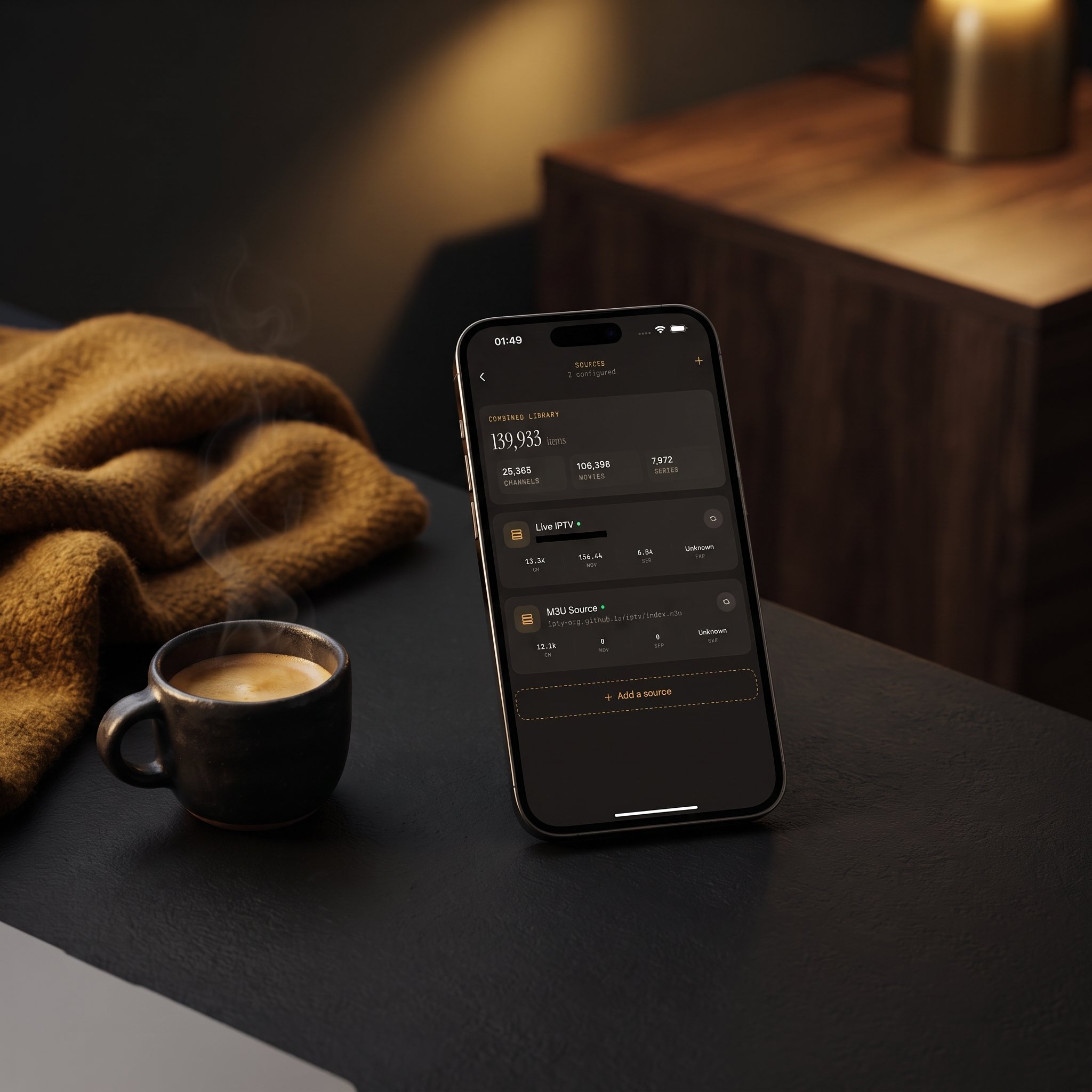
Once a source is added, Maximus loads it into your combined library: live channels, movies and series from every source you've added, browsable in one place instead of across separate apps or logins. If you have more than one provider, add the second one the same way. You're not choosing one source over another; you're combining them. (On Android, multiple sources are part of Premium, and monthly and annual plans come with a 7-day free trial.)
What Should You Watch First?
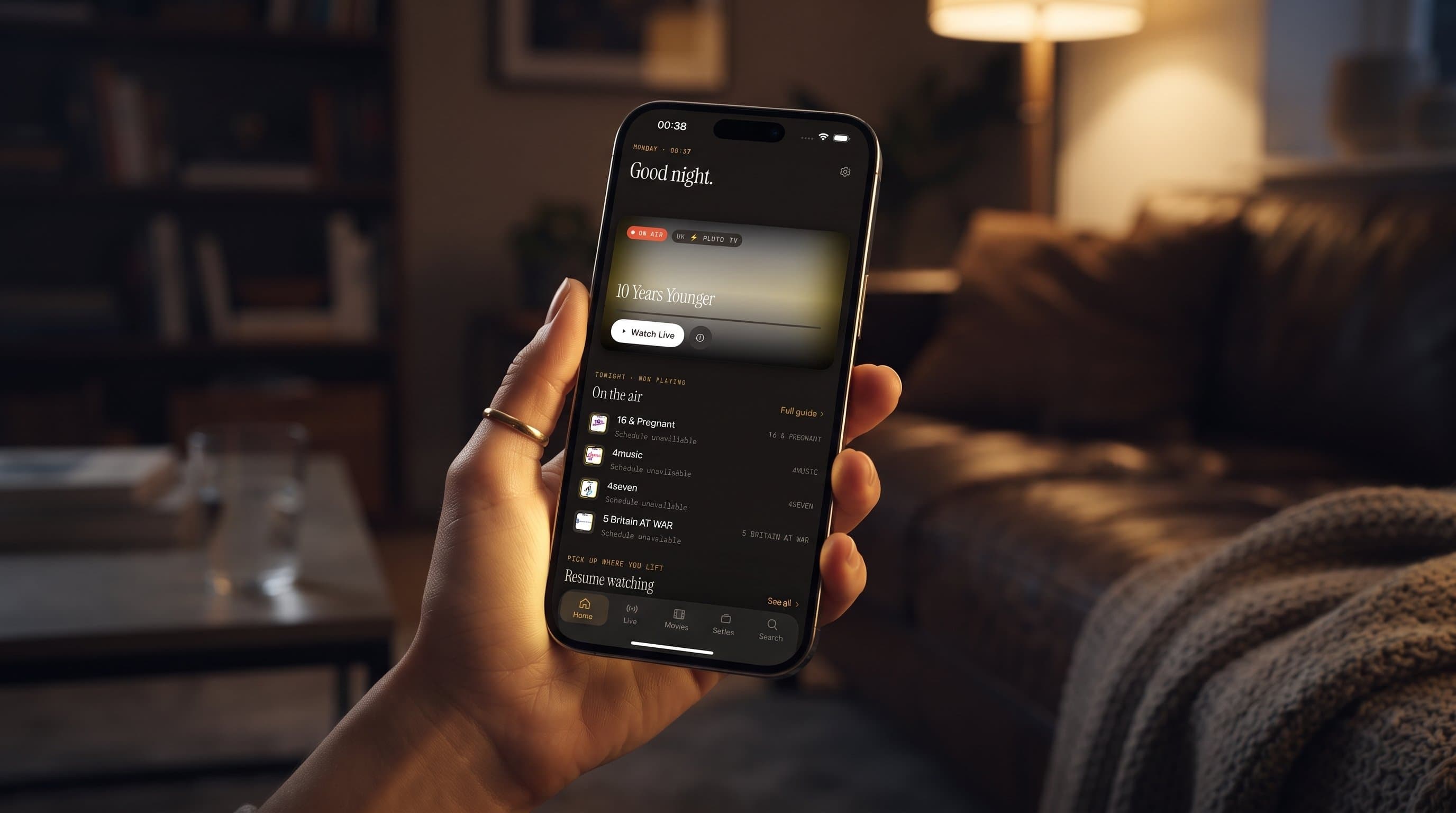
When your source has finished loading, the Home screen is where you'll land, and it's designed to answer "what's on right now?" before you've typed anything. It highlights what's currently on air in your library, and once you've started watching something, a Continue Watching row lets you jump back in. It's a quick way to get from "app just opened" to "watching something" in your first few minutes.
For anything more specific, the EPG (Electronic Program Guide) is the other tool worth learning straight away. It's a timeline grid showing what's airing now and later across your channels, with filters for Sports, Movies, Kids and Favorites. Our guide to how the TV guide works goes deeper.
Live TV is also grouped by country, with country filters, which makes a big international lineup far easier to browse. And if you know what you want but not where it is, universal search looks across live channels, movies and series at once, so you're not guessing which section to open.
How Do You Get Maximus IPTV Player Onto Your TV?
You don't need a complicated second setup. The right route depends on the TV:
- Android TV or Google TV: install Maximus from the same Google Play listing and use the native TV interface with your remote.
- Apple TV: there's no Apple TV app. Play something on your iPhone or iPad and send it to the TV with AirPlay, Apple's wireless streaming protocol.
- A Chromecast or a TV with Chromecast built in: from an iPhone or iPad, tap the cast icon and pick your TV. Chromecast (also called Google Cast) is Google's casting standard, and it isn't limited to Android devices.
One detail trips people up, so it's worth being precise: casting comes from the iPhone and iPad app. The Android phone and tablet app doesn't cast, so on the Android side the TV route is the native Android TV app. Our AirPlay vs Chromecast guide walks through both options step by step.
Should You Set Up Parental Controls in Week One?
Yes, and it's a single-screen job, so there's no reason to put it off. Maximus IPTV Player's parental lock hides adult content behind a PIN. You set the PIN once, and from then on adult content stays out of view until someone enters it. On iPhone and iPad you can also unlock with Face ID. On Android, the lock re-arms automatically, so you don't have to remember to switch it back on. (On Android, the parental lock is part of Premium.)
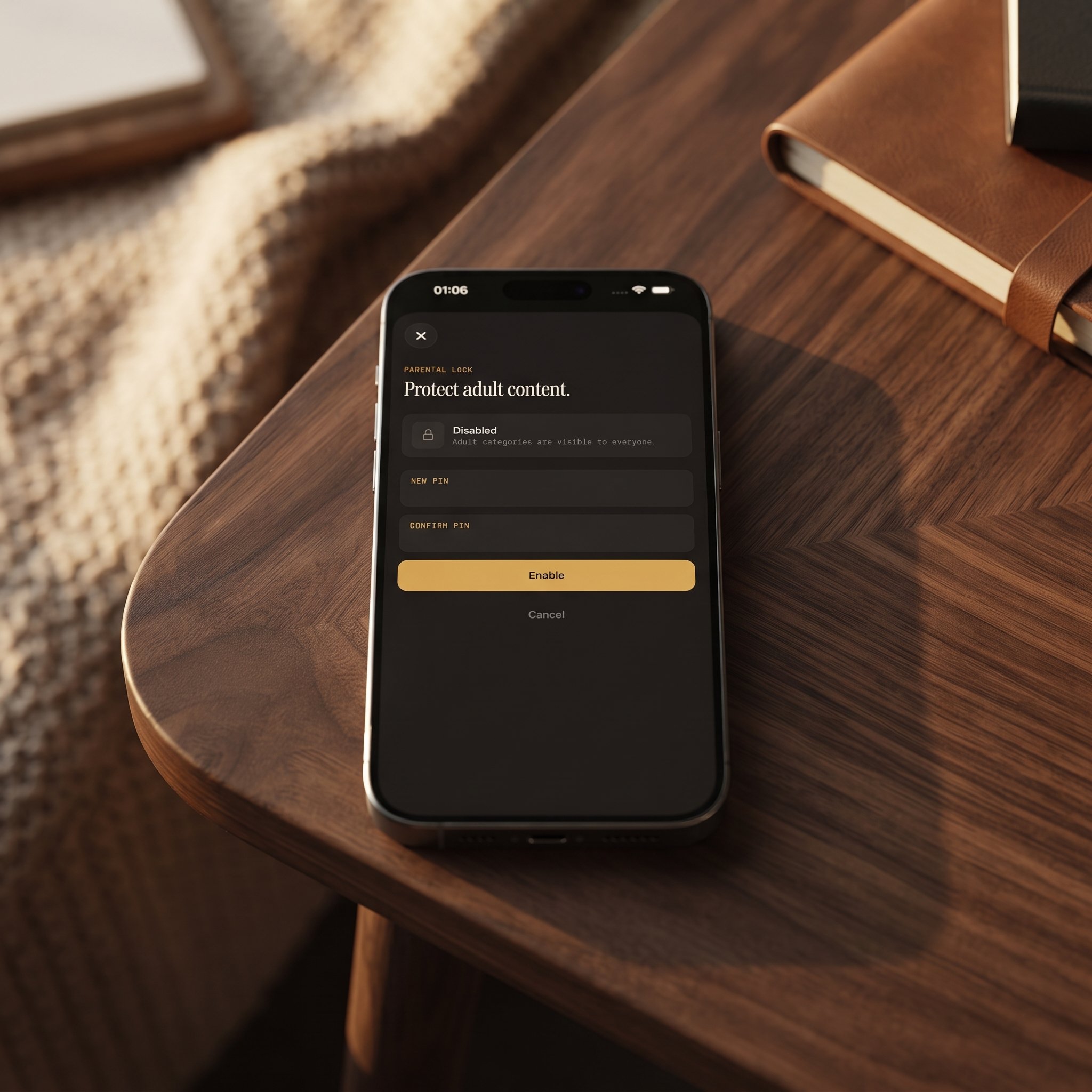
If kids or other family members will use the same device or TV, this five-minute step is much easier to do before the library is in daily use than after. It also pairs naturally with learning the country filters and Favorites early, which make the library easier for everyone in the house to browse on their own. Our guide to IPTV parental controls explains how the PIN lock works in more detail.
What About Offline Downloads and Multiple Devices?
By week two, two more features tend to matter. The first is offline downloads: you can save movies and series episodes to watch without a connection, which is handy for a commute, a flight or a patchy connection at home. On Android, offline downloads are part of Premium.
The second is using the app on more than one screen. Favorites and Continue Watching help you pick up the habits you built in week one, and on iOS, iCloud keeps your playback progress in sync between iPhone and iPad, so you can start an episode on one and finish it on the other. There's no sync between iOS and Android, so if your household mixes an iPhone with an Android TV, add your source on each device.
What Are the Most Common First-Week Hiccups?
A handful of small issues account for most early questions:
- Buffering or freezing right after setup. This is usually the connection between you and your provider rather than the app. Check that your source loaded correctly under Sources, then test your internet speed.
- A source that won't load. Double-check the server address, username, password or playlist URL. A single typo is enough to stop it. Our IPTV playlist troubleshooting guide covers the fixes.
- A blank channel. This is usually a stream problem at the provider's end rather than a Maximus setting. Try another channel to confirm.
- 4K looking softer than expected. Picture quality depends on the resolution your source actually delivers. No player can turn a lower-resolution stream into true 4K.
FAQ
Is Maximus IPTV Player free?
Yes, it's free to download on both the App Store and Google Play, with an optional Premium subscription. On Android, Premium unlocks the full TV guide, offline downloads, parental lock, source refresh and multiple sources, and monthly and annual plans include a 7-day free trial.
Does Maximus provide channels or IPTV subscriptions?
No. Maximus is a player app. You bring your own legal Xtream Codes login or M3U/M3U8 playlist, and the app organizes and plays it. This guide covers setting up the source you already have, not finding one.
Can I use Maximus on my phone and my TV?
Yes. On Android, the same Google Play listing covers phones, tablets and Android TV. On Apple devices, you use the iPhone or iPad app and reach your TV with AirPlay or Chromecast.
Does casting work from an iPhone to a non-Apple TV?
Yes. Chromecast works from the iPhone and iPad app, so you can send video to a Chromecast device or a TV with Chromecast built in. AirPlay is the option for Apple TV and AirPlay-compatible TVs.
How long does the first-week setup take?
Adding a source is usually a quick job, as long as you have your details ready, and the parental PIN takes one short screen. Everything else, from Favorites and guide habits to downloads, is optional polish you can add gradually.
Getting Started
The honest version of first-week advice is that most of it fits into your first sitting: add your source, let Maximus IPTV Player build your combined library, and set a parental PIN if you need one. Everything else, from Favorites to guide habits to getting the picture onto the big screen, tends to follow naturally once the basics are in place.
Maximus IPTV Player is free to download on the App Store for iPhone and iPad, and on Google Play for Android phones, tablets and Android TV.
Written by
Maximus IPTV Team