IPTV Parental Controls: How the PIN Lock Works
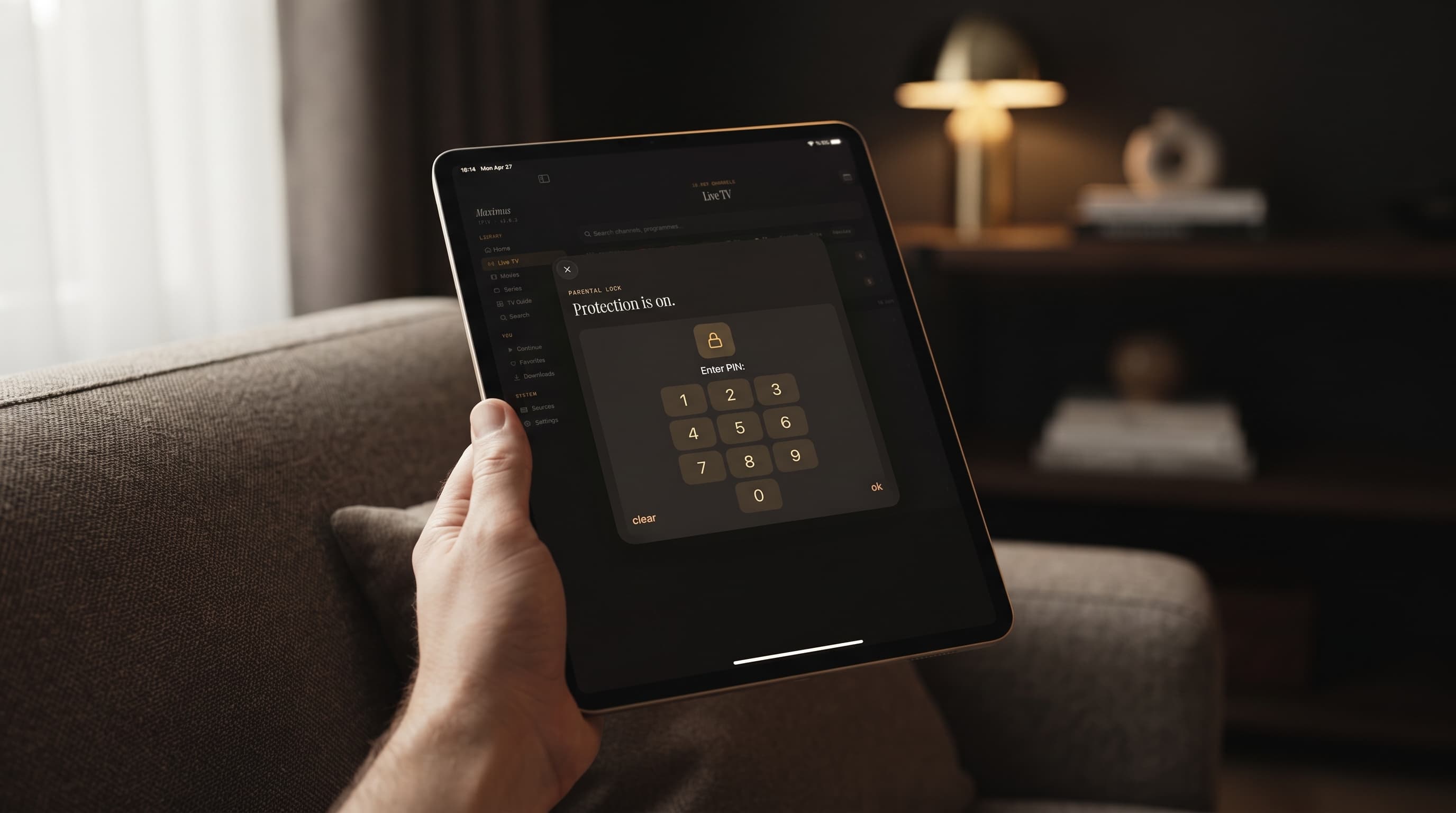
Saturday morning. The match is on in the living room, the family iPad is on the coffee table, and your six-year-old can scroll through channels faster than you can make a cup of tea. An IPTV playlist left wide open is one accidental tap away from content that has no business being in front of a child. IPTV parental controls close that gap, and in Maximus IPTV Player they're quick to switch on.
This guide starts with the setup, because that's what most parents are looking for. After that it covers what the PIN lock protects, what it doesn't, and how to cover every screen in the house.
Key Takeaways
- One PIN, adult content hidden. Maximus IPTV Player's parental lock hides adult content behind a PIN you choose. The rest of the library stays easy to browse.
- Face ID on Apple devices. On iPhone and iPad an adult can unlock with a glance. On Android the lock re-arms by itself, so nobody has to remember to switch it back on.
- A gate, not a filter. The lock doesn't rate every title or limit screen time. Pair it with iOS Screen Time or Google Family Link.
- Every screen counts. Set it up on each device your kids use, including an Android TV or Google TV box in the living room.
- Android plan note. On Android the parental lock is part of Premium. Monthly and annual plans come with a 7-day free trial.
How Do You Set Up the PIN Lock in Maximus IPTV Player?
Setup is short on purpose. There's no account to create and no email to confirm.
- Open Maximus IPTV Player and go to Settings.
- Choose Parental Lock. The screen explains that it protects adult content.
- Enter a new PIN (Personal Identification Number, the short numeric code only you should know), then type it again to confirm.
- Tap Enable. Protection starts right away.
- On iPhone or iPad, turn on the Face ID option if you'd rather unlock with a glance than type the code.
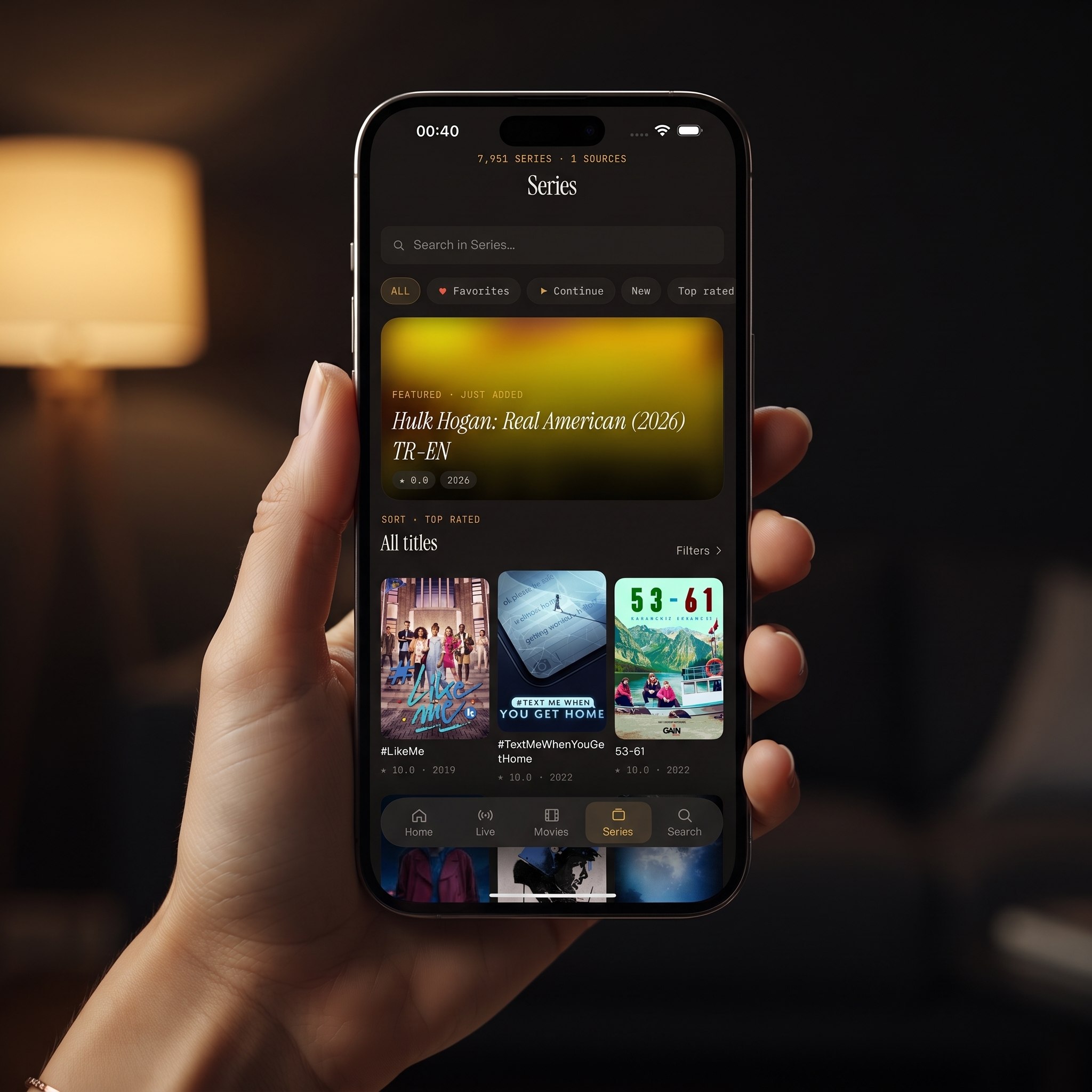
Once it's on, the same screen shows that protection is active and offers a Change PIN option. Before you hand over a device, open that screen to check the lock really is on.
A few tips for picking a PIN that actually protects anything:
- Skip the obvious codes. Birthdays, "0000", "1234" and your phone's unlock code are the first things a clever child will try.
- Don't reuse the device passcode. If the kids know how to unlock the iPad, a separate PIN gives you a second, independent barrier.
- Watch who's watching. Children learn codes by watching fingers. This is where Face ID earns its place on iPhone and iPad.
- Store it safely. Your phone's password manager beats a sticky note on the TV cabinet.
What Does the Parental Lock Actually Protect?
It helps to be clear about how IPTV (Internet Protocol Television, meaning TV and on-demand video delivered over the internet) works in an app like this. Maximus is a player only. You bring your own legal IPTV subscription and add it with an Xtream Codes login (a username, password and server address from your provider) or an M3U playlist (a plain-text file listing channel names and stream addresses). Whatever your provider includes shows up in one combined library of live TV, movies and series.
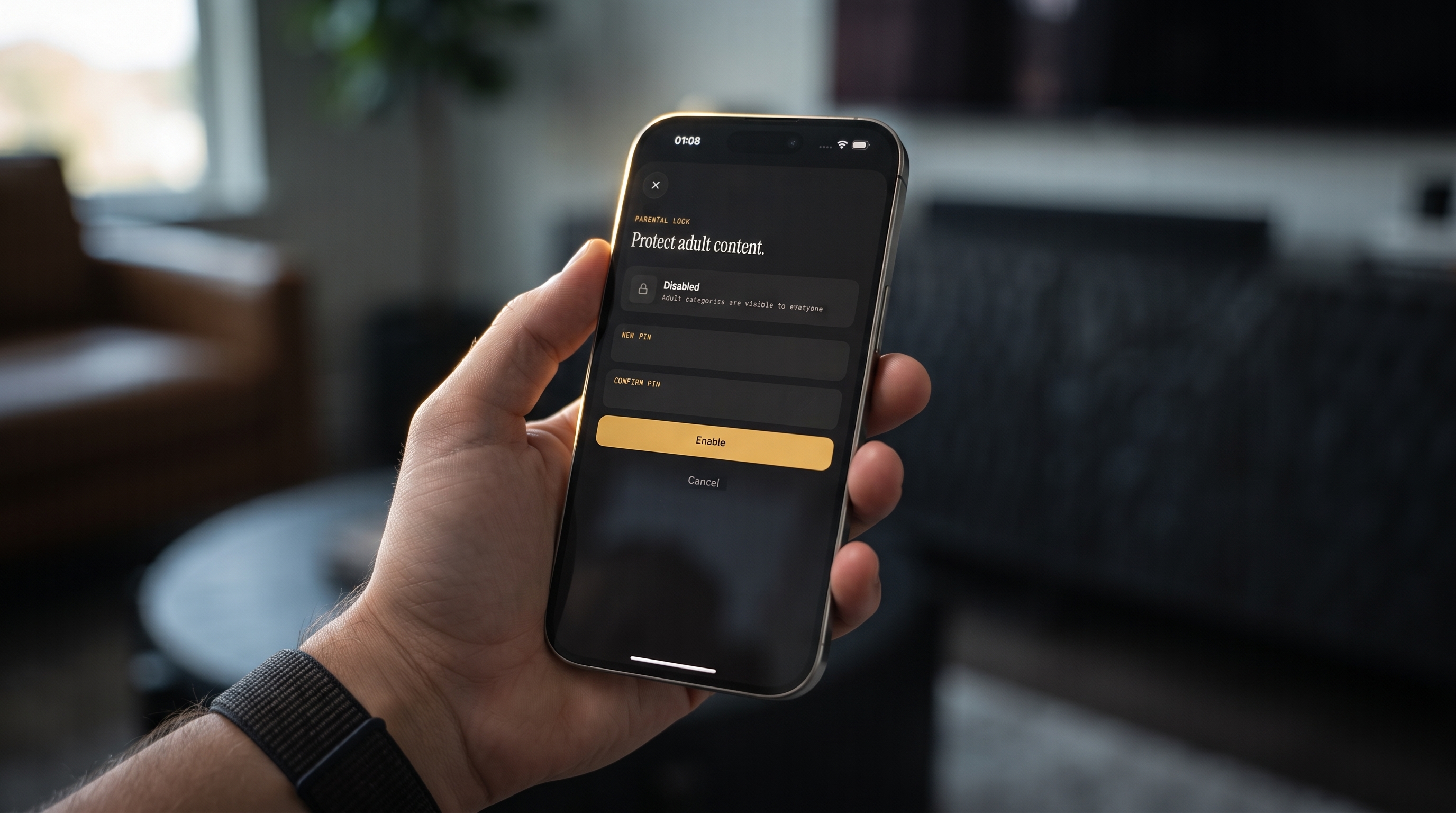
The parental lock sits in front of the adult content in that library and hides it behind the PIN. It isn't just blurring a thumbnail while the title stays visible. The rest of the app stays open, so a child can still:
- Pick up a cartoon from Continue Watching
- Open their Favorites
- Browse the Kids filter in the TV guide
That scope is deliberate. An all-or-nothing lock screen pushes families into sharing the PIN just to get past it. A narrow lock means adults only need the code for the content that really needs protecting.
What the lock is not:
- Not an age-rating system. It doesn't sort every movie or episode by rating. It's built around adult content, not a hand-picked list of shows.
- Not a screen-time limit. It won't stop a child from watching cartoons at 2 a.m.
- Not a replacement for choosing a good source. If your playlist mixes mature programming into general-entertainment categories, no player can guess what's inside every stream. Choose a provider whose lineup suits a family home.
How Is the PIN Lock Different From Screen Time or Family Link?
Parents often ask whether they need both. Usually, yes, because they do different jobs.
- iOS Screen Time (Apple's built-in device controls) decides when and how long a device can be used and which apps can open. It can't reach inside Maximus to hide one category of content.
- Google Family Link does a similar job on Android phones and tablets: app approvals, daily limits and bedtime schedules.
- The Maximus parental lock decides what is reachable once the app is open.
One more Screen Time tip: the classic workaround kids find is deleting and reinstalling an app. On iPhone and iPad, go to Settings, then Screen Time, then Content & Privacy Restrictions, and set app deletion to Don't Allow. Family Link offers similar app controls on Android.
How Do the Kids Filter and Favorites Make Sharing Easier?
A lock stops the wrong content. A good layout helps kids find the right content, so they're less likely to wander in the first place.
Maximus includes an EPG (Electronic Program Guide, the scrolling timeline of what's on now and next). It has filter tabs for Favorites, Sports, Movies and Kids. Point a child at the Kids filter and they get a short, relevant slice of the guide instead of hundreds of channels. A full provider lineup can be enormous once you count every regional and international feed. For more on the guide, see how the TV guide actually works.
Favorites and Continue Watching do the rest. Mark the few kids' channels and shows your children actually watch as favorites, and they can get back to them without touching anything else. It works as a curated kids' corner inside the same app, with no separate profile to maintain. Our guide to Favorites and Resume Watching covers the details.
Does the Lock Work the Same on iPhone, iPad and Android?
The idea is the same everywhere: a PIN in front of adult content. A few details differ by platform.
- iPhone and iPad: Set a PIN, then optionally add Face ID. The PIN stays as a fallback when Face ID can't read your face in low light or when you're wearing a mask. The same iOS app also runs on Macs with Apple M1 or later and on Apple Vision.
- Android phones and tablets: PIN-based, and the lock re-arms automatically, which suits families who forget to lock things again after an adult has watched. The parental lock is a Premium feature on Android, with a 7-day free trial on monthly and annual plans.
- Android TV and Google TV: Same app, same Google Play listing, with a TV interface built for the remote. You enter the PIN with the directional pad instead of tapping numbers.
Settings don't carry across platforms. iCloud keeps playback progress in sync between an iPhone and iPad, but there's no sync between iOS and Android. The simple rule is to walk through the Parental Lock screen on every device a child might use. Do it before you hand it over, not after.
What About the Living-Room TV?
The TV is usually the most shared screen in the house, and a remote is easier for a small child to use than a touchscreen.
- Android TV or Google TV: Install Maximus from Google Play and set the PIN directly on the TV.
- Apple TV: There isn't an Apple TV app. You reach Apple TV by using AirPlay (Apple's wireless streaming technology) from an iPhone or iPad. The lock lives in the app on the phone or tablet, and you choose what plays there, so casting doesn't open a side door around the PIN.
- Chromecast TVs: From an iPhone or iPad you can also cast with Chromecast (Google's casting technology). The same logic applies: content is picked inside the locked app first.
If you're setting up screens around the home, our multi-room IPTV guide walks through the options room by room.
Single PIN or Separate Profiles: What Works for Families?
Maximus uses a single PIN rather than per-person profiles, and for most households that's the easier setup. Adults know the code and children don't. There's nothing to manage beyond that.
The trade-off is that one PIN has no in-between levels. If you want a teenager's tablet to see a different lineup from a young child's iPad, use the devices themselves:
- Give each device its own source setup. Maximus can combine multiple sources into one library. The parents' phone can hold the full subscription while a child's tablet only loads a family-friendly playlist from a legal provider.
- Lock every shared device. Keep the PIN on anything that holds the full lineup.
- Use the Kids filter as the default view on the youngest viewers' devices.
What If a Child Still Reaches Something They Shouldn't?
Work through this short checklist:
- Is the lock actually on? It's opt-in. Open Settings, then Parental Lock, and confirm that protection is enabled.
- Is it on this device? A lock set on your phone doesn't protect the kids' tablet.
- Has the PIN leaked? If you suspect a child has seen it, use Change PIN and switch to Face ID on iPhone and iPad.
- Is the content labeled as adult? Mature programming that your source files under a general category can slip past any category-based lock. That's a source problem, not a player problem.
- Is the app still installed as you left it? If a child can delete and reinstall apps, block that with Screen Time or Family Link.
FAQ
Does the parental lock block the whole app?
No. It hides adult content behind the PIN. Favorites, Continue Watching and the Kids filter in the TV guide stay available without the code.
Can I use Face ID instead of typing the PIN?
On iPhone and iPad, yes. Turn on the Face ID option on the Parental Lock screen. The PIN still works as a fallback. Android uses the PIN.
What if I forget my PIN?
Treat it like any passcode and keep it in a password manager. If you're locked out, contact the Maximus team through the support page.
Does the lock sync between my iPhone and my child's Android tablet?
No. There's no sync between iOS and Android, so set the lock separately on each device.
Is the parental lock free?
Maximus is free to download, with an optional Premium subscription. On Android, the parental lock is one of the Premium features, and monthly and annual plans include a 7-day free trial.
Does AirPlay or Chromecast let kids get around the lock?
No. Casting from an iPhone or iPad sends what you picked in the app to the TV. The adult content is already hidden behind the PIN in the app you're casting from.
Simple Protection, Every Screen
Setting up IPTV parental controls takes less time than reading this article. The iPad can stay on the coffee table and the living-room TV can serve everyone from breakfast cartoons to the late match. When the little ones learn to scroll, the PIN lock is already in place.
Maximus IPTV Player is on the App Store for iPhone, iPad, Apple Silicon Macs and Apple Vision, and on Google Play for Android phones, tablets and Android TV. Install it, add your own legal IPTV source, and turn on Parental Lock before you hand the remote over.
Written by
Maximus IPTV Team