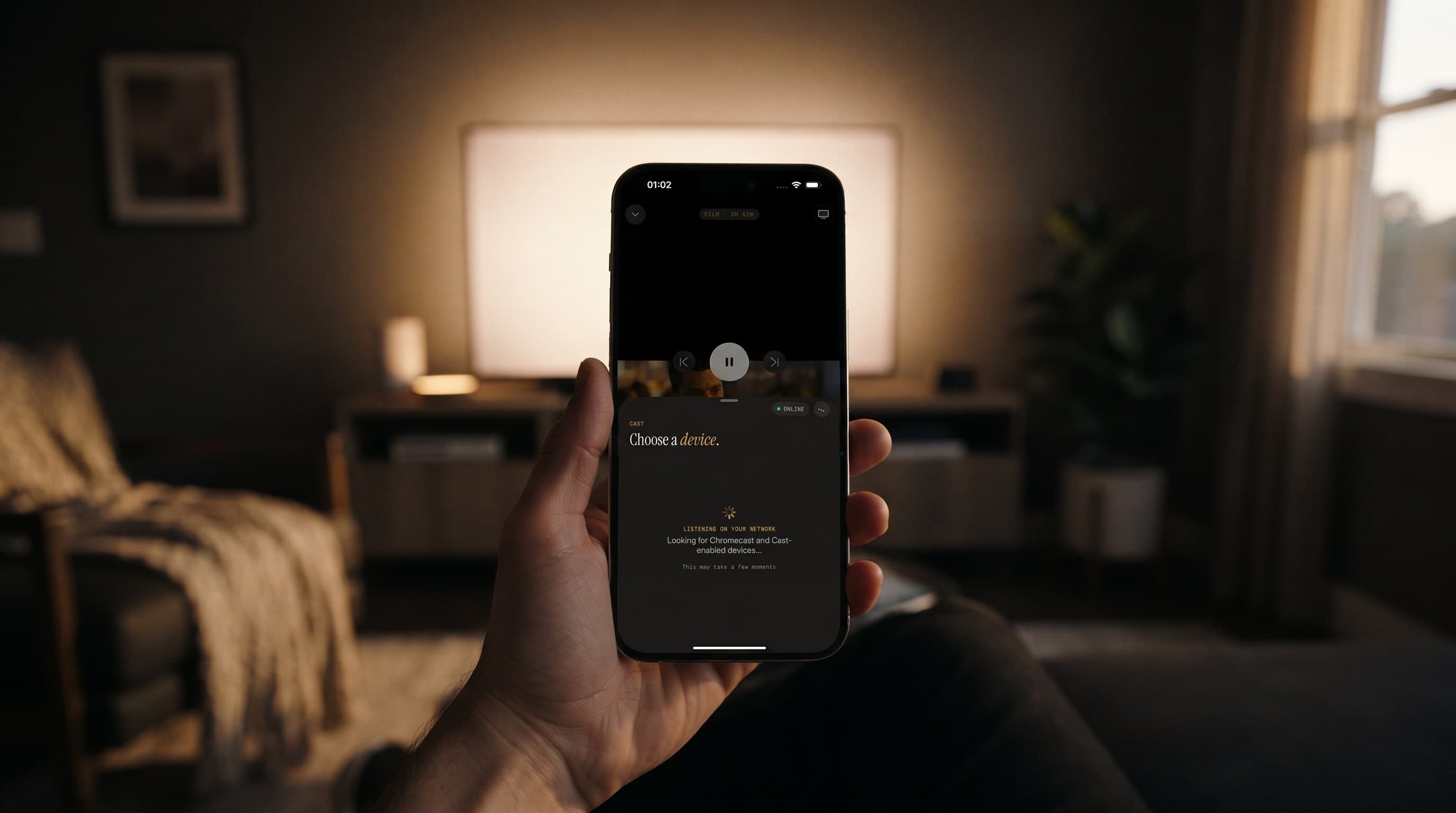
Casting Not Working? Fix AirPlay and Chromecast on iPhone
The game's on, the popcorn's ready, and you tap the cast icon in Maximus IPTV Player expecting your TV to light up in two seconds. Instead you get a spinning wheel, an empty device list, or a stream that connects and then stalls. Casting problems are frustrating, but most of them come from a small handful of causes, and almost none of those are bugs in the app.
This guide explains why casting breaks and how to fix AirPlay and Chromecast (also called Google Cast) on iPhone and iPad. It also covers what to do when the picture reaches the TV but the sound doesn't, or the other way around. In Maximus, casting is part of the iOS app, which supports both AirPlay and Chromecast. The Android app doesn't cast. On Android TV and Google TV, Maximus runs natively on the TV instead, so there's nothing to troubleshoot there.
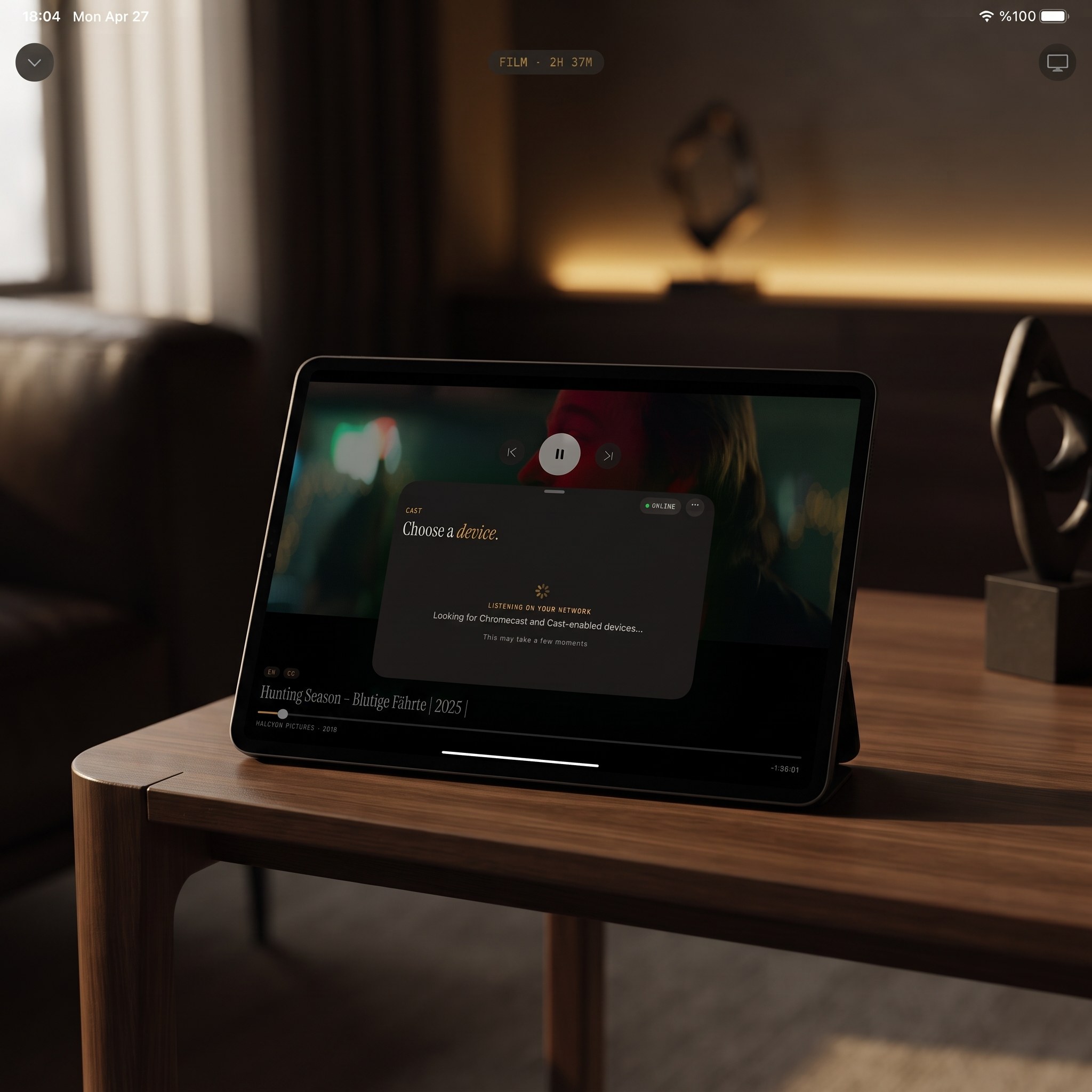
Key Takeaways
- When casting fails, the cause is almost always your network, not the app. Your iPhone and your TV can't find each other on the local Wi-Fi.
- AirPlay is Apple-only and casts from iPhone or iPad to an Apple TV or AirPlay 2 TV. Chromecast works from the same iOS app and casts to Chromecast dongles and TVs with Google Cast built in.
- The most common fix is putting your iPhone and your TV on the same Wi-Fi network. Watch out for routers that give the 2.4 GHz and 5 GHz bands different network names.
- For Chromecast on iOS, make sure Local Network access is turned on for Maximus. Without it, Cast devices never show up.
- If you get picture but no sound (or sound but no picture), the problem is usually the stream or the audio track you picked, not casting.
- The Android app has no casting. On an Android TV or Google TV, install Maximus directly instead.
Why Does Casting Stop Working in Maximus?
AirPlay and Chromecast both work the same basic way. Your iPhone or iPad looks for a receiver (an Apple TV, a smart TV or a Chromecast dongle) that's announcing itself on your local network. Then it hands that receiver the stream to play. If the two devices aren't really on the same local network, they can't see each other, even if both show as connected to Wi-Fi. The cast list in Maximus IPTV Player will stay empty or keep searching.
That's why casting problems are rarely about the app. Once there's a connection, Maximus's job is to pass along the stream from your Xtream Codes login or M3U/M3U8 playlist. If the app never finds a receiver, nothing else matters yet.
How Do I Fix AirPlay Problems on iPhone and iPad?
AirPlay is Apple's casting technology. In Maximus it works from iPhone and iPad, and it's the only way to watch Maximus on an Apple TV, since there's no Maximus app for Apple TV. If your Apple TV isn't showing up, try these steps in order:
- Check that both devices are on the same Wi-Fi network. Compare the network name in your iPhone's Settings with the one on your Apple TV. If your router uses separate names for 2.4 GHz and 5 GHz, this is the most likely culprit. An Apple TV is often on 5 GHz, while an iPhone in a far room may have quietly switched to 2.4 GHz.
- Restart the Apple TV. AirPlay can get stuck after the Apple TV has been idle a long time. Go to Settings, then System, then Restart. It takes under a minute.
- Make sure AirPlay is turned on on the Apple TV, under Settings, then AirPlay and HomeKit. A software update or a changed "Allow Access" setting can block your iPhone.
- Close Maximus and open it again. If the app sat in the background for a long time, its list of AirPlay devices can go out of date. Opening it fresh makes it search again.
If AirPlay works from other apps but not from Maximus, step 4 is usually the fix. The device list was out of date, and nothing is wrong with AirPlay itself.
How Do I Fix Chromecast Problems on iPhone and iPad?
Maximus uses Chromecast to reach Chromecast dongles, Google TV streamers and TVs with Google Cast built in. You don't need an Android phone for this. The iOS app finds Cast devices from the same cast icon it uses for AirPlay. If your Chromecast won't show up:
- Same network, same band. Just like AirPlay, Chromecast only finds devices on the same local Wi-Fi network. Check this first every time.
- Turn on Local Network access. iOS asks for this permission the first time an app looks for Cast devices. If it was denied, open Settings, go to Privacy & Security, then Local Network, and turn Maximus back on.
- Give it a moment. A short wait while the app scans your network is normal. It can take several seconds for Cast devices to appear on a busy network, especially in larger homes with mesh Wi-Fi.
- Restart the Chromecast. Unplug it for ten seconds and plug it back in. This fixes the common case where the Chromecast shows as online in your router's settings but won't appear in apps.
- Check for a Chromecast update. Google sometimes installs updates that make the device briefly disappear. The Google Home app shows when one is in progress.
- Guest networks and VPNs block discovery. If your iPhone is on a VPN (Virtual Private Network), or on a guest network that keeps devices apart, Chromecast devices on your main network won't show up no matter how often you retry. For more on when a VPN helps and when it gets in the way, read our VPN guide for IPTV.
What's the Real Difference Between AirPlay and Chromecast Troubleshooting?
Both fail for almost the same reason: the devices can't see each other on the network. Where you look for the fix is a little different, though. AirPlay is built deep into Apple's software, so when it breaks, the fix is usually on the iPhone or Apple TV itself: Wi-Fi settings, AirPlay settings or a restart. Chromecast is more sensitive to router settings like client isolation and band steering, and to updates on the Chromecast device.
If you switch between an Apple TV and a Chromecast TV and one always works while the other doesn't, the problem is almost certainly your router or that receiver, not the app. For a side-by-side look at the two, see AirPlay vs Chromecast: How to Cast Maximus IPTV to Your TV.
How Do I Know If My Wi-Fi Network Is the Problem?
Here's a quick test. Open Wi-Fi settings on your iPhone and check which network it's on, then check the network on your TV or streaming device. Many routers create two networks: one ending in "-5G" for the 5 GHz band and one with a plain name for 2.4 GHz. It's very common for the phone to be on one and the TV or Chromecast on the other.
Both devices must be on the same network, no exceptions. If they're split, move them onto the same one and try casting from Maximus IPTV Player again. That one change fixes a big share of "device not found" problems.
If the TV shows up and connects but the picture keeps stuttering, the network is too slow rather than disconnected. As a rough guide, an HD stream needs about 5 to 8 Mbps and a 4K stream about 15 to 25 Mbps. Our guide to fixing IPTV buffering walks through the next steps.
What If the Picture Casts but the Sound Doesn't (or the Other Way Around)?
This is a different problem from your TV not showing up, and it rarely has anything to do with AirPlay or Chromecast. The cast connects and playback starts, but audio or video is missing, or the picture freezes while the sound keeps playing. That usually points to the stream itself, not the casting that carries it.
Start by playing the same channel on your iPhone without casting. If it also has problems there, check your source. Make sure your Xtream Codes account is active and your playlist link hasn't changed. A shaky source can cause exactly this: the cast connects right away (that part doesn't depend on your playlist), but the stream falls apart a few seconds later because the HLS (HTTP Live Streaming) segments aren't arriving cleanly.
Also check the audio and subtitle tracks. International channels often carry several audio languages. If the wrong track is selected, or a track your TV can't play, you can lose sound. Open the track options in the player controls and try another audio track before you assume something's broken.
Why Is There No Cast Button in the Android App?
The Maximus Android app doesn't include casting, on phones or on tablets. That's by design, not a bug you can fix. For TV viewing on Android, install Maximus on your Android TV or Google TV from the same Google Play listing. It runs natively there with a remote-friendly interface, so you don't need to cast. On Android phones and tablets, you get Picture-in-Picture and background playback instead.
FAQ
Does Maximus support both AirPlay and Chromecast?
Yes, in the iPhone and iPad app. AirPlay casts to Apple TV and AirPlay 2 TVs. Chromecast casts to Chromecast dongles, Google TV streamers and TVs with Google Cast built in.
Can I cast from an iPhone to a Chromecast?
Yes. People often assume Chromecast is Android-only, but the Maximus iOS app supports it alongside AirPlay. If it doesn't show up, check Local Network access in iOS Settings.
Why does the cast list keep searching and never find anything?
Almost always, your iPhone or iPad and your receiver aren't on the same Wi-Fi network. They may be split across your router's 2.4 GHz and 5 GHz bands, or one of them may be on a VPN or guest network. For Chromecast, a blocked Local Network permission causes the same thing.
Do I need fast Wi-Fi to cast 4K?
You need a strong, steady connection, roughly 15 to 25 Mbps for a 4K stream. Casting can't make a stream sharper than what your provider sends, though. If the source is HD, the TV shows HD.
Why won't my Android phone cast to my Apple TV?
Two reasons. AirPlay only works on Apple devices, and the Maximus Android app doesn't cast. To watch Maximus on an Apple TV, AirPlay from the iPhone or iPad app. For more on this, see our Apple TV guide.
Is this a Maximus IPTV Player bug?
Almost never. AirPlay and Chromecast both depend on devices finding each other on your network. Casting failures in any app, not just Maximus, usually come from network settings rather than the app's code.
Getting Back to Casting Smoothly
A dead cast icon right before kickoff feels like a big deal, but the fix is usually simple. Get both devices onto the same Wi-Fi network, allow Local Network access for Chromecast, give it a few seconds to find your TV, and restart the receiver if it's been idle a while. Once your iPhone or iPad and your TV can see each other, Maximus hands off to AirPlay or Chromecast right away.
Maximus is free to download, with an optional Premium subscription.
- Download Maximus on the App Store for iPhone and iPad, with AirPlay and Chromecast casting.
- Download Maximus IPTV Player on Google Play for Android phones, tablets and Android TV / Google TV.
Written by
Maximus IPTV Team