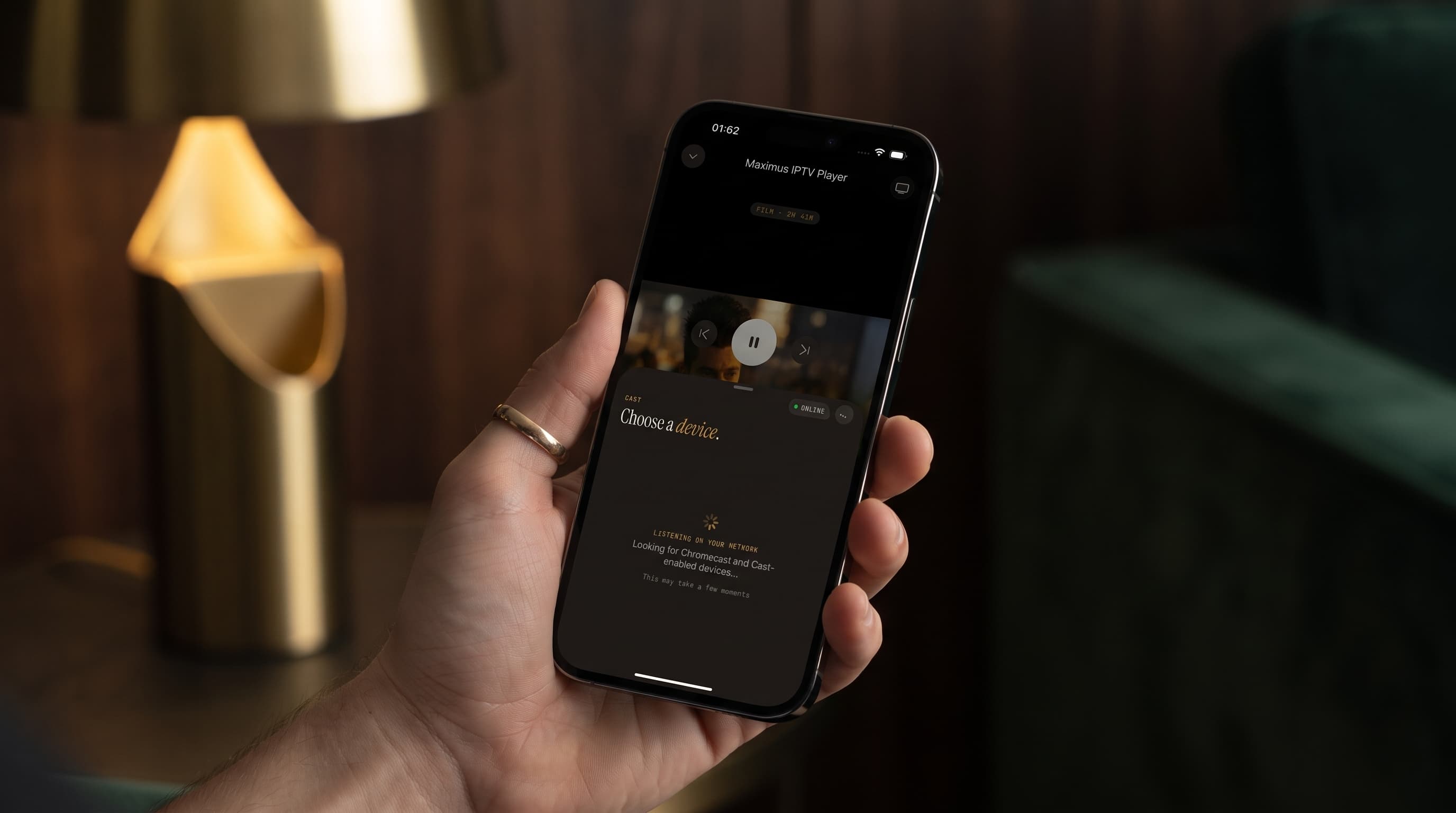
IPTV Subtitles and Multi-Audio Tracks on iPhone and Android
You finally find the international channel or series you've been looking for, hit play, and the audio is in a language you don't speak, with no subtitles in sight. It's one of the most common IPTV frustrations, and it usually isn't a content problem. It's a track-selection problem. Maximus IPTV Player, the IPTV player for iPhone, iPad, Android phones, tablets and Android TV, lets you pick subtitle and audio tracks right from the player, as long as the stream actually carries them. This guide explains how those tracks work, how to switch them, and what to do when the language you want just isn't there.
Key Takeaways
- Wrong-language audio or missing subtitles is almost always a track-selection issue or a source issue, not a missing app feature.
- A single IPTV stream can carry several audio tracks and several subtitle tracks at the same time. The player's job is to show them and let you choose.
- Audio tracks and subtitle tracks are chosen separately, so you can pair original-language audio with subtitles in your own language.
- If no subtitle option appears, the stream almost certainly doesn't contain one. No player can add subtitles that were never encoded.
- Maximus offers subtitle and audio track selection on both iOS and Android.
- Movies and series usually carry richer language options than live channels.
What Do Subtitles and Multi-Audio Tracks Actually Mean in IPTV?
IPTV (Internet Protocol Television) is TV delivered over your internet connection instead of cable or satellite. Much like a DVD or Blu-ray disc, a single IPTV stream can bundle more than one audio track and more than one subtitle track together.
Most IPTV streams are delivered with HLS (HTTP Live Streaming), a protocol that sends video in small segments and supports multiple audio renditions and subtitle tracks inside the same stream. Your channels usually reach the app through an M3U or M3U8 playlist (a text file listing stream addresses; M3U8 is the UTF-8 version most providers use) or through an Xtream Codes login (a server address plus username and password that your provider gives you).
Here's the key point: whether a given channel actually uses multiple tracks is decided by whoever encoded the stream, not by the playlist format and not by the player.
What's the Difference Between Audio Tracks and Subtitles?
An audio track is a full alternate soundtrack, such as the original language, an English dub or a Spanish dub. A subtitle track is text displayed over whatever audio is playing. A stream might offer two to four audio tracks and a separate set of subtitle languages, and the two are controlled independently.
Mixing them up is the most common reason people think "subtitles aren't working" when the fix is actually an audio-track switch.
Why Does IPTV Play in the Wrong Language by Default?
IPTV plays in the wrong language by default because the stream itself sets a default audio track at the source, and your player has no way of knowing your preference until you tell it. An M3U8 stream can contain several audio renditions, but unless you open the track picker, you get whatever the broadcaster marked as default. That's often the original-language track rather than the dub you wanted.
The good news is that the right track is frequently already there. You just need to select it.
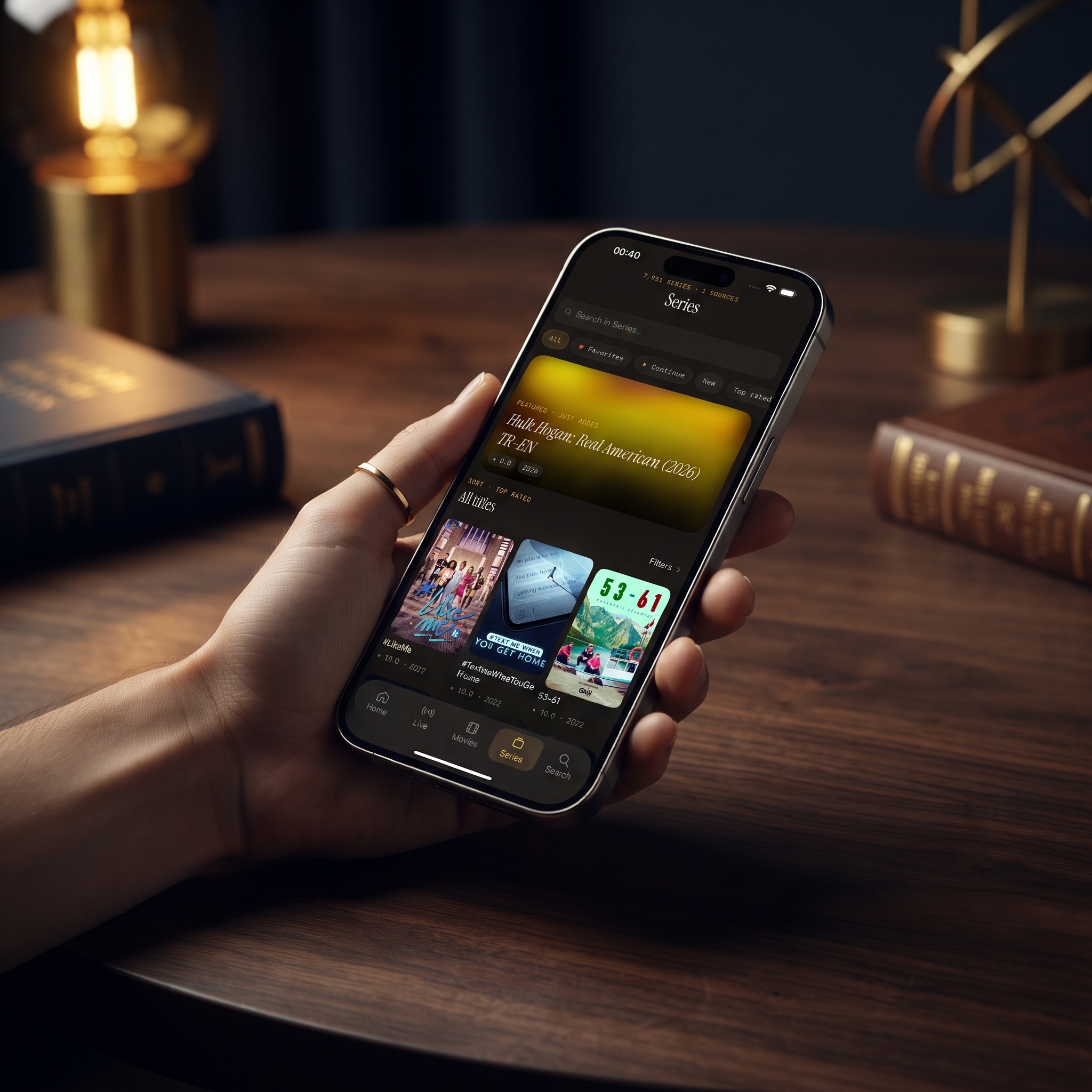
How Do You Switch Subtitles and Audio Tracks in Maximus IPTV Player?
You switch tracks from the player controls while something is playing. The exact icon looks a little different between the iOS and Android versions, but the flow is the same:
- Start playing a live channel, a movie or a series episode.
- Bring up the player controls (tap the screen on a phone or tablet, or use the remote on Android TV).
- Open the track selector for audio and subtitles.
- Choose the audio language you want from the list the stream provides.
- Choose a subtitle language, or turn subtitles off.
The list you see is specific to that stream. A European sports channel might offer English and German commentary, while a Latin American entertainment channel offers Spanish and Portuguese. The app shows what that particular stream contains rather than a fixed, generic list of languages.

Does It Work the Same on iPhone, iPad, Android and Android TV?
Track selection is part of Maximus IPTV Player on both platforms, so a stream with three audio tracks and two subtitle languages gives you the same choices on an iPhone, an iPad, an Android phone or tablet, or an Android TV / Google TV device. The Android TV version has its own remote-driven TV interface.
Where the platforms differ is how you get to a big screen:
- iPhone and iPad: you can cast with AirPlay (Apple's wireless streaming technology, which is how you reach an Apple TV) or Chromecast (Google's casting technology for Chromecast and Google TV devices). There is no Apple TV app, so AirPlay is the route to Apple TV.
- Android phones and tablets: the Android app doesn't cast. For the TV, install the same app from Google Play on an Android TV or Google TV device instead.
- Macs with Apple M1 or later and Apple Vision: these run the iOS app, with the same track options.
If you regularly watch on the TV, see AirPlay vs Chromecast: How to Cast Maximus IPTV to Your TV for the full casting walkthrough.
Why Do Some Channels Have More Language Options Than Others?
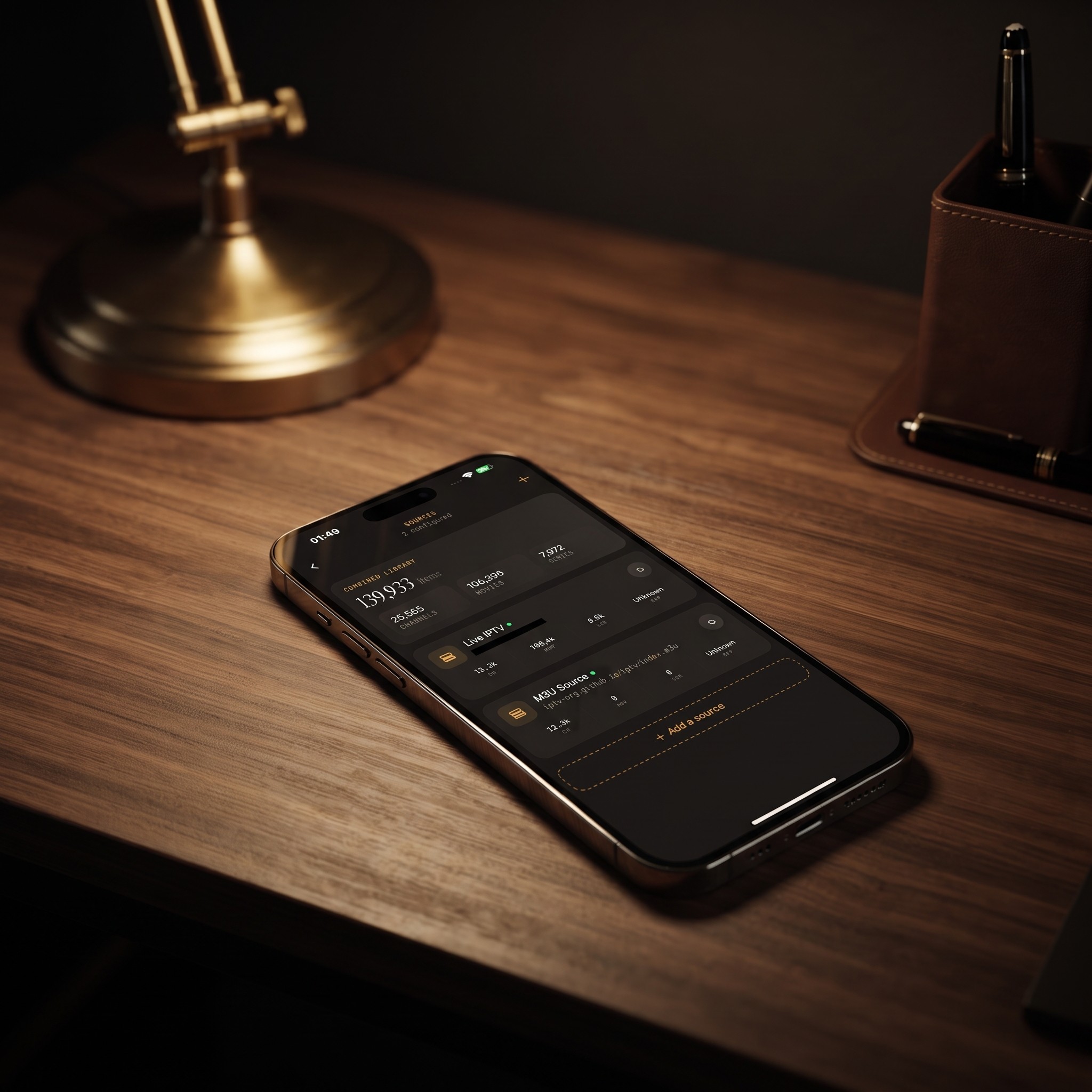
This is the number one reason people think something is broken when nothing is. Maximus IPTV Player is a player: it plays whatever the source stream contains. A few patterns explain most of the differences you'll notice:
- Movies and series vs live TV. On-demand libraries are usually produced for wide international distribution, so they tend to carry more subtitle and dub options than live linear channels.
- Sports broadcasts. Some matches ship with more than one commentary track, for example a home and an away feed, or a neutral international commentary.
- Different sources, same channel name. If you've combined several sources into one library, the same channel can have several audio tracks from one provider and only one from another.
If a specific language matters to you, ask your provider which channels and titles are encoded with multiple tracks. That's the layer where language data lives.
Why Do Subtitles Sometimes Not Appear at All?
Subtitles sometimes don't appear because the source stream simply doesn't include a subtitle track for that content. It's not a device setting and not a hidden app option. If the track selector shows no subtitle choices, that accurately reflects the stream.
Two things are worth knowing here. First, an IPTV player doesn't translate or generate captions; it can only display subtitle tracks that already exist. Second, the fix is usually to find the same content elsewhere: a different channel entry, the on-demand version of a show, or another legal source that includes subtitles.
How Do You Find International Content Worth Watching?
Subtitles only help once you've found something to watch. Maximus includes a few tools that make international content easier to track down:
- Country filters in Live TV. Channels are grouped by country, so you can jump straight to the region you want. International IPTV Channels: Filter by Country in Maximus covers this in detail.
- Universal search. One search looks across live channels, movies and series at once.
- The EPG. An EPG (Electronic Program Guide) is the TV schedule grid showing what's on now and next. Its Sports, Movies, Kids and Favorites filters help you plan around a match or premiere.
- Favorites and Continue Watching. Save the international channels you return to, and pick a series back up where you left off.
Common Subtitle and Audio Problems (and How to Fix Them)
- No subtitle option appears. The stream doesn't include subtitles. Try an alternate source or the on-demand version of the same title.
- Only one audio option shows. The stream carries a single audio track. Check whether your provider offers a multi-language version of that channel.
- You switched audio but the sound didn't change. Give it a few seconds; the new track may need a moment to load. If nothing changes, stop and restart the stream.
- Subtitles are out of sync. Timing is set when the stream is encoded. Restart playback once; if it stays out of sync, report that channel or title to your provider.
- Audio is distorted or cuts out. Switch to another audio track to see if the problem follows. Then check your connection, since weak Wi-Fi can affect audio as well as video. Our guide to IPTV playlist problems covers source-side issues.
- The language you expected isn't listed. Not every stream carries every language. If it isn't in the list, it isn't in the stream.
A Quick Checklist for Multilingual Households
If subtitle or dual-language support is a big reason you're setting up an IPTV player, run through this before assuming something is missing:
- Ask your provider, not just the app. Find out which channels and titles are encoded with multiple audio or subtitle tracks.
- Test with movies or series first. They're the most likely place to find several language options.
- Consider a second legal source. Maximus combines multiple sources into one library, so a provider strong on dubbed movies can sit alongside one strong on live sports.
- Think about each viewer. Kids learning a language might enjoy original audio with subtitles, while a relative who isn't comfortable in the local language may prefer a dubbed track.
- Test the big screen once during setup. If you AirPlay or Chromecast from an iPhone or iPad, confirm your usual channels look right on the TV before movie night.
- Set the parental lock separately. The PIN lock hides adult content and works independently of your language choices.
FAQ
Why does my IPTV app only show one audio option?
The stream itself carries only one audio track. That's a property of the stream, not a limitation of the player. Try the same content from a different channel entry or source that offers multiple languages.
Does switching the audio track change the subtitles?
No. Audio and subtitles are separate choices, so you can combine any available audio language with any available subtitle language, or turn subtitles off entirely.
Does Maximus translate subtitles automatically?
No. It displays subtitle and audio tracks that are already embedded in the stream. It doesn't create translations or captions.
Does video resolution affect which language tracks are available?
No. Resolution describes the picture, while tracks are separate audio and text data. A high-resolution stream can have one audio track, and a standard-definition stream can have several.
Do I need a VPN to get more language options?
No. A VPN changes how your connection is routed and adds privacy, but it doesn't change which audio or subtitle tracks a stream contains. Those come entirely from your source.
Are subtitle and audio options part of Premium on Android?
On Android, Premium unlocks the full TV guide, offline downloads, the parental lock, source refresh and multiple sources. Track selection isn't one of those listed Premium features.
Watching International Content Without the Guesswork
International IPTV doesn't have to mean guessing at a language you don't understand. Once you know that audio and subtitle tracks are separate properties of each stream, finding the right combination is a quick trip to the track selector rather than a troubleshooting session. And when a language truly isn't there, you'll know to look at the source instead of the settings.
Maximus IPTV Player is free to download, with an optional Premium subscription. Get it on the App Store for iPhone, iPad, Macs with Apple M1 or later and Apple Vision, or on Google Play for Android phones, tablets and Android TV. Bring your own legal IPTV subscription, and start watching in the language that suits you.
Written by
Maximus IPTV Team