
IPTV on Apple TV 4K: AirPlay Setup and Playback in 2026
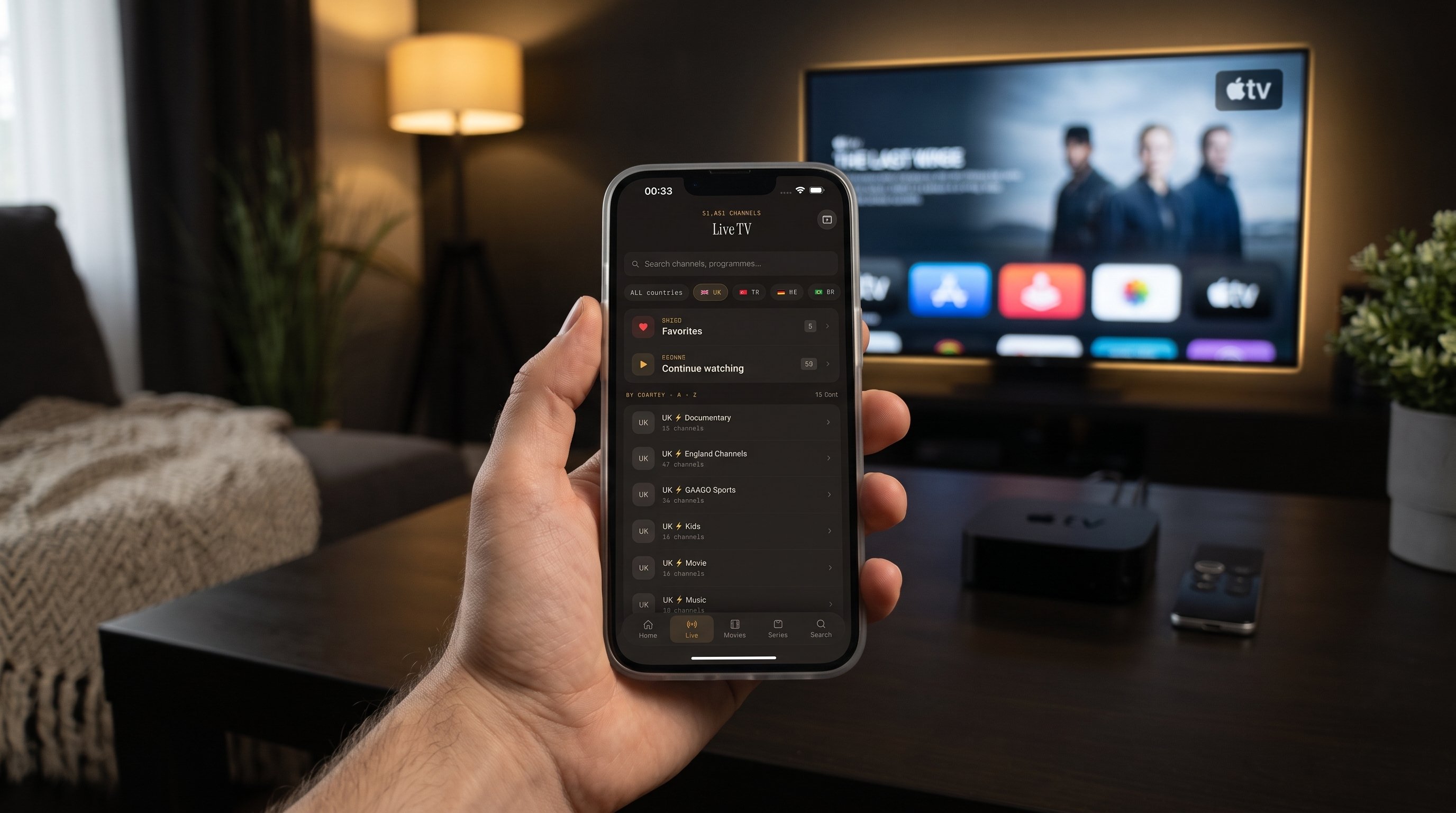
You have an Apple TV 4K under the television, a legal IPTV subscription, and one goal: get your channels onto the big screen. Search for "best IPTV app for Apple TV 4K" and you'll find plenty of confident lists, but very few that explain how the options actually differ. So let's start with an honest answer. Maximus IPTV Player doesn't have an Apple TV app. It runs on iPhone, iPad, Macs with Apple M1 or later, and Apple Vision, and it gets to your Apple TV 4K through AirPlay. This guide explains how that setup works, how to get the best picture from it, and when a different approach might suit you better.
Key Takeaways
- There is no Maximus app for Apple TV. You watch on Apple TV by using AirPlay from an iPhone or iPad.
- AirPlay is Apple's wireless streaming technology. Your iPhone or iPad and your Apple TV need to be on the same Wi-Fi network.
- Setup takes a few minutes: install the app on your iPhone or iPad, add your Xtream Codes login or M3U/M3U8 playlist, start playing, then choose your Apple TV.
- Picture quality depends mostly on your provider's stream and your home network, not on the Apple TV model alone.
- The "best" Apple TV 4K option depends on whether you want to browse with a Siri Remote or with a touchscreen.
- Maximus is a player only. You bring your own legal IPTV subscription.
What Is IPTV on Apple TV, Exactly?
IPTV (Internet Protocol Television) means TV channels and on-demand video delivered over the internet instead of through a cable box or satellite dish. It describes the delivery method, nothing more.
Most confusion comes from mixing up three roles:
- The provider is the legal service that sells you access to channels and supplies your login or playlist.
- The player is the app that reads that login or playlist and plays the streams.
- The screen is where you watch. In this guide, that's your Apple TV 4K and the television it's connected to.
Installing a player doesn't give you channels, and a playlist link isn't a subscription. Keep those roles separate and every setup decision gets easier.
Is There a Maximus IPTV Player App for Apple TV?
No. The Maximus listing on the App Store covers iPhone, iPad, Macs with Apple M1 or later, and Apple Vision, but there is no version that runs on the Apple TV box itself. You won't find it by searching the App Store on your Apple TV.
Instead, you run the app on your iPhone or iPad and send the video to your Apple TV with AirPlay. The iOS app can also cast with Chromecast (Google's casting technology) if you have a Chromecast or Google TV device on another television.
If you specifically want Maximus running natively on the TV with a remote, that's available on Android TV and Google TV devices through the Google Play version of the app, which has its own remote-driven TV interface.
What Is the Best IPTV App for Apple TV 4K?
The honest answer: it depends on how you want to browse. There are three realistic approaches.
- A native app on the Apple TV itself. The app lives on the box and you navigate with the Siri Remote. Your phone stays free, and the Apple TV pulls the stream directly. Several third-party IPTV players work this way. Maximus IPTV Player isn't one of them, so if a phone-free, remote-only experience matters most to you, this is the category to explore.
- An iPhone or iPad app with AirPlay. This is how Maximus IPTV Player works with Apple TV. You browse, search and check the TV guide on a touchscreen, then play on the TV. It's fast for large libraries, where typing and scrolling with a remote gets tedious, and it also works with many AirPlay-compatible smart TVs. The trade-off is that your iPhone or iPad stays involved in the session and needs to stay on the same network.
- A native TV app on a different streaming device. If you want Maximus on the TV with a remote, an Android TV or Google TV device runs the Android version natively.
Whichever route you pick, judge any player on the same checklist:
- Source support: Xtream Codes logins and M3U/M3U8 playlists.
- A real TV guide: a timeline you can filter, not just a channel list.
- Search across everything: live channels, movies and series in one search.
- Library memory: Favorites and Continue Watching.
- Language control: subtitle and audio track selection.
- Family and privacy features: a parental lock, no ads and no tracking.
Maximus covers all of those on iPhone and iPad. For a side-by-side look at popular players, see our IPTV player comparison for 2026.
What Do You Need Before You Start?
- An Apple TV 4K (Apple TV HD also works with AirPlay, but it can't output 4K), connected to your TV and running up-to-date software.
- An iPhone or iPad with the Maximus app installed from the App Store.
- Your own legal IPTV subscription, either as Xtream Codes details or as an M3U/M3U8 playlist link.
- Both devices on the same Wi-Fi network. Apple's support page on AirPlay from iPhone or iPad lists this as a core requirement.
- A solid home network. If your Apple TV 4K has an Ethernet port, a wired connection is worth considering.
What Do M3U, M3U8, Xtream Codes, EPG and HLS Mean?
A few terms show up on every IPTV setup screen. Here's what each one does:
- M3U is a playlist format: a text file that tells your player where each stream lives.
- M3U8 is the UTF-8 version of M3U and the format you'll see most often with HLS streams.
- Xtream Codes is a login style many providers use: a server address, username and password instead of a playlist file. It typically brings channels, movies, series and guide data in one go.
- EPG stands for Electronic Program Guide, the schedule showing what's on now and next.
- HLS stands for HTTP Live Streaming, which delivers video in small chunks and adapts to your connection. The standard is published as RFC 8216.
You don't need to memorize any of this. Your provider supplies the details, the app reads them, and your Apple TV shows the result.
How Do You Get IPTV Onto Apple TV 4K With AirPlay?
- Install Maximus IPTV Player on your iPhone or iPad from the App Store.
- Add your source. Enter your Xtream Codes login or M3U/M3U8 link. On iOS you can also add a source by scanning a QR code or importing a file.
- Let the library load. Live TV appears grouped by country, alongside your movies and series library and the TV guide.
- Wake your Apple TV and confirm it's on the same Wi-Fi network as your iPhone or iPad.
- Start playing a channel, movie or episode in the app.
- Choose AirPlay from the player and pick your Apple TV from the device list.
- Watch on the TV and use your iPhone or iPad to pause, switch audio or subtitle tracks, or pick what's next.
If you ever need a fallback, Screen Mirroring in Control Center also sends your screen to Apple TV. Mirroring shows everything on your display, including notifications, and may add black bars, so the in-app AirPlay option is the cleaner choice for regular viewing.
How Do You Get the Best Picture on Apple TV 4K?
Think of picture quality as a chain: your provider's stream, your router, your iPhone or iPad, your Apple TV, and finally your television. The weakest link sets the limit.
- Start with the source. A 4K picture needs a 4K stream. If your provider sends HD, no device can turn it into true 4K. As a rough guide, HD streams typically need around 5 to 8 Mbps and 4K streams around 25 Mbps.
- Use a fast Wi-Fi band. Connect both devices to your router's 5 GHz band (or Wi-Fi 6 where available) rather than a crowded 2.4 GHz band.
- Wire the Apple TV if you can. An Ethernet connection removes one wireless hop.
- Keep the iPhone or iPad near the router and reasonably charged during long sessions.
- Turn on Match Content on Apple TV. In Settings, under Video and Audio, Match Dynamic Range and Match Frame Rate help the TV display content closer to how it was produced.
- Reduce competing traffic. Large downloads or video calls on the same network can cause buffering.
For more detail, read 4K IPTV Streaming: What You Need for a Sharp Picture.
Why Use Your iPhone or iPad as the Remote?
With thousands of channels and a large on-demand library, a touchscreen is simply faster than a remote. In Maximus you can:
- Check the EPG timeline and filter it by Sports, Movies, Kids or Favorites.
- Search once across live channels, movies and series.
- Filter live TV by country to jump to international channels.
- Pick up where you left off with Continue Watching. Playback progress syncs through iCloud between your iPhone and iPad.
- Choose subtitle and audio tracks for international content.
- Keep adult content hidden behind a PIN or Face ID with the parental lock.
- Download movies and episodes for offline viewing on your iPhone or iPad when you're away from home.
If an iPad is your remote of choice, our guide to the best IPTV player for iPad covers what the bigger screen changes.
Why Does AirPlay Sometimes Stutter or Drop?
When AirPlay misbehaves, isolate the layer that's failing: the network, AirPlay itself, or the source.
- Different networks. A guest network, a separate mesh node name or a 2.4 GHz vs 5 GHz split can keep the devices from seeing each other.
- A VPN on the iPhone or iPad. Some VPN settings interfere with finding devices on your local network. Try pausing it to test.
- AirPlay access on the Apple TV. Check Settings, then AirPlay and HomeKit, and make sure access is allowed for people on your network.
- Weak Wi-Fi. Move closer to the router or wire the Apple TV.
- An unstable stream. If the same channel also buffers directly on your iPhone, the problem is the source, not AirPlay.
- Outdated software. Update iOS or iPadOS, the Apple TV software and the app.
Our guide to fixing AirPlay and Chromecast problems walks through each fix step by step.
FAQ
Is there a Maximus app for Apple TV?
No. Maximus runs on iPhone, iPad, Macs with Apple M1 or later, and Apple Vision. To watch on Apple TV, play content on your iPhone or iPad and send it to the TV with AirPlay.
What is the best IPTV app for Apple TV 4K?
It depends on how you like to browse. If you want everything on the box and a Siri Remote only, look at players that run natively on Apple TV. If you prefer browsing big libraries on a touchscreen, an iPhone or iPad player with AirPlay, like Maximus, works well.
Does AirPlay work with Apple TV HD too?
Yes. AirPlay works with Apple TV HD and Apple TV 4K, but only the 4K models can output a 4K picture.
Can I use Chromecast instead of AirPlay from my iPhone?
Yes. Maximus on iPhone and iPad supports both AirPlay and Chromecast, so you can cast to a Chromecast or Google TV device as well as to an Apple TV.
Is M3U8 the same thing as an IPTV subscription?
No. M3U8 is a playlist format. A subscription is your agreement with a legal provider that gives you access to the streams behind that playlist.
Does Maximus provide channels?
No. It's a player. You add your own legal IPTV subscription, and the app handles playback, the TV guide, search and organization.
Is AirPlay the Right Way to Watch IPTV on Your Apple TV?
If you're happy browsing on your iPhone or iPad and watching on the TV, AirPlay to an Apple TV 4K is a simple, reliable setup, especially once both devices share a strong Wi-Fi network. If you want a remote-only experience with no phone involved, a native TV app is the better fit, and it's worth being clear-eyed about that before you choose.
To try the AirPlay route, get Maximus IPTV Player free on the App Store for iPhone and iPad, with an optional Premium subscription. If you'd rather have a native TV app on an Android TV or Google TV device, it's on Google Play.
Written by
Maximus IPTV Team