Best IPTV Player for iPad: What the Bigger Screen Changes
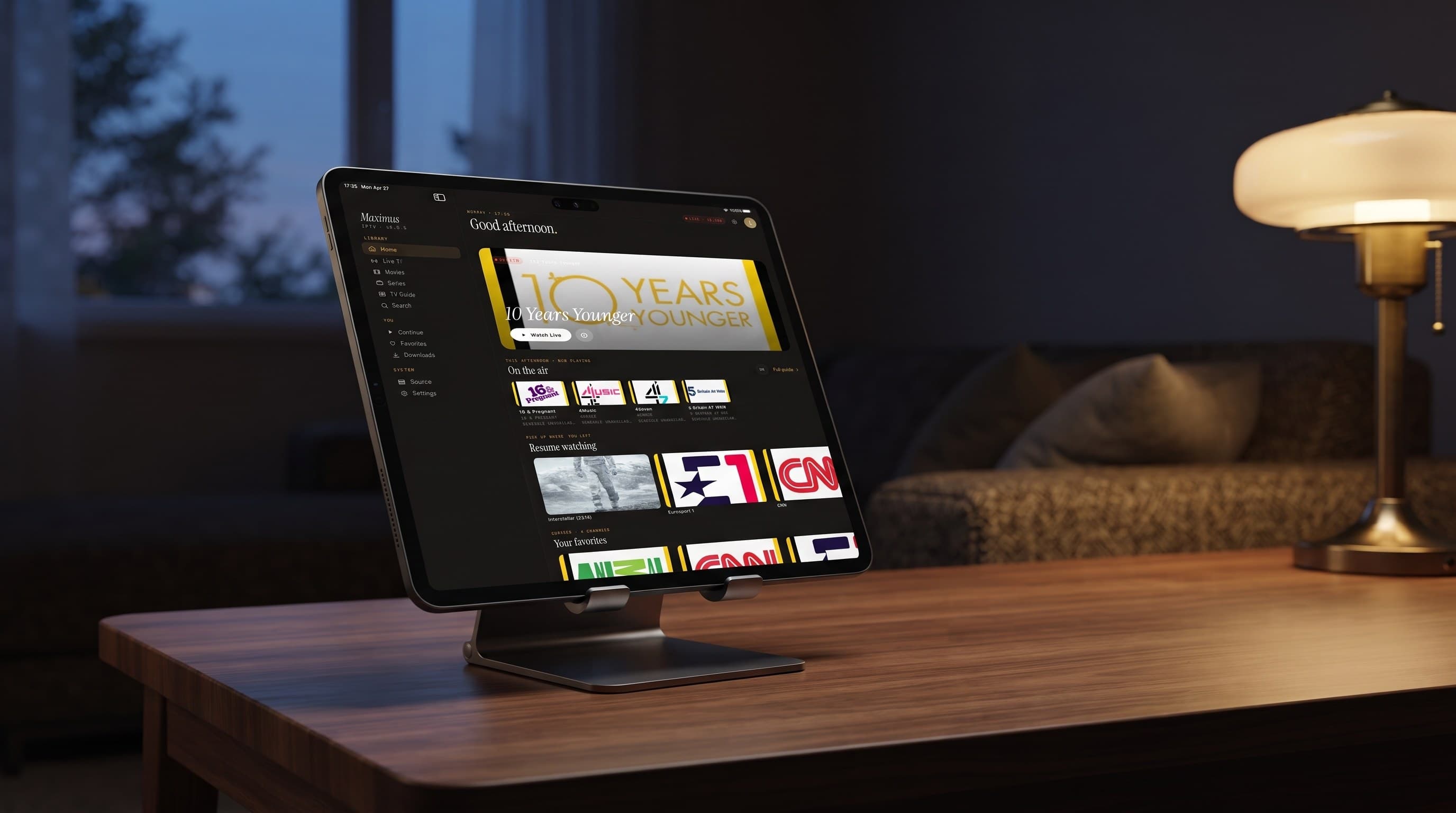
Most IPTV setup guides are written for a phone: a tall screen, one thumb, a single column of channels. An iPad is a different kind of TV. It sits on the kitchen counter, travels in a backpack and gets passed around the sofa. Maximus IPTV Player is built to use that extra space rather than just stretching its iPhone screens.
This guide answers the question directly, then walks through what changes on iPad: setup, the TV guide, parental controls, casting, and when an iPad is the right screen to watch on.
Key Takeaways
- The best IPTV player for iPad uses the screen well, handles your source type, has a real TV guide, casts to your TV and keeps kids safe. Maximus IPTV Player does all five.
- Sidebar navigation replaces the iPhone's bottom tab bar, so every section is one tap away.
- The EPG grid (Electronic Program Guide, the timeline of what's on now and next) shows far more channels and hours at once on iPad.
- Face ID parental lock: adult content stays hidden behind a PIN, and adults can unlock with a glance.
- AirPlay and Chromecast let the iPad send what you're watching to the TV, including Apple TV.
- iCloud sync keeps playback progress matched between your iPhone and iPad.
What Is the Best IPTV Player for iPad?
For most people, the best IPTV player for iPad is the one that checks these boxes:
- Designed for the big screen: Real iPad layouts, not an enlarged phone app.
- Works with your provider: Xtream Codes logins (server, username and password) and M3U or M3U8 playlists.
- A proper TV guide: A scrollable EPG with filters, not just a channel list.
- Big-screen output: AirPlay and Chromecast support for sending video to a TV.
- Family and privacy features: A parental lock, no ads, no tracking, and your login details stored on the device.
- Life beyond Wi-Fi: Offline downloads of movies and episodes for travel.
Maximus IPTV Player meets every point and is free to download from the App Store, with an optional Premium subscription. It isn't perfect for everyone: Picture-in-Picture isn't available on iPad, and it's a player only, so you bring your own legal IPTV subscription. If those fit your needs, it's a strong pick.
What Changes When Maximus IPTV Player Runs on iPad?
The short answer is navigation and density. On iPhone, the app uses a bottom tab bar and single-column lists because there's no room for anything else. On iPad it switches to a fixed sidebar on the left, grouped into three sections:
- Library: Home, Live TV, Movies, Series, TV Guide and Search
- You: Continue, Favorites and Downloads
- System: Sources and Settings
Every section stays visible, so you never have to back out of a screen to reach another. If you've found yourself tapping between tabs on a phone, the iPad version removes most of that friction.
The Home screen gets roomier too. You'll see a large card for something live right now, an "On the air" row of channels currently playing, and a "Resume watching" row, all together without scrolling. Apple's iPad range runs from the 8.3-inch iPad mini to the 13-inch iPad Pro, and the extra width shows most in the guide and the poster grids.
How Do You Set Up Maximus on iPad?
- Download Maximus from the App Store.
- Open Sources in the sidebar under "System."
- Add your source using one of the options listed below.
- Check the Combined Library stats on the Sources screen. They show how many channels, movies and series came in across every source you've added.
- Head to Home or Live TV and start browsing.
Your source options on iPad:
- Xtream Codes: A server address, username and password from your provider.
- M3U playlist: A plain-text file listing channel names and stream addresses.
- M3U8 link: The same idea, but usually pointing to HLS (HTTP Live Streaming) video, which adjusts quality to your connection.
- QR code or file: Saves typing a long address on the iPad keyboard.
Because Sources is a permanent sidebar item, adding a second or third subscription later is as quick as the first. Maximus combines multiple sources into one library, so search and the guide cover everything.
How Does the TV Guide Look on a Bigger Screen?
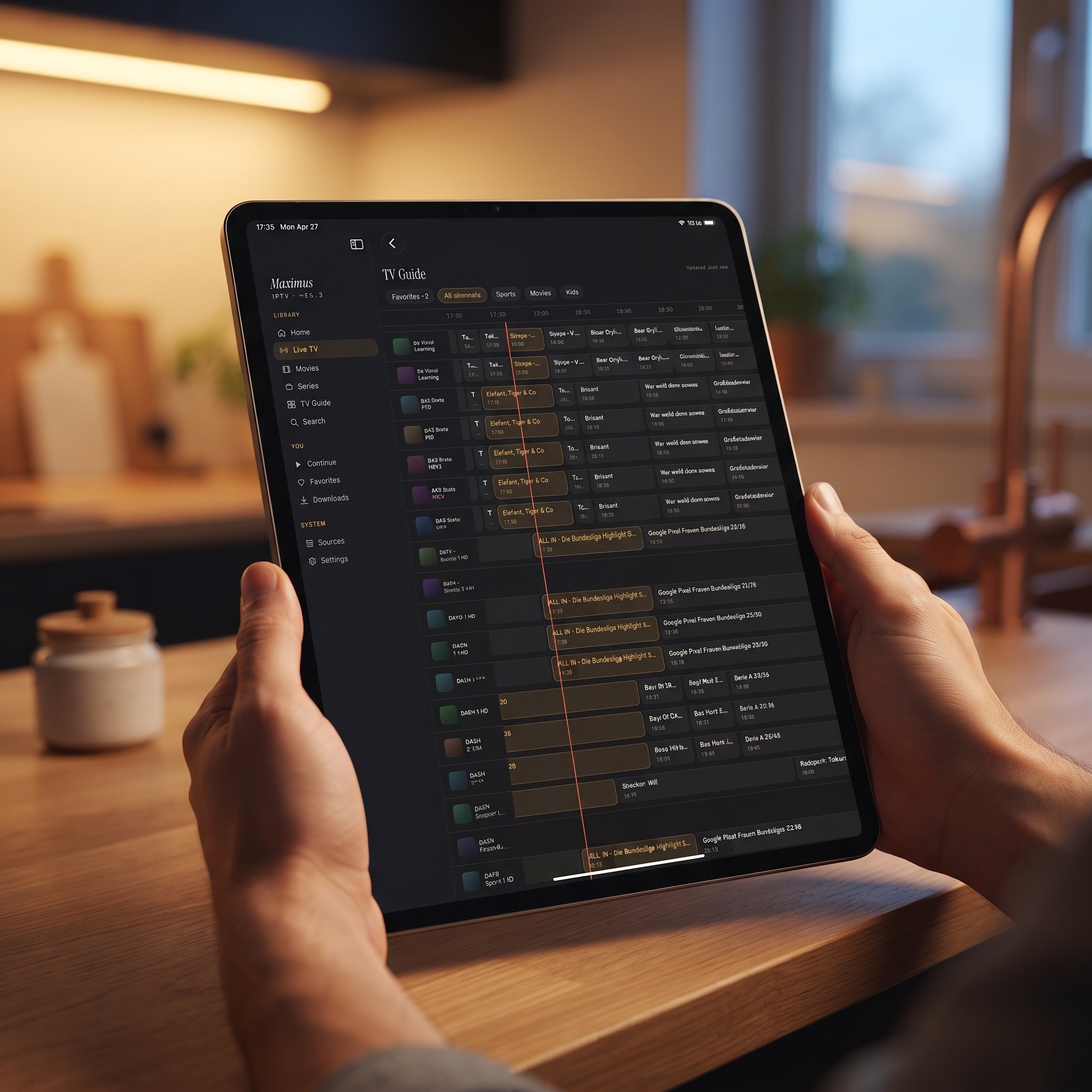
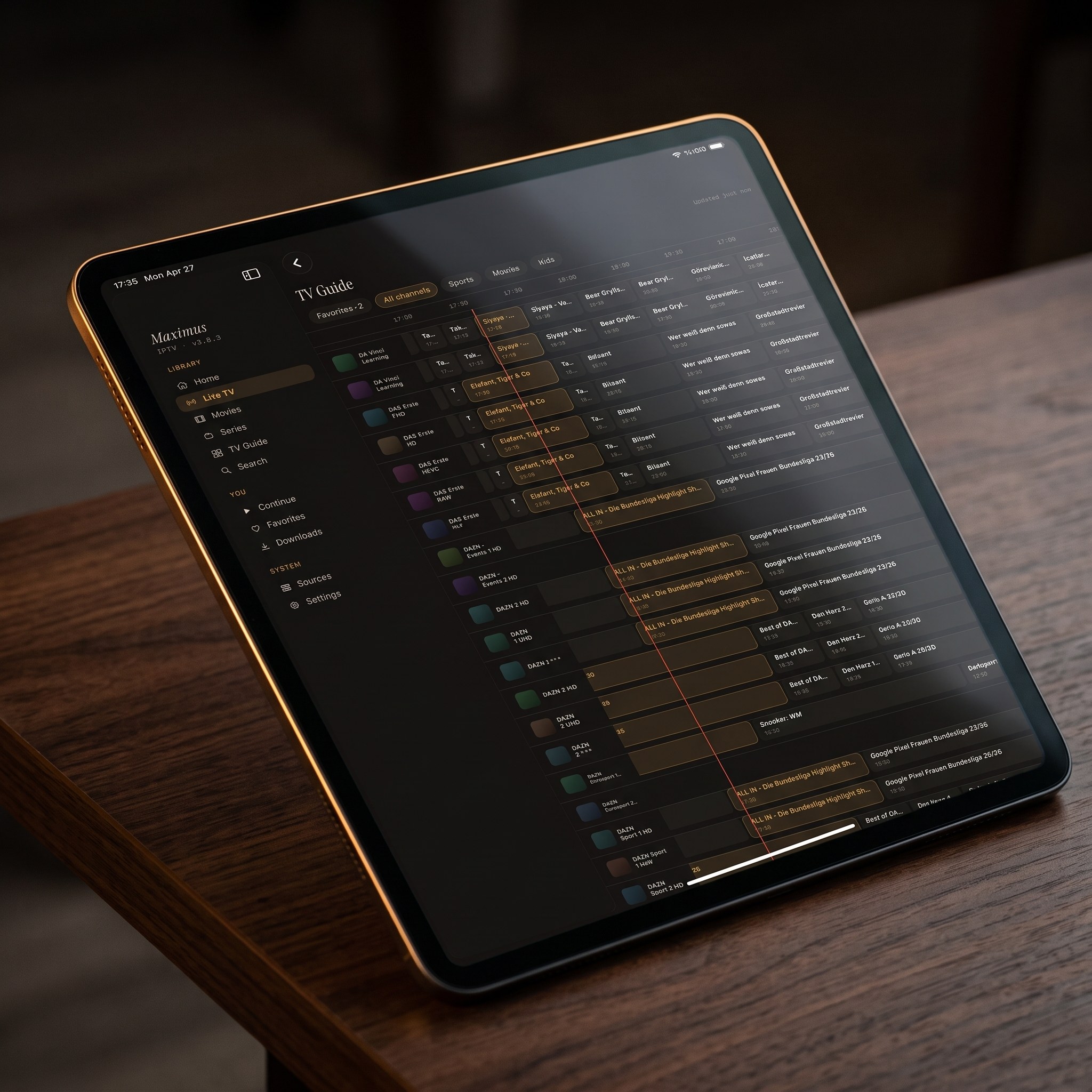
The TV guide is the single biggest upgrade on iPad. On a phone, a program guide only fits a handful of channels and an hour or two of schedule before you're scrolling. On iPad, the TV Guide lays out many more channel rows and a much wider stretch of time, with a line marking the current moment as it moves across the grid.
Filter tabs for Favorites, Sports, Movies and Kids sit at the top, so you can narrow a crowded grid without leaving the screen. Live channels are also grouped by country with country filters. If you follow schedules in several countries, the wide grid lets you plan an evening without guessing from titles. For a deeper look, read how the IPTV TV guide actually works.
How Do You Keep Watching Between iPhone and iPad?
This is where the "same app, bigger screen" idea pays off. Maximus syncs playback progress between iPhone and iPad through iCloud. Pause a movie on your phone during the commute, then open the iPad in the evening, and it's waiting in Continue Watching close to where you stopped.
A few more features that make the iPad a comfortable second TV:
- Favorites: Keep your go-to channels and shows in one place.
- Universal search: Find a title across live TV, movies and series from one search box.
- Subtitles and audio tracks: Switch languages or turn on captions during playback, if your source provides them.
- Offline downloads: Save movies and episodes before a flight or a road trip, then watch without a connection.
How Do Parental Controls Work on iPad?
The family iPad is often the most shared screen in the house, so the parental lock matters here. From Settings, open Parental Lock, set a PIN and confirm it, then turn on Face ID if you'd like. Adult content stays hidden behind that lock, while the rest of the library stays easy to browse.
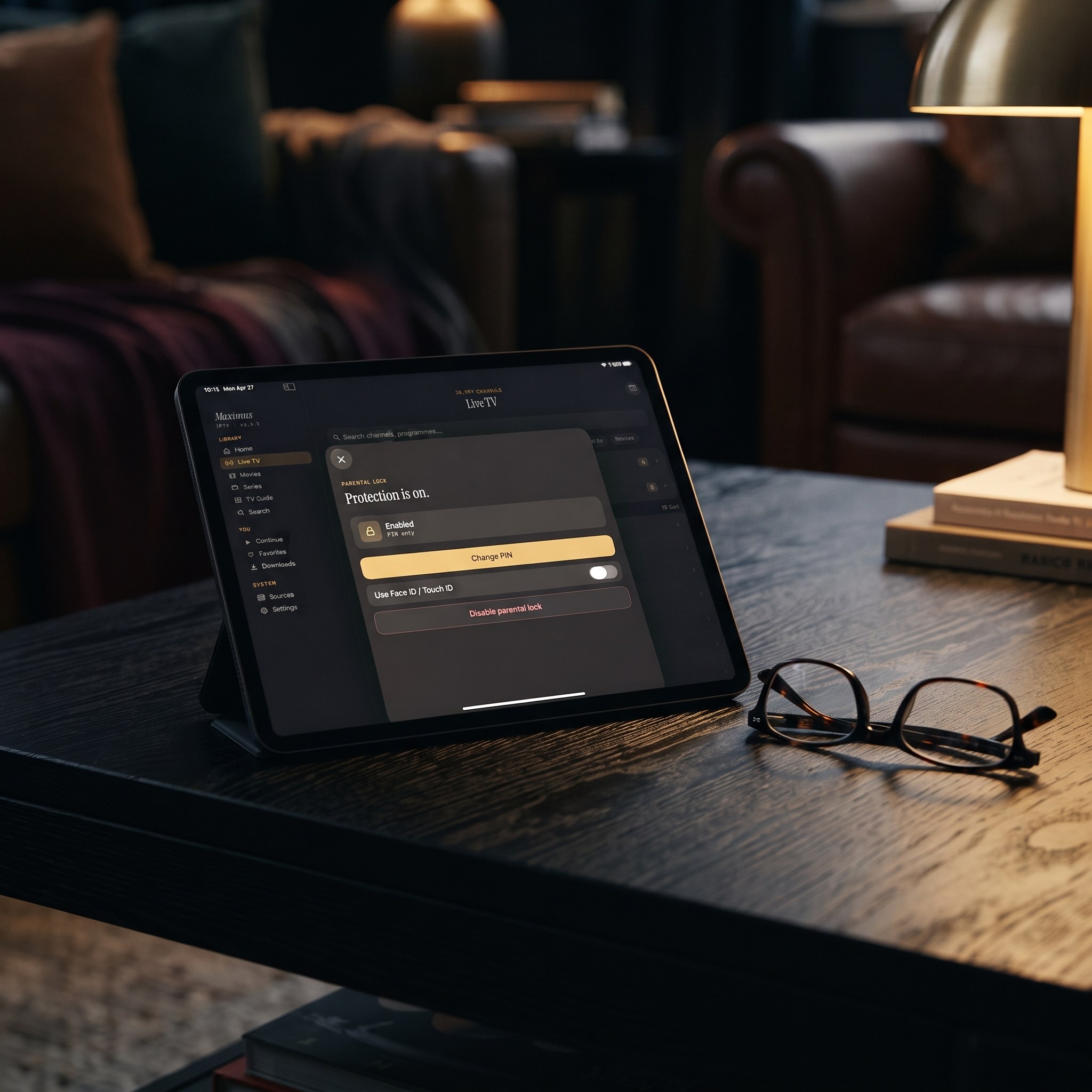
Face ID solves a real problem. Kids learn PINs by watching fingers, but they can't borrow your face. The PIN remains a fallback when Face ID can't read your face in low light or when you're wearing a mask. Once enabled, the screen shows that protection is on and offers a Change PIN option, so you can check the lock is active before handing the iPad to a child.
How Do You Cast From an iPad to Your TV?
Maximus on iPad supports two casting technologies:
- AirPlay: Apple's wireless streaming, for an Apple TV or an AirPlay-compatible smart TV.
- Chromecast: Google's casting technology, for a Chromecast device or a TV with Chromecast built in.
Tap the cast icon during playback, pick a device, and the video moves to the big screen. For many households the iPad becomes the best remote in the house: bigger and easier to browse than a phone, but still easy to pass around.
iPad or Apple TV: Which Should You Use?
It's not really either/or, because there's no Maximus app for Apple TV. The way to watch on an Apple TV is to AirPlay from your iPad or iPhone. That gives you a simple split:
- Settled in on the sofa: Browse the guide on the iPad, then AirPlay the channel to the Apple TV. The iPad works as a large touch remote.
- Everywhere else: Watch on the iPad itself in the kitchen, in bed, in a hotel room, or in the back seat with downloaded episodes.
- At a desk: The same App Store app runs on Macs with Apple M1 or later, and on Apple Vision.
Our complete guide to IPTV on Apple TV covers the AirPlay setup in detail.
What Doesn't the iPad App Do?
A few honest limits help you set expectations:
- No Picture-in-Picture on iPad. Picture-in-Picture, the small floating video window, is available on Android phones and tablets but not on iPhone or iPad. See how Picture-in-Picture works across platforms.
- No built-in channels. Maximus is a player. You add your own legal subscription.
- No iOS-to-Android sync. iCloud sync covers iPhone and iPad only.
FAQ
Is Maximus free on iPad?
It's free to download from the App Store, with an optional Premium subscription. You connect your own IPTV source.
Do I set up my source again on iPad?
Add it on the iPad the same way you did on iPhone. Adding by QR code or from a file saves typing a long playlist address.
Does the iPad app show ads?
No. Maximus has no ads and no tracking, and your login details stay on your device.
Can I watch 4K on iPad?
If your provider streams in 4K and your connection keeps up, yes. The picture quality you get depends on your source and your internet speed. Allow roughly 25 Mbps for a steady 4K stream.
Can I watch in a floating window while using other apps?
Not on iPad at the moment. Picture-in-Picture is available on Android phones and tablets only.
Is there a version for Android tablets?
Yes. Android tablets use the Google Play version, which has its own layout. See our Android tablet guide.
Getting Started on iPad
If you've only ever used IPTV on a phone, the iPad is worth a proper try. The sidebar, the wide TV guide, Face ID protection and easy AirPlay add up to a noticeably calmer way to watch. Download Maximus IPTV Player free from the App Store for iPad, iPhone, Apple Silicon Macs and Apple Vision. On an Android tablet, get it on Google Play. Then add your own legal source and settle in.
Written by
Maximus IPTV Team