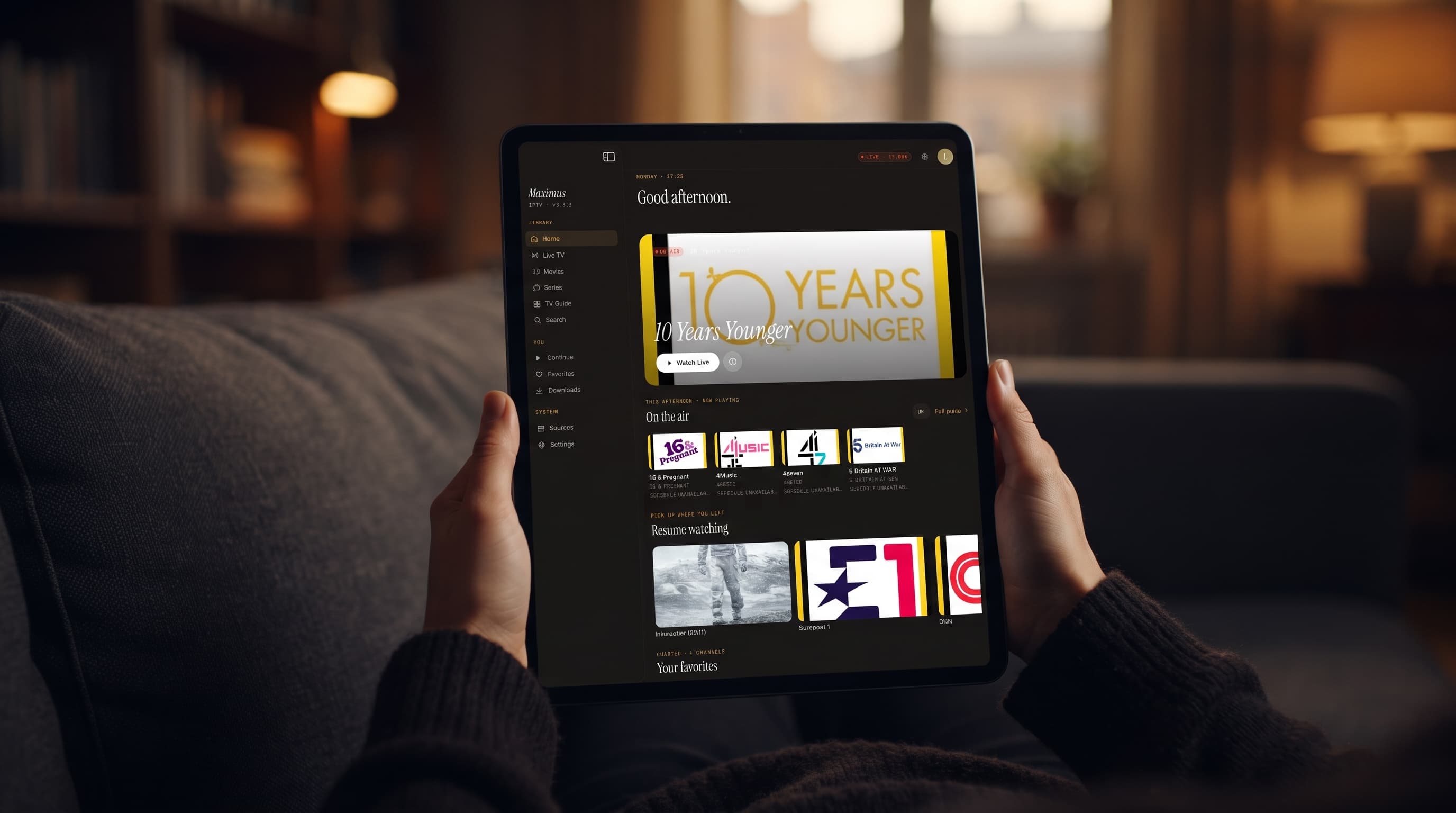
Maximus IPTV Player on Android Tablets: What Changes
If you got an Android tablet this year but still watch IPTV on your phone out of habit, you're missing out on a lot of screen. Maximus IPTV Player is a free IPTV player on Google Play, and a single listing covers Android phones, tablets and Android TV / Google TV. On a tablet, the extra space goes to good use. The TV guide shows more of the schedule, the movie and series posters have room to breathe, and Picture-in-Picture lets you keep a match playing while you do other things. This guide covers what changes when you move from phone to tablet, how to set it up, and what to expect from the features that matter most on a bigger display.
Key Takeaways
- Maximus on Android covers phones, tablets and Android TV / Google TV, all from the same Google Play listing.
- On a tablet, the larger screen shows more of the EPG timeline and more titles per row than a phone can.
- Setup works the same on phone and tablet: install from Google Play, add your Xtream Codes login or M3U/M3U8 playlist, and let the app build your library.
- Android tablets support Picture-in-Picture and background playback, so a stream can keep going while you use other apps.
- The Android app doesn't cast to TVs. For the living room, install Maximus on an Android TV or Google TV.
- The full TV guide, offline downloads, parental lock, source refresh and multiple sources are Premium features on Android, and the monthly and annual plans start with a 7-day free trial.
Why Does a Tablet Change How an IPTV App Feels?
Lots of IPTV apps are built for phones and just stretched to fit a tablet. You end up with huge buttons and a lot of empty space. Maximus makes better use of the room. There's more space for the channel list, the guide and the library all at once, so moving between Live TV, Movies & Series and your Sources feels less like digging through menus.
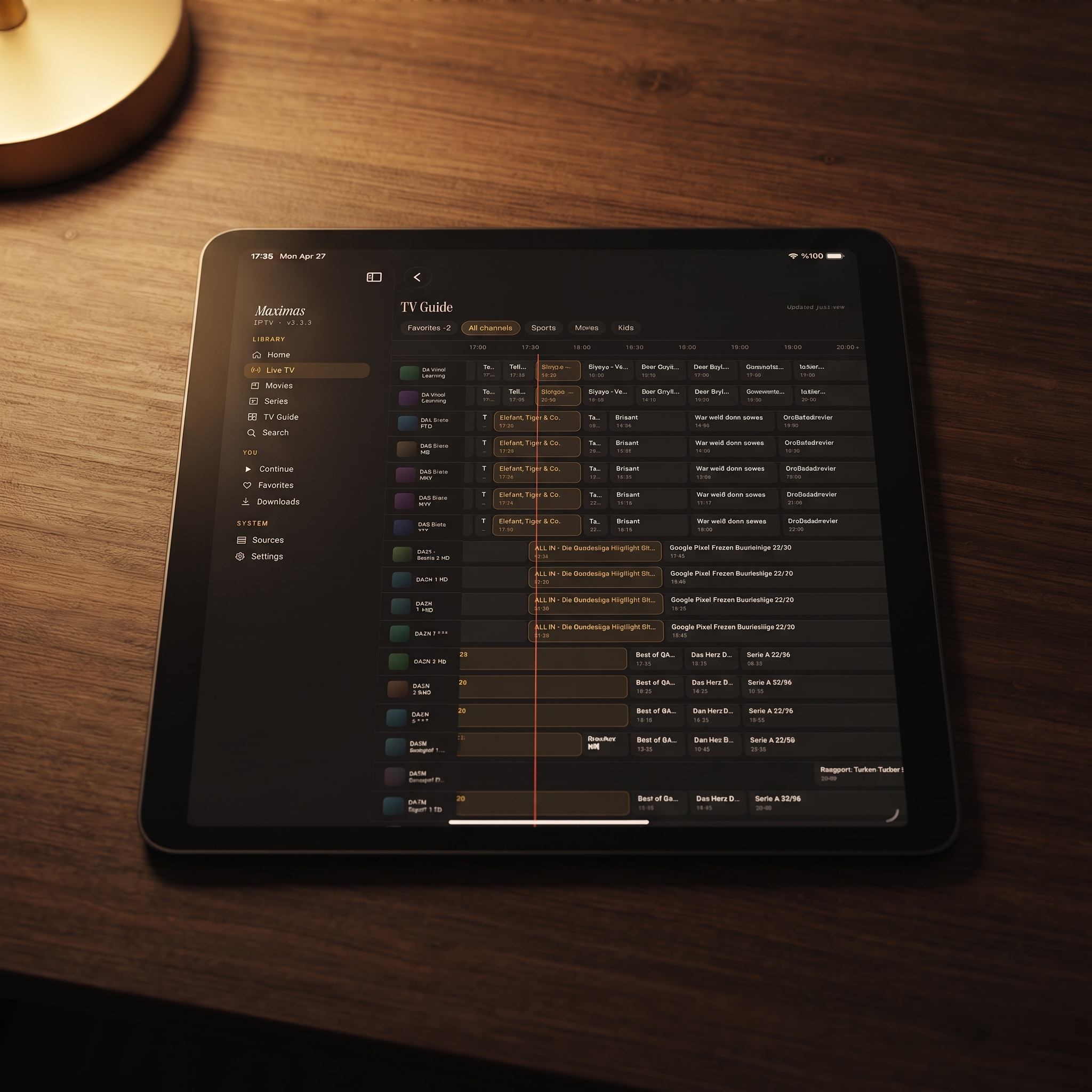
The biggest difference is in the guide. On a tablet you can see more channels and more hours of programming at a glance than on a phone. If you're used to watching IPTV only on your phone, browsing on a tablet feels less like scrolling through a list and more like using a real TV guide.
How Do You Set Up Maximus IPTV Player on an Android Tablet?
Setup is the same on an Android phone and an Android tablet, so there's no separate process to learn. Here's the short version:
- Download Maximus for free from Google Play. It's the same listing you'd use on a phone or Android TV.
- Open the app, go to Sources, and add your IPTV source. You can use an Xtream Codes login (a server address, username and password from your provider) or an M3U/M3U8 playlist. Those are text-based playlist formats that list channel streams, and they're the most common way IPTV providers deliver a channel lineup.
- Let Maximus load and organize your content. When it's done, Live TV (grouped by country), Movies and Series fill in automatically.
For more detail on each screen, the Android phone setup guide walks through the same steps, and they work the same way on a tablet.
Does Maximus Support Multiple Sources on a Tablet?
Yes, and the bigger screen really helps here. Maybe you subscribe to more than one IPTV provider, or you use a main service plus a separate M3U playlist. Maximus combines them into one library, so search, Favorites and Continue Watching work across all of them. On a phone the Sources screen can feel crowded once you have two or three. On a tablet you have room to see them all at once. On Android, multiple sources and source refresh are part of Premium.
What Does the EPG Look Like on a Tablet?
The EPG (Electronic Program Guide) is the on-screen TV guide. It's a timeline that shows what's on now and what's coming up across your channels, like the guide on a cable box. In Maximus, the timeline marks the current time and has filters for Sports, Movies, Kids and Favorites, so you don't have to scroll through every channel.
On a tablet the timeline spreads across a much wider screen. You can see more channels and more hours at once, which helps when you're planning an evening of sports or checking what's on later. On Android, the full TV guide is a Premium feature.
Can You Still Find Things to Watch Quickly on the Movies & Series Side?
Yes. The Movies & Series library has search, filters and a poster grid, and on a tablet each row simply shows more titles. Browsing a big series library feels more like a streaming app than a cramped phone list. Universal search works the same on both devices. Type a title or channel name and Maximus searches live channels, movies and series together, across every source you've added.
Why Is There No Casting From an Android Tablet?
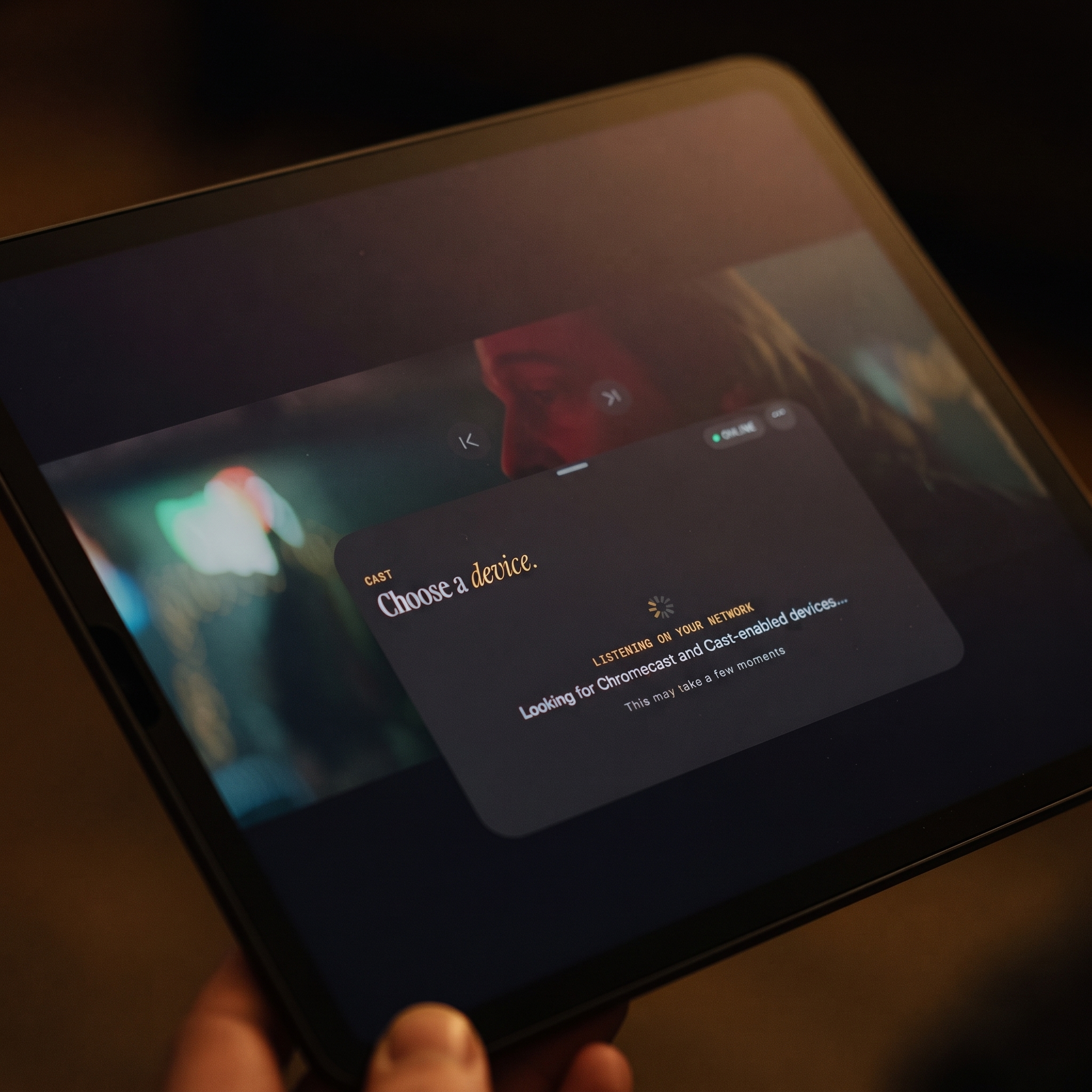
The Maximus Android app doesn't include casting, on tablets or on phones, so there's no cast button to look for. You have two good options for the big screen instead:
- Android TV or Google TV: Install Maximus IPTV Player on the TV from the same Google Play listing. It runs natively, with an interface built for your remote, so there's no need to cast.
- An iPhone or iPad in the house: The iOS app can cast with AirPlay (Apple's wireless streaming technology, for Apple TV and AirPlay 2 TVs) and Chromecast (Google's casting standard). That's also the only way to watch Maximus on an Apple TV, since there's no Apple TV app.
What About Picture-in-Picture, Parental Controls and Offline Downloads?
These are some of the best reasons to watch on a tablet:
- Picture-in-Picture: On Android tablets and phones, a live channel can shrink into a small floating window while you browse, reply to messages or check scores in another app. Background playback also keeps the audio going when you leave the app. For more tips, read our Picture-in-Picture guide.
- Parental lock: Set a PIN to hide adult content, which helps if the tablet gets passed to the kids more often than your phone does. On Android, the lock turns itself back on automatically, so the content doesn't stay unlocked by accident.
- Offline downloads: Download movies and series episodes to watch without a connection. It's a big plus on a flight or anywhere with patchy Wi-Fi. Our offline downloads guide explains how to manage them.
- Subtitles and audio tracks: Pick subtitles or a different audio language when the stream includes them.
On Android, the parental lock and offline downloads are part of Premium.
Is Android TV Support Available for Maximus?
Yes. Android TV and Google TV are live on the same Google Play listing as the phone and tablet app. On TVs, Maximus uses a native interface built for your remote, not a stretched tablet layout. If you want IPTV on your living room TV and it runs Android TV or Google TV, install Maximus there. For a wider look at how phone, tablet and TV compare across platforms, see iPhone vs Android for IPTV.
FAQ
Is Maximus IPTV Player free on Android tablets?
It's free to download from Google Play. An optional Premium subscription unlocks the full TV guide, offline downloads, parental lock, source refresh and multiple sources, and the monthly and annual plans include a 7-day free trial.
Do I need a different playlist format for a tablet?
No. Maximus reads the same Xtream Codes logins and M3U/M3U8 playlists on every Android device, so a source that works on your phone will work on your tablet too.
Will Maximus run on any Android tablet?
Maximus is built for Android phones and tablets in general. As with any streaming app, how smoothly high-bitrate streams play depends on your tablet's hardware and your Wi-Fi.
Can I use the same IPTV source on my phone and tablet?
Yes. You can add the same source on both devices. Just check whether your provider limits how many streams can play at once. Also note that Maximus doesn't sync between iOS and Android, so an iPhone and an Android tablet each need their own setup.
Does the tablet version support subtitles and multiple audio tracks?
Yes. Subtitle and audio track selection work on Android tablets just like on phones, which matters if you watch international content in more than one language.
Try Maximus on Your Android Tablet
If you've been putting up with a stretched phone interface on your tablet, give Maximus a try. The roomier TV guide, Picture-in-Picture and a proper poster grid make a real difference if you spend your evenings browsing channels or a Movies & Series library. Download Maximus IPTV Player free on Google Play and add your existing Xtream Codes login or M3U playlist to get started. The same listing also installs it on your Android TV.
Written by
Maximus IPTV Team