How to Set Up Maximus IPTV Player on an Android Phone
Downloading a new streaming app is easy. Getting it actually set up, with a source added, the guide filled in and your first channel playing, is where most people get stuck. This guide walks you through Maximus IPTV Player on an Android phone from the first tap to your first live channel, with every piece of jargon explained along the way. Maximus IPTV Player is free to download from Google Play, with an optional Premium subscription, and one listing covers Android phones, tablets and Android TV / Google TV.
Key Takeaways
- Maximus is free on Google Play (package
com.aegontech.maximus). The same app works on Android phones, tablets and Android TV / Google TV. - Setup comes down to three steps: install, add a source, browse.
- You can add an Xtream Codes login or an M3U/M3U8 playlist link. You need your own legal IPTV subscription, because Maximus is a player, not a content provider.
- Android extras include Picture-in-Picture and background playback.
- The Android app doesn't cast to a TV. For the big screen, install the app on an Android TV or Google TV device.
- Premium on Android unlocks the full TV guide, offline downloads, the parental lock, source refresh and multiple sources. Monthly and annual plans include a 7-day free trial.
What Do You Need Before You Start?
Three things, and that's it:
- An Android phone running a reasonably current version of Android, connected to Wi-Fi or mobile data. Wi-Fi is the better choice for your first setup and for long viewing sessions.
- Your IPTV source details. This comes from your provider in one of two forms. An Xtream Codes login is a server address plus a username and password. An M3U or M3U8 playlist is a link to a text file listing your channels and their stream addresses (M3U8 is the UTF-8 version most providers use today).
- A couple of minutes of patience while your library loads for the first time, especially if your subscription includes thousands of channels.
If you don't have a subscription yet, that step happens outside the app. Maximus plays your legal streams; it doesn't include, sell or recommend any channel sources.
How Do You Download and Install Maximus IPTV Player on Android?
- Open the Google Play Store on your phone.
- Search for "Maximus IPTV Player," or open the listing directly on Google Play.
- Check that the developer and package (
com.aegontech.maximus) match, so you know you have the official app. - Tap Install, then Open.
The app is free to download, so there's no payment step just to get started. Premium is optional. If you decide you want it, the monthly and annual plans both come with a 7-day free trial.
How Do You Add Your First IPTV Source?
This is the step that gets content flowing.
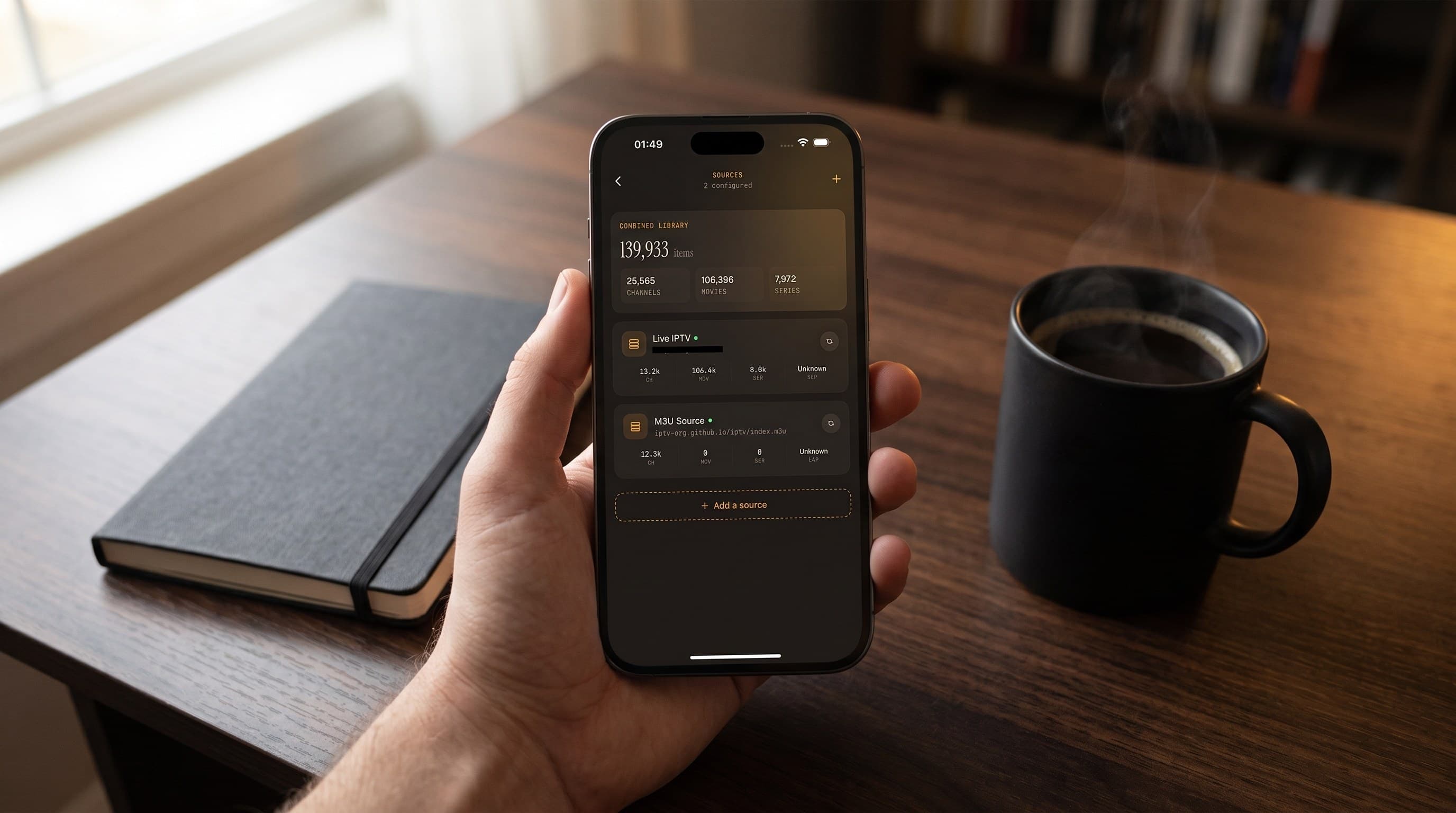
- Go to the Sources area in the app and choose to add a source.
- Pick the source type your provider gave you: Xtream Codes or M3U/M3U8 playlist.
- For Xtream Codes, enter the server address, username and password exactly as provided. For a playlist, paste the full M3U or M3U8 link.
- Give the source a name you'll recognize later, such as your provider's name.
- Save, and let the app load your channels, movies and series.
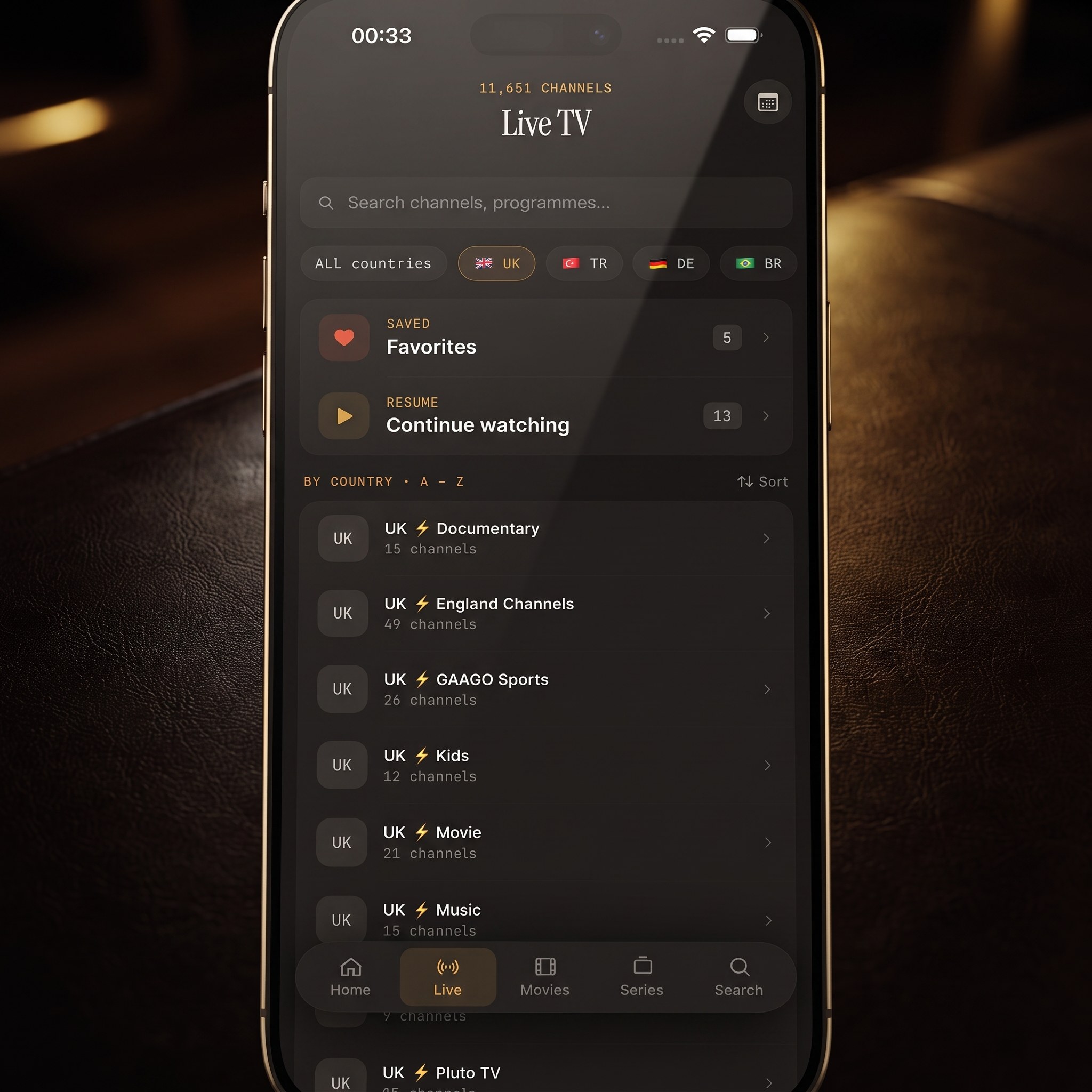
Loading can take a few seconds for a small playlist and longer for a large one. Once it finishes, Live TV fills with channels grouped by country, and your movies and series appear in the library.
A quick tip: playlist links and server addresses are long and easy to cut short when copying on a phone. If nothing loads, the first thing to check is that you pasted the whole thing, with no extra spaces or line breaks.
What Does the Home Screen Show Once Setup Is Done?
Once your source finishes loading, the home screen becomes your daily starting point. It highlights what's on the air right now and keeps a Continue Watching row so you can pick up a movie or episode where you left off. Live TV, Movies & Series and Search are all a tap away.
Continue Watching stays empty until you've actually started something, so don't worry if it looks bare on day one.
How Do You Browse Live TV and Use the EPG?
Open Live TV and you'll see your channels grouped by country, with country filters to narrow the list. That makes a big difference with international subscriptions, where scrolling through every channel isn't realistic.
For scheduling, open the TV guide. EPG stands for Electronic Program Guide: the timeline grid that shows what's airing now and what's coming up next, like a cable box guide. In Maximus the guide can be filtered to Sports, Movies, Kids or your Favorites, which helps when you know the kind of thing you want but not the channel.
Guide data comes from your provider. If channels appear but the schedule is blank, your provider may not publish guide information for those channels. On Android, the full TV guide is one of the Premium features. Our explainer on how the IPTV TV guide actually works goes deeper.
How Do You Find Movies, Series and Anything Else?
- Universal search looks across live channels, movies and series in one go, so you don't need to remember where something lives.
- Favorites keep the channels and titles you return to at the top of your routine. Once you've starred a few, the Favorites filter in the guide becomes much more useful.
- Continue Watching remembers your place in movies and episodes.
- Subtitles and audio tracks can be changed from the player controls when a stream includes more than one language.
Can You Add More Than One Source?
Yes. If you have more than one legal subscription, for example one focused on international channels and another on sports, Maximus combines them into a single library. You search and browse everything together instead of switching between playlists. On Android, multiple sources and source refresh (updating a source when your provider changes its channel list) are part of Premium.
How Do Picture-in-Picture and Background Playback Work on Android?
Picture-in-Picture (PiP) shrinks the video into a small floating window so you can keep watching while you reply to a message or check a map. On Android phones and tablets, Maximus supports PiP. Leave the app while something is playing and the video can continue in a floating window, depending on your Android version and whether PiP is allowed for the app in your system settings.
The Android app also supports background playback, which is handy for talk shows, news or radio-style channels you mainly listen to.
Worth knowing if you share tips with iPhone-owning friends: Picture-in-Picture isn't available in the iPhone or iPad version of the app. Our Picture-in-Picture guide explains the difference.
Can You Watch on a TV From an Android Phone?
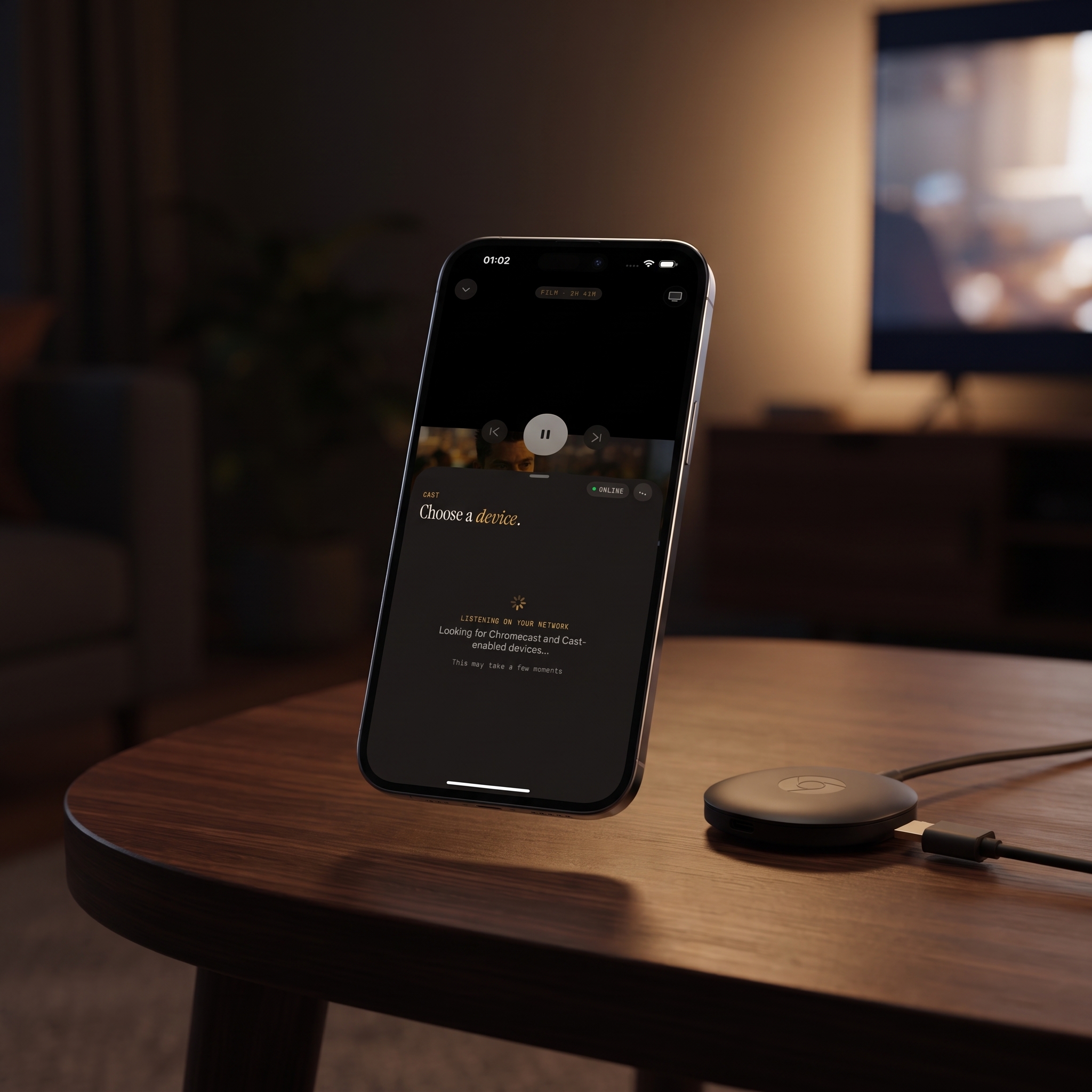
Not by casting. The Android app doesn't include Chromecast or Google Cast, so there's no cast button to send video from your phone to a TV.
The better route is to install Maximus on the TV itself. The same Google Play listing runs on Android TV and Google TV devices with a native, remote-driven TV interface. Add your source there and you get the full living-room experience.
Casting with AirPlay and Chromecast is only available in the iPhone and iPad version of the app.
How Do You Download Movies and Episodes for Offline Viewing?
When your source provides movies and series, you can download them to your phone and watch without a connection, which is useful for flights, commutes and patchy coverage. Look for the download option on a movie or episode, and download over Wi-Fi to save mobile data. On Android, offline downloads are a Premium feature.
How Do You Set Up the Parental Lock?
If kids use the phone, turn on the parental lock in Settings. You'll choose a PIN, and adult content is then hidden until that PIN is entered. On Android the lock re-arms automatically, so you don't have to remember to switch it back on after unlocking. It's worth setting up before you hand the phone over, not after. On Android, the parental lock is part of Premium.
What If Something Doesn't Work?
- The source won't load. Check that the full playlist link or server address was pasted, and that your username and password are exactly right, including capital letters.
- Channels load but won't play. This almost always points to the source or provider, since the app plays whatever stream the source delivers. Try a few different channels to confirm.
- The guide shows channels but no schedule. Your provider may not publish guide data for those channels.
- Playback buffers. Switch to Wi-Fi, move closer to your router, and check whether other devices are using a lot of bandwidth.
- Your channel list looks outdated. Your provider may have changed it; refresh the source.
For deeper fixes, see IPTV Playlist Not Working? How to Fix It. And if you're setting up a larger screen next, Maximus IPTV Player on Android Tablets covers what changes.
FAQ
Is Maximus free on Android?
Yes. It's free to download from Google Play. Premium is optional and unlocks the full TV guide, offline downloads, the parental lock, source refresh and multiple sources, with a 7-day free trial on monthly and annual plans.
Does Maximus work on Android TV?
Yes. The same Google Play listing works on Android TV and Google TV devices, with an interface built for the remote.
What source types does the Android app support?
Xtream Codes logins and M3U/M3U8 playlists.
Is casting available in the Android app, or only on iPhone?
No. The Android app doesn't support casting. Install the app on an Android TV or Google TV device instead. AirPlay and Chromecast casting are only in the iPhone and iPad app.
Do my watch history and favorites sync between Android and iPhone?
No. There's no sync between the Android and iOS versions, so each device keeps its own progress.
Does Maximus provide channels?
No. It's a player. You bring your own legal IPTV subscription, and the app handles playback, organization, search and the TV guide.
Start Watching on Your Android Phone
Setting up Maximus IPTV Player on Android comes down to a few simple steps: install it, add your Xtream Codes login or M3U/M3U8 playlist, and start browsing. From there, the TV guide, universal search, Picture-in-Picture and Continue Watching make a big subscription feel manageable on a small screen.
Get Maximus IPTV Player free on Google Play for your Android phone, tablet or Android TV. Using an iPhone or iPad too? It's also on the App Store.
Written by
Maximus IPTV Team