iPhone vs Android for IPTV: Phone, Tablet and TV Compared
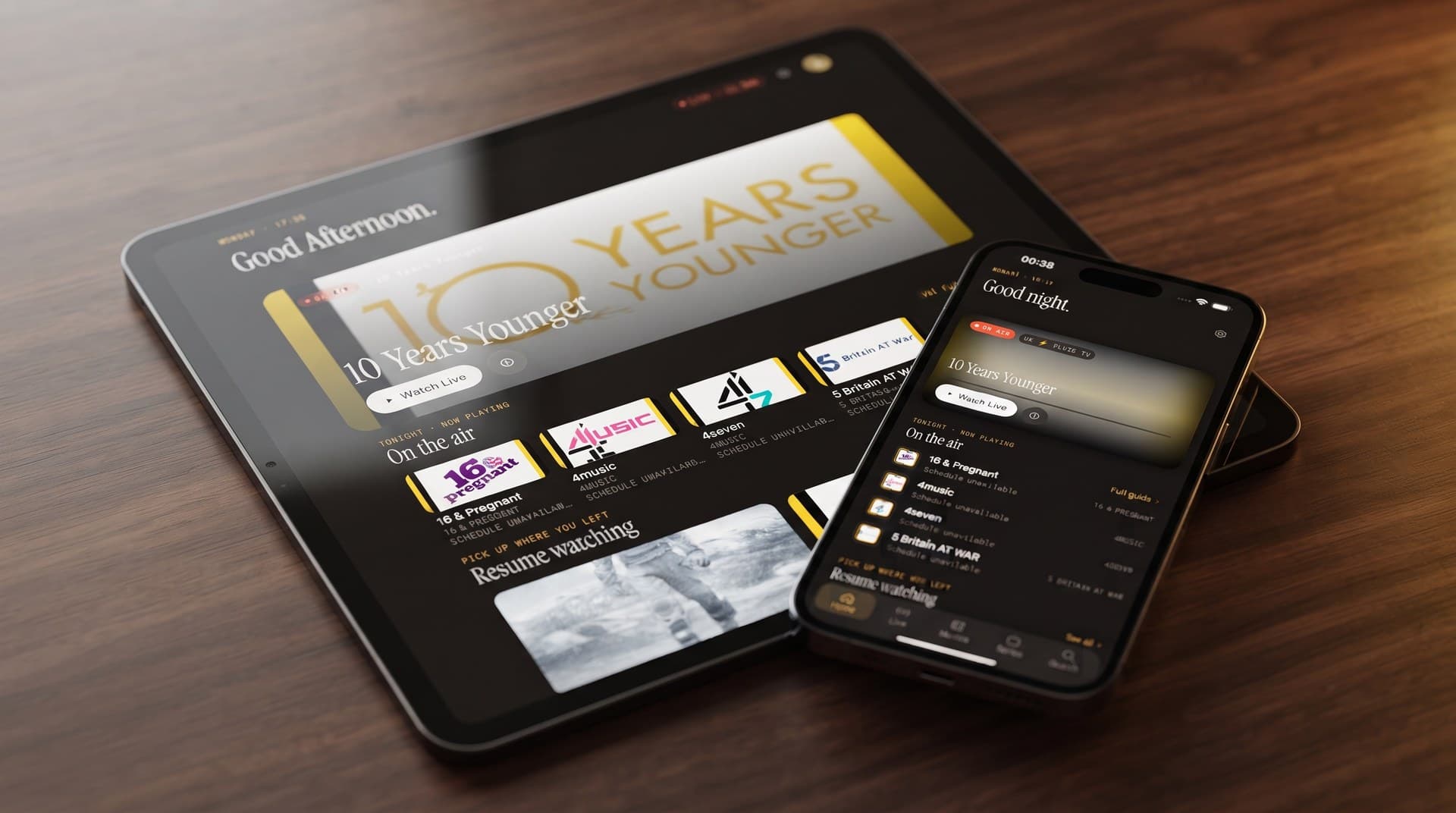
If you have an IPTV subscription and you're torn between watching it on an iPhone or an Android device, here's the short version: the core experience is the same, but the two platforms reach your screens in different ways. Maximus IPTV Player is free to download on both the Apple App Store and Google Play. Your channels, guide, library and parental lock work alike on both. The real differences come down to three things: how you get to the television, casting, and Picture-in-Picture.
This guide lays out what's identical, what isn't, and how to choose based on the hardware you already own.
Key Takeaways
- Two stores, two apps, different device lists. The iOS app runs on iPhone, iPad, Macs with Apple M1 or later, and Apple Vision. The Android app on Google Play covers phones, tablets and Android TV / Google TV from one listing.
- The TV route differs. Android has a native Android TV / Google TV app. There is no Apple TV app, so on the Apple side you reach Apple TV with AirPlay from an iPhone or iPad.
- Casting is iOS-only. iPhone and iPad can use both AirPlay and Chromecast. The Android app does not cast; on Android you run the app directly on the TV instead.
- Picture-in-Picture is Android-only. Android phones and tablets get Picture-in-Picture and background playback. iPhone and iPad do not have Picture-in-Picture in the app.
- Sources are the same with one bonus on iOS. Both support Xtream Codes and M3U/M3U8. On iOS you can also add a source by QR code or from a file.
- Everything else matches. The EPG timeline, universal search, Favorites, Continue Watching, subtitles and audio tracks, offline downloads, PIN lock, multiple sources, no ads and no tracking are on both platforms.
Is Maximus IPTV Player the Same App on iPhone and Android?
In what it does, yes. Maximus is a player, not a content service. You bring your own legal IPTV subscription from whichever provider you use, and the app organises and plays it. It never sells or supplies channels.
On both platforms you get:
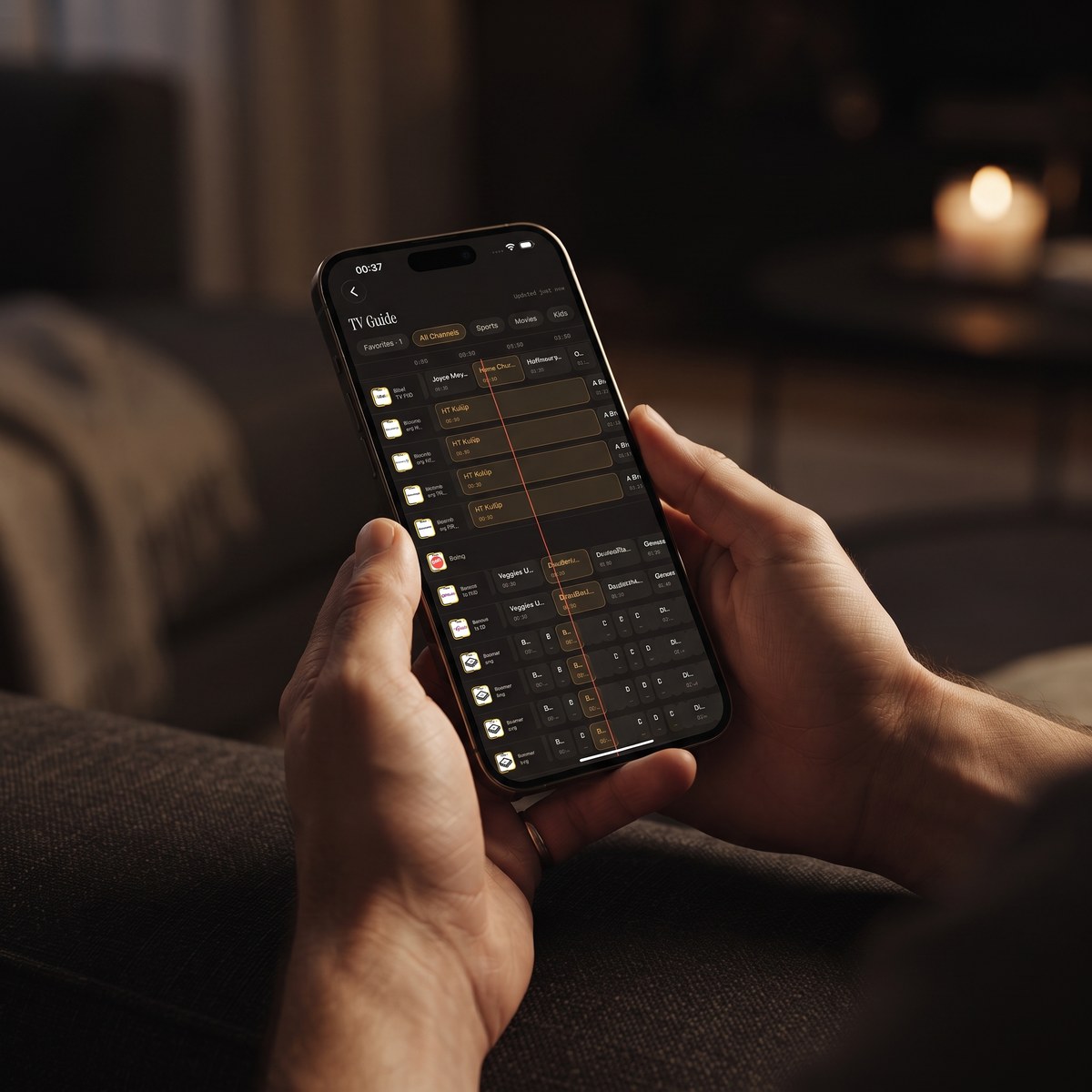
- An EPG timeline. EPG stands for electronic program guide, the scrollable grid showing what's on now and next. It has quick filters for Sports, Movies, Kids and Favorites.
- Live TV grouped by country, which helps a lot when a playlist mixes channels from many regions.
- A movies and series library with posters, descriptions and episode lists.
- Universal search across everything you've loaded.
- Favorites and Continue Watching, so the channels you love and the shows you're halfway through are one tap away.
- Subtitle and audio track selection for multi-language streams.
- Offline downloads for watching without a connection.
- A PIN parental lock to keep adult content out of reach.
- Multiple sources in one library, handy if you have more than one subscription.
- No ads and no tracking. Your login credentials stay on your device.
Each version follows its own platform's design conventions, so an iPhone build feels like an iPhone app and an Android build feels like an Android app. The structure and naming are consistent enough that switching phones doesn't mean relearning anything. If you're making that move, our guide to switching to Maximus on Android covers it step by step.
Which Devices Does Each Version Run On?
This is where the platforms really start to differ.
The iOS app (Apple App Store) runs on:
- iPhone
- iPad
- Macs with Apple M1 or later, which run the iPad app
- Apple Vision
The Android app (Google Play, one listing) runs on:
- Android phones
- Android tablets
- Android TV and Google TV, with a native TV interface built for a remote
Notice what's missing from the Apple list. There is no Apple TV app for Maximus. If you have an Apple TV, you watch on it by sending video from an iPhone or iPad with AirPlay. Our Apple TV guide walks through that setup.
On Android, the TV is a first-class screen. You install the app on the Android TV or Google TV device itself and move around with the remote's directional buttons. No phone needs to stay awake next to you.
How Do You Add a Playlist on Each Platform?
Setup is quick on both. There are two source types to know about:
- Xtream Codes isn't a file but a login. You enter a server address, a username and a password, and the app pulls in live channels, movies and series.
- M3U / M3U8 is a playlist, a text file (usually shared as a web link) that lists your channels and where each stream lives. M3U8 is the UTF-8 version, which handles channel names in non-Latin alphabets correctly.
If your provider gave you a server plus a username and password, that's Xtream Codes. If they gave you a single long link, it's almost certainly an M3U or M3U8 playlist.
Both platforms accept both types. iOS adds two shortcuts:
- QR code, which lets you scan source details instead of typing a long URL on a small keyboard.
- File import, which lets you load a playlist file saved on your device.
Once a source is added, the app builds your library from it on either platform. You can add more than one source and they all appear together in one library.
How Do You Get IPTV onto the TV from iPhone vs Android?
This is the biggest practical difference, and it helps to take each platform separately.
On iPhone and iPad:
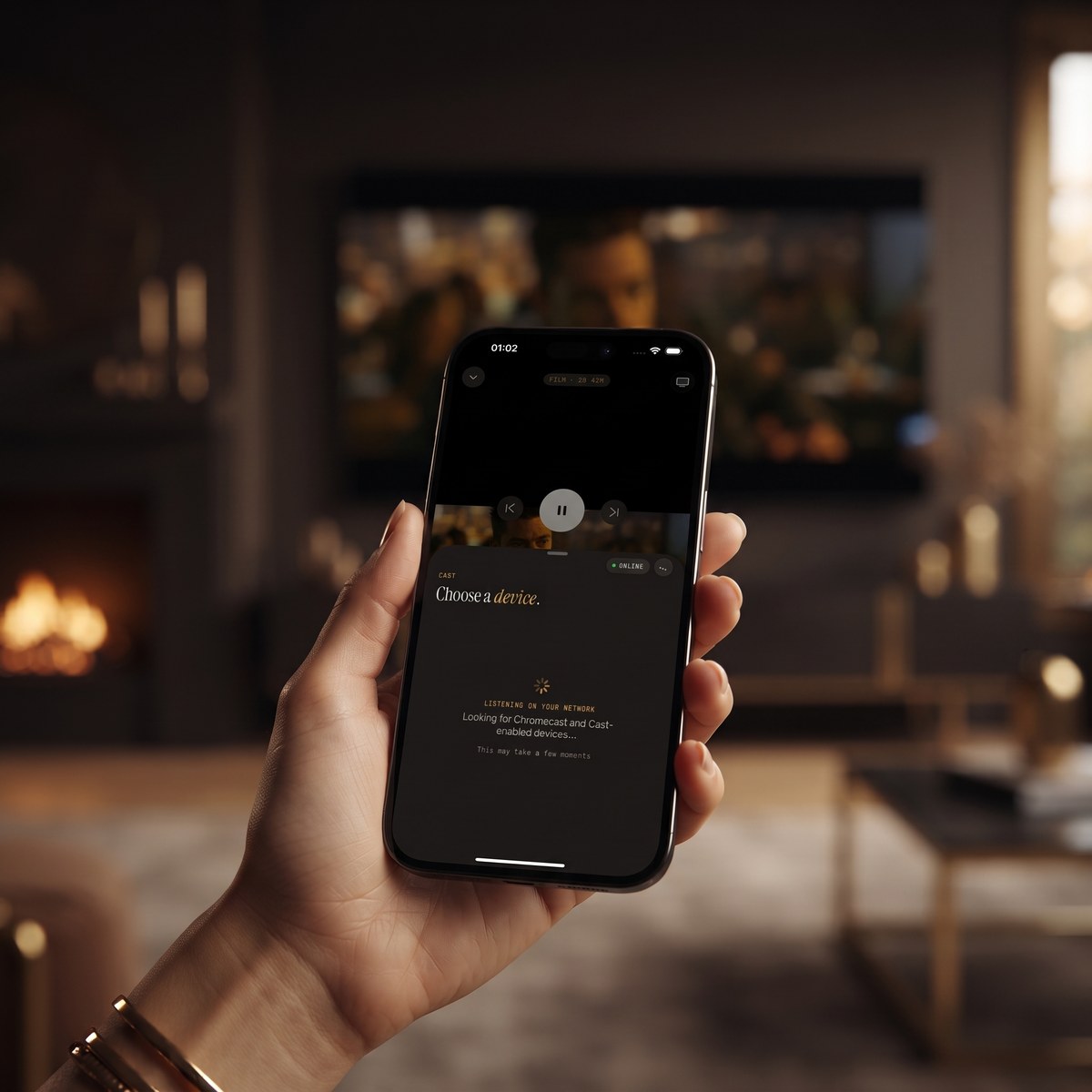
- AirPlay is Apple's wireless streaming technology. It sends video to an Apple TV or an AirPlay-compatible smart TV.
- Chromecast (also called Google Cast) is Google's equivalent. It sends video to a Chromecast device or a TV with Google Cast built in.
- The iOS app supports both. Tap the cast icon, choose a device, and the stream moves to the TV while your phone becomes the remote.
On Android:
- The Android app does not cast, either by Chromecast or AirPlay.
- Instead, install Maximus IPTV Player directly on an Android TV or Google TV device. You get a native interface built for the remote, with the same sources, guide and library.
In real homes, the choice is simpler than it sounds:
- Apple TV under the television? An iPhone or iPad with AirPlay is the route.
- Chromecast plugged in, but no Google TV interface? Cast from an iPhone or iPad, since the Android app can't cast to it.
- Google TV or Android TV set? Install the Android app on the TV itself, so no phone or casting is needed at all.
For step-by-step casting instructions, see our AirPlay and Chromecast guide.
Where Does Android Pull Ahead on Phones and Tablets?
Two playback features exist only on Android phones and tablets.
Picture-in-Picture (often shortened to PiP) shrinks the video into a small floating window, so you can reply to messages or check a recipe while a match keeps playing in the corner. It is available on Android phones and tablets only, not on iPhone or iPad.
Background playback keeps audio going when you leave the app. That's useful for news channels, talk radio-style streams or anything you mostly listen to.
If you like to keep a stream running while doing other things on the same device, that tips the balance toward Android.
Where Does iOS Pull Ahead?
The Apple side has its own advantages:
- Casting, covered above: AirPlay and Chromecast from iPhone and iPad.
- iCloud-synced playback progress. Pause an episode on your iPhone and pick it up on your iPad at the same point, with no manual setup.
- Face ID for the parental lock. Parents can unlock with their face rather than typing the PIN every time.
- QR code and file sources, which make adding a playlist less fiddly.
- More Apple screens. The same app runs on Macs with Apple M1 or later and on Apple Vision.
On Android, the parental lock has a different strength. It re-arms automatically, so you don't have to remember to switch it back on after unlocking.
What Changes Between a Phone, a Tablet and a TV?
Screen size changes the layout, not the core features.
- Phone: navigation sits where your thumb can reach and content scrolls vertically. Fine for a quick check of what's on.
- Tablet (iPad or Android): the extra width gives you a sidebar, wider poster grids and more of the EPG timeline at once. If you browse the guide rather than jumping straight to a known channel, a tablet is noticeably more comfortable.
- Android TV / Google TV: larger targets, clear focus highlighting and navigation built around a remote rather than touch.
On the Apple side, the TV experience is whatever is playing via AirPlay from your iPhone or iPad. You browse on the device in your hand and watch on the big screen.
Is Anything Shared Between iOS and Android?
Not automatically. There is no cross-platform sync between the iOS and Android apps. Favorites, Continue Watching and playback progress on an Android tablet won't appear on your iPhone, and vice versa. The iCloud sync described above only works between Apple devices, such as iPhone and iPad.
Purchases are handled separately too. The app is free to download on both stores, with optional Premium. Don't assume a plan bought in one store carries over to the other. Check each store's listing before you rely on it.
On Android, Premium unlocks the full TV guide, offline downloads, the parental lock, source refresh and multiple sources. Monthly and annual plans come with a 7-day trial.
Your IPTV source works on both. The same Xtream Codes login or M3U link can be added to an iPhone and an Android TV. Just check how many connections your provider allows at the same time.
So Which Platform Should You Pick?
If you're choosing purely for IPTV, let the hardware you already own decide:
- Choose iOS if you have an Apple TV or a Chromecast, use an iPhone and iPad together (iCloud progress sync helps here), or want Face ID on the parental lock.
- Choose Android if you have an Android TV or Google TV set, want Picture-in-Picture or background playback on your phone or tablet, or like one Google Play listing covering phone, tablet and TV.
- Mixed household? That works fine. Install the right version on each device and add the same source to each. Our multi-room setup guide shows how to plan it room by room.
FAQ
Is Maximus free on both iPhone and Android?
Yes. It's free to download on the Apple App Store and Google Play, with an optional Premium upgrade. You supply your own legal IPTV subscription separately.
Is there a Maximus app for Apple TV?
No. There is no Apple TV app. You can still watch on an Apple TV by using AirPlay from the iOS app on an iPhone or iPad.
Does Maximus work on Android TV and Google TV?
Yes. Android TV and Google TV are covered by the same Google Play listing as phones and tablets, with a native interface you control with the remote.
Does casting work in the Android app, or only on iOS?
No. The Android app doesn't support Chromecast or AirPlay. Install it directly on an Android TV or Google TV device, or cast from an iPhone or iPad instead.
Is Picture-in-Picture only on Android, not iPhone?
Yes. Picture-in-Picture is available only on Android phones and tablets, which also support background playback.
Can I use the same IPTV subscription on my iPhone and my Android TV?
Usually, yes. The same Xtream Codes or M3U/M3U8 details work on both apps. Check how many simultaneous connections your provider allows.
Will my Continue Watching list follow me from Android to iPhone?
No. There's no sync between iOS and Android. Playback progress syncs through iCloud only between Apple devices such as iPhone and iPad.
Can I add a playlist by QR code?
On iOS, yes: you can add a source by QR code or from a file. On Android, you add Xtream Codes and M3U/M3U8 sources the standard way.
Getting Started
Neither platform is strictly better. Each fits a different living room. Apple households get AirPlay, Chromecast and iCloud progress sync. Android households get a native TV app, Picture-in-Picture and background playback.
For iPhone, iPad, Apple Silicon Macs and Apple Vision, download Maximus IPTV Player from the App Store. For Android phones, tablets, Android TV and Google TV, get it on Google Play. Add your Xtream Codes or M3U source, and your channels, movies and series are ready on whichever screen is closest.
Written by
Maximus IPTV Team