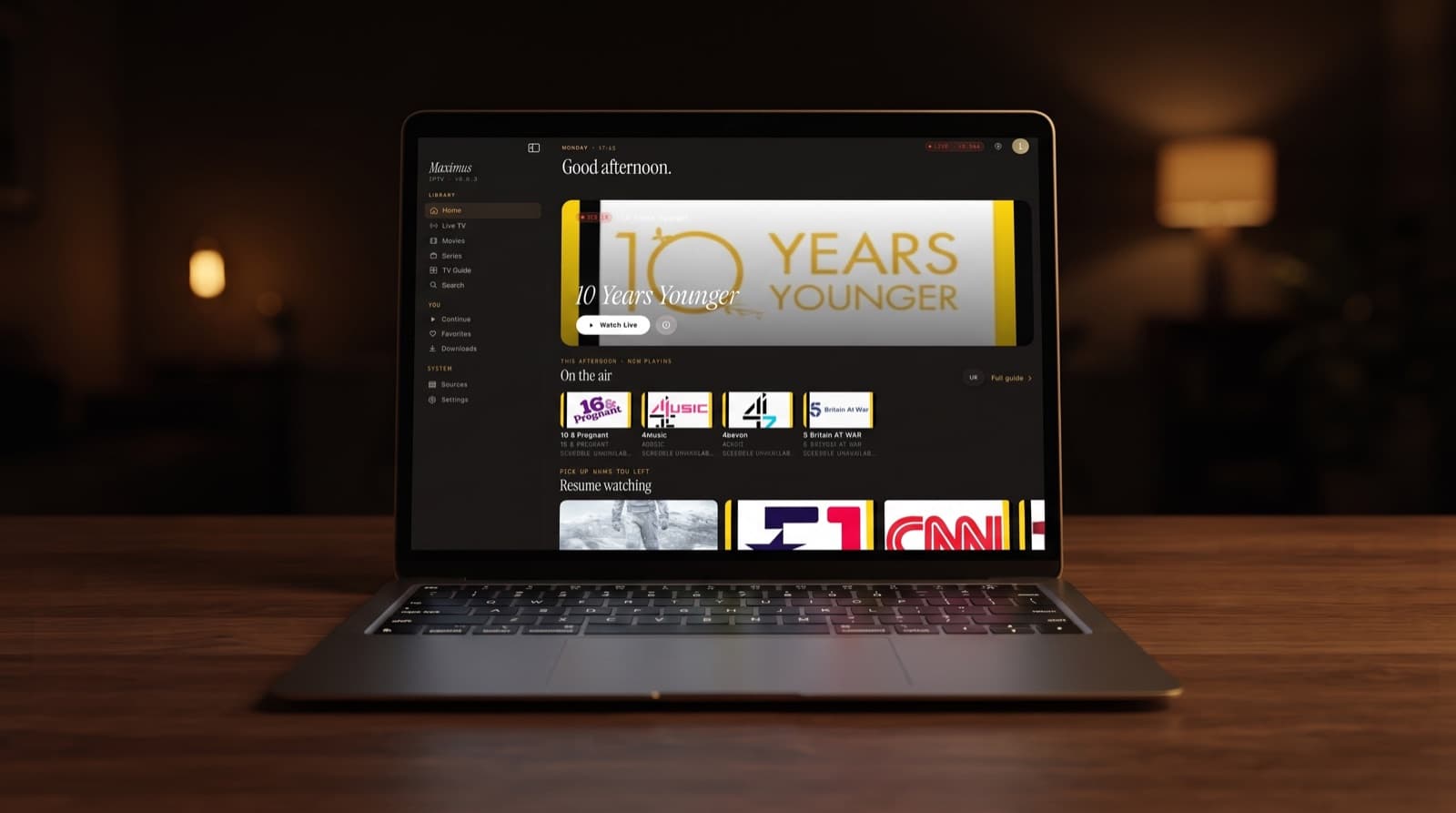
IPTV Player for Mac: Running Maximus on Apple Silicon
If you want an IPTV player for Mac, you may not need to look beyond the app already on your iPhone. Maximus IPTV Player is listed on the App Store for Mac, and it runs on any Mac with an Apple M1 chip or later on macOS 15.2 or newer. It is the same app you use on iPhone and iPad, running on your Mac through Apple's support for iPad apps on Apple silicon. This guide covers what that means, how to check whether your Mac qualifies, how to install it, and what to expect.
We will also be straightforward about the limits: this is not a separate Mac-only build, and Intel Macs are not supported.
Key Takeaways
- Maximus is available for Mac from the Mac App Store. It requires macOS 15.2 or later and a Mac with an Apple M1 chip or later.
- It is the iPhone and iPad app running on Apple silicon, the route Apple calls "Designed for iPad". There is no separate Mac-only version.
- Intel-based Macs are not supported, because iPad apps only run on Macs with Apple silicon.
- You connect your IPTV service the same way: an Xtream Codes login or an M3U playlist from your provider.
- Some behaviour may differ from a touchscreen, so treat the Mac as the same app on a different kind of device rather than a Mac-specific redesign.
Can you get an IPTV player for Mac from the App Store?
Yes. Search the Mac App Store and you can find Maximus, which is also available for iPhone, iPad and Apple Vision. On the Mac, the listing states two requirements: macOS 15.2 or later, and a Mac with an Apple M1 chip or later.
An IPTV player is an app that plays live TV, films and series from a service you already subscribe to. It does not include any channels itself. You bring the details from your provider, usually one of two formats:
- Xtream Codes — a login made of a server URL, a username and a password. Your player uses it to fetch channels, a film and series library, and the guide in organised pieces.
- M3U — a playlist file or link that lists stream addresses, one per channel or title. M3U8 is the UTF-8 version of the same format.
If you have not set up a service before, our walkthrough on adding an Xtream Codes login explains where those details come from and how to avoid typos, and the same steps apply on a Mac.
What does "Designed for iPad" mean on a Mac?
Macs with Apple silicon use the same family of chip architecture as iPhone and iPad. Because of that, Apple lets developers make their iPhone and iPad apps available on those Macs without rebuilding them as separate Mac apps. On the Mac App Store, these apps are marked as designed for iPhone or iPad.
In practice that means:
- It is the same app. The library, the guide and the settings you know from iPad are what you get on the Mac.
- It runs natively on the chip. There is no emulator in between, because the app is already built for this architecture.
- It follows Apple's rules for iPad apps on Mac. macOS handles things like how the app sits in a window and how mouse and trackpad input stand in for touch.
- Intel Macs are left out. Intel processors use a different architecture, so iPad apps cannot run on them at all.
It also means we will not promise Mac-specific features. We are not documenting Mac-specific keyboard shortcuts or window behaviour, and not every feature designed around a touchscreen or a phone's hardware will necessarily behave identically on a Mac. What you can count on is the core experience of the app itself.
How do you check if your Mac can run Maximus?
It takes about ten seconds.
- Click the Apple menu in the top-left corner of the screen and choose About This Mac.
- Look at the Chip line. If it names an Apple chip, such as Apple M1, M2, M3, M4 or later, your hardware qualifies. If you see a Processor line naming an Intel chip instead, your Mac cannot run iPad apps.
- Check the macOS version shown in the same window. You need macOS 15.2 or later.
If your Mac has Apple silicon but an older version of macOS, open System Settings, go to General, then Software Update, and install the latest version your Mac supports.
As a rough guide, Apple began moving its Mac range to Apple silicon in late 2020, starting with the M1 MacBook Air, MacBook Pro and Mac mini. Most MacBook Air and MacBook Pro models sold since then use Apple chips, but always confirm with About This Mac rather than guessing from the year.
How do you install Maximus IPTV Player on a Mac?
- Open the App Store on your Mac.
- Search for Maximus IPTV Player. Because it is an iPhone and iPad app, the Mac App Store may show it under a separate iPhone and iPad apps tab in the search results. Switch to that tab if you do not see it straight away.
- Click Get and sign in with your Apple Account if asked. The app is free to download.
- Open it from your Applications folder, like any other app.
- Add your source. Enter your Xtream Codes login or your M3U playlist link, exactly as your provider supplied it.
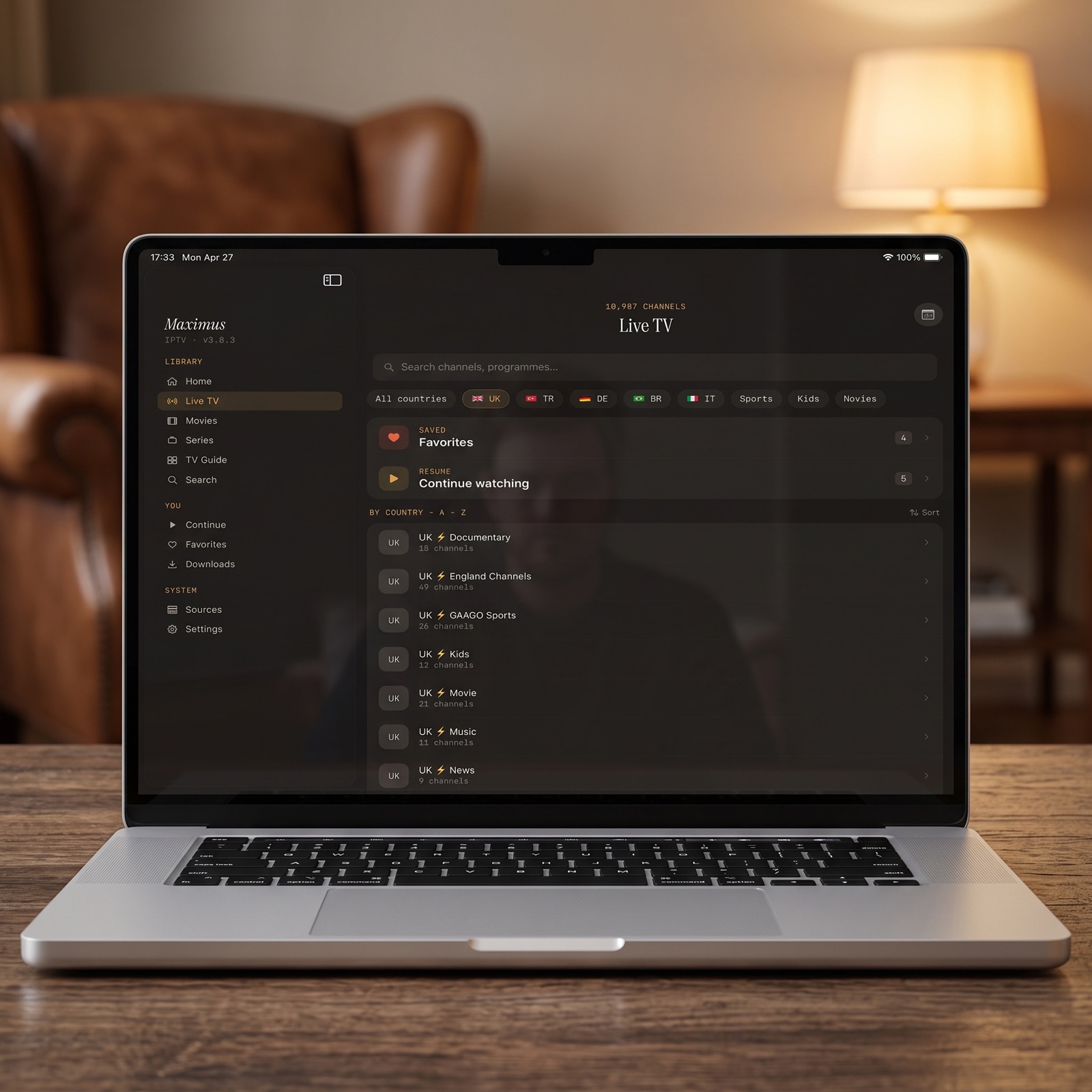
Once your source connects, Maximus organises it for you: live TV grouped by country, a movies and series library, the EPG guide and search. EPG stands for electronic programme guide, the schedule of what is on each channel now and later.
Your credentials stay on your device and are only sent to your own provider, and there are no ads and no tracking.
What can you do with Maximus on a MacBook?
Because it is the iPad app, the features to look for are the ones Maximus is built around on iPhone and iPad:
- Live TV grouped by country, with Favorites so the channels you watch most are easy to reach.
- An EPG timeline showing what is on now and next across your channels.
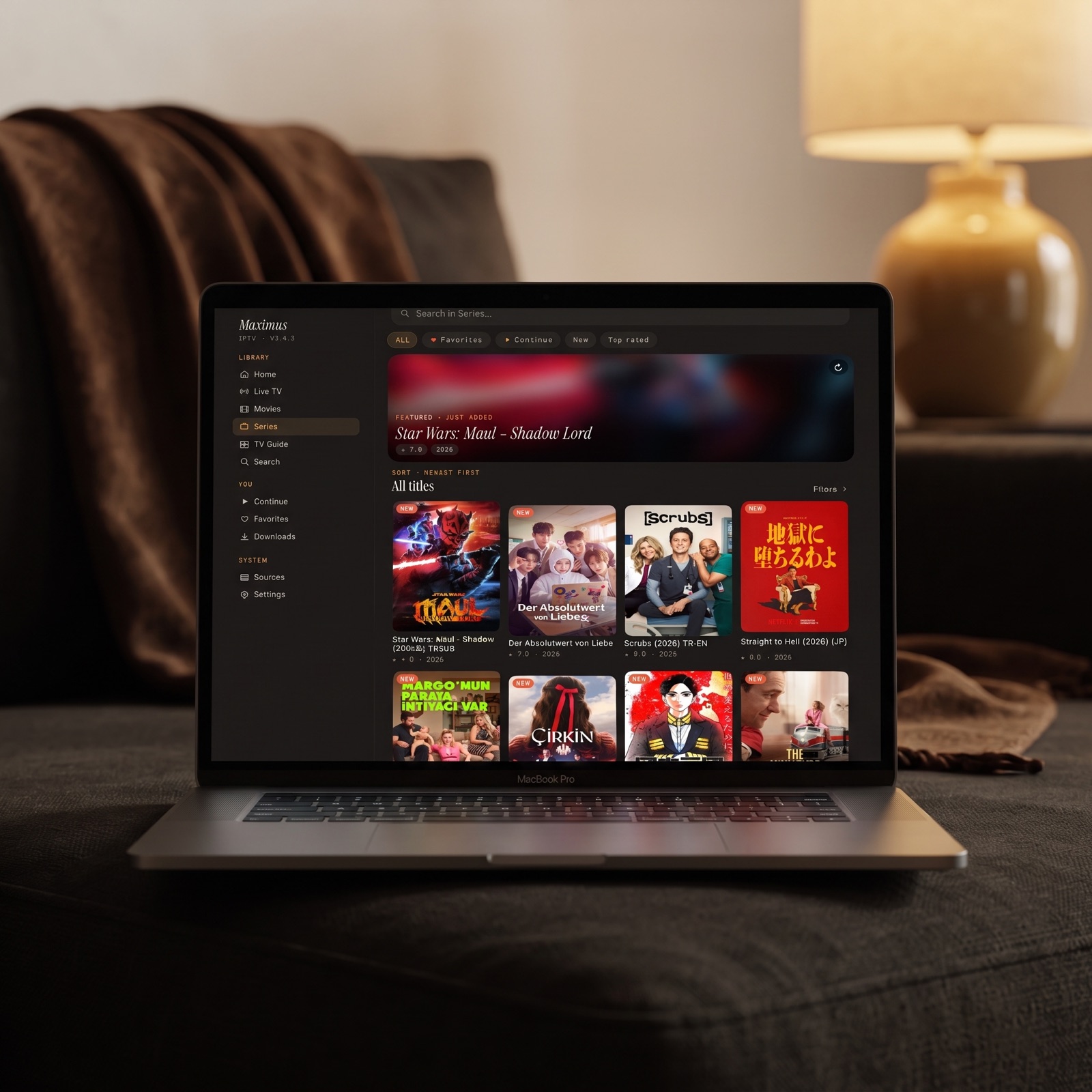
- A movies and series library, with series split into seasons and episodes.
- Universal search across live channels, movies and series.
- Continue Watching, so films and episodes pick up where you stopped.
- Subtitle and audio track selection where the stream provides them.
- A PIN parental lock for shared computers.
- Multiple sources in one library, if you use more than one provider.
Apps designed for iPad are built around a larger screen than a phone, which suits a laptop display. Our iPad big-screen guide shows the iPad layout in detail, and it is a good preview of the app you will be running.
A few things are worth checking for yourself rather than assuming. Maximus syncs watch progress between iPhone and iPad through iCloud, but we do not claim the same for the Mac. Offline downloads, AirPlay and Chromecast are features of the app on iPhone and iPad; test them on your own Mac before you rely on them. If you want to send a stream to a TV, the dependable route is from your iPhone or iPad, as covered in our AirPlay and Chromecast guide.
What makes a good IPTV player for a MacBook?
If you are comparing options for the best IPTV player for a MacBook, these are the questions that matter most, whichever app you choose.
- Does it run natively? On Apple silicon, an app built for the chip, including an iPad app running directly on it, is generally a more efficient choice than a player running inside a browser tab.
- Does it support your provider's format? Xtream Codes and M3U cover most services. If your provider offers both, an Xtream login usually gives a better organised library.
- Is the guide usable? A clear EPG makes live TV far easier to browse on a big screen than a long channel list.
- Does it respect your privacy? Your IPTV login is effectively a password to a paid account. Look for an app that keeps credentials on your device and does not add ads or tracking.
- Does it handle big libraries? Services can carry tens of thousands of titles, so search and categories matter.
- Does it come from the App Store? Apps distributed through the App Store go through Apple's review and are easy to keep updated.
Maximus IPTV Player is built to tick those boxes on iPhone and iPad, and on an Apple silicon Mac you get that same app. For a closer look at how Xtream-compatible players load your content, see Xtream Codes API explained.
What if you have an Intel Mac?
Maximus will not install on an Intel-based Mac, and there is no workaround: macOS only runs iPad apps on Apple silicon. If your Mac is Intel-based, you still have good ways to use Maximus:
- Use your iPhone or iPad. Maximus on iPad gives you the same app on a large screen.
- Put it on a TV. From iPhone or iPad, AirPlay to an Apple TV or AirPlay-compatible TV, or use Chromecast. There is no Apple TV app, so the Apple TV route is always AirPlay from your iPhone or iPad.
- Use Android TV or Google TV. Maximus is on Google Play for Android phones, tablets and Android TV / Google TV, with the same Xtream Codes and M3U support.
When you eventually replace the Mac, any model with an Apple chip will run it.
FAQ
Is Maximus IPTV Player a native Mac app?
It is the iPhone and iPad app, available on Macs with Apple silicon through the Mac App Store. It runs directly on the Apple chip, but it is not a separately designed Mac version.
Which Macs does Maximus support?
Any Mac with an Apple M1 chip or later running macOS 15.2 or later. That includes Apple silicon MacBook Air, MacBook Pro, iMac, Mac mini, Mac Studio and Mac Pro models.
Does Maximus work on an Intel Mac?
No. iPad apps only run on Apple silicon Macs, so Intel Macs cannot install it.
Do I need to pay for Maximus on Mac?
The app is free to download, with an optional Premium upgrade. You also need your own subscription from an IPTV provider, since the app does not include channels.
Can I use the same IPTV login on my Mac and my iPhone?
Yes, you can add the same Xtream Codes login or M3U playlist on each device. Check how many simultaneous connections your provider allows if you plan to watch on more than one at a time.
Are there Mac keyboard shortcuts?
We do not document any Mac-specific shortcuts. The app is designed for iPad, and macOS provides its standard handling for iPad apps on Mac.
Try Maximus on your Mac
If your Mac has an Apple chip and runs macOS 15.2 or later, you already have everything you need for a clean, ad-free IPTV player for Mac: install the app, add your provider's login, and your channels, films, series and guide are organised for you. If you are new to the app, our first week setup guide is a good next read.
Download Maximus IPTV Player for Mac, iPhone and iPad on the App Store, or get it for Android phones, tablets and Android TV on Google Play.
Written by
Maximus IPTV Team