IPTV Player for Android TV and Google TV: Setup Guide
Most people who look for an IPTV player for Android TV end up with an app built for a touchscreen and then stretched to fit a television. Menus that expect a finger, tiny text across the room, and a remote that keeps losing track of where it is. Maximus IPTV Player takes the other route. The same app you get from Google Play for your phone installs natively on Android TV and Google TV, with a TV interface designed for the remote from the first screen. This guide walks through the full setup: installing it, signing in with your Xtream Codes login, and finding your way around live TV, the program guide, films, series, subtitles and parental controls.
Key Takeaways
- Maximus IPTV Player installs from Google Play on Android TV and Google TV devices. It's the same listing as the phone and tablet app: one app, one subscription.
- The TV version is a native interface built for the remote, not a stretched phone app, and it runs directly on the TV, so there's nothing to cast.
- You sign in with your provider's Xtream Codes login, typed in with the remote. Your channels, films and series are then organised for you automatically.
- The top menu gives you Home, Live, Guide, Movies, Series and Continue, with search and settings on the right.
- Subtitle and audio track buttons sit right on the player controls, and a PIN lock can protect adult content.
- Maximus doesn't sell channels or content. It plays the service you already subscribe to.
What makes an Android TV IPTV player "remote-first"?
An Android TV IPTV player is only as good as its navigation. On a phone you tap wherever you like. On a TV, every action is a series of presses on the directional pad, and a layout that ignores that turns a simple channel change into a chore.
Remote-first design comes down to a few habits you notice straight away:
- One clear focus. Whatever the remote is pointing at gets a gold outline.
- A short top menu. Six destinations, reachable in a couple of presses.
- Big targets. Buttons such as Watch Live and Play are readable from the sofa.
The Google Play listing puts it simply: "A native TV interface designed for your remote, not a stretched phone app."
What is the best IPTV player for Android TV?
The best IPTV player for Android TV is the one that handles your provider's login cleanly, shows a guide you can read from the sofa, and is easy to drive with a remote. Those three tests matter more than any feature list. Our best IPTV player for Android in 2026 comparison puts the main options side by side on sources, guide, playback, privacy and TV support, including where Maximus IPTV Player falls short.
The same advice covers an Android TV box. A box that runs Android TV or Google TV with the Google Play Store installs the app from the same listing and follows exactly the same setup as a TV with the system built in, so every step below applies to it too.
How do you install this IPTV app for Android TV?
A single Google Play listing covers phones, tablets and Android TV, so there's no separate TV edition and nothing to install from outside the store.
- On your Android TV or Google TV device, open the Google Play Store app.
- Search for "Maximus" with the on-screen keyboard or voice search.
- Open the listing and choose Install.
- Open the app from the Play Store page or from your apps row.
Installing from the Play Store also keeps the app up to date on its own. If you've been tempted by an app file from a download site, our guide on why the Play Store install is safer than an IPTV player APK explains the risks.
How do you add your Xtream Codes login with the remote?
Xtream Codes is the login format most IPTV providers use. Instead of one long playlist link, your provider gives you a server address, a username and a password, and the app uses them to fetch live channels, films, series and programme data. M3U and M3U8 playlists work too, but on a TV an Xtream Codes login is usually easier to type.
Before you start, have the details from your provider's welcome email open on your phone or laptop so you can read them while you type:
- Server URL. Include the
http://orhttps://part and any port number exactly as your provider wrote it. - Username and password. Both are usually case-sensitive.
Then enter them with the remote, one field at a time, checking each before moving on. Most sign-in problems on a TV come from a single mistyped character in the server address. Voice typing can help, but check the result, because dictation often adds spaces or capital letters.
Once you're signed in, the app sorts the service for you: live channels grouped by country, films and series with posters, ratings and descriptions, and programme data for the guide. Your credentials stay on your device and are only ever sent to your own provider, and the app has no ads and no tracking.
What does the home screen show on a TV?
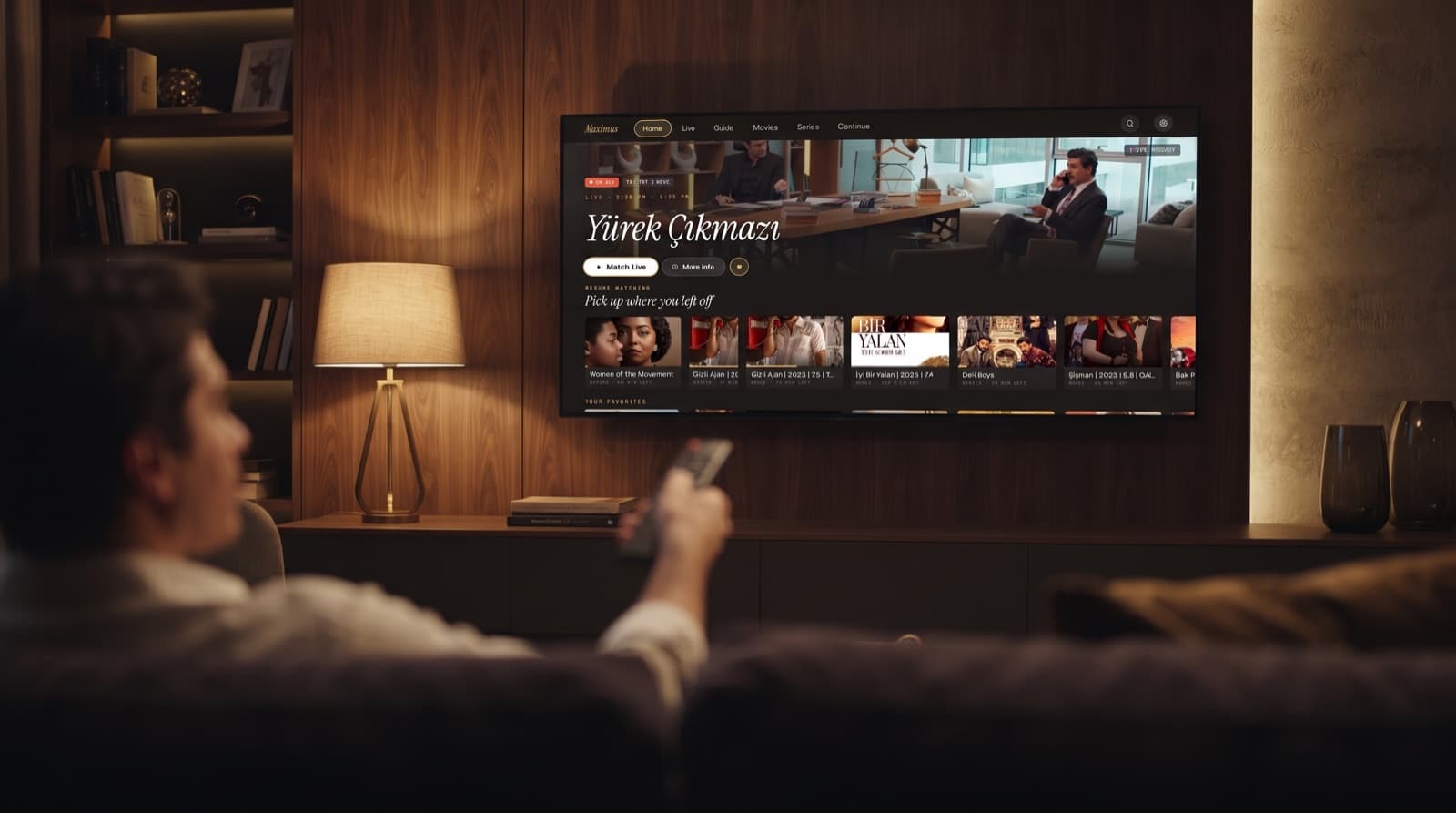
The home screen is built around what's on right now. A large featured card shows a live programme with an ON AIR badge, the channel name and the broadcast time, plus Watch Live, More info and a heart to add the channel to your favourites.
Below that, a Resume watching row lists films and episodes you started, with the minutes left on each, followed by Your favorites, the live channels you've saved.
Along the top, the menu reads Home, Live, Guide, Movies, Series, Continue, with a search button and a settings button in the top-right corner. Search covers live channels, films and series together, so a single query finds a match in any of them.
How do you browse live TV on Android TV?
Choose Live in the top menu. The screen opens with a count of the channels in your service and a row of country chips, starting with All countries and followed by country codes with their flags. Pick a country and the list below narrows to that country's channel groups.
Two shortcuts sit above the groups:
- Favorites. Every channel you've saved, with a count.
- Continue watching. Recently played items, also with a count.
Underneath, the groups are listed by country, A–Z, and a Sort control lets you change the order. Each group shows how many channels it contains. The group names themselves come from your provider, so they'll match whatever your service calls its categories. Move down to a group, press select to open it, and choose a channel to start playing.
How does the program guide (EPG) work with a remote?
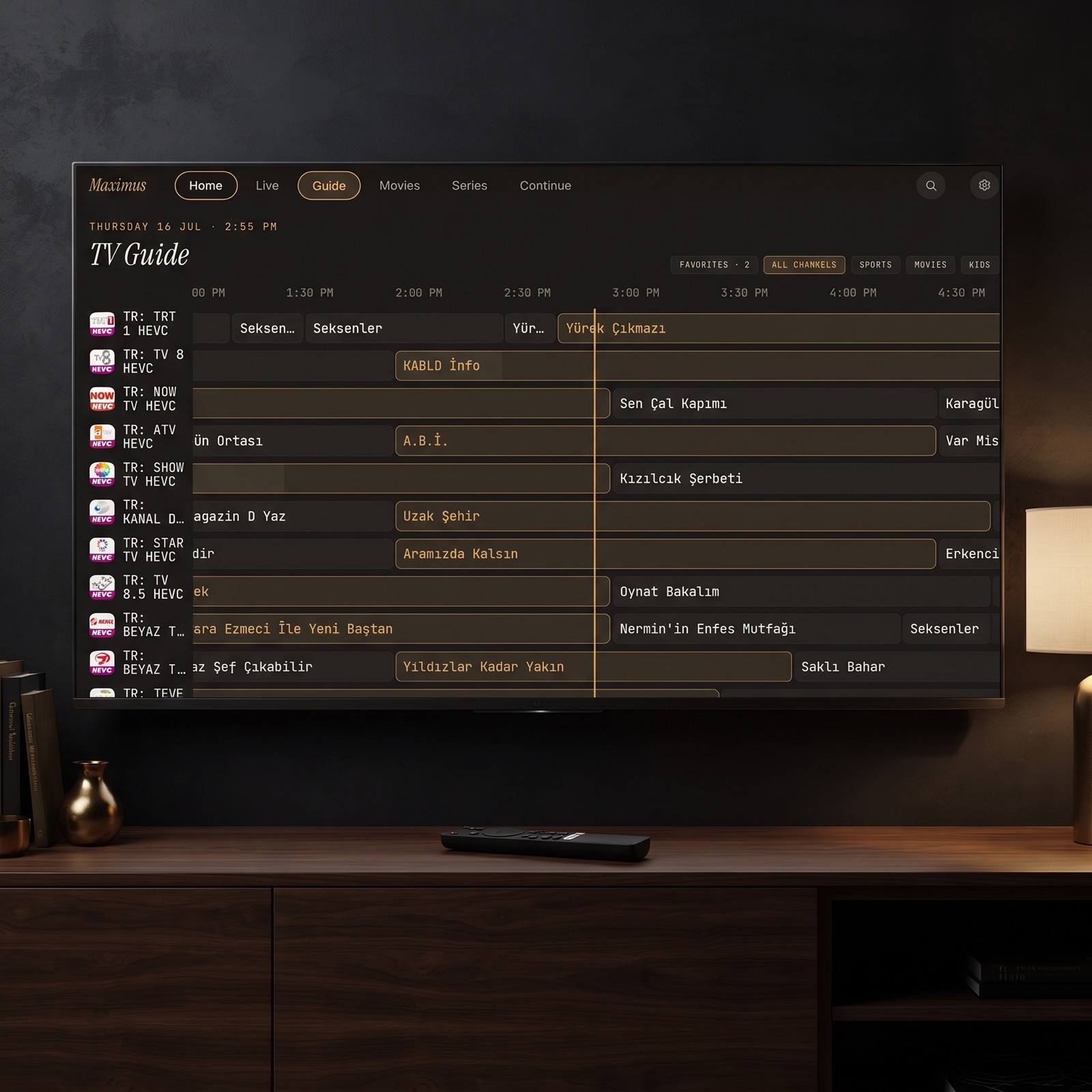
An EPG, short for electronic program guide, is the grid showing what's on each channel now and later. It lives in the Guide tab, and it's where a TV screen really earns its size.
At the top you'll see today's date and the current time. Below that is a horizontal timeline marked in half-hour steps, with channels listed down the left side. A thin gold vertical line marks "now", so programmes crossing that line are the ones on air, and anything to the right is still to come. Move left and right to scroll through time, and up and down to move between channels.
Filter chips above the grid let you narrow what you're looking at: Favorites, All channels, Sports, Movies and Kids. The Favorites view is especially handy on a TV, because a short list of your own channels is much quicker to scan with a remote than a full lineup.
How complete the guide looks depends on the programme data your provider supplies. If a channel's row is empty, the provider isn't sending listings for it. For more on getting the most out of a guide, see the hidden power of EPG in IPTV apps. The full TV guide is one of the Premium features.
How do you find movies and series?
The Movies and Series tabs share a layout. A large featured title fills the top of the screen with its year and rating, a Play (or Continue) button and an In My List button. Below it, filter chips let you switch between All, Favorites, Continue, New and Top Rated, and your provider's own categories may appear as extra chips. A Sort · Newest control on the right changes the order of the poster rows underneath.
Open a series and the detail page shows the season and episode count, the genre, a synopsis, and a list of episodes, each with a thumbnail, its running time and a short description. A Play S01E01 button starts from the beginning, a heart saves the show, and a season selector on the right switches between seasons.
The Continue tab in the top menu brings together everything you've started, so picking up a series later takes a couple of presses.
How do you change subtitles and audio tracks on the TV?
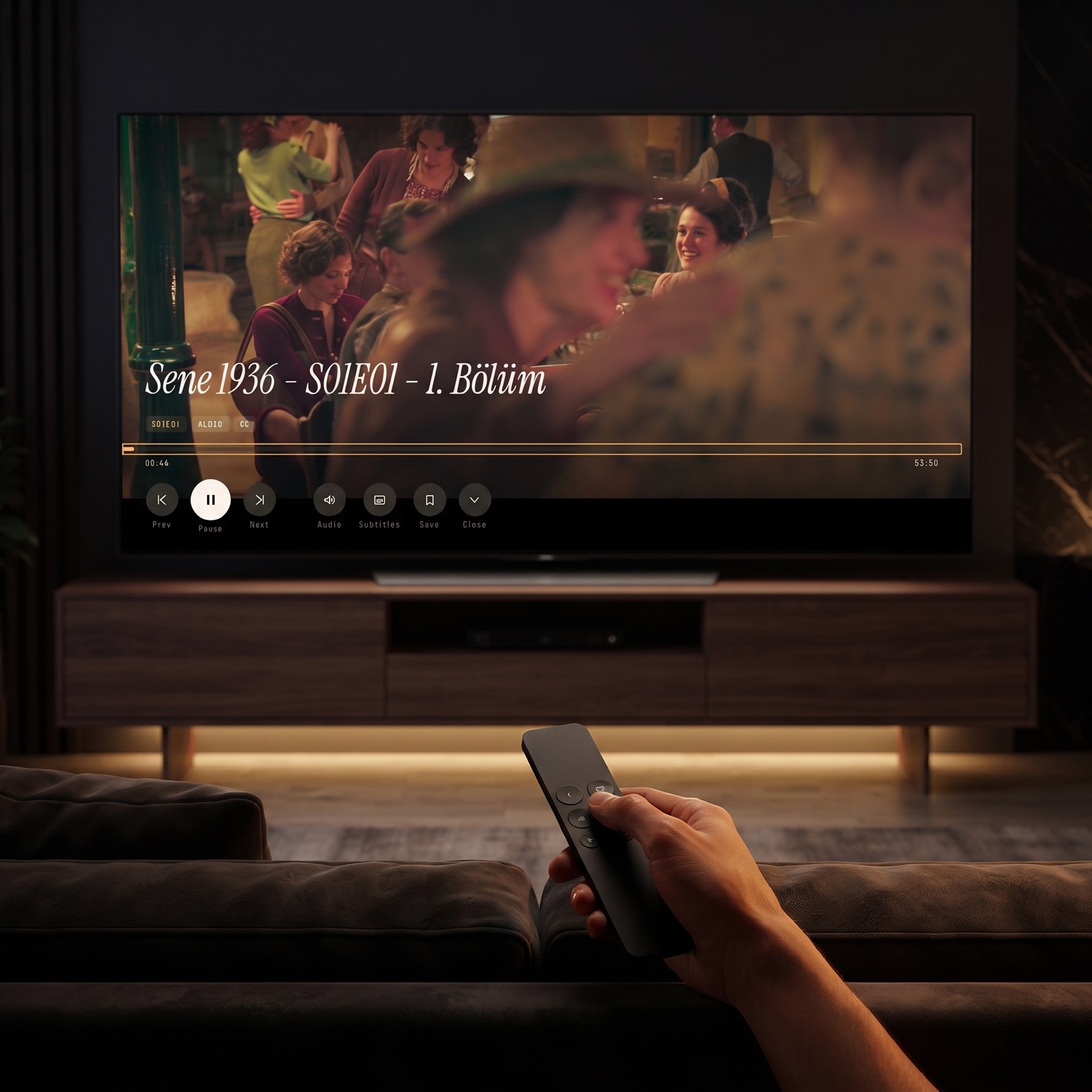
Start any film or episode and the player shows the title, a progress bar with elapsed and total time, and a row of large buttons along the bottom: Prev, Pause, Next, Audio, Subtitles, Save and Close. Small tags above the progress bar tell you what the stream offers, such as the episode code, AUDIO and CC.
- Choose Audio to switch between the audio tracks in the stream, for example the original language or a dubbed version.
- Choose Subtitles to turn captions on, off, or to another language.
- Prev and Next step between episodes, and Close takes you back to where you were browsing.
Which languages you see depends entirely on what your provider includes in each stream. If a film only carries one audio track, there's nothing else to switch to.
How do you lock adult content on a shared TV?
A living-room TV is the most shared screen in the house, which is exactly where a parental lock matters. The app can protect adult content with a PIN, and the lock re-arms itself automatically, so you don't have to remember to switch it back on after you've watched something. Adult categories stay behind the PIN until it's entered.
When you set the PIN, choose a number the children won't guess, and don't write it on a sticky note by the TV. Parental lock is included with Premium. For a wider look at the options, read our guide to parental controls in IPTV apps.
Does it work on more than one TV, or with more than one source?
Yes on both counts, with a couple of details worth knowing. Because it's one Google Play listing, the same app runs on your phone, your tablet and your Android TV. The listing sums it up as "one app, one subscription", and Premium is billed through Google Play. How many screens can stream at the same time is set by your IPTV provider, not by the player. If you're planning several rooms, see our multi-room setup guide.
With Premium you can also add more than one IPTV source, browse them as a single library and refresh your sources. The app is free to try. Premium comes as a weekly, monthly or annual plan, and the monthly and annual plans include a 7-day free trial.
FAQ
Is there a separate Maximus app for Android TV?
No. One Google Play listing covers phones, tablets and Android TV or Google TV. Install it from the Play Store on your TV and you get the TV interface automatically.
Do I need my phone to watch on the TV?
No. The app runs natively on the TV itself, so there's nothing to send across from a phone. The Android app, including the TV version, has no casting feature and doesn't need one here.
Can I sign in to Maximus on Android TV by scanning a code with my phone?
Plan to enter your Xtream Codes server address, username and password with the TV remote. Keep your provider's email open on another device so you can copy the details carefully.
Does Maximus IPTV Player include channels?
No. It's a player. You need an active subscription from an IPTV provider, and you should only use services you're legally entitled to watch.
Does Picture-in-Picture work on Android TV?
Picture-in-Picture and background playback are features of the Android phone and tablet app. On Android TV, the app is built around full-screen viewing with the remote.
Conclusion
A good IPTV player for Android TV should feel at home on the big screen: a short menu, obvious focus, a guide you can read from across the room, and subtitle and audio controls one press away. If you're weighing up the best IPTV player for Android TV, those are the things to test first, and they're what Maximus IPTV Player is built to do. Install it from Google Play on your Android TV or Google TV, add your Xtream Codes login with the remote, and your live channels, guide, films and series are ready in one place. If you also use the app on your phone, the Android phone setup guide covers that side.
Written by
Maximus IPTV Team