How to Organize Thousands of IPTV Channels
You finally get ten free minutes to watch something, and you spend half of them scrolling past channels you never watch to find the one you do. If that sounds familiar, the fix isn't a smaller subscription. It's using the organizing tools already built into Maximus IPTV Player, an IPTV (Internet Protocol Television, meaning TV delivered over the internet instead of cable or satellite) player for iPhone, iPad, and Android phones, tablets and TVs. Most people load a playlist and never touch these features again, which is a shame, because they're what turn a wall of channels into something you can actually use. This guide shows how each tool works and how to set them all up in a couple of minutes.
Key Takeaways
- Country filters group live channels by country, so one tap narrows a giant list to the region you care about.
- Favorites give you a personal shortlist, and the TV guide has a Favorites filter to match.
- TV guide filters for Sports, Movies, Kids and Favorites let you browse by what's on rather than by channel.
- Universal search finds live channels, movies and series from one search box, which beats scrolling almost every time.
- Continue Watching keeps your place in movies and episodes, so you don't have to hunt for them again.
- These tools work the same whether your source is an Xtream Codes login or an M3U playlist, on iPhone, iPad, Android phones and tablets, and Android TV / Google TV.
Why Does an IPTV Channel List Need Organizing?
If you've only ever used cable, this may sound odd: cable gives you a numbered list and that's that. IPTV is different. Providers deliver channels in one of two main ways. An M3U or M3U8 playlist is a plain-text file listing stream addresses, channel names and logos (M3U8 is the UTF-8 version, which handles non-Latin channel names properly). Xtream Codes is a login, a server address plus a username and password, that lets the app pull in your channels, movies and series directly.
Either way, a single subscription can easily include thousands of channels once you count regional variants, language versions and quality tiers. Scroll through that unsorted and you'll spend longer finding a channel than watching it. Most subscriptions also mix channels from many countries into one list, which is why the first layer of organization is geography.
How Do Country Filters Cut the List Down?
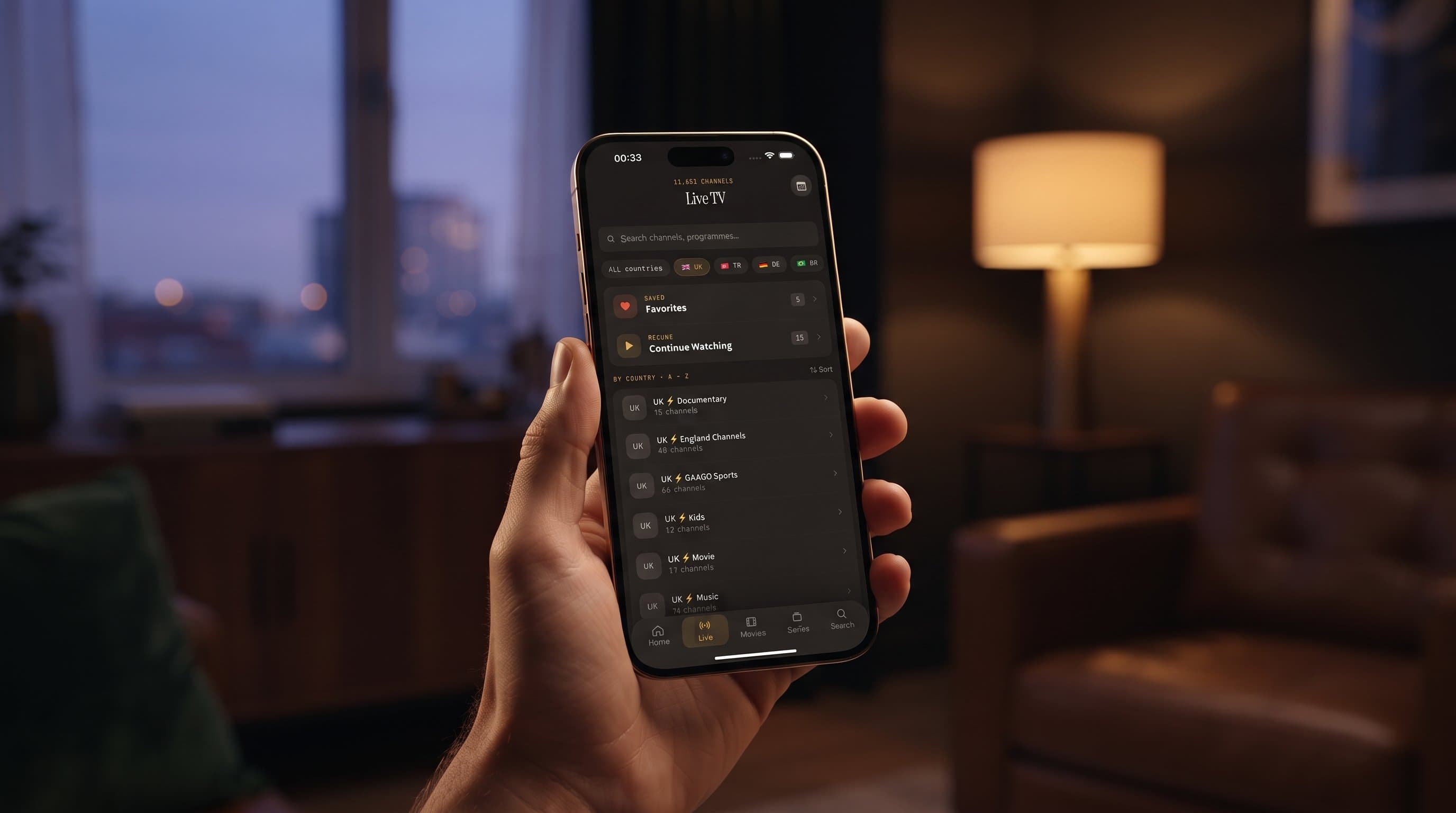
Maximus groups live TV by country and gives you country filters at the top of the list. Tap a country and the list narrows to that country's channels straight away. Tap another and you're looking at a different region, without scrolling past everything in between.
The filters you see depend on your playlist. If your provider's channel data identifies countries clearly, you get clean groups; if the data is messy, a few channels may land somewhere less obvious. A useful habit: households that watch in two languages usually find that two country filters cover almost everything they watch day to day.
For a deeper look at international lineups, see our guide to filtering international channels by country.
How Should You Set Up Favorites?
Favorites is the feature people set up once and then benefit from every day. Mark the channels you actually watch, such as your local news, the sports channels you follow and the kids' channel that runs on weekend mornings, and they're gathered in one place instead of scattered across the full list. The rest of your channels are still there. Favorites just stops making you wade through them.
A few habits make Favorites far more useful:
- Start small. Pick five to ten channels. A Favorites list of 80 channels is just another long list.
- Cover your moods. Include one or two channels each for news, sport, movies and kids, so the shortlist works whatever you feel like watching.
- Prune regularly. When a season ends or you stop following a show, remove the channel. Favorites should reflect what you watch now, not last year.
- Use it in the guide. The TV guide has a Favorites filter, so you can see what's on across only your shortlist.
If you use Maximus on more than one device, plan to build your Favorites on each one. iCloud sync between iPhone and iPad is for playback progress, and there's no sync between iOS and Android. Our guide to Favorites and resume watching goes into more detail.
How Does the TV Guide Help You Browse by Genre?
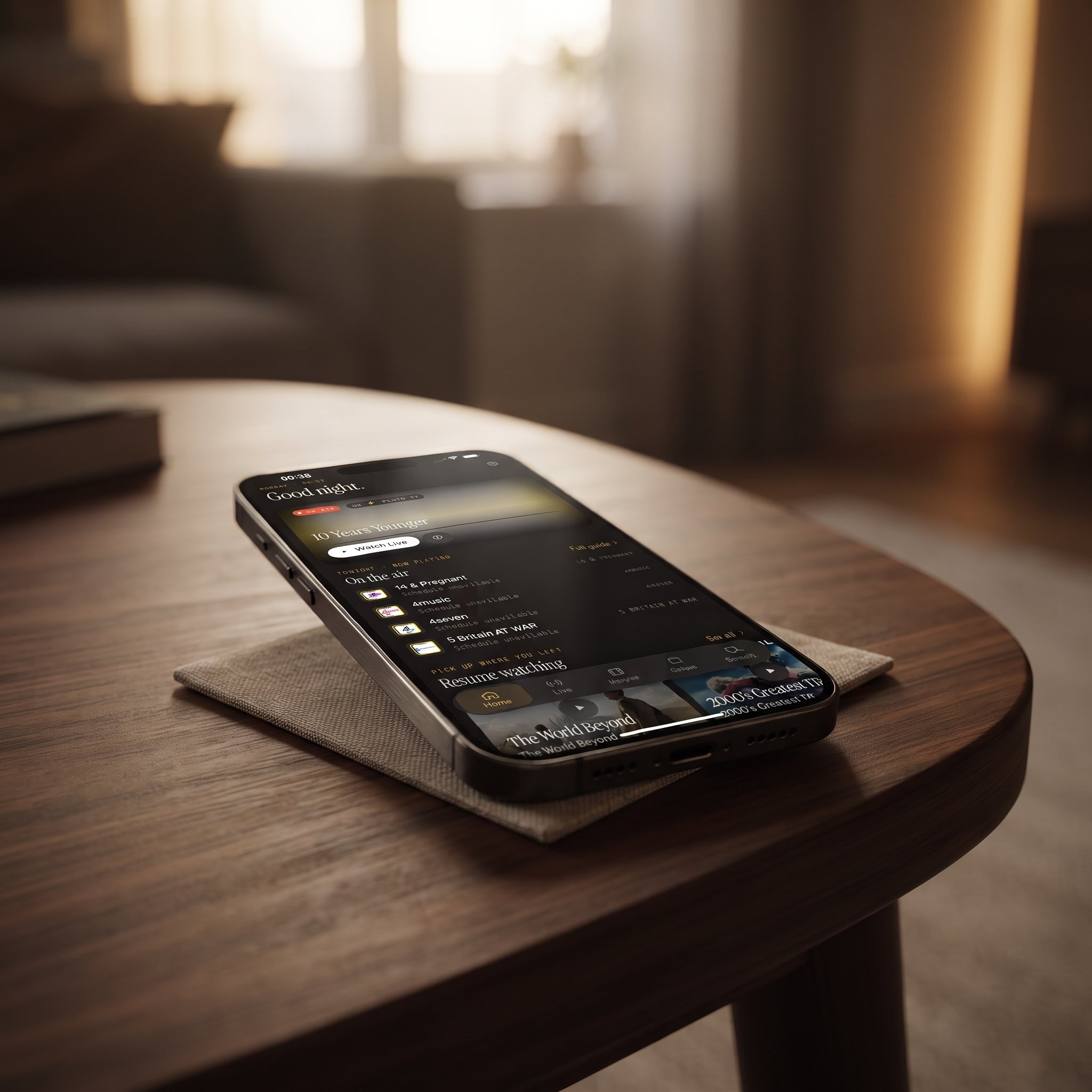
The EPG (Electronic Program Guide) is the on-screen schedule showing what's on now and what's coming up. In Maximus it's a real timeline you can scroll through, and it's a different way to organize your viewing: instead of asking "which channel?", you ask "what's on?"
The guide's filters do the heavy lifting:
- Sports narrows the guide to sport, handy on a busy match day.
- Movies surfaces films airing now or soon.
- Kids brings children's programming into one view.
- Favorites limits the guide to your shortlist.
How complete the guide looks depends on the schedule data your provider supplies. Our explainer on how the TV guide works goes further.
When Is Search Faster Than Browsing?
Almost always, if you know what you want. Universal search looks across live channels, movies and series at once, so you don't need to remember whether something is a channel or an on-demand title.
- Try a shorter search. Channel names in playlists often carry country prefixes and quality tags, so a distinctive part of the name can work better than the full name.
- Search by title for on-demand content. When you're after a film or series, type its name rather than browsing categories.
- Check your sources if something's missing. If a search comes up empty for a channel you know you have, make sure the source that carries it is still active.
What Does Continue Watching Keep Track Of?
Favorites is about channels you return to. Continue Watching is about the thing you were in the middle of. Start a film or an episode, stop partway through, and Continue Watching keeps it ready so you can resume without digging back through the library.
On iPhone and iPad, iCloud syncs playback progress between devices, so an episode started on the phone can be resumed on the iPad. There's no syncing between iOS and Android devices.
How Do Multiple Sources Fit Into One Library?
Plenty of households run more than one subscription, perhaps one for sport and another for international channels. Maximus combines multiple sources into one library, so the same country filters, Favorites and search work across all of them instead of in separate silos.
A few tips keep a combined library tidy:
- Remove sources you've stopped paying for. Dead sources add clutter and channels that never load.
- Refresh a source when your provider changes its lineup, so the list reflects what's actually available. On Android, source refresh and multiple sources are part of Premium.
- Trim at the source. Some providers let you choose which channel packages appear in your playlist from their customer area. Dropping whole regions you never watch there can be the single biggest decluttering step.
Can Parental Lock Tidy Up a Family Device?
Parental lock is a safety feature first, but it helps with clutter too. It hides adult content behind a PIN, keeping it out of the lists everyone else in the house scrolls through. On iPhone and iPad you can also unlock with Face ID, and on Android the lock re-arms automatically. Our guide to IPTV parental controls explains the details.
Does Organization Work the Same on Every Device?
Yes. The same tools are there on iPhone, iPad, Android phones and Android tablets. On Android TV and Google TV, the same organization is presented in a native interface built for a remote, not a stretched phone layout. The iOS app also runs on Macs with Apple M1 or later and on Apple Vision.
There's no Apple TV app. To watch on an Apple TV, send the stream from an iPhone or iPad with AirPlay, Apple's wireless streaming technology.
A Two-Minute Setup Plan
- Open Live TV and tap through the country filters to see how your channels are grouped.
- Mark five to ten channels as Favorites.
- Open the TV guide and try the Sports, Movies, Kids and Favorites filters.
- Search for one film or series you've been meaning to watch, and start it so it shows up in Continue Watching.
- On a shared device, turn on parental lock.
FAQ
Can I create my own categories or hide channels I never watch?
The organizing tools in Maximus are country filters, Favorites, TV guide filters, search and parental lock. For whole groups of channels you never want to see, the most effective fix is often with your provider, since some let you choose which packages go into your playlist.
Do Favorites sync between my devices?
iCloud syncs playback progress between iPhone and iPad, and there's no sync between iOS and Android. Plan to set up Favorites on each device you use.
Does it matter whether I use Xtream Codes or an M3U playlist?
Not for organization. Both feed the same library, filters, Favorites and search. How cleanly channels group by country depends on the channel details your provider includes.
Which organizing features need Premium on Android?
On Android, Premium unlocks the full TV guide, offline downloads, parental lock, source refresh and multiple sources. Monthly and annual plans come with a 7-day free trial.
Is organization different on Android TV or Google TV?
The tools are the same. The difference is presentation: the TV app uses a native, remote-driven interface designed to be read from the sofa.
Getting Your Channel List Under Control
None of this requires rebuilding your setup. Tap through the country filters, star a handful of channels, try the guide filters and lean on search, and the next time you open the app, you'll be watching within seconds instead of scrolling.
Maximus IPTV Player is free to download with an optional Premium subscription. Get it on the App Store for iPhone, iPad, Macs with Apple M1 or later and Apple Vision, or on Google Play for Android phones, tablets and Android TV / Google TV.
Written by
Maximus IPTV Team