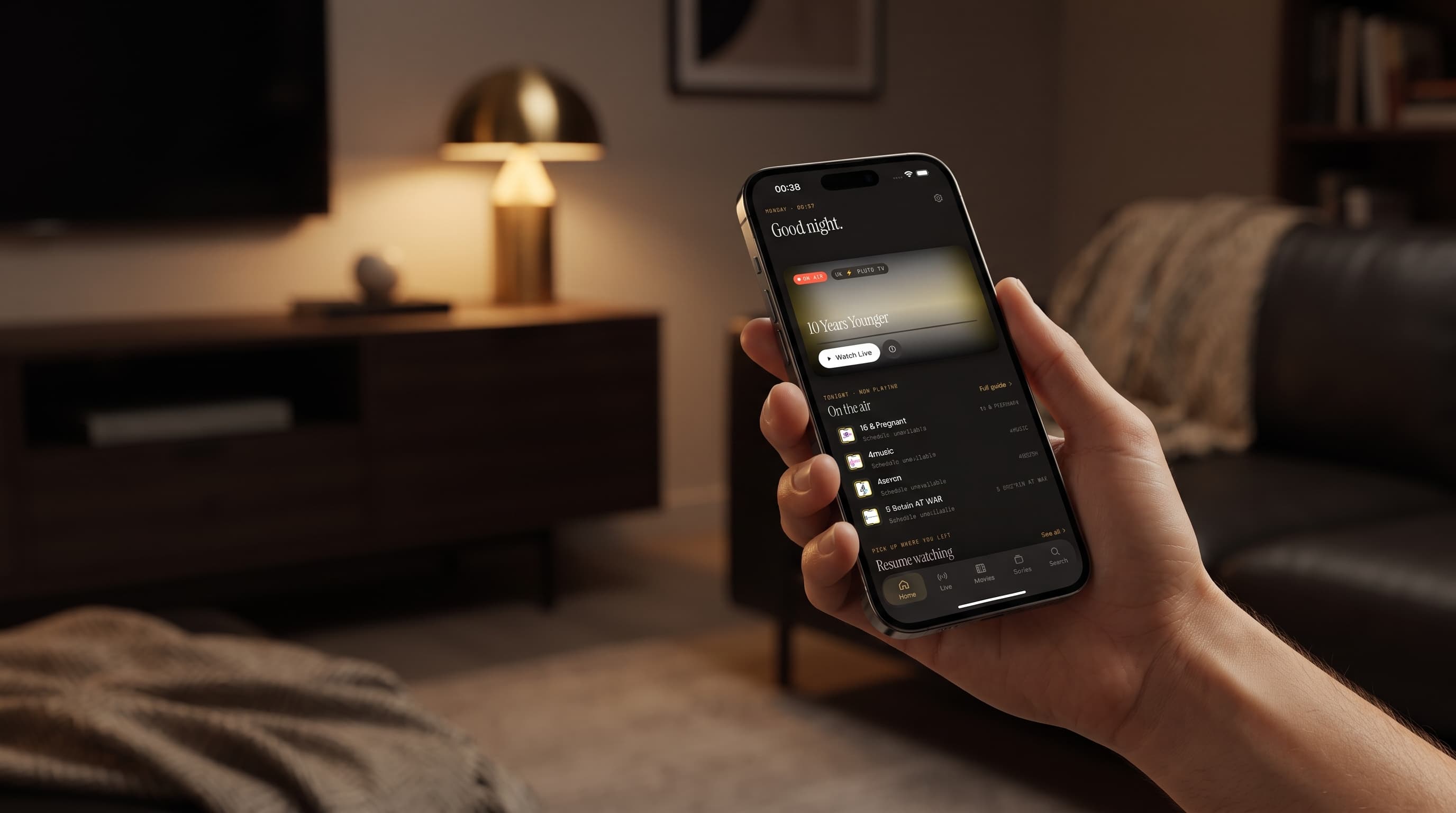
The Maximus Home Screen: What's On Now and Resume Watching
You open your IPTV app, stare at a wall of channel logos, and 90 seconds later you still haven't pressed play on anything. If that sounds familiar, the fix isn't more channels; it's a smarter first screen. Maximus IPTV Player, the IPTV player for iPhone, iPad and Android, opens on a Home screen built around one question: given everything you've added and everything that's live right now, what are you most likely to want? It puts what's on now, what you were in the middle of, and the channels you actually watch in one place, so you get from "open app" to "watching" in a couple of taps.
This post is a tour of that Home screen: the on-air hero card, the row of channels broadcasting now, Continue Watching and Favorites, plus how the layout changes on bigger screens.
Key Takeaways
- What's live comes first. The Home screen leads with an on-air hero card and a row of channels broadcasting right now, pulled from your TV guide data.
- Continue Watching sits right below, so the movie or episode you stopped is one tap away.
- Favorites get their own spot, so your regular channels never get buried in a long list.
- It's a faster view of your own library. Same sources, same EPG, not a separate catalog.
- Bigger screens get a roomier layout on iPad and Android tablets, and Android TV has its own remote-driven interface.
Why does picking something to watch take so long on most IPTV apps?
Most IPTV players treat you like you're browsing the catalog for the first time, every time. You get a grid, maybe a search bar, and it's on you to remember which source had the channel you wanted or which episode you reached last night.
That gets worse as your setup grows. Your channels arrive through an Xtream Codes login (a server address, username and password from your provider) or an M3U/M3U8 playlist (plain-text files that list channels and where each stream lives), and a single subscription can bring in hundreds or thousands of channels. Add a second source and "a quick check of the game" turns into two minutes of tapping around.
Maximus shifts that work onto the app. Instead of an empty catalog, the Home screen opens already showing you the most likely answers.
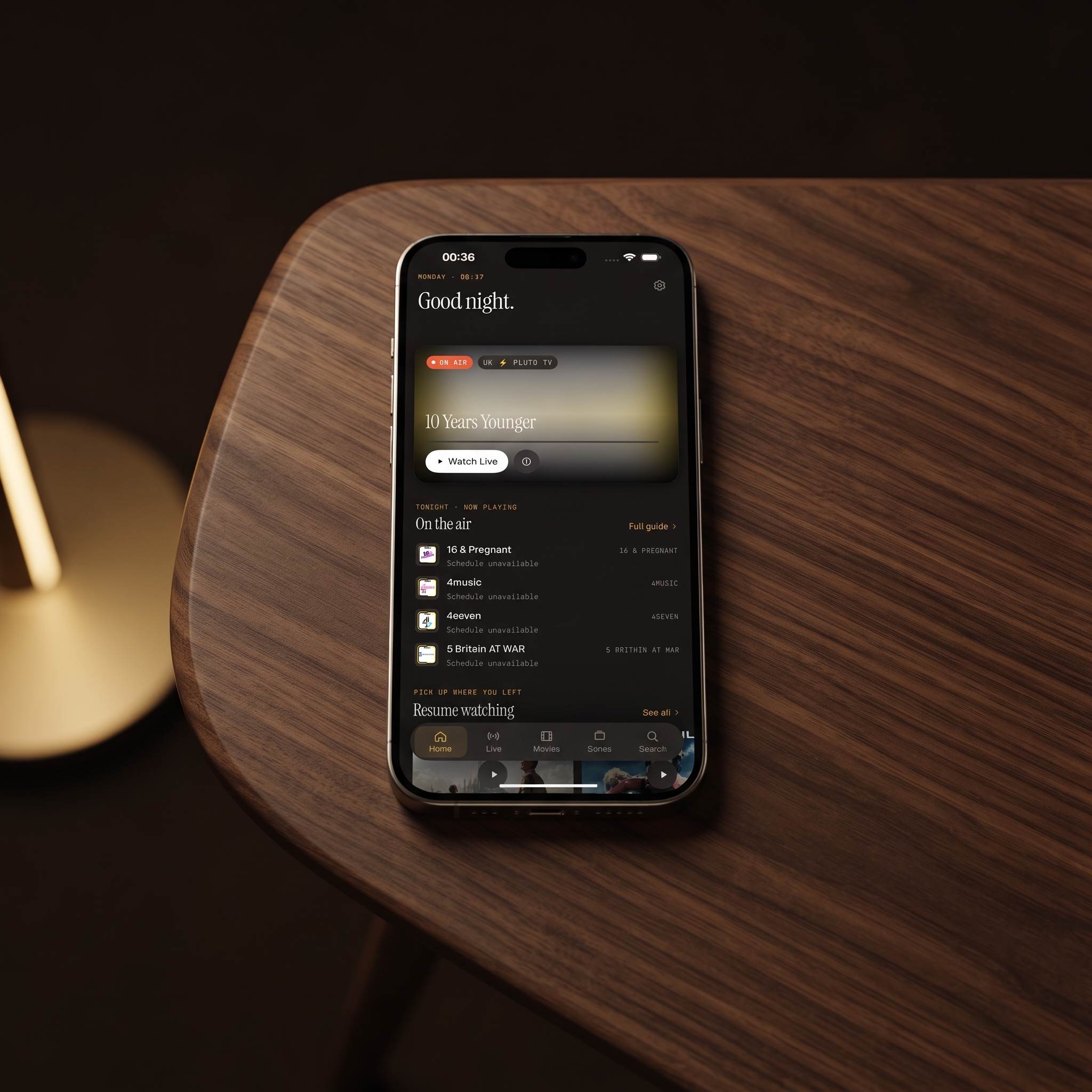
What's on the Maximus IPTV Player Home screen?
From top to bottom, the Home screen stacks a few time-saving pieces:
- A greeting that changes with the time of day.
- The on-air hero card: a large, tappable panel for something that's live right now. Tap it and you're watching.
- The "On the air" row: a horizontally scrolling set of other channels broadcasting at the moment, so you can compare several live options without leaving Home.
- Continue Watching: titles you started and didn't finish, ready to resume.
- Your Favorites: the channels and titles you've hearted, one tap away.
It's deliberately short. The Home screen isn't trying to be a second channel grid; it's trying to answer "what's worth watching in the next ten seconds?"
How does the on-air hero card work?
The hero card isn't a static banner. It reads the EPG (Electronic Program Guide, the program schedule data your provider supplies alongside your channels: show titles, start and end times and descriptions), so it updates as programs start and end throughout the day. Because it uses the same guide data as the full TV guide, what you see on the card matches what you'd find if you went digging through the guide yourself. The point is that you don't have to.
When you do want to browse further, the full guide shows a timeline for every channel, with Sports, Movies, Kids and Favorites filters to narrow it down. IPTV Player with EPG: How the TV Guide Actually Works explains the guide in depth.
Why does the "On the air" row sometimes look sparse?
The live rows are only as rich as the guide data your provider sends. Channels without EPG data still stream perfectly well; they just have no program title or schedule to show. If your hero card or "On the air" row looks thin, it's usually a gap on the source side, not a bug in the app.
A few things to check:
- Ask your provider about guide data. Some providers include it automatically with an Xtream Codes login; others supply a separate guide link for playlists.
- Refresh your source after your provider updates its lineup or guide. On Android, source refresh is part of Premium.
- Look at individual channels. If only a few channels are missing titles, the provider simply doesn't publish a schedule for those feeds.
If your channels themselves aren't loading, IPTV Playlist Not Working? How to Fix It walks through the usual causes.
How does Continue Watching track your progress?
Whenever you back out of a movie or a series episode partway through, Maximus saves your position automatically. Open the app again, whether that's the same evening or three days later, and the title is sitting in Continue Watching, poster art and all. Tap it and playback resumes from where you stopped.
There's no "mark as watched" toggle to remember and no bookmarks list to maintain. For anyone splitting a long film across a couple of sittings, or working through a series a few episodes at a time, this is the row that makes an IPTV player feel like a modern streaming app.
On iPhone and iPad, playback progress syncs through iCloud, so an episode you paused on your iPhone shows up ready to resume on your iPad. On Android, progress stays on that device, and there's no sync between the iOS and Android apps.
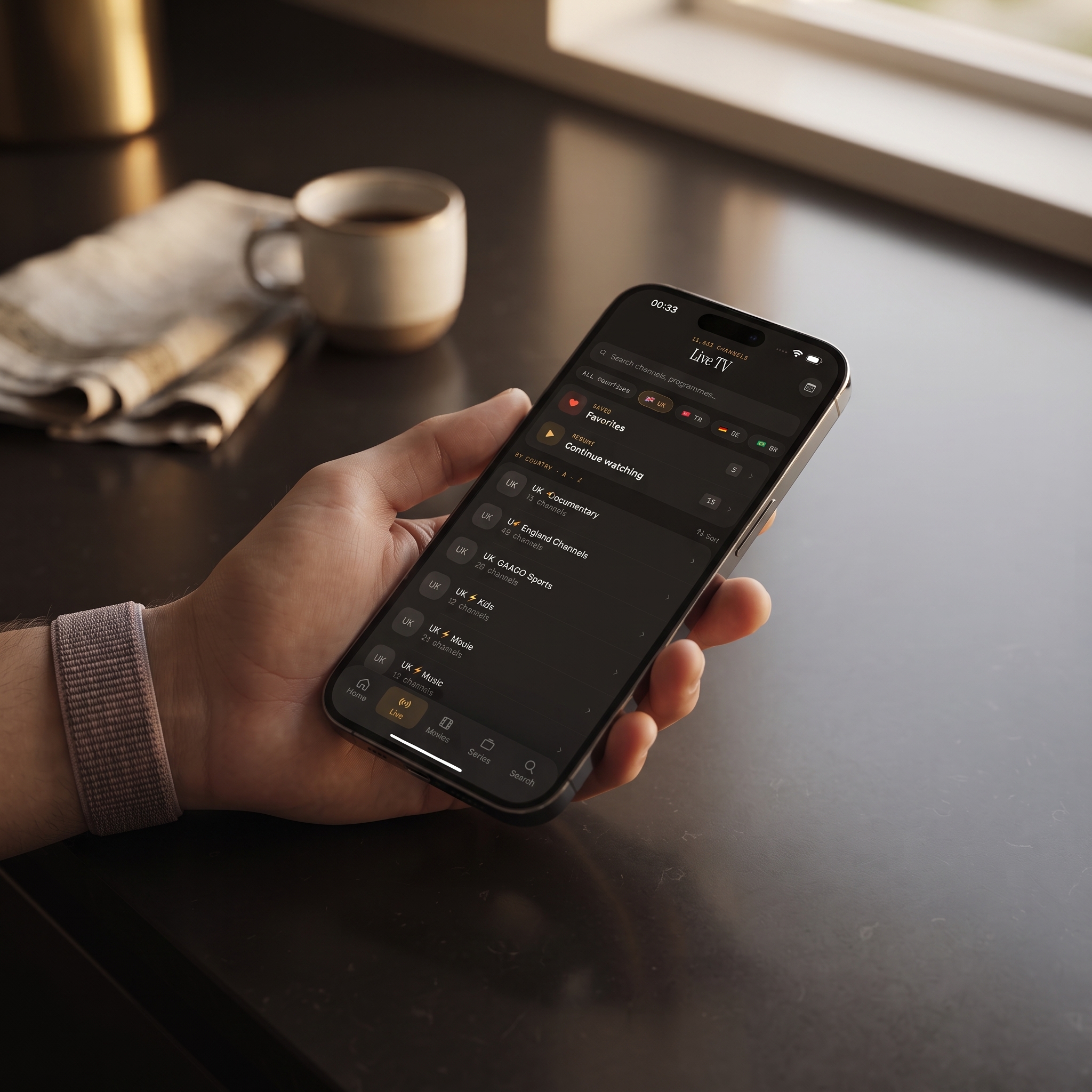
Where do Favorites fit in?
Heart a channel from Live TV, a program in the guide, a search result, or a movie or series page, and it appears in your Favorites on the Home screen. That matters once your library grows. Maximus groups live channels by country with country filters, and it can combine multiple sources into one library, which is great for coverage but means your five go-to channels could otherwise be buried among hundreds of others.
Continue Watching and Favorites are independent. Continue Watching fills itself as you watch; Favorites is a deliberate shortlist that stays put regardless of what you watched recently. For a closer look at both, read Favorites and Resume Watching in Maximus IPTV Player.
How do you get from Home to everything else?
The Home screen is a shortcut layer, not a replacement for the rest of the app. When you want to browse rather than jump into a suggestion:
- Live TV shows your complete channel lineup, grouped by country with country filters.
- Movies and Series open your provider's on-demand library, where you can also download movies and episodes for offline viewing.
- The TV guide gives you the full EPG timeline with its Sports, Movies, Kids and Favorites filters.
- Universal search looks across live channels, movies and series at once, so you don't need to know which section something lives in.
For tips on browsing the on-demand side, see Finding What to Watch in the Movies & Series Library.
Does the Home screen look different on iPad, Mac or Android TV?
The building blocks are the same everywhere; the layout adapts to the screen:
- iPhone and Android phones: a single scrolling column, easy to use one-handed.
- iPad and Android tablets: a wider layout with navigation in a sidebar on iPad, so the "On the air" row shows several channel tiles side by side and Favorites gets a bigger poster grid. It's handy when the tablet sits on a stand across the kitchen.
- Macs with Apple M1 or later, and Apple Vision: the iPad app runs there, with the same Home screen.
- Android TV and Google TV: a native interface designed for a remote and a ten-foot view, not a stretched phone screen.
- Apple TV: there's no Maximus app for Apple TV, so you reach it with AirPlay from an iPhone or iPad.
Can you send what's on the Home screen to your TV?
On iPhone and iPad, yes. Start something from the hero card or Continue Watching, tap the cast icon in the player, and choose a device. AirPlay is Apple's wireless streaming technology for sending video to an Apple TV or AirPlay-compatible TV; Chromecast is Google's equivalent for Chromecast devices and TVs with Google Cast built in. Both are available from the iPhone and iPad app.
The Android app doesn't include casting. Android households get the big-screen experience by installing Maximus directly on an Android TV or Google TV device, where the Home screen is built for the remote. Either way, live streams typically use HLS (HTTP Live Streaming), which adjusts quality to your connection so playback keeps going if your Wi-Fi dips.
FAQ
Does the Home screen replace the full channel list?
No. It's a shortcut layer. The complete Live TV section, with all your channels and country filters, is always there when you want to browse.
Do I need to set up Favorites for Continue Watching to work?
No. Continue Watching fills in automatically as you watch. Favorites is a separate, manual shortlist for things you want pinned regardless of recent viewing.
Will the hero card show channels from every source I've added?
It draws from your combined library, so channels from any source you've added can appear, as long as the source provides guide data for them.
Why do some channels show no program title?
That channel's source isn't publishing EPG data. The channel still plays live; Maximus just has no schedule information to display next to it.
Does Continue Watching sync between my iPhone and an Android tablet?
No, there's no cross-platform sync. On iOS, playback progress syncs through iCloud between iPhone and iPad.
Does Maximus include any channels?
No. Maximus IPTV Player is a player only. You bring your own legal IPTV subscription, and the Home screen organizes what you've added. There are no ads and no tracking, and your login details stay on your device.
Less browsing, more watching
Small interface decisions like these are easy to overlook until you've spent two minutes hunting for a channel you watch every day. The Maximus Home screen closes that gap: jump into what's live, pick up the episode you paused, or tap a favorite, all from the first screen you see.
Maximus is free to download with an optional Premium subscription. Get it on the App Store for iPhone and iPad, or on Google Play for Android phones, tablets and Android TV.
Written by
Maximus IPTV Team