Finding What to Watch in the Maximus Movies & Series Library
Scroll through a cluttered watchlist for five minutes and you'll understand why library organization matters as much as picture quality. Maximus IPTV Player treats its Movies & Series library as a first-class feature, not an afterthought bolted onto a live-channel grid. Maybe you've lost track of which episode you were on, or given up searching through 40 unlabeled M3U entries (M3U is a plain-text playlist format that lists stream addresses and details for channels or videos). This guide shows how a well-organized IPTV library should work, and how to get there with Maximus IPTV Player.
Key Takeaways
- A searchable library with clear results saves real time compared with scrolling flat channel lists.
- Series detail pages with a synopsis and episode list matter more than a pretty poster grid.
- Offline downloads solve two common IPTV pain points: patchy connections and data caps.
- Combining several sources into one library means you don't have to switch between apps or playlists.
- Picture quality, including 4K, depends on your provider's streams, not just the player app.
What Makes a Good Movies & Series Library?
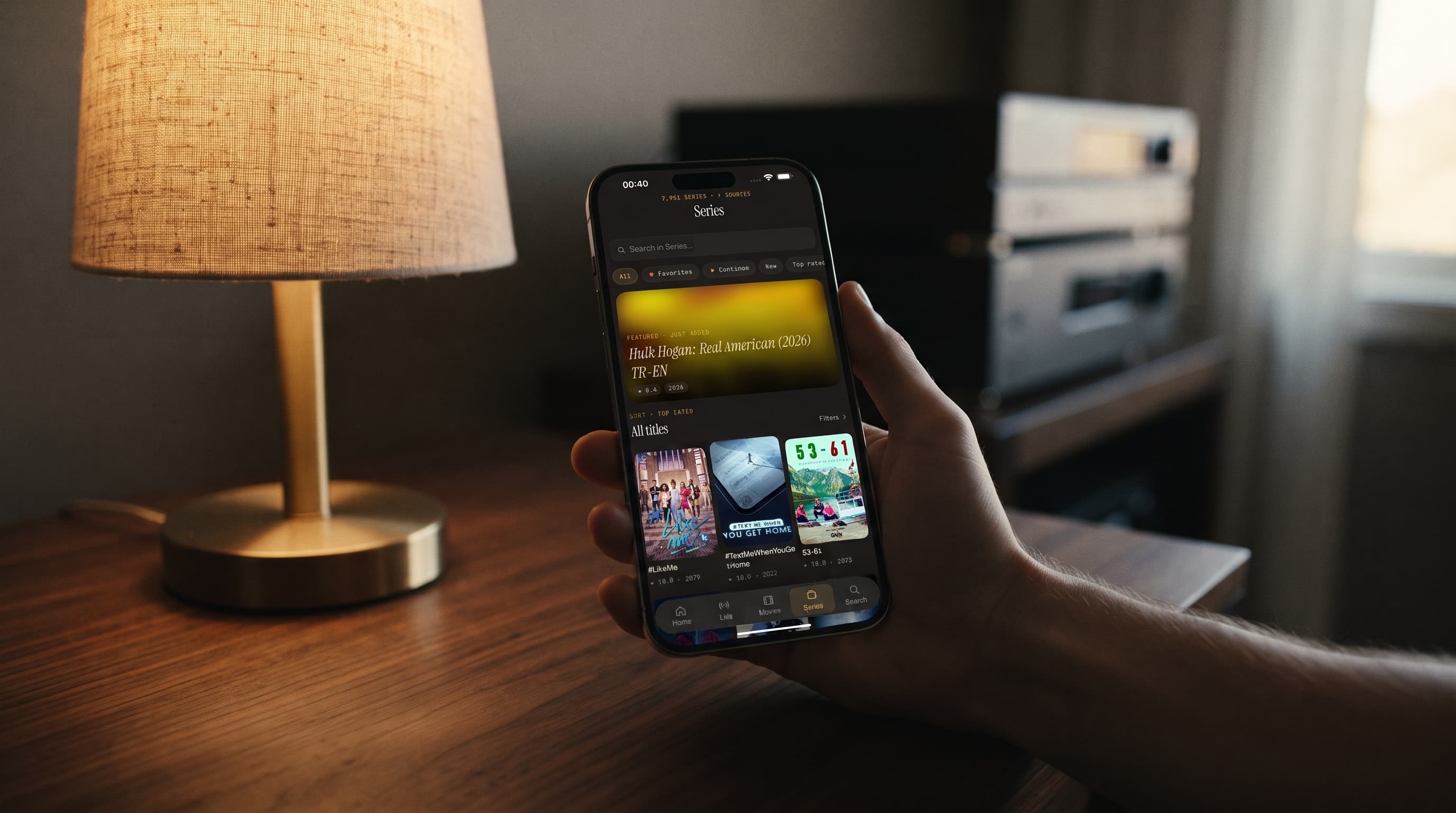
Most IPTV apps treat VOD (video on demand, meaning movies and series you choose and start yourself rather than live channels) as a side feature on a live-TV grid. Maximus IPTV Player gives Movies and Series their own library screens, with a search bar, filters, a featured banner and a poster grid you can actually browse. On iPhone the layout stays clean and easy to use one-handed. On iPad it spreads into a wider poster grid next to a persistent sidebar, so you're not wasting taps getting back to Live TV.
The benefit shows up the third or fourth time you open the app. Instead of scrolling from the top of an unsorted list again, you land in a library built for finding one show among hundreds. It feels much closer to a mainstream streaming app than a raw playlist dump.
How Do You Search Your IPTV Library Without Losing Track of What You've Watched?
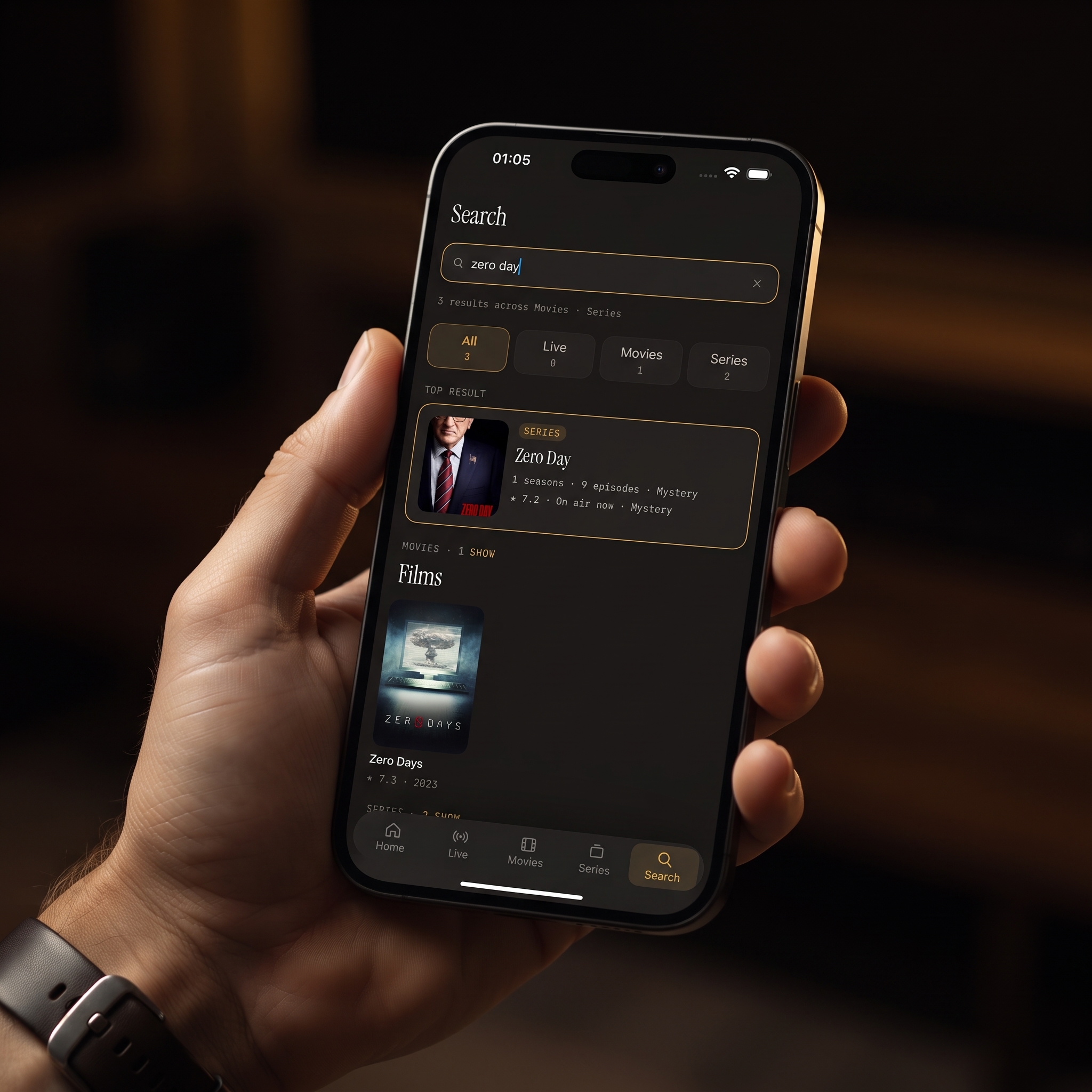
Universal search is what separates a usable IPTV library from a frustrating one. Type a title or part of a name, and Maximus searches live TV, movies and series at the same time. Results are grouped so you can see at a glance where the matches are. That matters because libraries built from M3U8 playlists (the variant of M3U used for HLS, or HTTP Live Streaming, which adjusts quality to your connection) can reach thousands of entries once you combine a few sources. Search keeps that scale manageable. Our universal search guide has more tips.
Pair search with the Resume watching row on the Home screen and Continue Watching in the library, and it soon becomes muscle memory. You open the app, see what's in progress, search for anything new, and you're watching again within seconds. On iPhone and iPad, iCloud keeps your playback progress in sync, so an episode you paused on the phone is ready to resume on the tablet. See how Favorites and Resume Watching work for the details.
What Should You Look For in a Series' Episode List?
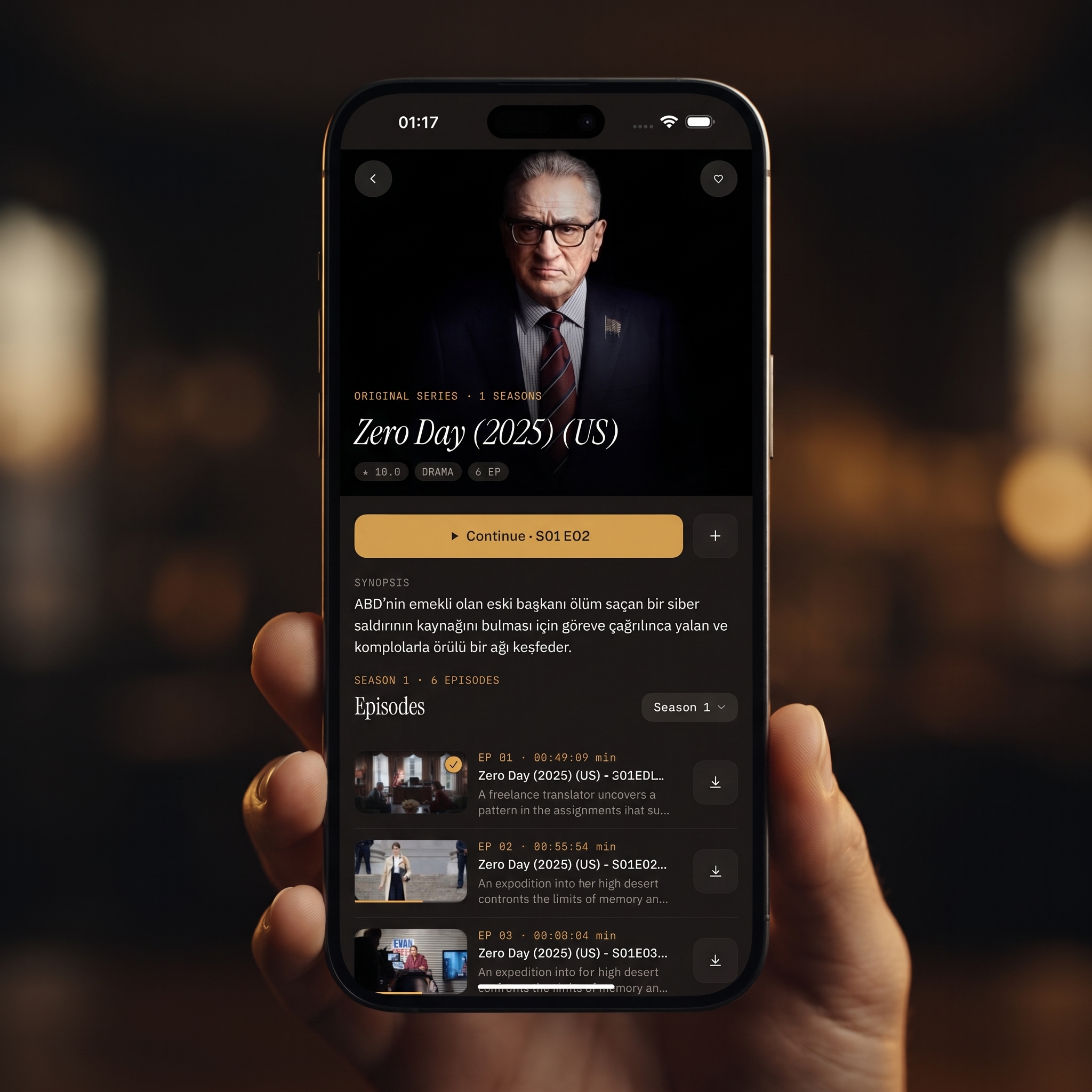
A poster grid gets you to the right show, but the series detail page is where many IPTV apps fall apart. In Maximus, the series page pairs artwork and a synopsis with a full episode list. From there you can play an episode or download it.
That matters if you're managing storage on your phone. You can save the three episodes you'll actually watch this week instead of a whole season you might abandon after two. Once you're watching, you can pick subtitles and switch audio tracks when your source includes them, which helps for foreign-language series.
Can You Download Movies and Episodes for Offline Viewing?
Yes. It's one of the app's more practical, less glamorous features, and it solves two real problems at once:
- Patchy connections: A subway commute, a flight or a rural dead zone shouldn't freeze your show mid-scene.
- Data caps: Streaming a long movie in high quality over mobile data can use several gigabytes. Download it once on Wi-Fi and watch offline instead.
You choose what to download title by title, so you stay in control of how much storage you use. The feature works on iPhone, iPad and Android. On Android, offline downloads are part of the optional Premium subscription. The offline downloads guide covers storage and travel tips.
How Does a Good Library Handle Multiple IPTV Sources at Once?
Cord-cutters rarely stick to one playlist. Between a main subscription and a backup, many IPTV users are juggling two or three sources within a few months. Maximus adds sources as Xtream Codes logins (a server address, username and password from your provider) or M3U/M3U8 playlists, and on iPhone and iPad also by QR code or file. The Sources screen shows Combined Library stats across every source, so the Movies & Series library already includes everything you've added.
That combined view is what makes search and browsing useful. Searching one source is nice; searching every source you've added saves real time. On Android, multiple sources are a Premium feature.
Live TV or VOD: Which Should You Organize First?
If you're setting up Maximus for the first time, start with the Sources screen and get your subscriptions added cleanly. Everything else, from search and the Movies & Series library to the TV guide, depends on it. Then browse your Movies & Series library once to get a feel for the poster grid and featured banner. After that, use search instead of scrolling. It's a small habit change that pays off every time you open the app.
FAQ
Does Maximus work with any M3U or M3U8 playlist?
It supports standard M3U and M3U8 playlists, plus Xtream Codes logins, from your own legal IPTV subscription. Maximus is a player only and doesn't include any content.
Is Maximus free?
It's free to download, with an optional Premium subscription. On Android, Premium unlocks offline downloads, the full TV guide, parental lock, source refresh and multiple sources. Monthly and annual plans include a 7-day free trial.
Can I download a full season at once?
Downloads are chosen from the series page, so you decide which episodes to keep on your device. That makes it easy to save only what you'll watch soon.
Does offline playback support 4K?
Quality depends on the streams your source provides. Maximus plays what your provider delivers, and a 4K download takes far more storage than an HD one.
Will search find content across all my sources?
Yes. Universal search runs across your combined library, covering live TV, movies and series from every source you've added.
Start Finding Shows Faster
A cluttered, unsearchable library is one of the most common reasons people give up on IPTV apps in the first week. Maximus IPTV Player avoids that with real search, series pages you can download from and a combined library that brings every source together. Get it on the App Store for iPhone, iPad and Apple Silicon Macs, or on Google Play for Android phones, tablets and Android TV.
Written by
Maximus IPTV Team