M3U Playlists Explained: Using an M3U Player on iOS
If you've searched for M3U playlist iOS help, you've probably found plenty of jargon and not much plain English. An M3U playlist isn't a streaming service by itself. It's a playlist file or link that points an M3U player to channels or streams you already have legal access to. With Maximus IPTV Player, you can load supported playlists on iPhone and iPad (and on Apple Silicon Macs and Apple Vision) without turning setup into a science project.
The key point is clarity. Maximus IPTV Player is a player app, not a content source, so the playlist you add should come from your own legal provider or subscription. Once you understand what M3U, M3U8, EPG and HLS actually mean, setup gets much easier.
Key Takeaways
- An M3U playlist is a text-based list that tells an M3U player where media streams are located.
- An M3U8 playlist is the UTF-8 version, and it's the playlist format used by HTTP Live Streaming, or HLS.
- RFC 8216, the official HLS specification, describes version 7 of the protocol, requires playlists to be UTF-8 text, and uses the
#EXTM3Utag to mark them. - HLS was first posted as an Internet-Draft in 2009 and published as RFC 8216 in 2017, so M3U8 on Apple devices is a mature, standard format.
- RFC 8216's sample media playlist uses a 10-second target duration with segments of 9.009 and 3.003 seconds, which shows how HLS works in small pieces rather than one giant file.
- EPG stands for Electronic Program Guide, the schedule view that makes live channels feel like traditional TV.
- The app is the playback layer; it doesn't sell or supply channels. If your playlist comes from a legal source and is formatted correctly, loading it is usually a quick copy-paste step.
What is an M3U playlist on iOS?
An M3U playlist on iOS is a file or URL that lists media stream locations so an M3U player can load them on your iPhone or iPad. In plain English, it's a structured list that tells your app what to play and where to find it.
The term sounds more complicated than it is. Think of an M3U playlist as a bookmark list for streams. Instead of saving web pages, it saves stream addresses and sometimes extra details such as channel names, logos or group labels. Your IPTV player reads that list and turns it into something usable on screen.
For iOS users, that matters because the player and the playlist do different jobs. The playlist provides the content map. The player provides the interface, playback controls, search and organization. That separation is why a good iPhone IPTV app can feel polished even though the channels come from your own provider.
It's also where many people get confused. Downloading a player app doesn't automatically give you live TV. You still need your own legal playlist or provider login. Keeping that boundary clear is the right way to think about IPTV on iPhone and iPad.
What is the difference between M3U and M3U8?
The difference between M3U and M3U8 is mostly about text encoding and streaming context. In practice, M3U is the broader playlist idea, while M3U8 is a UTF-8 encoded playlist widely used with HLS streaming.
A quick definition helps. Encoding is the way text characters are stored so software can read them correctly. UTF-8 is the most common text encoding on the modern web, and it handles every alphabet, which matters for international channel names.
The official HLS specification, RFC 8216, requires playlists to be UTF-8 text and describes version 7 of the protocol. It also uses the #EXTM3U marker at the top of every playlist. That's why you'll often see .m3u8 URLs when a service uses HLS delivery.
In everyday use, here's the practical distinction:
- M3U usually describes the playlist idea in general.
- M3U8 shows up when the playlist is UTF-8 encoded and used for modern streaming.
- HLS is the Apple-developed HTTP streaming method that relies on M3U8 playlists.
For iOS users, the important point isn't memorizing file theory. It's knowing that a good M3U player supports both M3U and M3U8 inputs, and that M3U8 is especially common because it fits naturally with Apple's playback ecosystem. If terms like these keep tripping you up, our IPTV glossary of M3U, EPG, HLS and other terms is a handy reference.
Why do iPhone and iPad users see M3U8 so often?
iPhone and iPad users see M3U8 often because Apple devices are built around HLS delivery, and HLS playlists are defined as UTF-8 M3U8 files.
HLS stands for HTTP Live Streaming. In plain English, it's a streaming method that delivers video in small chunks over ordinary web infrastructure instead of one giant continuous file. That chunked approach lets playback adapt to connection quality more gracefully than older one-size-fits-all methods.
Apple's HLS authoring specification and RFC 8216 both treat HLS as the standard for Apple-compatible streaming. For an iOS user, the takeaway is simple: when a provider uses HLS, seeing an M3U8 link is normal, not suspicious.
RFC 8216 gives a concrete picture of the chunking. Its sample media playlist sets #EXT-X-TARGETDURATION to 10 seconds and then lists segments of 9.009, 9.009 and 3.003 seconds. You don't need to remember those numbers, but they make the design easy to picture: HLS works in small timed pieces, not one endless raw stream.
HLS also isn't new. It was first posted as an Internet-Draft in 2009 and published as RFC 8216 in 2017, after years of real-world use. M3U8 on Apple devices sits inside a mature, well-documented workflow.
That doesn't mean every IPTV playlist looks the same. Some providers give you a single M3U URL. Others give you an M3U8 link. Some add a separate guide link. What matters is whether your app can read the input cleanly and present it in a usable way.
What does EPG mean in an IPTV app?
EPG means Electronic Program Guide. In plain English, it's the schedule layer that tells you what's on now, what's coming next, and how channels are organized.
Without EPG data, a playlist can still work, but it often feels messy. You see channel names and playable streams, yet no guide information, no now-and-next timeline, and little context for browsing live TV. With EPG support, the experience gets much closer to a modern TV guide.
This matters on iOS because screen space is limited, especially on iPhone. A strong guide view reduces friction: instead of tapping random channels to find what's live, you browse with confidence. Maximus shows guide data on a real timeline with Sports, Movies, Kids and Favorites filters. Our explainer on how the IPTV TV guide works covers where that data comes from.
It also explains a difference users care about. Two apps can both support M3U playlists, but the better experience usually comes from how they handle navigation, guide data, resuming playback and device-specific polish. That's where a well-designed iOS player earns its place.
How do you add a legal M3U playlist on iOS?
You add a legal M3U playlist on iOS by copying the playlist URL or importing the playlist file your provider gives you, then loading it into a compatible IPTV player on your iPhone or iPad.
The exact screens vary by app, but the process is usually close to this:
- Get the playlist from your own legal IPTV provider or subscription.
- Confirm whether it's an M3U file, an M3U URL or an M3U8 link.
- Open your IPTV player on iPhone or iPad.
- Choose the option to add a playlist or source.
- Paste the URL, scan a QR code or import the file. Maximus supports all three on iOS.
- Add guide information too, if your provider gives you a separate EPG link.
- Let the app load the channels, categories and guide data.
The legal point is the important one. Don't go looking for random public playlists on forums or piracy sites. A player app is designed to help you watch content you already have the right to access, not to get around licensing.
That distinction matters more than any setup trick. It protects your accounts, reduces reliability problems and keeps expectations realistic.
What should iOS users check before importing a playlist?
Check the playlist source, format and guide data before importing. Verifying the basics first is the simplest way to avoid frustration.
Start with the source. If you don't know where the playlist came from, stop there. A legal provider should be able to tell you what kind of playlist it provides and whether there's a separate EPG URL.
Then check the format. An M3U8 link usually points to HLS-style delivery. An M3U URL may still contain HLS streams underneath. Your provider might also offer an Xtream Codes login (a server address, username and password) instead of a playlist link, which is a different source type you enter differently. You don't need to decode the whole structure, but it helps to know what you're pasting.
Next, check whether guide data is included. Some playlists carry enough information to look tidy on their own. Others need a separate EPG feed to feel organized.
Finally, think about where you'll watch:
- On iPhone, usability depends on fast search, clean categories and stable playback.
- On iPad, larger layouts make browsing and setup more comfortable.
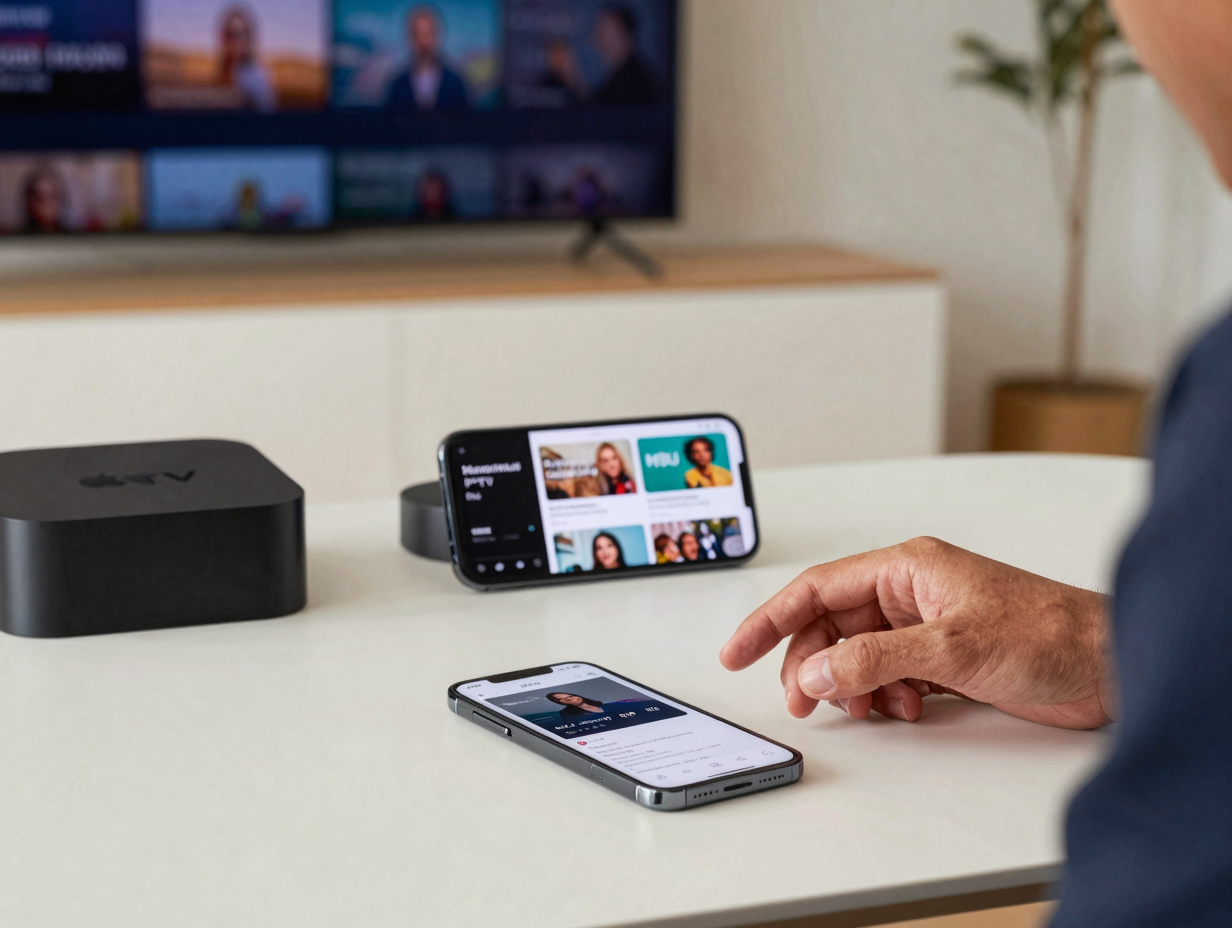
- On Apple TV, there's no Maximus app to install; you send playback from your iPhone or iPad with AirPlay.
AirPlay is Apple's wireless streaming technology. Apple's AirPlay support guide explains that it lets you stream or mirror content from iPhone or iPad to Apple TV and compatible smart TVs, which makes it the way to get a room-scale picture. Maximus also supports Chromecast, Google's casting technology, from iPhone and iPad.
Why does a playlist work in one app but feel better in another?
A playlist can work in one app but feel better in another because playback is only one part of the experience. The app still has to organize channels, handle guide data, present categories clearly and make navigation feel natural on iOS.
This is where people ask for the best IPTV player for iOS when they really mean the most usable one. A technically compatible app can still feel cluttered or slow to browse. Another app can use the same playlist and feel calmer because the design respects how people actually watch.
That difference gets more obvious with larger playlists. With hundreds or thousands of entries, the experience matters far more than the import itself. Search quality, grouping, playback controls, parental controls and a clean visual hierarchy all count. Maximus groups live TV by country with country filters and searches across live channels, movies and series at once.
The goal is loading playlists into an iOS-native experience rather than treating iPhone users as if they were using a desktop utility. That's reassuring for beginners because it reduces setup anxiety.
What problems are most common when an M3U playlist fails on iPhone?
The most common problems are an invalid source, an expired link, missing guide data, changes on the provider's side, or a simple paste error.
Here's the practical troubleshooting list:
- Recheck the playlist URL for typos, trailing spaces or truncation.
- Confirm the provider hasn't changed or expired the link.
- Check whether the provider gave you an M3U, an M3U8 or an Xtream Codes login.
- Add the EPG link separately if guide data is missing.
- Make sure your network is stable enough for streaming.
- If you're using AirPlay, make sure your iPhone or iPad and your Apple TV are on the same network.
It also helps to remember how HLS works. Because it delivers smaller segments rather than one continuous file, interruptions can come from the stream source, not only the app. If the provider's feed is unstable, even a good player can only do so much.
That's why the player-versus-provider distinction matters. If categories load but channels don't play, the source may be the issue. If streams play but browsing feels painful, the app may be the issue. Our full guide to fixing an IPTV playlist that isn't working walks through each check in order.
Is this player the content provider?
No. It's the player layer that helps you load and watch your own legal playlists on iPhone and iPad.
That's one of the most important points in this whole topic, because confusion here leads to unrealistic expectations and risky behavior. A player app doesn't grant channel rights, doesn't replace your provider and doesn't legitimize a questionable playlist.
What it can do is make legal playback easier. Maximus IPTV Player supports M3U and M3U8 playlists and Xtream Codes logins, a real EPG timeline, subtitle and audio track selection, offline downloads of movies and episodes, a parental PIN lock with Face ID, AirPlay and Chromecast, and iCloud-synced playback progress between iPhone and iPad. It has no ads and no tracking, and your credentials stay on your device.
FAQ
Is an M3U playlist the same as an IPTV subscription?
No. An M3U playlist is the delivery list, while the subscription is the service relationship that gives you legal access to the streams behind it.
What is the best M3U player for iPhone?
The best M3U player is the one that reads your playlist cleanly and makes it easy to browse. Look for M3U and M3U8 support, a proper EPG guide, fast search and solid playback controls. Maximus covers those on iPhone and iPad.
Is M3U8 better than M3U?
Not automatically. M3U8 is the UTF-8 format used by HLS, which suits Apple devices well, but the right choice depends on what your provider supplies and what your player supports.
Do I need an EPG file to use IPTV on iPhone?
Not always. A playlist can play without EPG data, but a guide makes live channel browsing much easier by adding schedule context.
Can I watch my M3U playlist on Apple TV?
Yes, through AirPlay. There's no Maximus app for Apple TV, but you can start playback on your iPhone or iPad and AirPlay it to your Apple TV. Our IPTV on Apple TV guide covers the setup.
Conclusion
Understanding M3U playlist iOS basics is less about memorizing acronyms and more about knowing the role each piece plays. M3U is the playlist idea. M3U8 is the UTF-8 playlist format you'll see in HLS delivery. EPG is the guide layer. HLS is the segmented streaming method Apple devices rely on. Your M3U player is the experience layer that makes all of it usable on iPhone and iPad.
If you already have a legal playlist and want a cleaner way to manage it on Apple devices, Maximus IPTV Player is built for that workflow. Download it free on the App Store, or on Google Play if you also watch on Android phones, tablets or Android TV.
Written by
Maximus IPTV Team