IPTV Choppy Video? Why 50 fps Streams Stutter
Your IPTV picture is sharp, the channel loads instantly, and yet the screen keeps stuttering every second or two. Pans across a football pitch look like a slideshow, and credits crawl in little jerks. It feels like buffering, but nothing is buffering. This is IPTV choppy video, and it is usually a frame-rate problem, not a bandwidth problem. In this guide, Maximus IPTV Player users (and anyone else watching IPTV on a phone, tablet or TV) will learn why 50 fps and 60 fps streams stutter, how to tell it apart from real buffering, and what you can actually change.
Key Takeaways
- Choppy video with a full progress bar and no spinner is almost never a network issue; it is judder (uneven frame timing) or dropped frames.
- Europe and much of the world broadcasts at 25 or 50 frames per second (fps), North America at 30 or 60 fps (technically 29.97 and 59.94). A screen that refreshes at 60 Hz cannot show 50 fps evenly.
- A weak device decoding a high-bitrate stream is the second big cause; 1080p at 50 fps is roughly twice the work of 1080p at 25 fps.
- Switching the stream, the quality variant or the device usually fixes it. Maximus IPTV Player plays what your source sends; it does not change the source frame rate.
What is the difference between buffering and choppy video?
Buffering means the player ran out of data. The picture freezes, a spinner appears, and playback resumes after a few seconds. The cause is the network, the server, or a playlist link that is struggling. If that sounds like your problem, our guide on buffering covers it in depth.
Choppy video is different. The data arrives fine, but frames are shown at uneven intervals, so motion looks like it stumbles. There is no spinner. The buffer indicator is full. You can pause and the image is crisp, but pressing play brings back the stutter within a second.
A quick test: watch a slow horizontal pan, such as a news studio camera sweeping across a desk, or a scrolling ticker at the bottom of a news channel. If the motion jerks in a regular rhythm (for example, every half second), you are looking at a frame-rate mismatch. If playback freezes completely and then jumps ahead, that is buffering or packet loss.
What do frame rates like 25, 50 and 60 fps actually mean?
A video is a stream of still images. The frame rate, measured in frames per second (fps), is how many of those images are shown each second. Live IPTV channels typically use one of these:
- 25 fps or 50 fps in regions that grew up on the PAL television standard (most of Europe, parts of Asia, Africa and South America)
- 30 fps or 60 fps (really 29.97 and 59.94) in regions that used NTSC (North America, Japan, parts of South America)
- 24 fps for most movies and scripted series, regardless of region
Sports channels often run at 50 or 60 fps because fast motion looks smoother. Movies and dramas usually run at 24 or 25 fps.
Your display has its own refresh rate, measured in hertz (Hz). Most phones and TVs refresh at 60 Hz. Newer iPhones with ProMotion and many tablets can go to 120 Hz. A 60 Hz screen shows 60 images per second no matter what the video contains.
Why does a 50 fps stream stutter on a 60 Hz screen?
Here is the arithmetic. A 60 Hz screen draws a new image every 16.7 milliseconds. A 50 fps video wants a new frame every 20 milliseconds. These two clocks do not line up. Out of every 50 frames, the display has to show 10 of them twice to fill 60 slots. Viewers see this as a small hitch about five times a second, which you perceive as judder.
The same thing happens with 24 fps movies on a 60 Hz panel (the famous 3:2 pulldown pattern), only the rhythm is slower and more noticeable on camera pans.
Screens that refresh at an even multiple of the video frame rate avoid the problem. A 120 Hz display shows 24 fps content perfectly (five refreshes per frame) and 60 fps content perfectly (two refreshes per frame). 50 fps is awkward on both 60 Hz and 120 Hz, which is why it is the frame rate most often blamed for choppy IPTV.
Some TVs and streaming boxes can switch their output refresh rate to match the content. Where that setting exists, it is the cleanest fix for judder, and we cover where to find it below.
Can the device itself cause choppy playback?
Yes, and this is the other half of the story. Decoding video takes real work. A 1080p stream at 50 fps has twice as many frames to process as the same picture at 25 fps. A 4K stream at 60 fps multiplied by a high bitrate can overwhelm an older phone or a budget TV box.
When a decoder cannot keep up, it drops frames. The player skips some images to stay in sync with the audio, and the result looks choppy even though the network is perfect.
Signs your device is the bottleneck:
- The stutter is worst on 4K or 1080p50 channels and absent on standard-definition ones
- The device gets warm, or other apps are running in the background
- The same channel plays smoothly on a newer phone or tablet
- Audio stays in sync but the picture skips
Meanwhile, signs of a frame-rate mismatch rather than a slow device:
- The stutter has a steady, repeating rhythm
- It happens on every device with a 60 Hz screen, including recent ones
- It appears on 50 fps channels only, while 60 fps or 25 fps channels look fine
How do you fix choppy IPTV video step by step?
Work through these in order. Each step takes under a minute.
- Confirm it is not buffering. Pause the stream. If the progress or buffer indicator is full and the image is crisp, move on.
- Try a different quality variant of the same channel. Many playlists list the same channel several times (HD, FHD, 4K, or "50fps" and "60fps" labels). Pick the one with a lower frame rate or a lower resolution. Our article on duplicate channels explains why you see the same channel twice.
- Test an SD or 25 fps channel. If standard definition plays smoothly, your device is handling the load but struggling with the heavier stream.
- Close background apps and restart the player. Free up memory and let the decoder start clean.
- Change the display refresh setting, if your device offers one. On many Android TV and Google TV devices, the display settings include an option for matching frame rate or choosing the output refresh rate. Setting it to automatic can switch the TV to a mode that fits the stream.
- Try a different device. If an iPhone or iPad plays the channel smoothly and your TV does not (or the reverse), you have found the weak link.
- Ask your provider. If every device stutters on one channel, the stream itself may be badly encoded. Only your provider can fix that.
None of these steps involve hacks or unofficial downloads. If a site suggests an unofficial patched player, skip it; our article on why the Play Store install is safer explains the risks.
What helps on an Android TV or Google TV?
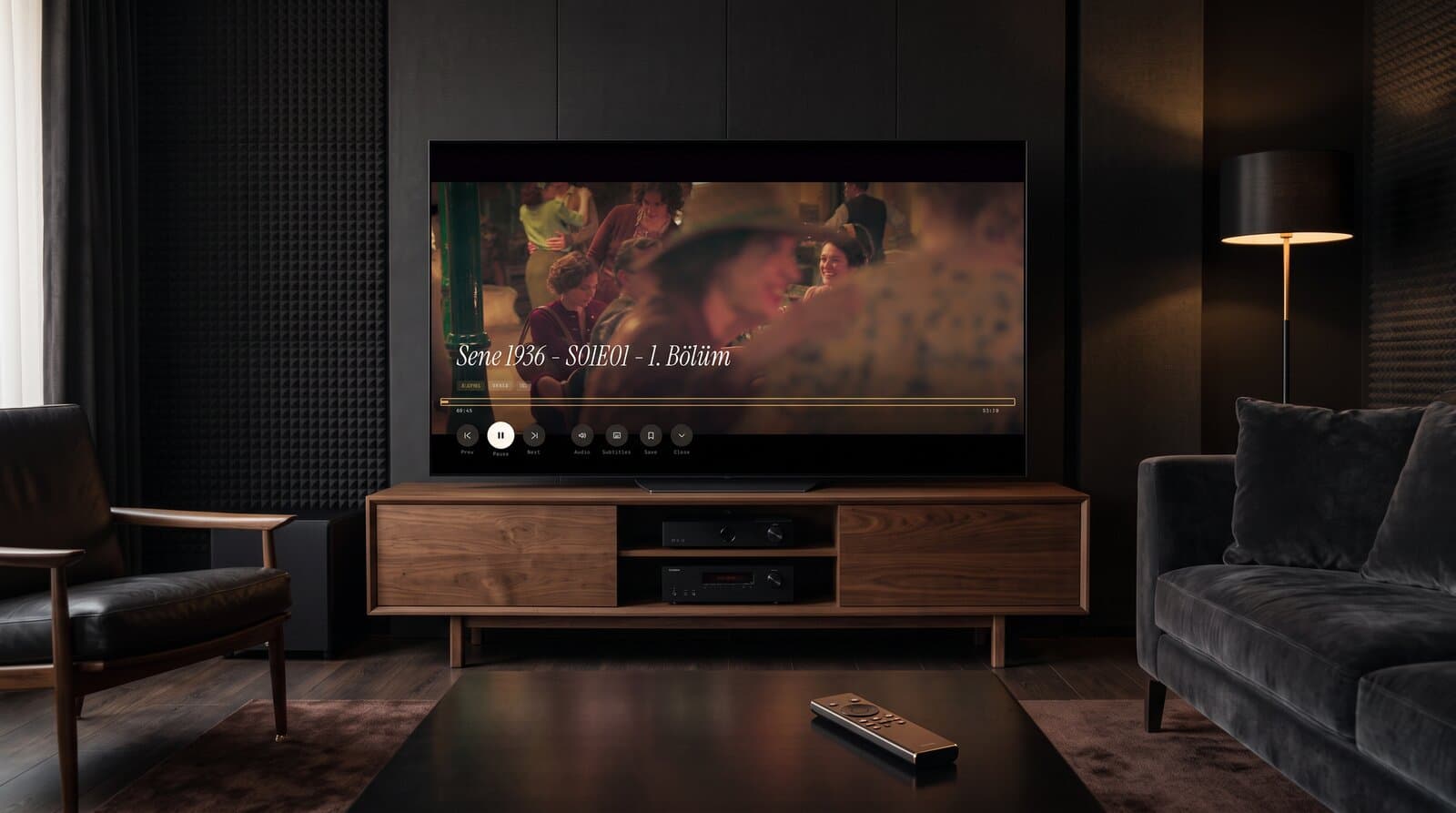
The living room TV is where judder is most visible, because pans across a large screen show every irregularity. Maximus IPTV Player runs natively on Android TV and Google TV from the same app as the Android phone version, with a TV interface built for the remote. For choppy playback on a TV:
- Look in your TV or streaming box display settings for a frame-rate or refresh-rate matching option and test it with a sports channel.
- Pick the lower-bitrate variant of a channel if the box is an older, budget model.
- Use an Ethernet cable where possible. It will not fix judder, but it removes network noise from the troubleshooting.
Our Android TV living room guide walks through the full setup.
What helps on iPhone and iPad?
On iPhone and iPad, Maximus IPTV Player plays streams at the screen's own refresh rate, so the same 50-versus-60 arithmetic applies. Some things to try:
- Compare the same channel in a lower-resolution variant. Fewer pixels per frame mean the chip has more headroom.
- Make sure Low Power Mode is off while testing. Power saving can limit performance and display refresh on some devices.
- If you cast from iPhone or iPad with AirPlay or Chromecast, test on the phone first. If it is smooth on the phone but choppy on the big screen, the problem is the receiving device, not the stream. (Casting is available on the iOS app only; the Android app does not cast.)
Does a VPN or a slow connection cause judder?
Not directly. A slow connection causes buffering, and a VPN adds delay and sometimes lowers throughput, but neither changes frame timing. However, a very unstable connection can cause packet loss, and a stream that loses packets can show glitches or frozen frames that look like stutter. If you suspect the network, run a speed test, switch from Wi-Fi to a wired connection or move closer to the router, and see whether the stutter disappears. Our VPN guide covers when a VPN helps and when it hurts.
Frequently Asked Questions
Is choppy IPTV video the same as buffering?
No. Buffering stops playback and shows a spinner while the player waits for data. Choppy video keeps playing, but motion looks uneven because frames are displayed at irregular intervals or dropped by the decoder.
Why are sports channels choppier than movie channels?
Sports channels often run at 50 or 60 fps and have fast, constant motion, which makes any frame-timing problem obvious. Movies run at 24 or 25 fps with slower pans, so the same mismatch is easier to miss.
Will a faster internet connection fix stuttering?
Usually not. If the buffer is full and the image is smooth when paused, the network is fine. The fix is a different stream variant, a device with a better decoder, or a display mode that matches the frame rate.
Does Maximus IPTV Player change the frame rate of a stream?
No. The player shows the frames your source sends. You can choose a different channel variant from your playlist or a different device to find one that plays smoothly.
Can a 120 Hz screen remove the stutter?
It helps for 24 fps and 60 fps content, since 120 divides evenly by both. It does not divide evenly by 50, so 50 fps channels can still show some judder on a 120 Hz screen unless the device matches the refresh rate to the stream.
Conclusion
Choppy IPTV video is almost always a timing problem, not a speed problem. Check whether it is buffering, then test a lower-frame-rate variant of the channel, try a second device, and use any refresh-rate matching option your TV offers. When you want a player that supports the playlists and Xtream logins you already have, you can get Maximus IPTV Player on the Apple App Store for iPhone and iPad, or on Google Play for Android phones, tablets and Android TV.
Written by
Maximus IPTV Team