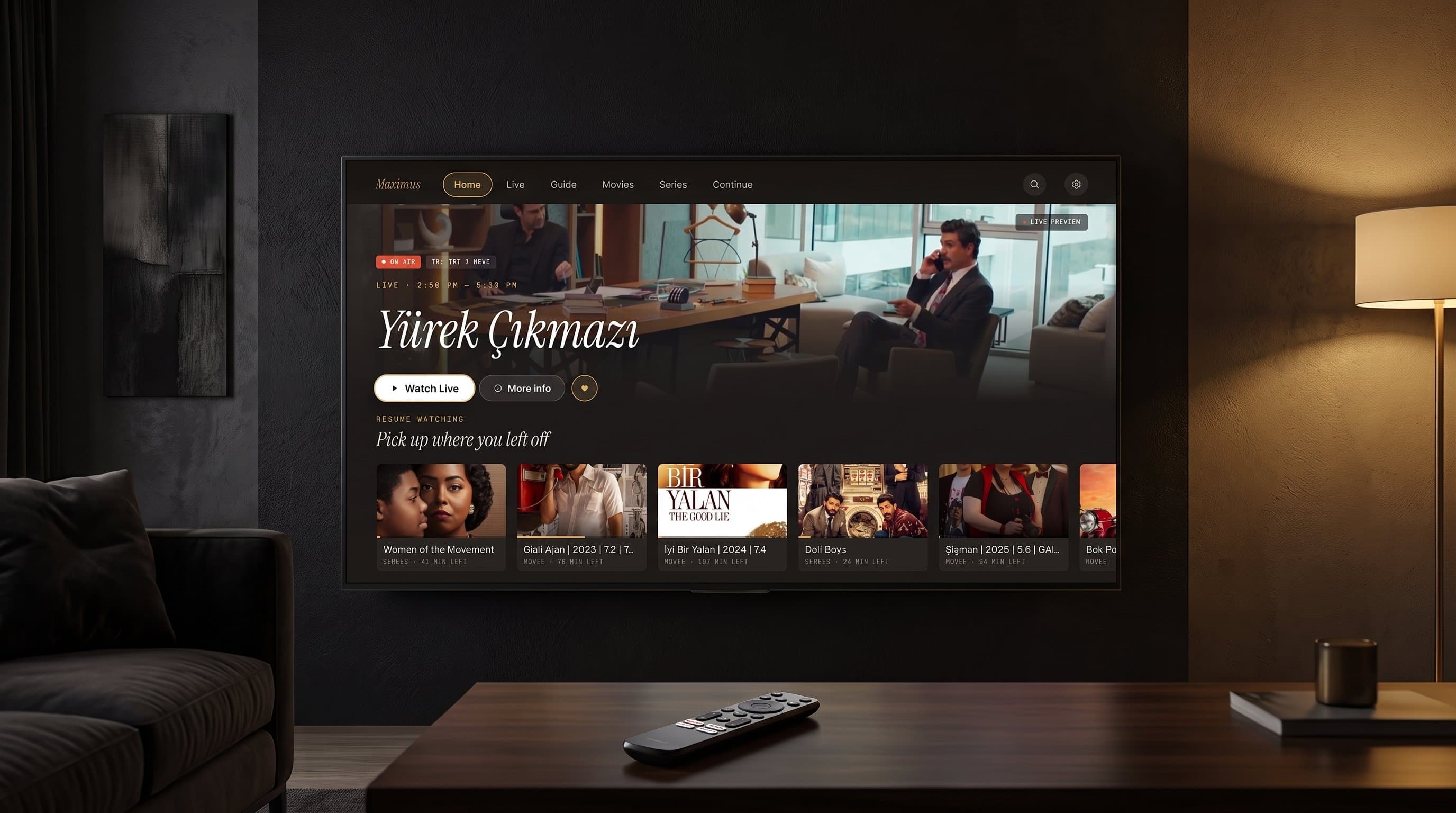
Maximus IPTV Player on Android TV: The Living Room Guide
If you've only ever used Maximus IPTV Player on a phone, the Android TV version can feel like a different app the first time you sit down with a remote instead of a touchscreen. It isn't a stretched-out phone screen bolted onto a television — it's a native Android TV / Google TV build, running from the same app package as the phone and tablet versions, designed around ten-foot viewing and a D-pad instead of a thumb. This guide walks through what actually changes when Maximus IPTV Player moves from your hand to your living room: how browsing works, how the TV guide behaves on a big screen, how parental controls hold up when the whole family shares one remote, and what stays exactly the same as the phone app you already know.
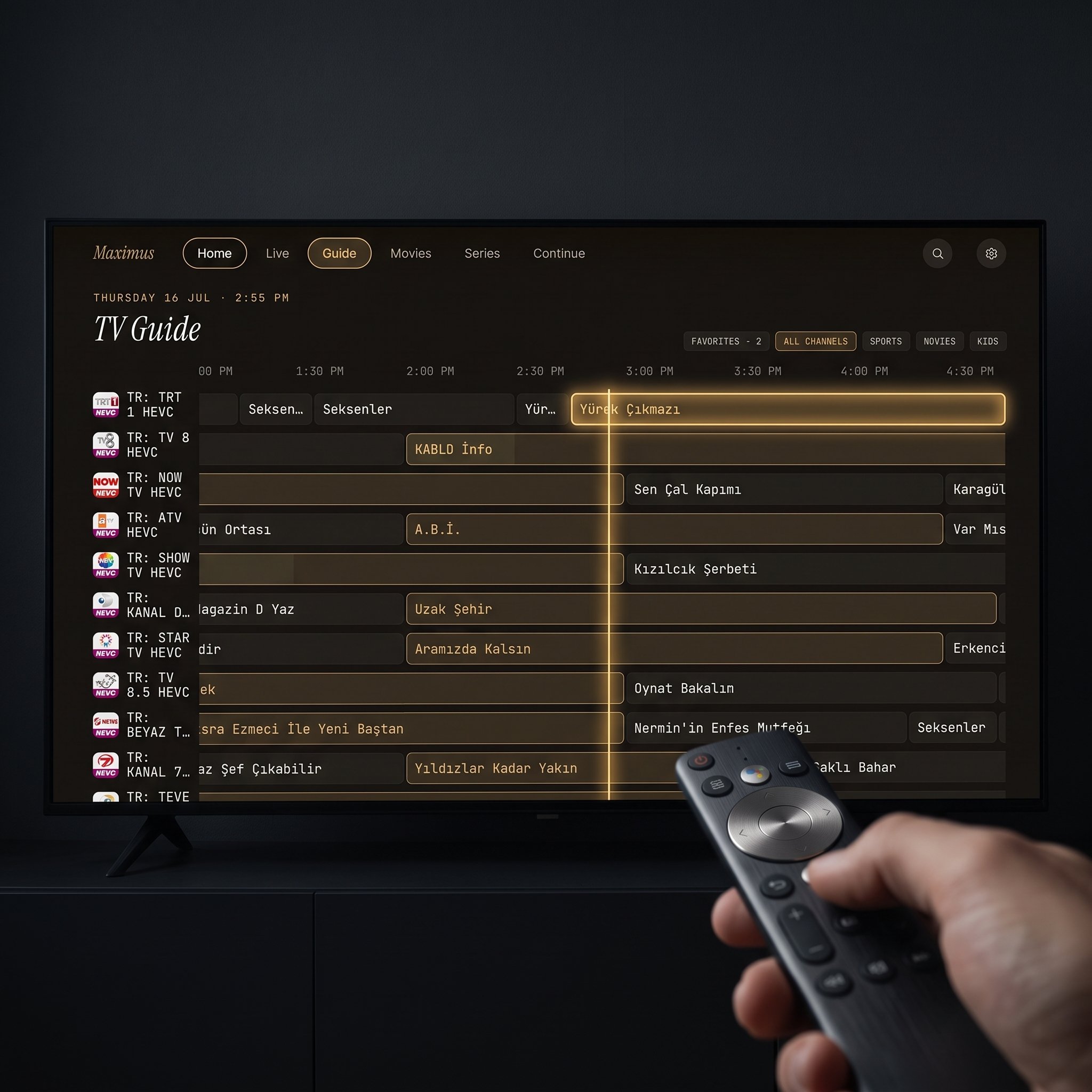
Key Takeaways
- Maximus IPTV Player's Android TV app ships from the same AAB (Android App Bundle) as the phone and tablet versions — one Google Play listing (
com.aegontech.maximus) covers phones, tablets, and Android TV / Google TV. - The on-screen TV guide filters live channels with five filter chips — Favorites, All channels, Sports, Movies, Kids — the same filters as the EPG (Electronic Program Guide) on phone, just laid out for a remote.
- Live channels are grouped by country, and the movies & series library, universal search, Favorites, and Continue Watching all carry over from the phone experience with no separate setup.
- Offline downloads, multiple sources in one library, and a PIN parental lock all work on the TV build the same way they do on Android phones and tablets — this is one app, not a cut-down TV companion.
- Premium plans include a 7-day free trial on both monthly and annual tiers; on Android, Premium unlocks the full TV guide, offline downloads, the parental lock, source refresh, and multiple sources.
Is the Android TV App the Same App as the Phone Version?
Yes — and that matters more than it sounds. A lot of IPTV apps ship a bare-bones TV build months after the phone app, or never bring TV feature parity at all. Maximus IPTV Player's Android TV interface shipped from the same codebase as the phone and tablet app, which is why the Google Play listing doesn't need a separate TV page: com.aegontech.maximus is the one install, and Android decides which layout to show based on the device. There's no Maximus account to sign in to: on the TV you add your provider's Xtream Codes login or M3U playlist link with the remote, and the same library — live channels, movies, series — is laid out for the big screen.
The interface itself is rebuilt for the living room, not simply scaled up. Rows of channel and show art are sized for a couch-length viewing distance, navigation moves with directional remote presses instead of swipes, and focus states are large and obvious so you can tell what's selected from across the room.
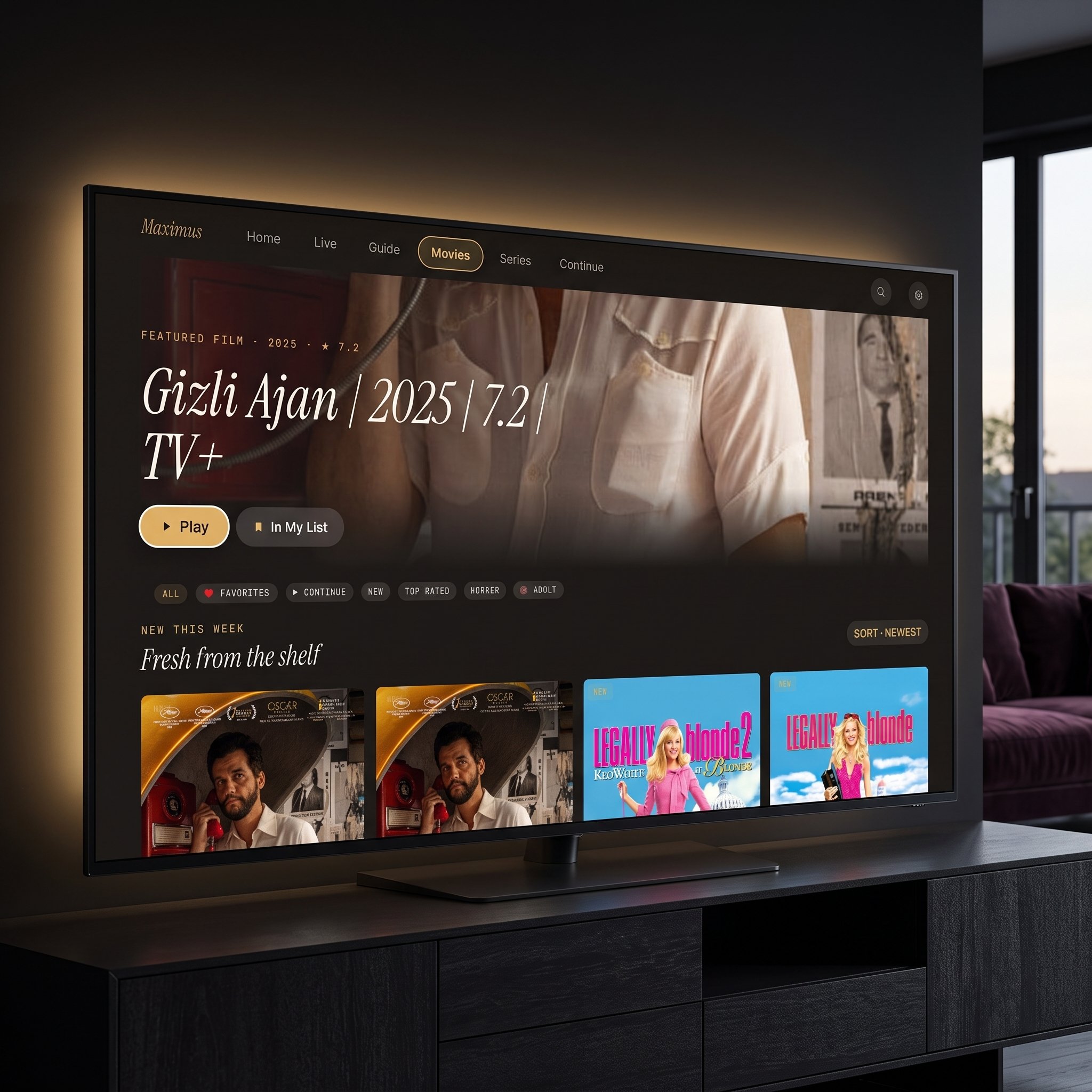
How Do You Browse Live TV and Movies With a Remote?
Live TV on the big screen keeps the structure that works on phone: channels are grouped by country, so if your source has UK, US, and international channel blocks, they stay organized instead of dumping everything into one alphabetical list. Favorites and Continue Watching sit up front on the home screen, so the channels and episodes you actually use don't get buried under everything else in a large playlist.
The movies & series library uses the same poster-grid layout as phone and tablet, just wider — more titles visible per row, which is one of the few places the TV layout is genuinely better than the phone one. Universal search still works the same way: type (or use voice input, where your remote supports it) and results come back across both movies and series in one pass, rather than making you search each section separately.
Does the TV Guide (EPG) Work the Same as on Phone?
Mostly yes, with one meaningful difference: screen real estate. The EPG — the scrolling program timeline that shows what's airing now and what's coming up next on each channel — is the same feature on both platforms, but on a TV you can see far more channel rows and a longer stretch of the timeline at once without scrolling as much. The five filter chips (Favorites, All channels, Sports, Movies, Kids) work identically to phone, letting you narrow a long channel list down before you start scrolling through the grid itself.
If your source's EPG data is sparse or missing for a channel, that's a source-side gap, not something the TV app changes — the guide can only display what your Xtream Codes or M3U source publishes.
How Do You Keep Kids' Content in Check on the Big Screen?
The PIN parental lock carries over from phone to TV without a separate setup step: once a PIN is set, it re-arms automatically on Android, so it doesn't stay unlocked after the person who entered it walks away — a detail that matters more on a shared living-room device than on a personal phone. There's no Face ID equivalent on Android (that's iOS-only), so the PIN itself is the whole mechanism; keep it something the adults in the house remember and the kids don't.
The Kids filter tab in the guide is a browsing convenience, not a security feature on its own — pair it with the PIN lock if you actually want adult content gated, not just tucked into a different tab.
Can You Use Multiple Sources on the TV App?
Yes. If you already run more than one Xtream Codes login or M3U/M3U8 playlist on your phone, the same multi-source setup is available on Android TV — Maximus IPTV Player combines them into one library rather than making you switch between separate app profiles for each source. Offline downloads of movies and episodes also work the same way, useful if your household streams from a device that occasionally sits on a weaker connection than your phone does.
One thing worth knowing: casting isn't part of the Android app at all, on phone or on TV — there's no Chromecast/Google Cast support in the Android build. That's not a TV-specific limitation, though, and it's largely moot here: the TV app is the destination, so there's nothing to cast to in the first place.
What's Different From the Phone App, Really?
Fewer things than you'd expect. The core library, live channel list, EPG data, favorites, continue watching, offline downloads, and multi-source setup are the same feature set. What changes is entirely the interface layer: remote navigation instead of touch, a wider grid instead of a scrolling column, and larger focus states built for viewing distance. Sources and the PIN live on each device, though, so on the TV you enter your Xtream Codes login or M3U link once more with the remote; there's no account that carries them across.
FAQ
Does Maximus IPTV Player need a separate download for Android TV?
No. It's the same Google Play listing (com.aegontech.maximus) as the phone and tablet app; Android TV and Google TV devices install and run the TV-optimized layout from that one package.
Can I use the same sources on my phone and my TV? Yes, but you add them on each device. Maximus has no user account, so nothing syncs between your phone and your TV: enter the same Xtream Codes login or M3U/M3U8 link on the TV with the remote, and the same channels, movies, and series load from your provider.
Does the parental PIN lock work the same on TV as on phone? Yes, with the same automatic re-arm behavior on Android. Set it once and it applies across the app, TV included.
Can I cast from my phone to the Android TV app? No — the Android app has no Chromecast/Google Cast support on phone or TV. If you're already running Maximus IPTV Player natively on the television, though, there's nothing to cast in the first place; you're already on the big screen.
Is the Android TV app free, or does it need Premium? The app itself is free to download. Premium (available with a 7-day free trial on monthly and annual plans) unlocks the full TV guide, offline downloads, the parental lock, source refresh, and multiple sources on Android, TV included.
Try It on Your TV
If your household already streams through Maximus IPTV Player on a phone or tablet, moving to the living room takes one install and a few minutes with the remote. Get it from Google Play (com.aegontech.maximus) on your Android TV or Google TV device, add the Xtream Codes login or M3U playlist link your provider gave you, and your channels, movies, and series load just as they do on your phone.
For a step-by-step install and adding your source with the remote, see our IPTV player for Android TV setup guide.
Written by
Maximus IPTV Team