Safeguarding Kids: Set Up IPTV Parental Controls on iOS
As a parent, it's natural to worry about the content your children can access through various apps and platforms. IPTV services, while offering vast entertainment options, can pose concerns when it comes to child safety. Fortunately, Maximus IPTV Player provides comprehensive parental controls on iOS that help you manage what your kids can watch.
Key Takeaways:
- Effortlessly set up parental controls in your iOS IPTV player to ensure a safe viewing environment for children.
- Maximus IPTV Player supports robust features that allow precise management of content accessibility.
- Understand the necessity of these controls to protect children from inappropriate content.
How Can I Activate Parental Controls in Maximus IPTV Player on iPhone?
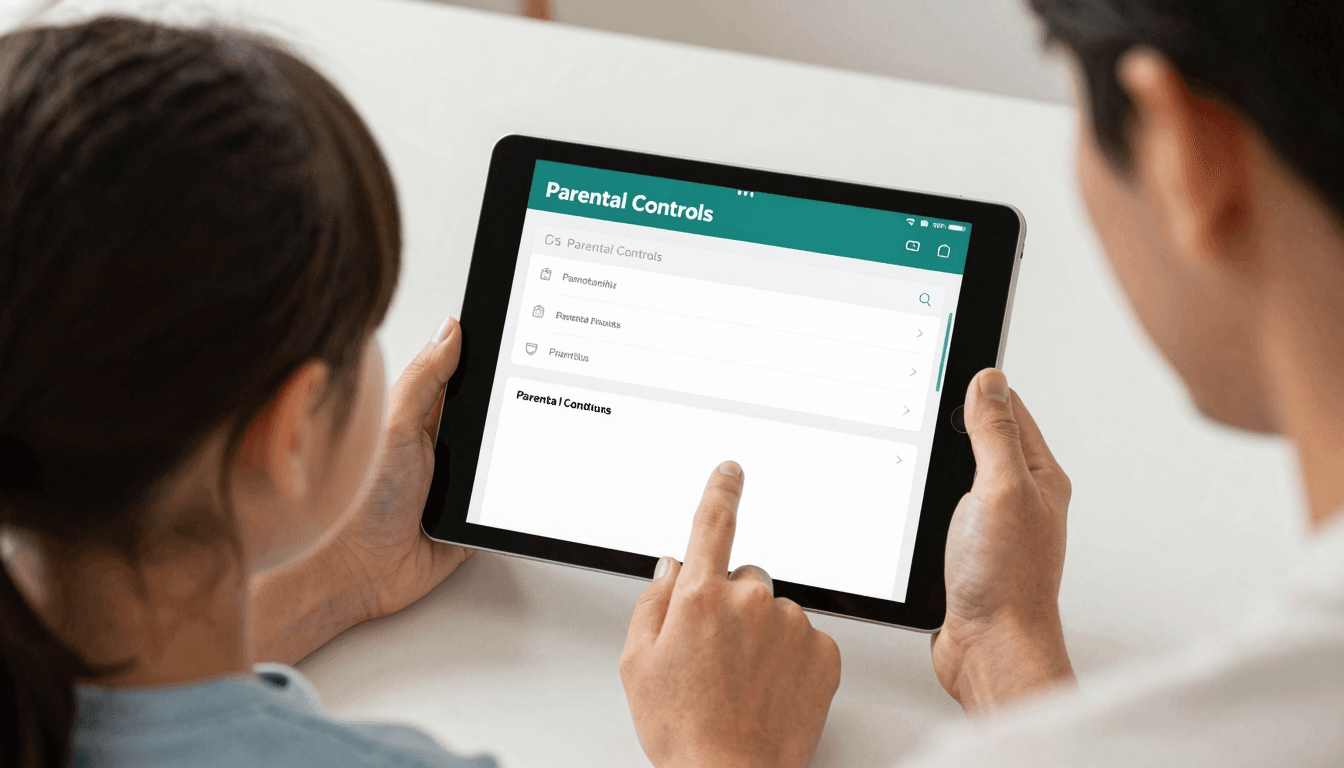
Setting up parental controls in the Maximus IPTV Player on an iPhone or iPad involves a few straightforward steps. First, open the app and navigate to 'Settings', then select 'Parental Controls'. Here, you can set a PIN that will be required to access restricted content. You can define what content is considered restricted either by channel or by content ratings.
What Features Should I Look for in IPTV Parental Controls?
Effective parental controls in an IPTV app should allow you to:
- Block channels or programs based on content ratings or specific inbound channels.
- Set viewing times to limit when and how long your children can watch TV.
- Control access to on-demand content and possibly record programs.
Why Is It Important to Use Parental Controls on IPTV Apps?
Using parental controls on IPTV apps helps protect children from potentially harmful content that is not suitable for their age group. It also assists in managing screen time, which is crucial for maintaining a balanced daily routine for children.

How to Choose the Best IPTV App with Parental Controls?
When choosing an IPTV app, consider whether it:
- Offers comprehensive parental control features.
- Is user-friendly so you can easily set and manage controls.
- Has a reliable performance to avoid crashes or bugs, which could circumvent set controls.
Troubleshooting Common Issues with IPTV Parental Controls
Sometimes you might encounter issues with parental controls on IPTV apps. If controls are not working as expected, ensure that:
- The app is updated to the latest version.
- All settings are correctly configured and saved.
- Your device's system settings do not override or conflict with the app's settings.
Frequently Asked Questions
How do I reset the parental control PIN on Maximus IPTV Player?
If you forget your PIN, reset it by going to the settings menu, selecting 'Parental Controls', and choosing 'Reset PIN'. You may need to confirm your identity or answer security questions.
Can I customize specific channels with parental settings in Maximus IPTV Player?
Yes, Maximus allows customization of specific channels. Go to 'Parental Controls' in settings, where you can select and customize access restrictions for each channel individually.
What to do if parental controls are not engaging on scheduled times?
Ensure the app is updated and restart your device. If the problem persists, contact Maximus support for further assistance.

Wrapping Up Knowing how to effectively set up and manage parental controls on your IPTV is crucial for safeguarding your children. With Maximus IPTV Player, you can ensure that your kids enjoy their viewing experience while staying protected from unsuitable content. For a seamless setup, download Maximus directly from the App Store.
Written by
Maximus IPTV Team