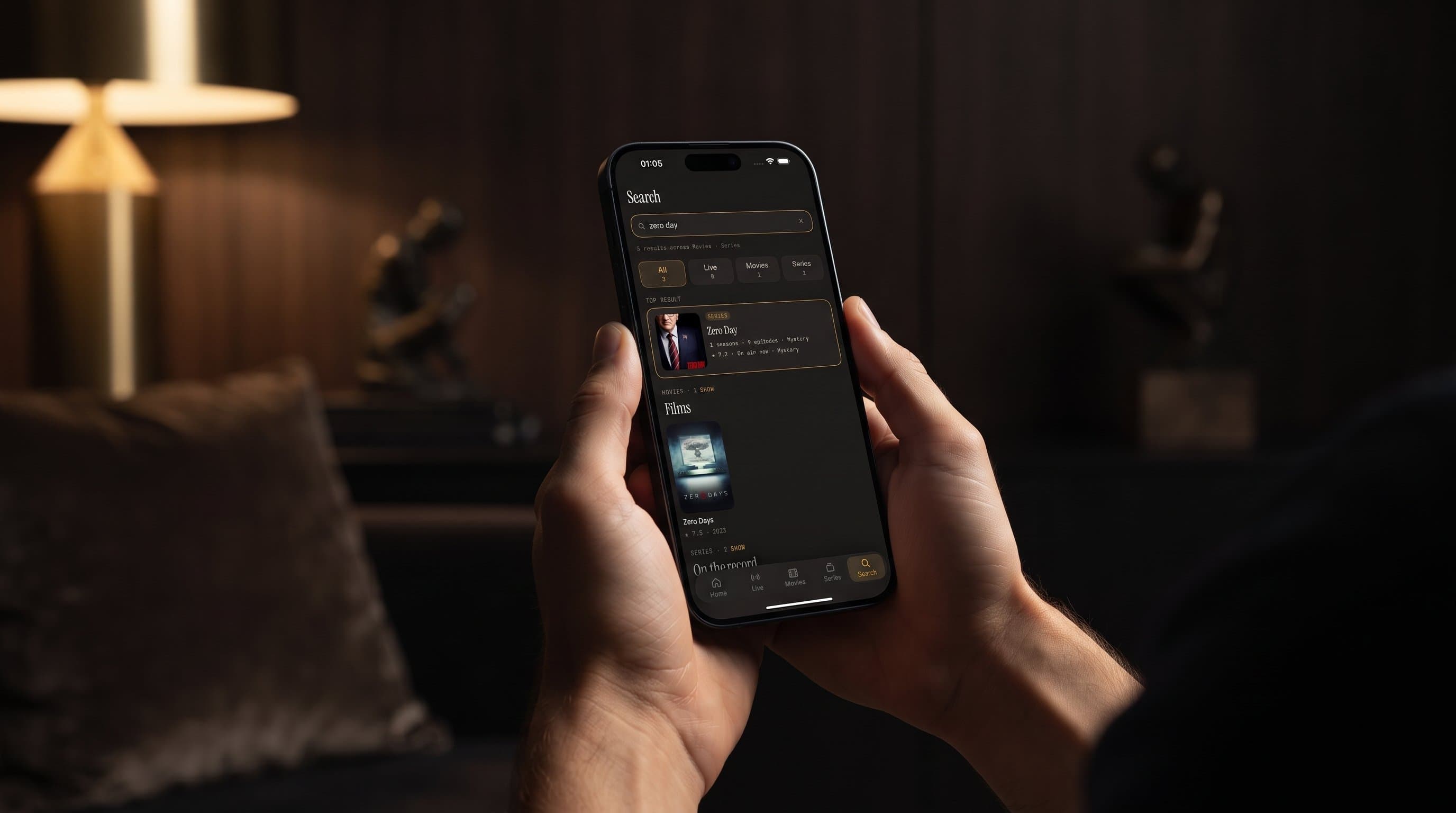
Stop Scrolling: How Universal Search Works in Maximus IPTV Player
If you have ever spent five minutes scrolling through channel lists and poster grids trying to remember which app your favorite show lives in, Maximus IPTV Player was built to fix exactly that problem. Maximus IPTV Player is a cross-platform IPTV player — free to download, with an optional premium subscription — that pulls your Live TV channels, Movies, and Series into one library, and its universal search bar is the fastest way through all of it. Instead of hunting through separate tabs for live channels versus on-demand titles, you type once and Maximus IPTV Player searches everywhere at the same time.
This guide walks through how search actually works inside Maximus IPTV Player, what it covers, how the experience differs a little between iPhone and iPad, and how to get from a search result to a paused, ready-to-watch stream in the fewest taps possible.
Key Takeaways
- Maximus IPTV Player has a single universal search bar that queries Live TV, Movies, and Series at once — you don't need to know which category a title lives in before you search.
- Search results are organized with result-count tabs so you can see, at a glance, how many matches came back in each category.
- Search sits alongside the app's other organizational tools — Favorites, Continue Watching, and country filters — rather than replacing them.
- The same search experience is available on both iPhone and iPad, with the iPad layout showing more results at once thanks to its wider, sidebar-based interface.
- Maximus IPTV Player is available on both the Apple App Store (iPhone, iPad, and Apple TV) and Google Play (Android phones, tablets, and Android TV / Google TV) — "one app, one subscription," per the Google Play listing.
- Maximus IPTV Player never provides or endorses pirated streams. Search only surfaces content already present in your own legal subscription or M3U/M3U8 playlist.
Why Does a Good Search Matter for IPTV?
IPTV setups tend to sprawl. A single Maximus IPTV Player installation can be connected to a live channel feed and one or more M3U or M3U8 playlists — the standard playlist file formats IPTV apps use to organize lists of streaming channel URLs — plus a Stalker Portal source if your provider uses one. Combine a few hundred live channels with a full movies-and-series library, and "just scroll until you find it" stops being a reasonable strategy fast.
That's the real cost of a weak search: not that it's inconvenient, but that it makes a large, well-organized library feel smaller than it is. Maximus IPTV Player's approach is to treat search as a first-class feature rather than an afterthought bolted onto the library screen — the search bar sits right at the top of the interface, ready before you've even decided which category you're looking in.
How Does Universal Search Work in Maximus IPTV Player?
Open the search screen in Maximus IPTV Player and you'll see a single query field at the top, with results organized underneath by category as you type. Rather than forcing you to first choose "Live TV" or "Movies" or "Series" and then search within that silo, Maximus IPTV Player runs the query across all of them simultaneously and shows result-count tabs so you can see immediately whether a title turned up as a live channel, a movie, a series, or more than one.
That matters more than it sounds like on paper. A lot of content exists in more than one place in a typical IPTV library — a sports network might be both a live channel and have on-demand replays in your Movies/Series library, for instance. Universal search surfaces both without you having to check twice.
What Can You Actually Search For?
Within Maximus IPTV Player, search covers three areas at once:
- Live TV channels — search by channel name to jump straight into a live stream, skipping the country-filtered channel list entirely.
- Movies — search your on-demand movie library by title.
- Series — search your series library, including matching partial titles as you type.
Because search spans all three categories in one pass, it's a genuine shortcut compared to browsing. If you already know the name of what you want, search will almost always be faster than navigating through country filters, genre groups, or a poster grid.
How Do Live TV and EPG Search Fit In?
Search and the EPG — Electronic Program Guide, the on-screen schedule that shows what's airing and when across your channels — work together rather than competing. If you search for a channel and jump straight into it, you're one tap away from that channel's guide entry to see what's currently airing and what's coming up next, shown as a timeline grid.
This is particularly useful if you're trying to catch a specific program rather than a specific channel — search gets you to the right channel fast, then the EPG tells you whether you've arrived in time or need to check what's on later.

What About Search on iPad vs iPhone?
The underlying search experience is the same across iPhone and iPad — same universal query, same result-count tabs — but the iPad's persistent sidebar layout means you're looking at search results alongside the rest of the app's navigation, rather than search taking over the whole screen the way it can on iPhone. On a bigger display, Maximus IPTV Player can also show more results at once, since iPad screens comfortably fit wider poster grids than a phone can.
If you regularly search across a large combined library — say, a few hundred live channels plus a substantial movies-and-series collection — the iPad's extra screen real estate makes scanning multiple result categories at once noticeably easier.
Does Search Work the Same Way on Android?
Yes. Maximus IPTV Player is now available on Google Play for Android phones and tablets, as well as Android TV and Google TV — all shipping from the same app, so the Play Store listing serves every Android form factor with "a native TV interface designed for your remote, not a stretched phone app." Search is core interface behavior, not a platform-specific extra, so Android users get the same universal, cross-category search that iOS users do. The interface details will look native to Android's design language, but the underlying idea — one search bar, three categories, instant results — carries over.
How Do You Get From a Search Result to Watching?
Tap a search result and Maximus IPTV Player takes you straight into that title — a live channel starts streaming immediately, a movie or series opens to its detail page with a synopsis and, for series, an episode list. From there, casting to a bigger screen is one more tap away: Maximus IPTV Player supports both AirPlay, Apple's wireless casting protocol available on iOS devices, and Chromecast (Google Cast), which — worth calling out explicitly — is not limited to Android. Chromecast support is built into the iOS app as well, so an iPhone user can search for a title and cast it to a TV just as easily as an Android user can.
If you've already downloaded an episode or movie for offline playback, search will surface it the same way as any other library item — there's no separate "downloads" search you need to remember to use instead.

Tips for Faster Searching
A few small habits make universal search even more useful in day-to-day use:
- Search by partial title. You don't need the exact, full name of a series — partial matches surface as you type.
- Use search before country filters when you know the name. Country filters in Live TV are great for browsing by region, but if you already know a channel's name, search is faster than filtering.
- Combine with Favorites. Once search gets you to something you watch often, add it to Favorites so you don't have to search for it again next time.
- Check the result-count tabs first. If a title exists as both a live channel and an on-demand replay, the tabs tell you that before you commit to tapping in.
Frequently Asked Questions
Does search work across all my sources, or just one? Maximus IPTV Player's Combined Library brings together everything connected to the app — your live IPTV feed, M3U/M3U8 playlists, and Stalker Portal sources where applicable — into one library, and search queries that combined library rather than any single source in isolation.
Can I search while a live channel is playing? Yes — search is accessible from the main navigation at any point, so you can look something up without fully backing out of what you're currently watching.
Does Maximus IPTV Player's search include adult content? Parental Lock, Maximus IPTV Player's PIN-protected content control, governs what's reachable through search the same way it governs browsing — protected categories stay protected regardless of how you navigate to them.
Is there a limit to how much a search query can match? No artificial limit is imposed by the search feature itself — how much comes back depends on the size of your connected library and sources.
Do I need a VPN to use search or any Maximus IPTV Player feature? No — search works with whatever legal sources and playlists you've already connected to Maximus IPTV Player. The app doesn't require or bundle a VPN, and Maximus IPTV Player does not provide or endorse pirated streams; all content comes from your own subscription or playlist.
Try It Yourself
Universal search is a small feature to describe but a genuinely large quality-of-life upgrade once you're used to having it — the difference between hunting for a title and just typing its name. Maximus IPTV Player is free to download, with an optional premium subscription, on the Apple App Store for iPhone, iPad, and Apple TV, and on Google Play for Android phones, tablets, and Android TV / Google TV.
Written by
Maximus IPTV Team