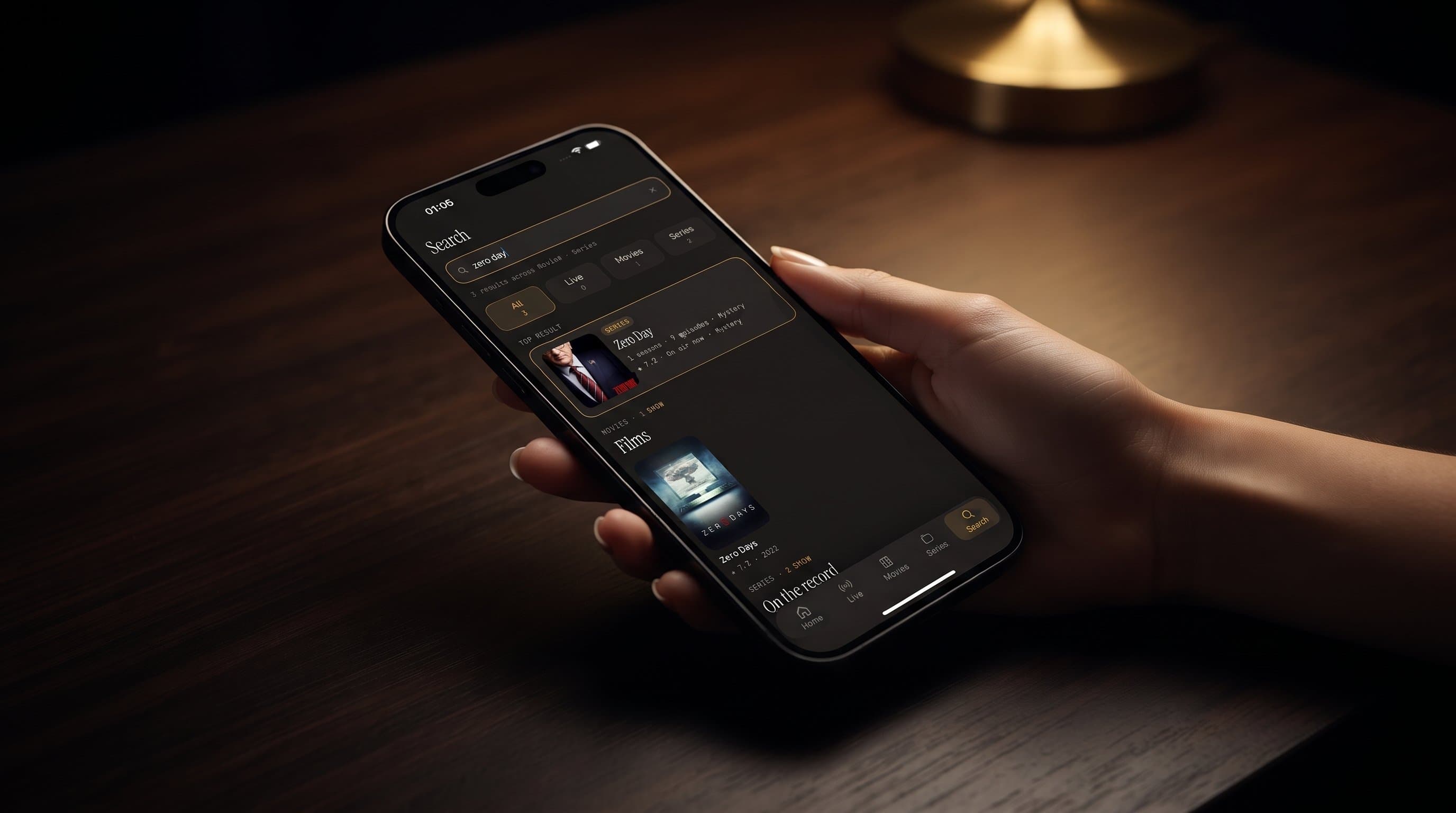
Universal Search in Maximus IPTV Player: Finding Any Channel, Movie, or Show in Seconds
Scrolling through five different apps to figure out which one has the game, the show, or the movie you're trying to watch is one of the most annoying parts of cutting the cord. Maximus IPTV Player was built to solve exactly that problem with a single universal search bar that looks across every source you've connected — Live TV, Movies, and Series — at the same time, instead of forcing you to search one library, then another, then another. If you've added more than one M3U playlist, an M3U8 link, or a Stalker Portal login to Maximus IPTV Player, search is the feature that quietly makes all of it feel like one library instead of three separate apps stitched together.

Key Takeaways
- Maximus IPTV Player's search runs across all connected sources at once, returning results grouped into Live TV, Movies, and Series in a single pass.
- Result-count tabs let you see, at a glance, how many matches turned up in each category before you tap into one.
- Search works alongside Favorites and Continue Watching, so a title you find once is a title you can get back to in one tap later.
- Maximus IPTV Player is free to download on both the Apple App Store (iPhone, iPad, Apple TV) and Google Play (Android phones, tablets, and Android TV / Google TV), with an optional premium subscription.
- Search respects Parental Lock, so content behind a PIN doesn't surface for anyone who hasn't unlocked it.
What Is Universal Search in Maximus IPTV Player?
Most IPTV apps treat search as an afterthought — a magnifying-glass icon buried in a menu that only searches the section you happen to be in. Maximus IPTV Player takes a different approach. Its search bar sits front and center and is genuinely universal: type a title, an actor's name, or a channel name, and the app queries every source you've added — whether that's a Live IPTV subscription, an M3U playlist, an M3U8 link, or a Stalker Portal connection — and merges the results into one screen.
That matters more than it might sound like at first. A lot of cord-cutters end up managing two or three sources at once: maybe one subscription that's strong on sports and international channels, another that has a deeper on-demand movie library, and a personal M3U8 link for a handful of niche channels. Without unified search, finding a specific title means remembering which source has it and manually switching context. With it, you type once and Maximus IPTV Player does the cross-referencing for you.
How Does Search Work Across Multiple Sources?
Under the hood, Maximus IPTV Player treats your Sources screen — where you manage each Live IPTV, M3U, and M3U8 connection as a Combined Library — as the index that search draws from. When you submit a query, the app checks the metadata across all active sources simultaneously rather than requiring you to pick one first. The result screen organizes matches into result-count tabs, so you can see immediately whether your search turned up 2 live channels, 14 movies, and 6 series, for example, and jump straight to the category you actually want.
This is especially useful if you're not sure exactly where something lives. Say you're looking for a specific match rebroadcast — it might be sitting in a sports channel's EPG (electronic program guide, the schedule data that powers the TV Guide screen) as an upcoming or recently aired program, or it might exist as an on-demand replay in your Movies or Series library. Rather than guessing, a single search surfaces both possibilities at once.
Can You Search Live TV, Movies, and Series All at Once?
Yes — that's the core design decision behind search in Maximus IPTV Player. Results come back organized into three buckets: Live TV, Movies, and Series, each with its own count so you know how many hits landed in each. This three-way split mirrors how the rest of the app is organized (Home, Live TV, Movies/Series, and Sources), so search results never feel disconnected from the navigation you already know.
It also means search doubles as a discovery tool, not just a lookup tool. Typing a genre-adjacent term or an actor's name can turn up a live channel currently airing something relevant alongside on-demand titles you didn't know you had access to — all without leaving the search results screen.
How Do Favorites and Continue Watching Complement Search?
Search is how you find something the first time. Favorites and Continue Watching, both visible from the Home screen, are how you get back to it without searching again. Once you've located a channel or series through search, marking it as a favorite pins it to your Favorites list, and Maximus IPTV Player's Home screen surfaces an "On the air" row plus a Resume Watching section so partially watched series pick up where you left off.
In practice, this creates a simple loop: search once to discover a channel, movie, or series across your combined sources, favorite the ones you'll want again, and let Resume Watching handle the rest for anything you're partway through — including offline downloads, for series you've saved for watching without a connection.
What About International Content and Multiple Languages?
Search doesn't care what language a title is in — it matches against whatever metadata your source provides. If you've connected international channel groups (Maximus IPTV Player's Live TV screen supports country filters, useful for anyone juggling channels from multiple regions), search will match against those channels the same way it matches domestic content. Combined with subtitle and multi-audio track support elsewhere in the app, this makes Maximus IPTV Player a practical option for households that split their viewing between two or three languages and don't want to dig through separate country-specific menus to find something.
Does Search Work the Same Way on iPhone, iPad, and Android?
The search experience is consistent across devices — the same query, the same result-count tabs, the same three-category split — whether you're on an iPhone, an iPad, or an Android phone or tablet. Maximus IPTV Player is available on the Apple App Store for iOS (iPhone, iPad, and Apple TV) and on Google Play for Android, where it covers phones, tablets, and Android TV / Google TV from the same app. The layout adapts to the device — an iPad, for instance, keeps a persistent sidebar so you can search without losing your place in the main navigation — but the underlying behavior of pulling results from every connected source stays identical.
Tips to Get the Most Out of Search
A few habits make universal search noticeably more useful in day-to-day use with Maximus IPTV Player:
- Add all your sources first. Search can only look across what's connected, so make sure every M3U, M3U8, or Stalker Portal source you use is added under Sources before you rely on search to find something.
- Use partial titles. You don't need the exact name of a series or channel — a partial match is often enough to narrow the result-count tabs to a manageable list.
- Favorite as you go. Every time search turns up something you'll want again, favorite it on the spot rather than trying to remember it for later.
- Check the Live TV tab for live sports. If you're searching during a game or event, the Live TV result tab will show currently airing matches pulled from your EPG data, not just on-demand replays.
- Set up Parental Lock before sharing search with kids. Search results respect Parental Lock, so PIN-protected content stays out of results for anyone without the PIN — worth configuring first in a shared-screen household.
FAQ
Does search require a specific type of source to work? No. Search works across Live IPTV subscriptions, M3U playlists, M3U8 links, and Stalker Portal connections alike — any source type Maximus IPTV Player supports shows up in results as long as it's been added under Sources.
Will search show content I don't have access to? No. Search only returns results from sources you've actually connected. It's not a discovery engine for content outside your own subscriptions or playlists — it's a way to find what you already have faster.
Can I search while a Parental Lock PIN is active? Yes, but PIN-protected content won't appear in results unless the lock has been unlocked for that session. This keeps search safe to hand off on a shared family device.
Does search use extra data or bandwidth? Searching itself is a lightweight metadata lookup — it doesn't stream anything until you tap a result and press play, so it won't meaningfully affect the data usage you'd otherwise see from IPTV streaming.
Is search available on Android TV / Google TV? Yes. Because Android TV and Google TV run the same Maximus IPTV Player app as Android phones and tablets, search works the same way — you'll just navigate it with your remote instead of touch.
Try Universal Search in Maximus IPTV Player
If you're tired of remembering which app has which channel, universal search is one of the fastest ways to feel the benefit of consolidating your sources inside Maximus IPTV Player. It's free to download, with an optional premium subscription, on the Apple App Store for iPhone, iPad, and Apple TV, and on Google Play for Android phones, tablets, and Android TV / Google TV. Add your sources, run a search, and see how much faster finding something to watch becomes when one query covers everything.
Written by
Maximus IPTV Team