Subtitles and Multi-Audio Tracks in Maximus IPTV Player: Watching Any Channel in Your Language
Turn on the wrong channel abroad, or hand the remote to a grandparent who doesn't speak the local language, and you'll hit the same wall fast: the audio's in a language nobody in the room understands, and the subtitles — if there even are any — don't match. Maximus IPTV Player was built to make that a non-issue. It's a cross-platform IPTV player app, free to download with an optional premium subscription, available on the Apple App Store (iPhone, iPad, and Apple TV) and on Google Play for Android phones, tablets, and Android TV / Google TV. One of its quieter but most useful features is proper subtitle and multi-audio track support — and today we're going deep on exactly how it works, why some streams have more language options than others, and how to get it right the first time.

Key Takeaways
- Maximus IPTV Player supports both subtitle tracks and multi-audio (multiple dubbed language) tracks, when the underlying source provides them.
- Track availability depends on the source stream itself — an M3U or M3U8 playlist (the two most common IPTV playlist file formats) only offers the languages its provider encoded, and a Stalker Portal source (a login-based IPTV source type common with regional providers) behaves the same way.
- Subtitle and audio-track selection carries over when casting via AirPlay (Apple's screen-and-audio streaming protocol, iOS only) or Chromecast / Google Cast (Google's casting protocol, available on both iOS and Android).
- 2-3 taps is typically all it takes to switch a channel's audio or subtitle language mid-stream, once you know where the control lives.
- No subtitle track showing up almost always means the source stream itself doesn't include one — not a bug in the player.
What Do "Subtitles" and "Multi-Audio Tracks" Actually Mean in IPTV?
A quick bit of housekeeping before the how-to, because these terms get thrown around loosely. In IPTV (Internet Protocol Television — TV delivered over an internet connection rather than cable or satellite), a single video stream can carry more than one audio track and more than one subtitle track bundled together, the same way a DVD or Blu-ray disc can. The player just needs to expose a way to pick between them.
Streams typically arrive via HLS (HTTP Live Streaming — the segmented, adaptive-bitrate delivery protocol most modern IPTV and streaming services use, including Maximus IPTV Player), and HLS supports multiple audio renditions and subtitle tracks as part of the same manifest. Whether any given channel actually uses that capability is entirely up to whoever encoded the stream — which is the single most important thing to understand about this feature, and we'll come back to it more than once.
How Do Subtitle Tracks Work in Maximus IPTV Player?
When you open a channel or a VOD (video on demand) title in Maximus IPTV Player and the stream includes subtitle data, a track-selector control appears in the player interface — the same playback screen you'd use to pause, scrub, or open the cast menu. Tapping it surfaces a list of every subtitle language the stream provides: sometimes just one, sometimes half a dozen for a well-produced international channel or a popular series.
A few practical notes worth knowing:
- Subtitles are per-stream, not global. Selecting Spanish subtitles on one channel doesn't automatically apply Spanish subtitles to the next channel you tune to — each stream's track list is its own.
- "No subtitles available" means the source doesn't have them, not that Maximus IPTV Player failed to find them. This is the single most common point of confusion, and it's worth repeating: the player can only offer what the underlying M3U or M3U8 playlist entry (or Stalker Portal source) actually delivers.
- Series and movies (VOD content) are more likely to have rich subtitle options than live linear channels, simply because VOD libraries are typically produced with wider international distribution in mind.
Switching Audio Languages: How Multi-Audio Tracks Work
Multi-audio works the same way, just for the spoken-language track instead of on-screen text. Many international channels — sports broadcasts with a home-commentary and away-commentary option, or dubbed movie channels — ship 2, 3, or occasionally 4 full audio tracks inside one stream. Maximus IPTV Player surfaces these in the same track-selector menu as subtitles, usually as a separate "Audio" tab right next to "Subtitles."
This is genuinely useful for a few real scenarios cord-cutters run into constantly: a household where one person is more comfortable in a second language, a live sports match where the neutral commentary is preferable to a heavily biased home broadcast, or simply wanting the original-language audio with subtitles instead of a dub. Because the switch happens at the player level, you don't need a second source or a different channel entry to get it — assuming, again, that the broadcaster encoded more than one track to begin with.
Why Do Some Channels Have More Language Options Than Others?

This is worth its own section because it's the number one reason people think something's broken when nothing is. Maximus IPTV Player is a player app — it plays whatever a source stream contains, and it manages multiple sources through its Sources screen, where Maximus's own combined-library view can show 100+ channels pulled from just 2-3 connected sources in a typical setup. Two structurally different source types are common:
- M3U / M3U8 playlists — a plain-text or extended playlist file (M3U8 is the UTF-8 encoded version, and the more common one today) that simply lists stream URLs and metadata. Whether a given URL's stream carries multiple audio or subtitle tracks is decided entirely by whoever built and hosts that stream — the playlist file itself has no say in it.
- Stalker Portal sources — a login-based source type (username, password, and a portal URL rather than a flat playlist file) common with regional and Eastern European providers, which pulls its channel and language data from the provider's own backend in real time.
Because Maximus IPTV Player supports multi-source management, it's entirely normal for one connected source to offer rich multi-language channels and another to offer single-track everything — and for the same channel name to behave differently depending on which of your sources you tuned it from. If a specific language option matters to you, it's worth checking with your source/playlist provider directly about what tracks they encode; that's the layer where the actual language data lives.
Using Subtitles and Multi-Audio While Casting
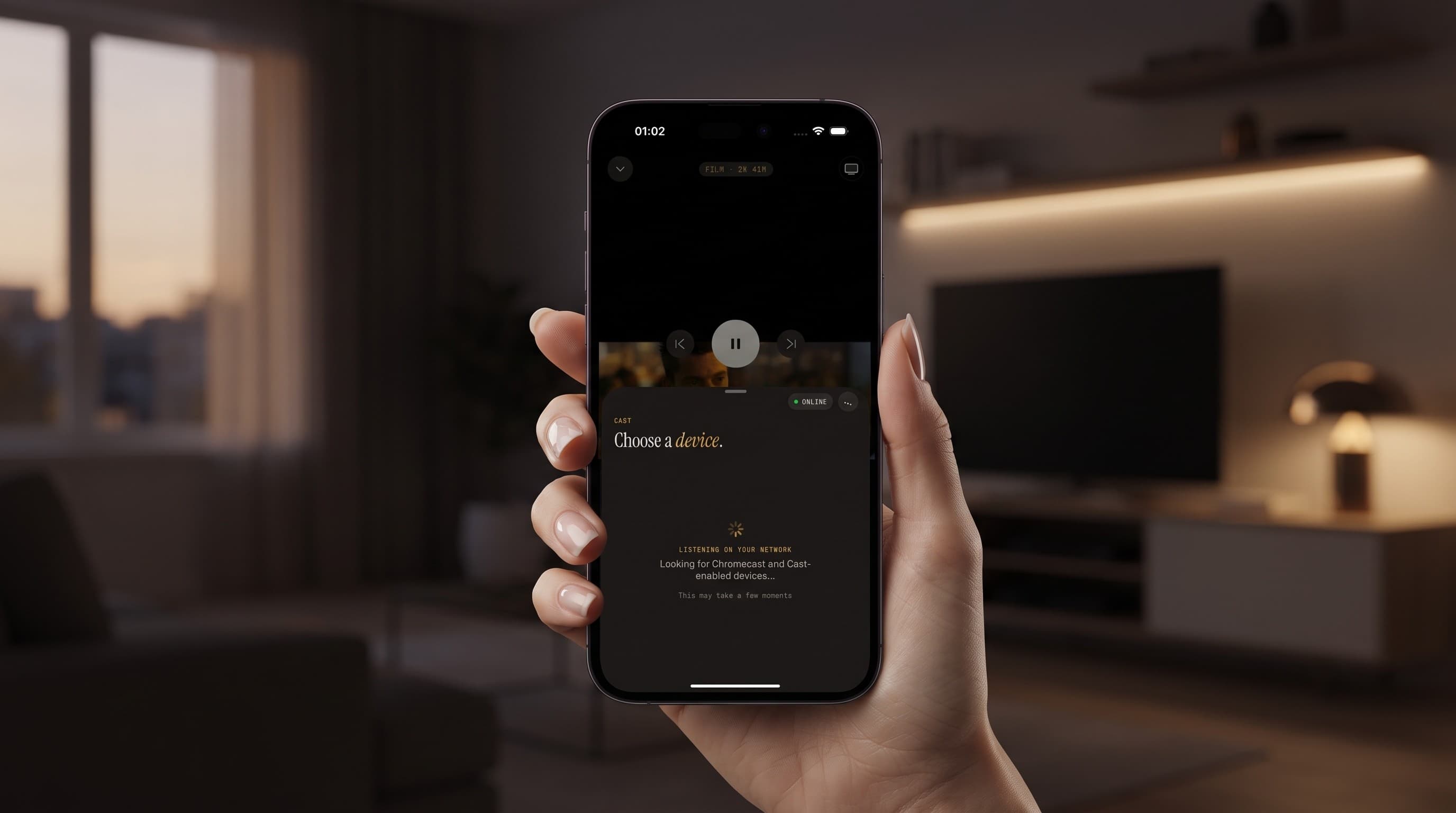
Casting a stream from a phone or tablet to a bigger screen shouldn't mean losing your language settings, and it doesn't in Maximus IPTV Player. The app supports both AirPlay (Apple's built-in screen-and-audio casting protocol, iOS-only — it does not exist on Android and never will, since it's an Apple technology) and Chromecast / Google Cast, which is not Android-exclusive despite the name — the iOS version of Maximus IPTV Player includes built-in Chromecast support too, alongside AirPlay.
Whichever subtitle or audio track you had selected before opening the cast device picker carries over to the cast session. If you want to change languages mid-cast, the track selector stays reachable from the paused-player view behind the device picker — no need to stop casting and start over. This matters most for the exact households multi-audio is built for: a shared living-room screen where the phone stays in someone's hand as the remote.
A Quick Setup Checklist for Multilingual Streaming
If you're setting up Maximus IPTV Player specifically because subtitle or dual-language support matters to your household, run through this before you assume something's missing:
- Confirm the source, not just the app. Ask your M3U/M3U8 or Stalker Portal provider which channels and VOD titles are encoded with multiple audio or subtitle tracks — this data lives with them, not in Maximus IPTV Player.
- Check VOD before live TV if you're testing the feature for the first time — movie and series libraries statistically carry richer track options than live linear feeds.
- Add more than one source if you rely on this heavily. Since Maximus IPTV Player's multi-source management pulls everything into one combined library, connecting two providers — one strong on live sports, another strong on dubbed movie libraries, for example — often covers more ground than any single source alone.
- Test casting once during setup, not the first time you have guests over. Confirm your preferred track carries over via both AirPlay (iPhone/iPad/Apple TV) and Chromecast, whichever your TV or streaming box uses.
- Use parental controls independently of language settings if kids share the device — the Parental Lock (PIN-protected content restriction) is a separate setting from track selection and won't interfere with it.
Frequently Asked Questions
Does Maximus IPTV Player support subtitles on every channel? No — subtitle availability depends entirely on whether the source stream includes subtitle data. Maximus IPTV Player will show a track selector whenever a stream provides one, but it can't add subtitles to a stream that doesn't have any encoded.
Can I set a default subtitle or audio language for every channel? Track selection in Maximus IPTV Player is currently per-stream — you pick the language each time you open a channel or title that offers multiple tracks, rather than setting one global default across your whole library.
Why does one of my sources have more language options than another? Because M3U/M3U8 playlists and Stalker Portal sources each pull their stream data — including which audio and subtitle tracks exist — from whoever hosts that specific source. Maximus IPTV Player's multi-source management lets you connect several sources into one combined library, but it doesn't standardize what each one encodes.
Do subtitles and multi-audio work the same on iPhone, iPad, and Android? Yes — subtitle and multi-audio track support is a core Maximus IPTV Player feature across both platforms, whether you're on an iPhone, iPad, Apple TV, or an Android phone, tablet, or Android TV / Google TV device.
Does casting change or remove my subtitle selection? No. Whatever subtitle or audio track is active when you open the cast device picker (AirPlay or Chromecast / Google Cast) carries over to the cast session, and you can still change it from the player view during casting.
Getting the Most Out of a Multilingual IPTV Setup
Subtitle and multi-audio support is one of those Maximus IPTV Player features that's easy to overlook until the moment you actually need it — and then it's the difference between a frustrating handoff and just watching TV. The short version: the player will always show you every language option a source stream actually contains, it carries your selection through casting, and if a track seems to be missing, the fix usually starts with your playlist or Stalker Portal provider rather than with the app.
Maximus IPTV Player is free to download with an optional premium subscription. iOS users on iPhone, iPad, or Apple TV can get it from the Apple App Store; Android users on phones, tablets, or Android TV / Google TV can get it from Google Play at https://play.google.com/store/apps/details?id=com.aegontech.maximus.
Written by
Maximus IPTV Team