Kids Are Watching: How to Set Up Parental Controls in Maximus IPTV Player
It's 7 p.m., the kids just finished dinner, and someone hands over the iPad. If you've ever hesitated for even a second before doing that — wondering what a five-year-old might tap into on your family's IPTV lineup — you're not alone. Maximus IPTV Player, the cross-platform IPTV player app available on the Apple App Store (iPhone, iPad, Apple TV) and Google Play (Android phones, tablets, and Android TV / Google TV), was built with that hesitation in mind. It ships with a real Parental Lock feature, not a buried settings toggle, and turning it on takes less than a minute. This guide walks through exactly how it works, what it protects, and what it doesn't — so you can hand over the remote, or the phone, with a little more peace of mind.
Key Takeaways
- One PIN protects everything. Maximus IPTV Player's Parental Lock sits in front of the entire library at once — you're not locking channels or titles one at a time.
- Two ways to unlock. A 4-digit PIN, or Face ID on devices that support it, both get you back in.
- The same core protection exists on iOS and Android. Maximus IPTV Player is free to download, with an optional premium subscription, and Parental Lock ships in the same app on both platforms.
- Setup takes under a minute. No account creation, no email verification — just a PIN and a confirmation step.
- It's a whole-library lock, not a ratings filter. Maximus IPTV Player doesn't currently sort content by age rating or genre, so plan around locking "adult content" as a category rather than blocking specific shows.
Why does an IPTV app need parental controls at all?
Cable boxes used to have one clunky hardware lock and one household remote. Streaming — and especially IPTV (Internet Protocol Television, where channels and video-on-demand arrive over the internet instead of a satellite dish or cable line) — changed that math. A single Maximus IPTV Player install can pull in a live channel lineup from an M3U playlist (a plain-text file listing channel names alongside their stream addresses) or the newer M3U8 variant (the same idea, formatted for HLS — HTTP Live Streaming, the protocol most live IPTV channels use to deliver video in small, adaptive chunks), plus a Stalker Portal connection (a server-based way of delivering an IPTV subscription, common with certain providers) and a full movies-and-series library alongside it. That's a lot of surface area on one phone, and if that phone gets handed to a kid at bath time or bedtime, "just don't tap the wrong thing" isn't a real plan.
It's also just a shared-device problem. A tablet used for kids' cartoons in the morning is often the same tablet an adult streams a late-night show on. Without a lock, whatever was open last is exactly what greets the next person to pick it up. Maximus IPTV Player's Parental Lock exists to close that gap without requiring a second device, a separate kids' profile, or any extra subscription.
How do I turn on Parental Lock in Maximus IPTV Player?
Setup is short by design:
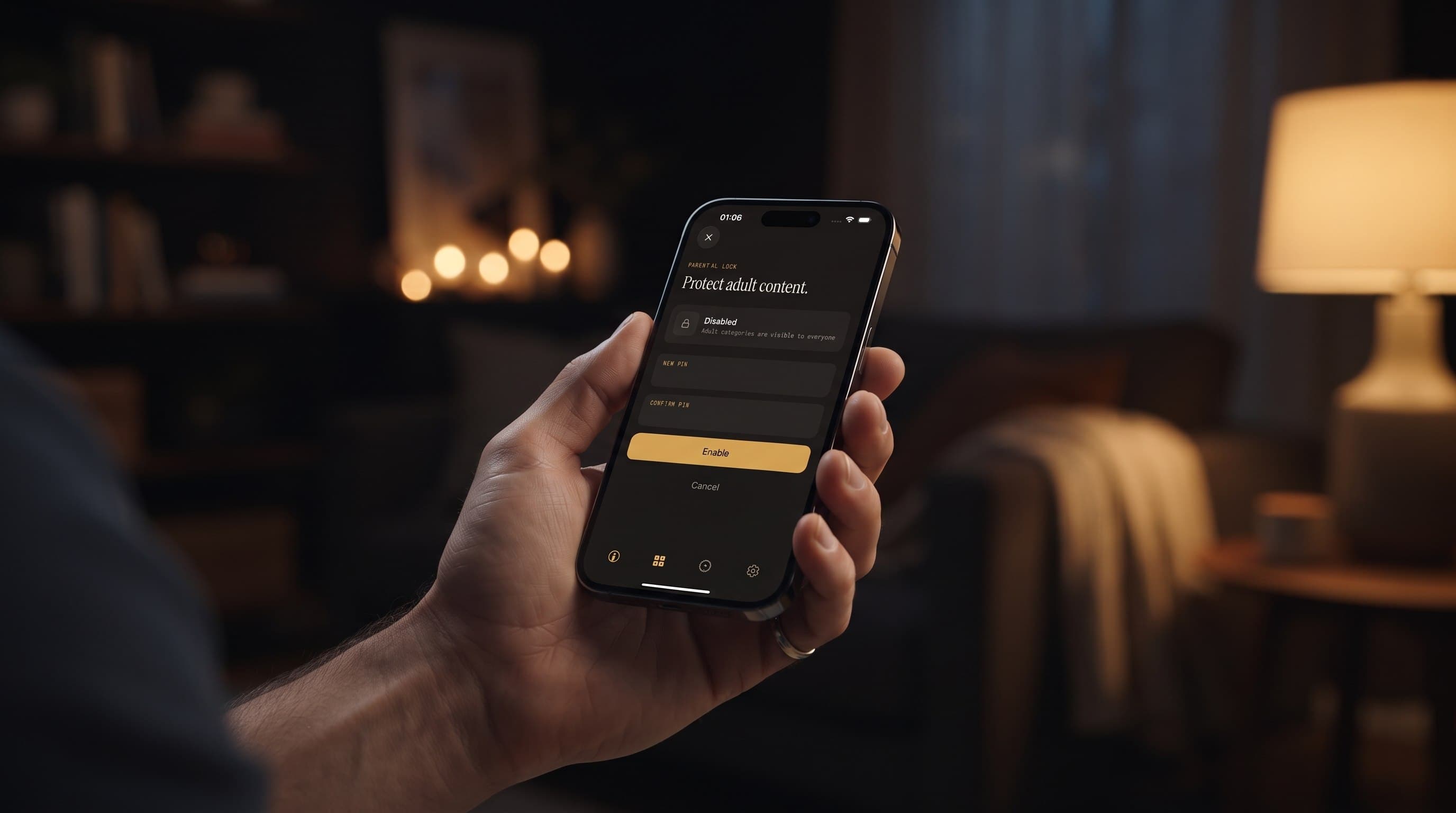
- Open Maximus IPTV Player and find the Parental Lock option in Settings.
- Tap to enable it — the app labels this step "Protect adult content."
- Enter a 4-digit PIN, then re-enter it in the Confirm PIN field to make sure it matches.
- Tap Enable, and the lock is active immediately.
That's the entire flow. There's no linked email, no account tier to upgrade to, and nothing to configure beyond the PIN itself. If you're setting this up for the first time on a shared family device, do it once per device — a PIN set on an iPhone doesn't currently sync to a second device signed into the same account, so each phone, tablet, or TV app you use needs its own PIN entered separately.

What actually happens once Parental Lock is switched on?
Once enabled, Maximus IPTV Player asks for the PIN (or Face ID, see below) before it will reveal whatever is behind the lock. Practically, that means the person holding the remote or the phone sees a PIN entry screen first — not the content itself, not even a thumbnail — until the correct code is entered. That's an important distinction from apps that blur a preview image but still show a title or category name; Maximus IPTV Player's lock screen doesn't leak that information either.
Because it's a whole-library lock rather than a per-title filter, the trade-off is simplicity versus granularity. You can't currently say "block this one series but allow that one" — the lock is on or off. For most households, that's actually the easier mental model: decide once whether adult content should require a PIN on this device, and stop thinking about it after that.
PIN or Face ID — which should I use?
Maximus IPTV Player supports both, and they're not mutually exclusive on devices that offer Face ID. A 4-digit PIN works everywhere, including Android phones, tablets, and Android TV, where Face ID isn't an option. On supported iPhones and iPads, you can additionally unlock with Face ID, which is faster for the adult in the house — a glance rather than four taps — while the underlying PIN still exists as a fallback if Face ID isn't available or doesn't recognize you (low light, a face covering, and so on).
The practical advice: set a PIN that's easy for you to remember and hard for your kids to have watched you type. Avoid your birth year, the device passcode, or anything already written on a sticky note near the TV.
Does Parental Lock work the same way on Android?
Yes, at the feature level. Maximus IPTV Player shipped on Google Play for Android phones and tablets, and then Android TV / Google TV joined the same app shortly after — all from a single build, reachable through the same Play Store listing. Parental Lock is part of that same app, so the PIN-based "Protect adult content" flow is available whether you're on an iPhone, an Android phone, or an Android TV box connected to the living room television. The setup screens themselves are iOS in this guide's screenshots, since that's the reference we have on hand, but the underlying feature — a PIN gate in front of the library — is not an iOS-exclusive extra.
One nuance worth knowing: Android TV's interface is built around a remote control rather than a touchscreen, so entering a PIN there means navigating a directional pad instead of tapping numbers directly. It still works the same way logically — PIN in, content unlocked — just with a different input method suited to the living-room screen.

What about EPG and scheduled programming — does the lock cover that too?
Maximus IPTV Player's EPG (Electronic Program Guide — the scrollable timeline grid showing what's airing now and what's coming up next across your channels) sits behind the same account and app, but it's worth understanding what Parental Lock does and doesn't touch. The lock is designed around "adult content" as a category; it isn't a per-channel or per-time-slot scheduler. If a channel in your lineup airs something you don't want visible at certain hours, the more reliable approach today is enabling Parental Lock generally and only disabling it (with your PIN) when an adult is actively watching, rather than expecting the EPG to filter by time of day automatically.
For families who rely heavily on scheduled sports or kids' programming blocks, this is a good moment to also double-check your channel groups and favorites inside Maximus IPTV Player — keeping a clean, curated favorites list of appropriate channels makes it much less likely anyone stumbles into something unintended, PIN or no PIN.
Frequently asked questions
Does Parental Lock cost extra? No. It's part of the free Maximus IPTV Player download on both the Apple App Store and Google Play — no premium subscription is required to use it.
Can I change my PIN later? Yes, from the same Parental Lock settings screen where you originally set it — you'll typically need to confirm the current PIN before setting a new one.
What if I forget my PIN? Treat it the way you'd treat any device passcode: write it down somewhere secure but not on the device itself, and store it separately from where the kids might find it.
Does the lock sync across my iPhone, iPad, and Apple TV? Not currently — each device running Maximus IPTV Player needs its own PIN set individually, even when they're all signed into the same account.
Is there an age-rating filter instead of a single adult-content lock? Not at this time. Parental Lock is a single on/off gate rather than a ratings-based filter, so plan around locking the library as a whole.
Setting it up is worth the sixty seconds
A PIN screen isn't a perfect substitute for sitting next to your kids while they watch, but it closes the most common gap: a shared phone or tablet with no barrier between a grown-up's evening watchlist and whoever picks the device up next. Maximus IPTV Player's Parental Lock takes under a minute to set up, works whether you're on iPhone, iPad, Apple TV, Android phone, Android tablet, or Android TV, and doesn't require anything beyond the app itself.
If you haven't downloaded Maximus IPTV Player yet, it's free on the Apple App Store for iPhone, iPad, and Apple TV, and on Google Play for Android phones, tablets, and Android TV / Google TV. Set your PIN as part of the first-run setup, and it's one less thing to think about the next time someone reaches for the remote.
Written by
Maximus IPTV Team