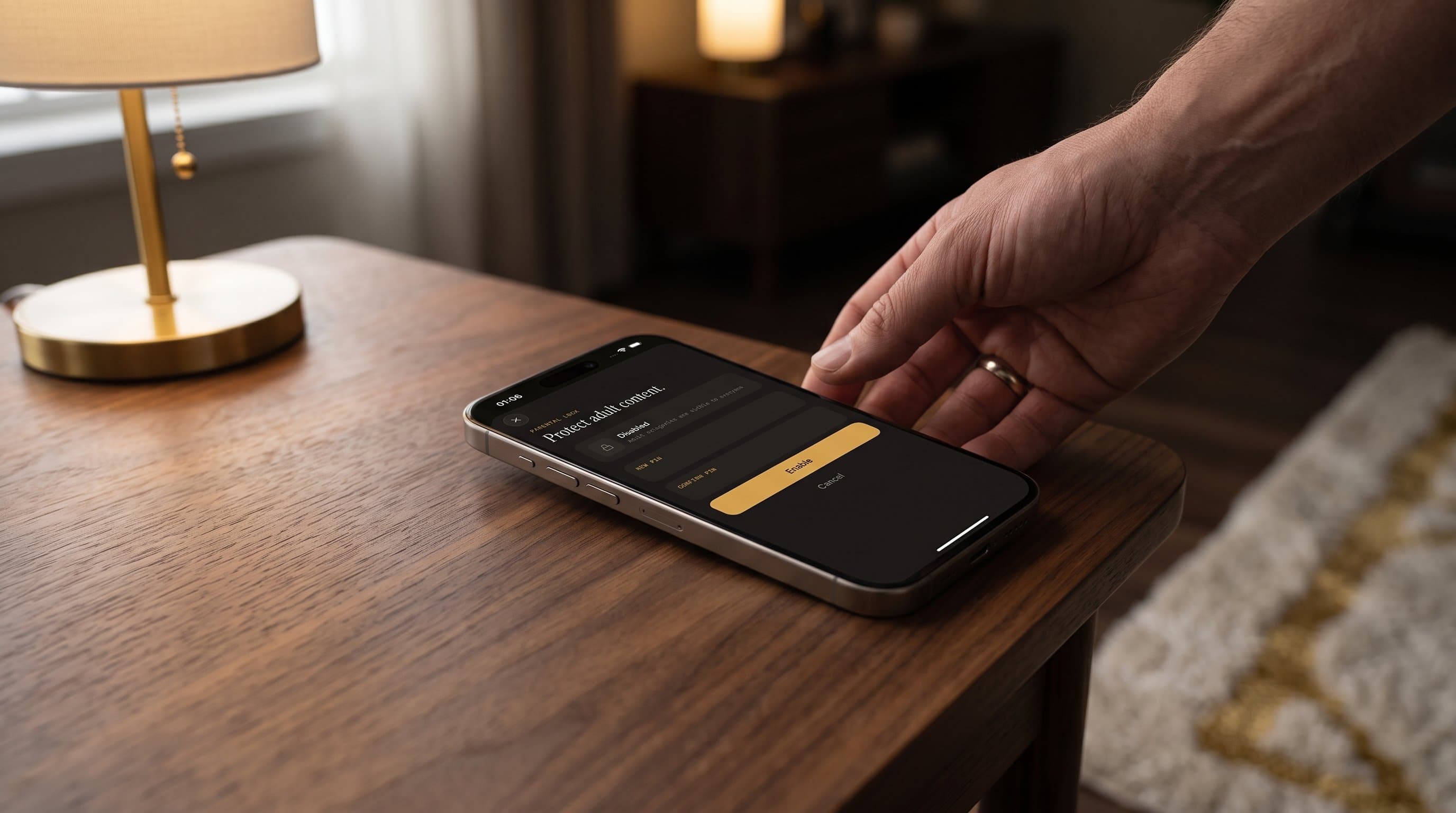
Setting Up Parental Controls in Maximus IPTV Player: A Guide for Families Sharing One Screen
If your household shares one phone, one tablet, or one living-room screen for streaming, you already know the problem: the same app that plays the evening news also plays whatever else is on your Live TV lineup, and kids don't always ask before they start swiping. Maximus IPTV Player — the cross-platform IPTV app available free on both the Apple App Store (iPhone, iPad, and Apple TV) and Google Play (Android phones, tablets, and Android TV / Google TV) — has a built-in Parental Lock designed for exactly this situation. This guide walks through how it works, what it actually protects, and how to set it up properly across every device your family uses.
Key Takeaways
- Maximus IPTV Player's Parental Lock is a PIN-based gate that sits in front of adult content across your library.
- The same lock works the same way on all six device types Maximus supports: iPhone, iPad, Apple TV, Android phones, Android tablets, and Android TV / Google TV.
- On devices that support it, you can unlock with Face ID instead of re-typing your 4-digit PIN every time.
- Parental Lock is separate from Maximus's no-ads, no-tracking design — the two features solve different problems, and both are on by default in different ways (no ads/tracking is automatic; Parental Lock requires you to turn it on).
- Because it's one PIN for one device, it works best as a "hand the remote to a kid" gate, not a per-person profile system.
Why Does a Family IPTV App Need Parental Controls?
Traditional cable boxes usually shipped with some version of a channel lock, and streaming apps have had to catch up. Maximus IPTV Player pulls together everything you've added to it — Live TV channels, a Movies library, a Series library — into one combined view. That's convenient when you're the one browsing, but it means anything you can reach, a curious eight-year-old with the remote can reach too. Maximus's answer is Parental Lock: a PIN screen that sits between "app is open" and "adult content is visible," so the rest of the library stays exactly as easy to browse as it always was.
This matters more on IPTV apps than on a single streaming service, because Maximus is a player for your own playlists and subscriptions — M3U and M3U8 playlist files, or a Stalker Portal connection, that you've added yourself. (M3U and M3U8 are the standard playlist formats IPTV providers use to hand you a channel list; a Stalker Portal is a different kind of provider connection some IPTV services use instead.) Whatever channels and content your source provides show up inside Maximus, which is exactly why a built-in lock — rather than relying on a third-party parental app — is worth setting up on day one.
How Do You Turn On Parental Lock in Maximus IPTV Player?

Parental Lock lives in the Maximus settings menu under a screen labeled "Protect adult content." The setup is short by design:
- Open the Parental Lock screen from Settings.
- Enter a New PIN (4 digits).
- Enter the same PIN again in the Confirm PIN field.
- Tap Enable.
From that point on, Maximus will ask for the PIN before it lets anyone view content you've flagged as adult, rather than gating the whole app. On iPad, and on other devices where biometric unlock is available, the same screen also shows a Face ID toggle next to the option to change your PIN later — so day-to-day unlocking can be a glance instead of a 4-digit type-in, while the PIN itself stays as the fallback and the thing a child can't fake.
What Does the PIN Actually Protect?
It's worth being precise about scope, because "parental controls" means different things in different apps. In Maximus IPTV Player, Parental Lock protects content you've marked as adult — it is not a blanket lock on the entire app, and it is not a content-rating filter that automatically classifies every channel or title for you. That means the feature works best when you treat it as what it is: a PIN gate you deliberately point at the parts of your library you don't want a child opening, rather than a fully automated kids' mode.
If your source (an M3U8 playlist or Stalker Portal connection) mixes adult and general-audience content together, Parental Lock is what keeps a shared device family-safe without you having to run a second, kid-only app. It's the same underlying mechanism whether you're locking things down on a phone that gets passed around the living room or on a shared Apple TV / Android TV box that every screen in the house points at.
How Does Parental Lock Work Across iPhone, iPad, Apple TV, and Android?
One of the more practical things about Maximus IPTV Player is that it's genuinely the same app, with the same interface logic, across all six device types it supports — iPhone, iPad, and Apple TV on the Apple side; Android phones, Android tablets, and Android TV / Google TV on the Google Play side (same install, same package, com.aegontech.maximus, across every Android form factor). Parental Lock isn't a feature that only shipped for one platform and got added later elsewhere — the PIN setup screen, the New PIN / Confirm PIN flow, and the Enable button work identically no matter which store you downloaded Maximus from.
That consistency matters because most households aren't single-platform. Maybe the kids' iPad has Maximus installed alongside a parent's Android phone, or the living-room Apple TV shares a subscription with a bedroom Android TV. Because Parental Lock is set per-device rather than synced to an account, you do need to turn it on separately on each device the family actually uses — but at least you're learning the same screen every time, not relearning a different settings menu on every platform.
What About Kids Using Android Tablets or Android TV?
Since Android TV / Google TV joined iPhone, iPad, Apple TV, and Android phones/tablets as a fully supported Maximus platform, the living room itself is now part of this conversation. A TV is arguably the single most shared device in a house — everyone walks past it, and a remote is easier for a young child to operate than a phone's touchscreen. Setting the same PIN-based Parental Lock on your Android TV or Google TV device (using its remote to enter the digits) closes that gap, so the biggest screen in the house isn't the one place your family's content library is wide open.
Android tablets deserve the same attention. A tablet handed to a kid for homework or games often has every app already installed, Maximus included. Because the lock is per-device, an Android tablet needs its own PIN setup — it won't inherit whatever you configured on your phone.
Does Parental Lock Affect Live TV, Movies, and Series the Same Way?
Yes — Parental Lock applies wherever adult content lives in your combined library, whether that's inside your Live TV channel groups, your Movies section, or your Series library. Maximus pulls all three into one searchable, browsable app (complete with an EPG — electronic program guide, the timeline grid that shows what's airing now and next on each channel), so the lock is designed to cover the library as a whole rather than one section at a time. You set it once per device, and it stands in front of adult titles no matter which part of the app someone tries to open them from.
This also means Parental Lock and Maximus's other core features — 4K playback, casting to a TV via AirPlay or Chromecast (AirPlay is Apple's casting protocol, available on iOS; Chromecast, also called Google Cast, works from both the iOS and Android apps), offline downloads, favorites — all keep working exactly as before. Turning on the PIN doesn't trade away any functionality; it just adds a gate in front of the content you choose to protect.
FAQ
Does Parental Lock require a subscription? No. Maximus IPTV Player is free to download on both the App Store and Google Play, with an optional premium subscription for extra features — Parental Lock itself isn't gated behind that upgrade.
What if I forget my PIN? The Parental Lock settings screen includes a Change PIN option, and on supported devices you can fall back to Face ID rather than being locked out entirely. Because the PIN is set per-device and per-app, it isn't tied to any external account recovery flow.
Does Parental Lock sync between my phone and my kid's tablet? No — set it up on each device individually. Maximus doesn't currently sync Parental Lock settings across devices, so a PIN on your iPhone won't automatically protect an Android tablet in the house.
Does Parental Lock filter content automatically, like a content rating system? No. It's a PIN gate you apply to content you've identified as adult, not an automatic classifier — think of it as a lock you place, not a filter that decides for you.
Can I use Parental Lock on Android TV even though there's no dedicated kids' mode? Yes. The same PIN-based Parental Lock screen is available on Android TV / Google TV, entered with your remote, giving the living-room screen the same protection as any phone or tablet in the house.
Setting It Up Today
A shared device is only as family-safe as the settings you've actually turned on, and Parental Lock in Maximus IPTV Player takes less than a minute per device to configure. If your household spans a few different screens — an iPhone here, an Android tablet there, a shared Apple TV or Android TV in the living room — the honest move is to walk through Settings on each one and set the PIN before you hand a device over, not after.
Maximus IPTV Player is free to download for iOS on the Apple App Store and for Android on Google Play, covering iPhone, iPad, Apple TV, Android phones, Android tablets, and Android TV / Google TV — six device types, two platforms, one PIN screen to learn.
Written by
Maximus IPTV Team