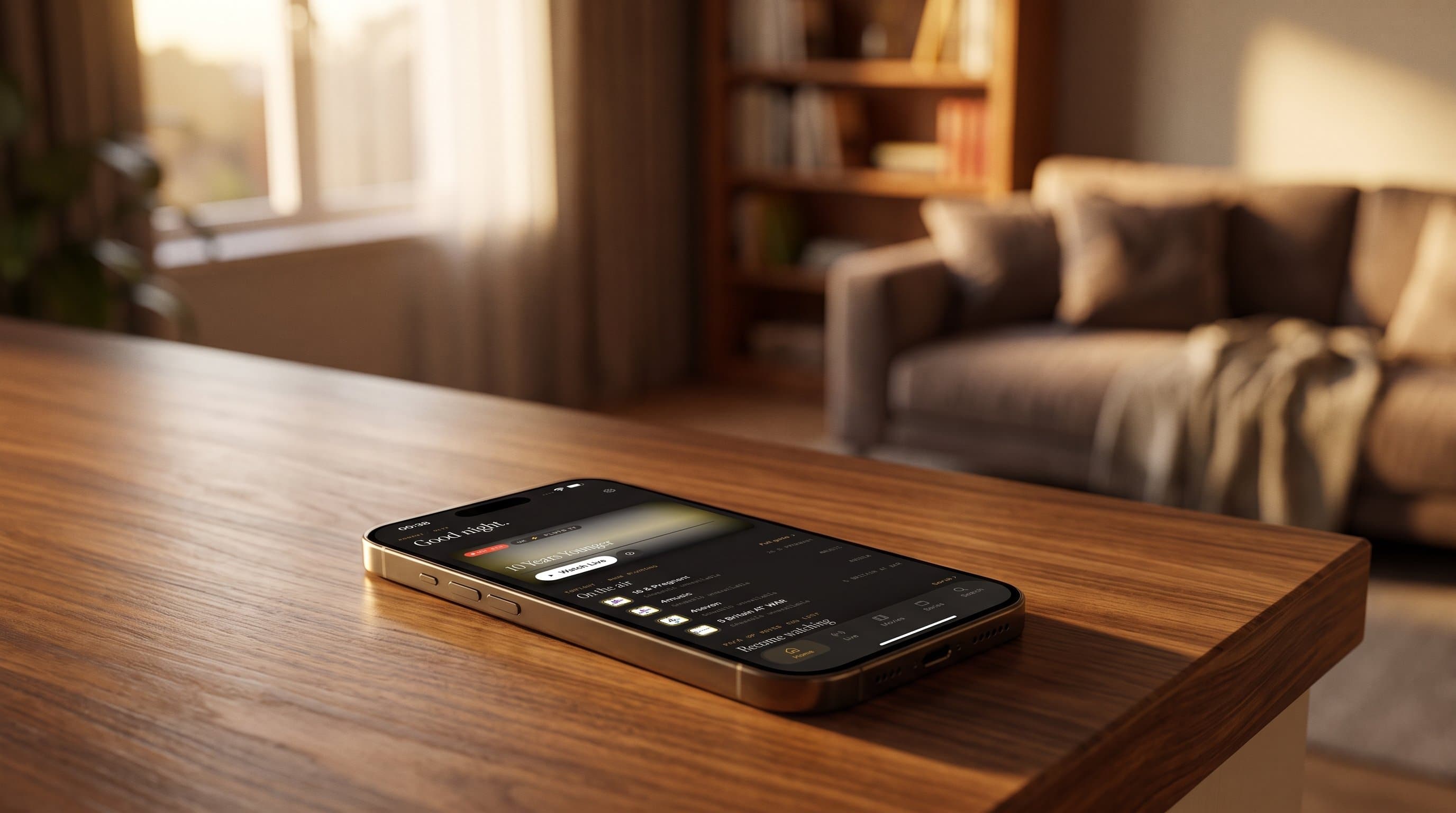
Multi-Room Streaming With Maximus IPTV Player: Keeping Every Screen in Sync
If your household has more screens than viewers — an iPhone in the kitchen, an iPad by the bed, a Chromecast-connected TV in the living room — you already know the real friction of streaming isn't finding something to watch, it's finding it again on whichever screen you happen to be standing in front of. Maximus IPTV Player is built to close that gap. It's a free-to-download IPTV player app for iOS and Android, with an optional premium subscription, and this guide walks through how to set it up as a genuine multi-room system: one combined library, the same channels and shows following you from room to room, and a two-tap way to throw whatever's on your phone up onto the big screen.
Key Takeaways
- Maximus IPTV Player installs on every screen in the house — iPhone, iPad, Apple TV on iOS, and Android phones, tablets, and Android TV / Google TV on Android, all from the same two app stores.
- Adding your IPTV sources once per device (M3U, M3U8, or a Stalker Portal login) gives each device its own combined library, so the kitchen iPad and the living-room phone see the same channels and on-demand catalog.
- Built-in casting sends what's playing on your phone to a bigger screen in two taps — AirPlay on iOS, Chromecast (Google Cast) on both iOS and Android.
- Favorites and Resume Watching keep each device's own shortlist and in-progress queue, so nobody has to re-search for the show they were 12 minutes into.
- 4K playback and buffer-free HLS streaming mean the living-room TV doesn't look like a downgrade from the tablet you were just using.
What actually counts as "multi-room" streaming with an IPTV app?
For most households, multi-room doesn't mean four TVs wired into a whole-home AV system. It means three or four devices — a couple of phones, maybe a tablet, a TV or a streaming box — that all need to reach the same content without anyone re-configuring anything. Maximus IPTV Player approaches this the straightforward way: it's a single app that runs on iPhone, iPad, and Apple TV through the Apple App Store, and on Android phones, tablets, and Android TV / Google TV through Google Play (package com.aegontech.maximus), all from one listing per platform. You install it on each device you own, sign in with the same IPTV source details on each one, and every device ends up with the same Live TV grid, the same Movies and Series library, and the same EPG (Electronic Program Guide — the on-screen schedule grid that shows what's airing now and next across your channels).
That's the multi-room win: not a single subscription magically appearing on five screens with zero setup, but a consistent, familiar interface everywhere you look, so switching rooms doesn't mean re-learning an app or hunting for a channel that was easy to find five minutes ago on a different device.
How do you get your channels onto every device?
Each device needs its sources added once, through the Sources screen. Maximus IPTV Player supports three common connection types: an M3U playlist link, its more structured cousin M3U8 (an M3U variant built for adaptive-bitrate streaming, where the player can shift video quality up or down as your connection changes), and a Stalker Portal login (a server-based IPTV account format that authenticates with a portal URL, MAC address, or username/password rather than a plain playlist file). Whichever format your provider uses, you type the same details into the Sources screen on the phone, again on the tablet, and again on the TV device.
The payoff shows up on that Sources screen itself: a Combined Library view that totals everything across your connected sources — how many channels, how many on-demand titles, how many hours of content are reachable in total. Add a second source later (say, a separate international sports feed) on any device and that device's combined count updates immediately. It's a small screen, but it's the one place where "yes, everything is actually connected" is visible at a glance, on every device you've set up.

What happens to "Continue Watching" when you switch rooms?
This is where it's worth being precise about what Maximus IPTV Player does and doesn't do. Favorites and Resume Watching are real, useful features — each device tracks its own favorited channels and its own in-progress movies and episodes, right on the Home screen, so you're not scrolling a full grid every time you sit down. What the app does not claim is automatic cross-device sync of that watch position: if you pause a movie on the iPad in the bedroom, picking it back up on the living-room Apple TV means finding it again there rather than resuming instantly where you left off. For now, think of each device as running its own Resume Watching list against the same shared content library, not a single synced watch-history across every screen.
That distinction matters for planning your setup. If a household's main viewing pattern is "start on the phone, finish on the TV," the more practical habit is casting the phone's playback directly to the TV (see below) rather than relying on picking the same title up independently on a second device. If the pattern is "different people, different shows, different rooms," the per-device Resume Watching list is exactly what you want — nobody's queue gets mixed up with anyone else's.
How does casting actually bridge the phone-to-TV gap?
This is the feature that does the most real work for multi-room households, and Maximus IPTV Player supports both major casting standards rather than picking a side. On iOS, you get AirPlay (Apple's own screen- and audio-mirroring protocol, built into iPhone, iPad, and Mac) alongside Chromecast — also called Google Cast — support. On Android, Chromecast is available the same way. That Chromecast support on iOS is worth calling out specifically, since it's easy to assume AirPlay is the only casting option on an iPhone: it isn't, and if your living-room TV setup runs through a Chromecast-enabled display or streaming stick rather than an Apple TV, an iPhone can still cast to it directly.
In practice, casting from Maximus IPTV Player is a two-tap flow: tap the cast icon during playback, and a "Choose a device" sheet lists every AirPlay- or Chromecast-ready device currently reachable on your network. Pick the living-room TV, and playback continues there while your phone becomes the remote — pause, skip, and volume controls all stay in your hand. For a household bouncing between three or four rooms in an evening, that two-tap handoff is usually faster than any amount of automatic-sync magic would be anyway: you decide exactly when the show moves to the big screen.

Does the picture quality hold up once you're on a bigger screen?
A show that looked fine on a 6-inch phone can expose every compression artifact once it's stretched across a 55-inch TV, so picture quality is a fair multi-room question. Maximus IPTV Player supports 4K playback where your source provides it, delivered over HLS (HTTP Live Streaming — Apple's adaptive-bitrate protocol, now a broad industry standard, which is what lets buffer-free playback adjust quality on the fly instead of stalling outright). Combined with subtitle and multi-audio track support, the same stream that looked sharp on the tablet generally holds up when it's cast to the television — the adaptive bitrate is doing the same job either way, just rendering to a bigger panel.
What about privacy and parental controls across multiple household devices?
Multi-device setups usually mean multi-person households, and that raises two practical questions: does the app track you across devices, and can you keep certain content off a shared or kid-accessible screen? On the first, Maximus IPTV Player runs with no ads and no tracking — there's no cross-device advertising profile being built as everyone's viewing history routes through the same app. On the second, Parental Lock is a real, separate PIN gate you set up per device from Settings — a New PIN / Confirm PIN pair that then requires the PIN to access protected content on that specific device. Because it's set per device rather than synced account-wide, worth noting explicitly: a household running Maximus IPTV Player on both a shared living-room device and a parent's personal phone needs to configure the lock on each screen it should apply to, not just the first one.
FAQ
Do I need a separate subscription for each device? Maximus IPTV Player itself is free to download on both the Apple App Store and Google Play, with an optional premium subscription tier inside the app. Your IPTV content access comes from the sources you add (M3U/M3U8 playlists or a Stalker Portal login) — those are the same login details you re-enter on each device, not a per-device purchase.
Can I use Maximus IPTV Player on an Android tablet and an iPhone in the same household? Yes. Because Maximus IPTV Player ships as one app on Google Play for Android phones and tablets and one app on the Apple App Store for iOS, mixed households — an Android tablet in one room, an iPhone in another — can each install the version for their platform and connect the same IPTV sources independently.
Is Android TV / Google TV covered for the living-room screen? Yes — Android TV and Google TV are covered by the same Google Play listing and the same app package as Android phones and tablets, with a native, remote-driven TV interface rather than a stretched phone layout. On the Apple side, Apple TV is covered the same way through the Apple App Store.
Does casting work from Android to a Chromecast device too? Yes. Chromecast (Google Cast) support is available from the Android version of Maximus IPTV Player, the same as it is from iOS — it isn't limited to one platform.
Will my Favorites list be the same on every device? Favorites and Resume Watching are tracked per device right now, against the same shared content library from your connected sources. If you favorite a channel on your phone, it won't automatically appear favorited on the tablet — you'd add it there separately.
Getting set up
Multi-room streaming with Maximus IPTV Player comes down to three habits: install it on every screen you actually use, connect the same sources on each one so the combined library matches everywhere, and lean on casting rather than assuming playback position will follow you automatically between devices. iOS users can get it from the Apple App Store; Android users — phones, tablets, and Android TV / Google TV alike — can get it from Google Play at https://play.google.com/store/apps/details?id=com.aegontech.maximus. Set it up once per device, and the rest of the house stops being a series of separate streaming setups and starts acting like one.
Written by
Maximus IPTV Team