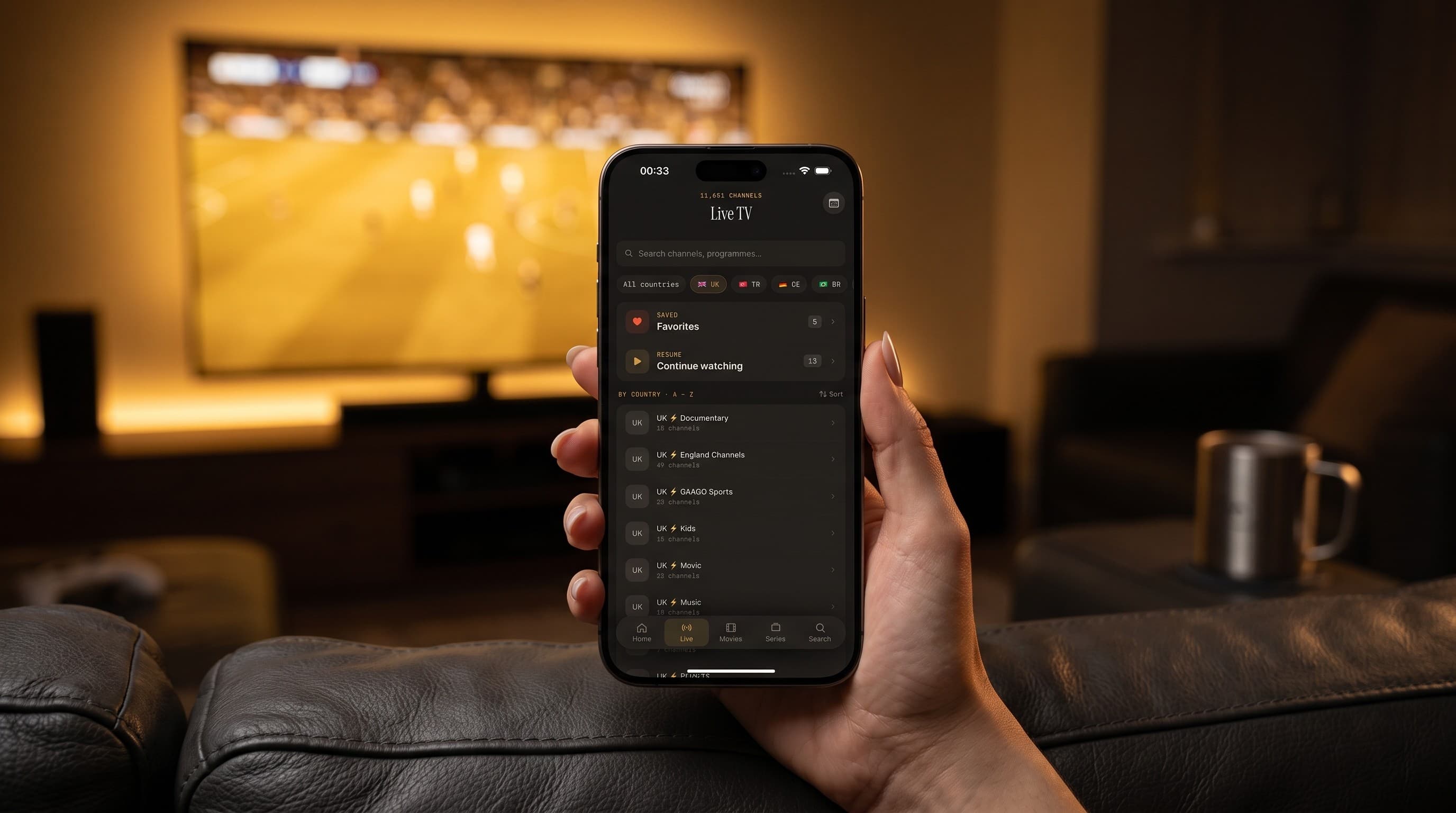
Watching Live Sports on Maximus IPTV Player: A Fan's Guide to Never Missing Kickoff
Kickoff is in ten minutes, the group chat is blowing up, and you're still trying to remember which app actually has your league this week. That's the exact moment Maximus IPTV Player was built for — a cross-platform IPTV player app (IPTV stands for Internet Protocol Television, meaning your channels and on-demand library arrive over the internet instead of a traditional cable or satellite line) that's free to download, with an optional premium subscription, on both the Apple App Store (iPhone, iPad, and Apple TV) and Google Play (Android phones, tablets, and Android TV / Google TV, all from the same app). For sports fans specifically, that cross-platform reach matters: your Sunday slate doesn't care whether the living room television runs Apple TV or Android TV, and neither does Maximus IPTV Player.
This guide walks through how to actually use Maximus IPTV Player for live sports — finding the right match quickly, getting a picture that holds up under fast motion, getting the game onto the television instead of squinting at a phone, and not losing your spot if you have to step away for a snack run.
Key Takeaways
- Maximus IPTV Player's TV Guide has a dedicated Sports filter tab, alongside Favorites, All, Movies, and Kids — four tabs in total — so you're not scrolling past cooking shows to find kickoff.
- Live TV channels can be filtered by country, which matters when the match you want airs on an international feed rather than a domestic one.
- 4K playback and HLS streaming (HTTP Live Streaming — the technology that automatically adjusts video quality to match your connection speed) are built in, aimed at keeping fast-moving sports footage from turning into a blurry mess.
- Casting works two ways — AirPlay (Apple's screen-mirroring and streaming protocol, iOS-only) and Chromecast / Google Cast, which is notably NOT Android-only — it's built into the iOS app too — so getting the game onto the TV doesn't depend on which phone happens to be in your pocket.
- Favorites and Resume Playback let you bookmark your team's channel and pick a stream back up after an interruption, on the same device.
- Maximus IPTV Player now reaches Android phones, tablets, AND Android TV / Google TV from the same app on Google Play, in addition to iPhone, iPad, and Apple TV on the Apple App Store.
Why Live Sports Are a Different Streaming Problem Than Movie Night
A film buffers for three seconds and nobody notices. A missed three seconds during a breakaway goal is a different kind of pain. Live sports put more strain on a streaming setup than almost any other content type: the picture is full of fast, unpredictable motion that compresses poorly, the stream can't skip ahead or rewind past the live edge the way on-demand video can, and everyone in the room wants it on the biggest screen available, right now, with the fewest taps possible. Maximus IPTV Player's feature set — the Sports-specific EPG tab, 4K and HLS playback, and built-in casting — is aimed squarely at that combination of speed and pressure, whether you're watching on an iPhone at the gym or on Android TV with the whole group over.
How Do I Find Live Sports Fast in Maximus IPTV Player?

The TV Guide in Maximus IPTV Player is an EPG — an Electronic Program Guide, the on-screen grid that shows which programs are airing on which channels, arranged along a timeline with a moving "now" indicator so you can see what's live at a glance. Rather than scrolling one long undifferentiated channel list to find your match, the guide is organized into four filter tabs: Favorites, All, Sports, and Kids. Tapping Sports narrows the whole grid down to sports channels only, which turns a minutes-long scroll into a few seconds of scanning.
The Live TV screen adds a second layer that's especially useful for sports: country filters. International leagues are often broadcast on feeds tied to a specific country rather than a single global channel, so being able to filter your source's channel list by country — alongside Favorites and a Continue Watching row for anything already in progress — makes it faster to land on the right regional broadcast instead of guessing which entry in a long list is the one airing your game.
How Does Maximus IPTV Player Keep the Picture Clean During Fast Action?
Two technical pieces do most of the work here. The first is HLS (HTTP Live Streaming), the adaptive-bitrate technology that continuously checks your connection and adjusts video quality in real time — the goal is to trade a little resolution for a stream that keeps playing smoothly rather than freezing outright when bandwidth dips mid-play. The second is native support for 4K playback, so that when your connection and your source content can support it, fast camera pans and quick player movement don't dissolve into blocky artifacts the way lower-resolution streams sometimes do.
Underneath all of this, Maximus IPTV Player is a player, not a broadcaster — it connects to sources you already have, using formats like M3U and M3U8 (plain-text playlist files that list a provider's channels and their stream addresses) or a Stalker Portal connection (a different, portal-based method some IPTV providers use to deliver their channel lineup instead of a playlist file). To be clear: Maximus IPTV Player doesn't supply channels or games itself, and this guide isn't pointing you toward any particular source — it's about getting the most out of whatever legal subscription or playlist you already bring to the app.
How Do I Get the Game Onto the Big Screen?

This is where the two casting protocols matter. AirPlay is Apple's screen-mirroring and streaming standard, and it's iOS-only — it won't show up as an option from an Android device. Chromecast (also called Google Cast) is the one worth knowing about regardless of which phone you own, because it is genuinely not Android-only: Maximus IPTV Player's iOS app supports Chromecast too, alongside AirPlay, so an iPhone user with a Chromecast-connected TV isn't stuck watching the match on a five-inch screen. Tap the cast icon, pick the device from the list, and the stream hands off to the television while the app on your phone becomes a remote for playback.
If your household already has an Android TV or Google TV box or built-in smart TV, Maximus IPTV Player also runs natively there, via the same Google Play listing that covers Android phones and tablets. That's a native, remote-driven television interface rather than a phone screen stretched to fit — genuinely a different design, built for pointing a D-pad or a TV remote at a big list of channels instead of tapping a touchscreen.
What Happens If I Have to Step Away Mid-Game?
Nobody watches an entire match without at least one interruption — a doorbell, a second-half snack run, someone asking what the score is. Favorites keeps your go-to sports channels one tap away instead of buried in a long list, and Resume Playback picks a stream back up close to where you left it if you back out mid-broadcast on the same device, rather than forcing you to hunt for the live point again from scratch. Neither feature is about DVR-style rewinding through a live match — live sports on any IPTV setup are still fundamentally live — but together they cut down on the friction of coming back to a stream you already had queued up.
Is the Sports Experience the Same on Android as on iPhone?
Largely, yes, and that's by design. Maximus IPTV Player launched on Android relatively recently, and the goal was feature parity with the iOS app that had already been serving iPhone, iPad, and Apple TV users: the same Sports EPG tab, the same country filters, the same 4K and HLS playback, and Chromecast support on both platforms. The one asymmetry worth knowing is casting — AirPlay stays an iOS-only option since it's Apple's own protocol, so Android households lean on Chromecast for the TV hookup instead. Everything else, including the Android TV / Google TV app itself, was built to feel like the same product, not a stripped-down cousin of the iPhone version.
One practical note for anyone traveling for a game or watching from a hotel room: a VPN (a virtual private network, which reroutes your internet connection through a server in a different location) sometimes gets mentioned in IPTV forums, but Maximus IPTV Player doesn't include one, and this isn't a recommendation to use one to get around blackout rules on your legal subscription — that's a matter between you and your provider's terms of service. What a VPN actually changes is latency and available bandwidth, and both of those affect whether a 4K stream holds steady, with or without one in the picture.
FAQ
Does Maximus IPTV Player provide the sports channels or games itself? No. Maximus IPTV Player is a player app — it organizes and plays back the IPTV sources you already have, whether that's an M3U/M3U8 playlist or a Stalker Portal connection from your own legal subscription provider. It doesn't sell or bundle channel access.
What's the real difference between AirPlay and Chromecast for sports? AirPlay is Apple's own casting protocol and only works from an iPhone or iPad. Chromecast (Google Cast) works from both Android and iOS — Maximus IPTV Player supports it on the iPhone app as well, so it's the more universal option if your TV or streaming box supports it.
Can I actually use Maximus IPTV Player on Android TV or Google TV for game day? Yes. Android TV / Google TV support ships from the same Google Play app that covers Android phones and tablets, with a native interface designed for a TV remote rather than a resized phone screen.
Will Maximus IPTV Player lose my place if I switch away mid-match? Resume Playback is built to pick a stream back up near where you left it if you back out on the same device — handy for a quick interruption, though it isn't a substitute for staying on the live broadcast for a genuinely time-sensitive moment.
Is Maximus IPTV Player free? Yes, it's free to download on both the Apple App Store and Google Play, with an optional premium subscription available inside the app.
Watch the Game, Not the Buffering Wheel
Live sports are the least forgiving thing you can put through a streaming app — no rewind, no patience for a frozen frame, and a room full of people who all want the same channel at once. Maximus IPTV Player's Sports EPG tab, country filters, 4K and HLS playback, and dual AirPlay/Chromecast casting are built around that exact pressure. If you're on iPhone, iPad, or Apple TV, grab Maximus IPTV Player from the Apple App Store; on Android phones, tablets, or Android TV / Google TV, it's the same app on Google Play. Either way, kickoff doesn't have to start with ten minutes of scrolling.
Written by
Maximus IPTV Team