Family-Friendly Streaming: How the Kids Tab and Parental Lock Work Together in Maximus IPTV Player
Family movie night shouldn't require confiscating the remote every time a trailer for something inappropriate flashes across the screen. Maximus IPTV Player was built as a single app for the whole household — which means it also has to work for the youngest person in the room without turning into a babysitting job for the adults. Two features do the heavy lifting here: a dedicated Kids tab inside the program guide, and a Parental Lock that keeps mature content behind a PIN. Used together, they let one shared device serve a six-year-old's cartoons and a parent's late-night drama without anyone stumbling into the wrong show.
This guide walks through how both features actually work, how to set them up on a shared screen, and what to do if a child still manages to find something they shouldn't.

Key Takeaways
- Maximus IPTV Player's TV Guide has five tabs — Favorites, All, Sports, Movies, and Kids — so children can browse a curated slice of the guide instead of the entire channel list.
- Parental Lock sits behind a PIN you set yourself and is designed to hide adult content specifically, not the whole app, so kids can still reach Favorites and Resume Watching on their own.
- The app is free to download on both the Apple App Store and Google Play, with an optional premium subscription, so families can test the Kids tab and Parental Lock before deciding whether to upgrade.
- Casting a show to the living room TV via AirPlay or Chromecast — both built into Maximus IPTV Player — keeps family viewing on the big screen instead of huddled around a phone.
- None of this replaces judgment. Parental Lock restricts what the app surfaces; it doesn't vet every channel or title a user's own playlist provider includes.
What Does the Kids Tab Actually Show You?
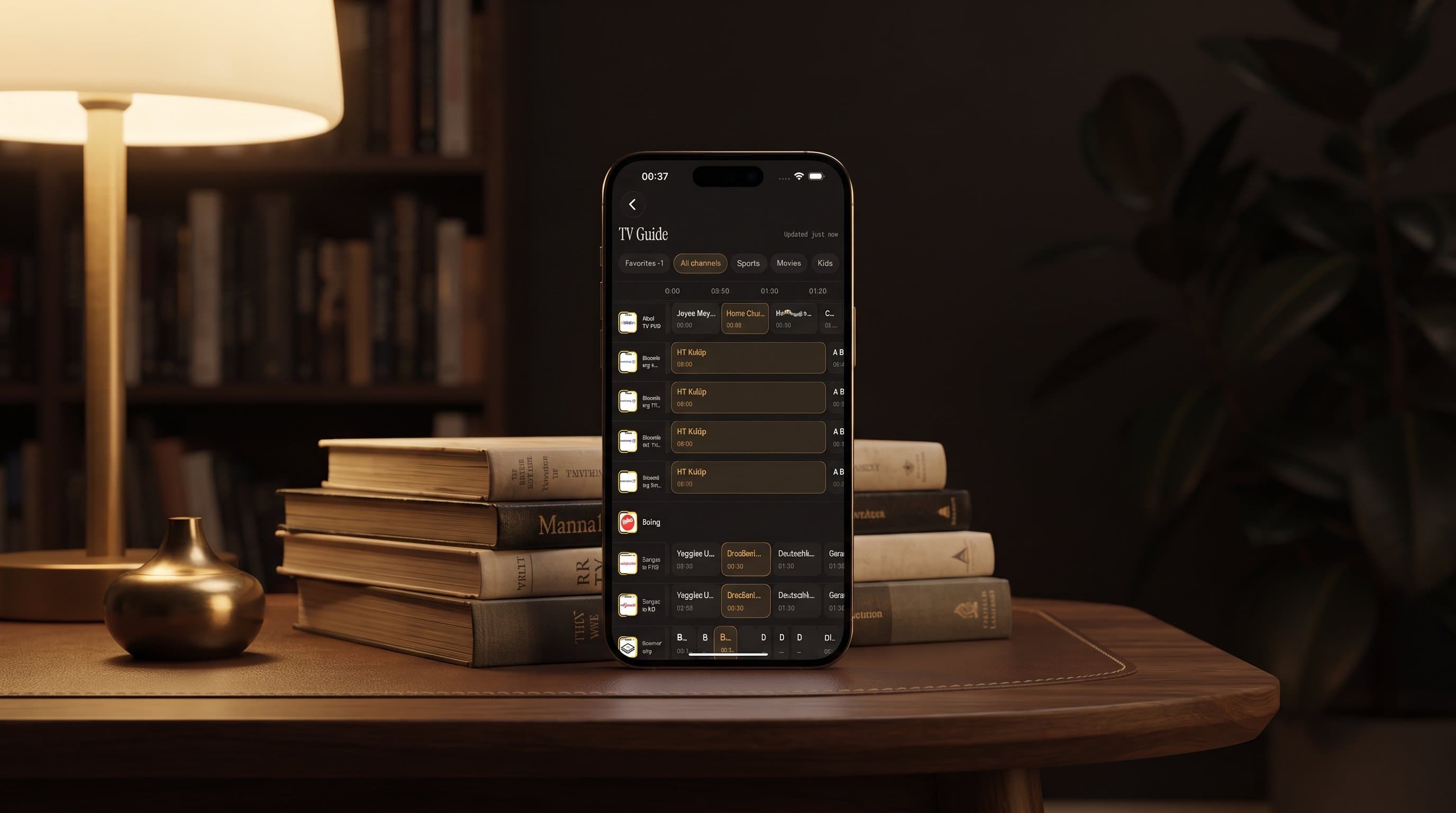
The TV Guide in Maximus IPTV Player is organized around an EPG — an Electronic Program Guide, the on-screen schedule that lists what's airing on each channel, hour by hour, the same way a printed TV listing used to. Above that timeline, the app groups channels into five tabs: Favorites, All, Sports, Movies, and Kids. The Kids tab narrows the guide down to channels and programming aimed at younger viewers, so instead of scrolling past sports commentary and late-night movies to find a cartoon block, a child (or a tired parent) can tap one tab and see only what's relevant.
This matters more than it sounds like it should. A full channel list pulled from an M3U or M3U8 playlist — the standard file formats an IPTV provider uses to list out its channels and stream URLs — can run into the hundreds of entries once you count every regional sports feed and international network. Filtering that down to a five-tab structure, with one tab specifically for children's programming, turns "find something for the kids" from a five-minute scroll into a two-second tap.
How Does Parental Lock Protect Adult Content Without Blocking Everything?
Parental Lock is the second half of the equation, and it's built to be narrow on purpose. Setting it up asks for a new PIN and a confirmation of that PIN, then flips on protection for adult content specifically — the app's own screen labels it plainly as protecting "adult content," not locking the interface as a whole. Once it's enabled, browsing Favorites, using Resume Watching, or opening the Kids tab doesn't require entering anything. The PIN only comes into play when someone tries to reach the content that's been marked as restricted.
That distinction is the reason this setup works for shared devices instead of forcing every family member back to separate logins. A child can pick up the phone, hit Favorites, and resume the episode they were watching without asking an adult to unlock anything first — while the rest of the library stays behind the PIN.

How Do You Set Up Both Features on a Shared Family Screen?
Start with Parental Lock, since it's the piece that actually restricts something. Open the settings area, choose the Parental Lock option, enter a PIN twice to confirm it, and enable protection. On devices that support it — an iPad running Maximus, for example, offers a Face ID toggle alongside the PIN — you can pair the PIN with biometric confirmation so re-entering four digits every time isn't necessary for the adult unlocking it.
From there, the Kids tab doesn't need any setup at all; it's already part of the TV Guide once channels are loaded in from your source, whether that's a live IPTV feed, an M3U/M3U8 playlist, or a Stalker Portal connection (a common IPTV middleware protocol some providers use instead of a plain playlist file). The practical move for families is simply pointing a child toward that tab and away from All, Sports, or Movies, and letting Parental Lock handle the rest automatically if they ever wander into something restricted.
Does the Family Viewing Experience Work the Same on iPhone, iPad, and Android?
Yes, with one honest caveat. Maximus IPTV Player is available on the Apple App Store for iPhone, iPad, and Apple TV, and on Google Play for Android — where it covers phones, tablets, and Android TV / Google TV from that same app listing, since Android TV ships from the identical build rather than a separate download. The Kids tab and Parental Lock are core app features, not platform-specific add-ons, so the underlying protection works the same everywhere the app runs.
The caveat is about screen size, not functionality: a shared iPad or a TV screen makes the Kids tab genuinely useful for browsing together, while a locked-down phone in a kid's own hands is more about not exposing them to what shouldn't be there. Either way, the PIN and the tab structure travel with the app, not the device.
What About Resume Watching and Favorites for Kids' Shows?
One underrated benefit of keeping Parental Lock scoped to adult content rather than the whole app: Resume Watching and Favorites stay fully available to kids without a PIN. A child can favorite the three shows they actually watch, and the app will surface those under Favorites and Resume Watching without touching anything restricted. That's a meaningfully different experience than an all-or-nothing lock screen, and it's part of why pairing the Kids tab with Parental Lock — instead of relying on either alone — tends to work better in practice.
What's the Best Way to Watch Together on the Big Screen?
For actual family movie night, most households don't want everyone crowded around a phone. Maximus IPTV Player supports casting to a TV through both AirPlay (Apple's screen-casting protocol, built into iOS and available only on Apple devices) and Chromecast, also known as Google Cast (which, notably, isn't limited to Android — the iOS app includes Chromecast support too, alongside AirPlay). Picking something from the Kids tab on a phone and casting it to the living room television keeps the PIN-protected content off that same screen, since Parental Lock still governs what's reachable in the first place — casting doesn't bypass it.
Troubleshooting: What If a Child Still Reaches Something They Shouldn't?
If restricted content is showing up somewhere it shouldn't, the first thing to check is whether Parental Lock is actually enabled — it's an opt-in setting, not a default. Second, confirm the PIN was actually saved; re-entering it from the settings screen will show whether protection is active. Third, remember that Parental Lock filters what Maximus itself marks and surfaces as adult content — it doesn't independently rate every channel or title coming from a user's own IPTV source. Families using a general-entertainment playlist with mixed content should treat Parental Lock as one layer of protection, not a substitute for choosing an appropriate source in the first place.
Frequently Asked Questions
Is the Kids tab a separate app or a special mode? No — it's one of five tabs (Favorites, All, Sports, Movies, Kids) inside the same TV Guide every user sees. There's no separate kids' app or account to set up.
Does Parental Lock block the whole app until a PIN is entered? No. It's scoped to adult content specifically. Favorites, Resume Watching, and the Kids tab all remain accessible without entering the PIN.
Can I use Face ID instead of typing a PIN every time? On supported devices, yes — Maximus IPTV Player offers a Face ID toggle alongside the PIN option, so an adult can unlock restricted content biometrically instead of re-entering four digits each time.
Does this work the same on Android as it does on iPhone? Yes. Parental Lock and the Kids tab are core features of Maximus IPTV Player and function identically across iPhone, iPad, Apple TV, and Android phones, tablets, and Android TV / Google TV.
Will Parental Lock stop a child from seeing inappropriate content in a general channel list I've added myself? Only within what Maximus itself flags as adult content. It isn't a content-rating service for every channel in a third-party playlist, so pairing it with a source you already trust for family viewing is still the safer approach.
Get Maximus IPTV Player
Maximus IPTV Player is free to download, with an optional premium subscription, on the Apple App Store for iPhone, iPad, and Apple TV, and on Google Play for Android phones, tablets, and Android TV / Google TV: https://play.google.com/store/apps/details?id=com.aegontech.maximus. Set up Parental Lock once, point the kids toward their tab, and the rest of the family's shared screen takes care of itself.
Written by
Maximus IPTV Team