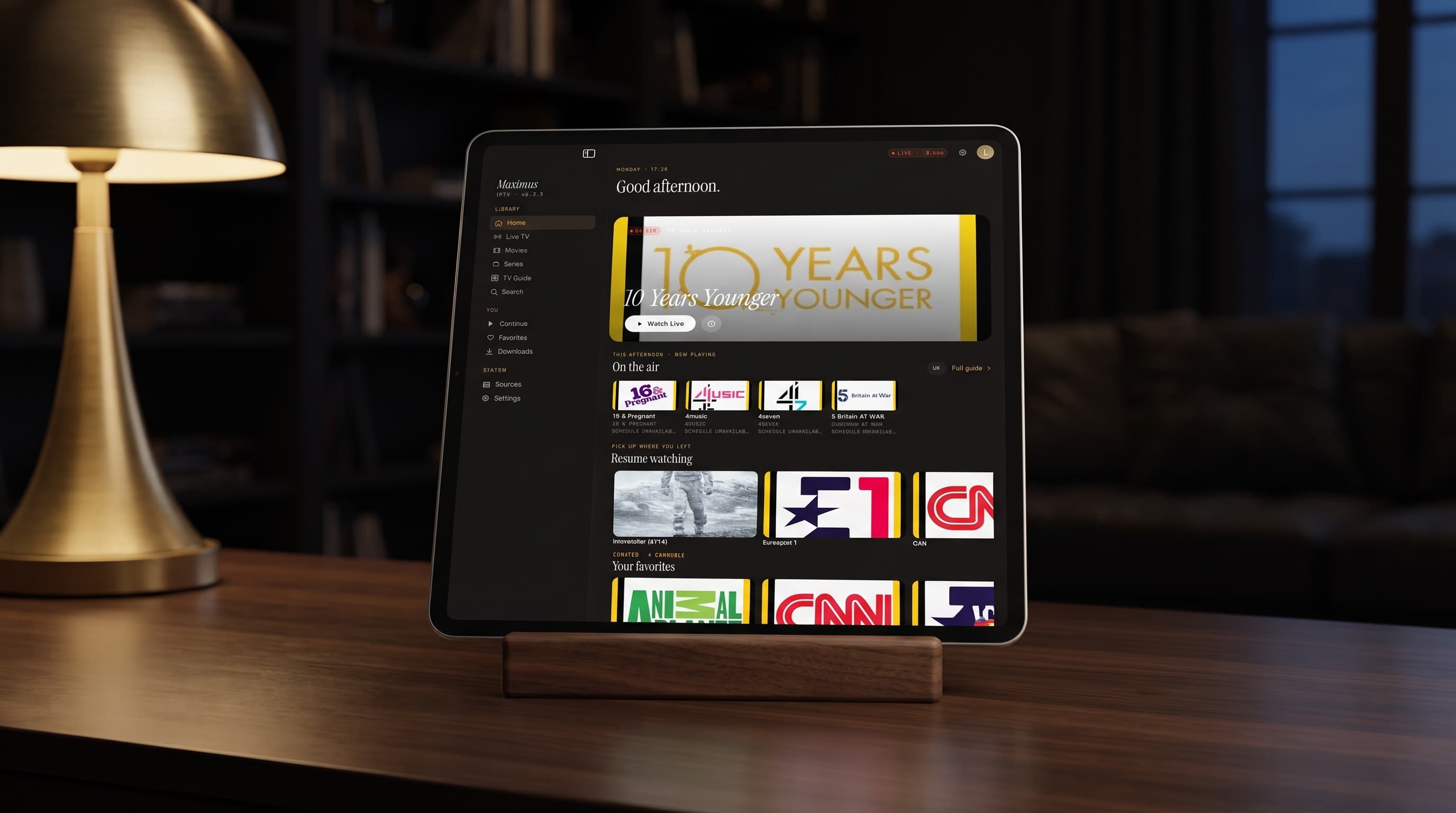
Maximus IPTV Player on iPad: How the Sidebar Layout Changes the Way You Watch
If you've only ever used Maximus IPTV Player on an iPhone, the iPad version is going to feel like a different app — even though it's the exact same streaming engine underneath. Maximus IPTV Player, the free iOS IPTV player for iPhone, iPad, and Apple TV, doesn't just stretch its iPhone screens to fit a bigger display. On iPad it switches to a persistent sidebar layout, widens its TV Guide into a true multi-column grid, and generally behaves more like a desktop media app than a phone app that got scaled up. If you're deciding whether to watch on your iPad instead of (or alongside) your iPhone, here's exactly what changes.
Key Takeaways
- Maximus IPTV Player's iPad layout replaces iPhone's tab-bar navigation with a persistent left sidebar, so Live TV, Guide, Movies & Series, Search, and Sources are all one tap away instead of buried behind a bottom bar.
- The Electronic Program Guide (EPG) — the scrolling schedule grid that shows what's airing now and next — becomes dramatically more useful on iPad, since the wider screen surfaces far more channel rows and a longer timeline window at once than an iPhone screen can.
- Apple currently ships iPad models with displays ranging from an 8.3-inch iPad mini up to a 13-inch iPad Pro, and Maximus IPTV Player's grid layouts adapt to that range rather than using one fixed design.
- Continue Watching and Resume Watching sync the same way on iPad as on iPhone, so switching devices mid-episode doesn't cost you your place.
- AirPlay and Chromecast casting both work identically from iPad, making it a natural remote control for a bigger TV in another room.
- M3U and M3U8 playlist sources you've already added on iPhone show up automatically on iPad too, since sources are tied to your account, not the device.
How Is the iPad Layout Actually Different From iPhone?
The single biggest change is navigation. On iPhone, Maximus IPTV Player uses a bottom tab bar — the same pattern nearly every iOS app uses, because there's only so much room on a screen that's typically under 6.5 inches diagonally. On iPad, that bar becomes a persistent sidebar running down the left edge of the screen, staying visible no matter what you're watching or browsing. Live TV, the EPG-based Guide, Movies & Series, Search, and your Sources list are all reachable with a single tap, without a trip back to a home tab first.
That sidebar isn't just cosmetic. It reflects how iPadOS multitasking actually works — Apple's Split View and Slide Over features, which have been part of iPadOS since iPadOS 9 back in 2015, assume apps can hold their place while you work in two panes at once. A sidebar-based layout survives that kind of window resizing far more gracefully than a bottom tab bar would.

Why Does the TV Guide Look So Different on iPad?
The EPG — short for Electronic Program Guide, the timeline-style schedule that shows which channel is airing what, right now and later today — is arguably the single feature that benefits most from a bigger screen. On iPhone, an EPG grid can only show a handful of channel rows and a narrow time window before you're scrolling constantly. On iPad, especially an 11-inch or 12.9/13-inch model, Maximus IPTV Player's Guide view widens that same grid to show dramatically more channels and a longer stretch of the schedule simultaneously, with Favorites, All, Sports, Movies, and Kids tabs still available to filter the view down.
If you're the type of viewer who likes to glance ahead and plan an evening around two or three shows on different channels, this is the difference between constant scrolling and just looking at the screen.
How Do You Get Started With Maximus IPTV Player on iPad?
Setup is identical to iPhone, which is good news if you've already got it configured on one device. From the Sources screen, you add your own IPTV service using an M3U or M3U8 playlist URL — M3U (and its extended variant, M3U8) is simply a plain-text playlist format that points a player at your channel streams and metadata, the same format used by countless legitimate IPTV subscription services and personal playlist tools. Maximus IPTV Player supports adding multiple sources at once, and the Sources screen shows a combined library view — total channel and content counts pulled together across every source you've added, whether that's a Live IPTV subscription, an M3U file, or both.
Because sources are stored against your account rather than your device, a playlist you add on iPhone appears on iPad automatically the next time you open the app there — no need to re-enter URLs or re-download anything.
How Do You Keep Watching Across iPhone and iPad?
This is where the "same app, bigger screen" framing really pays off. The Home screen's Resume Watching row and the Continue Watching list on the Live TV tab both track your position per title, not per device. Pause a series on iPhone during your commute, pick it back up on iPad that evening, and Maximus IPTV Player picks up close to where you left off rather than starting over. The Home screen also surfaces an "On the air" row of currently-airing content pulled straight from your EPG data, so even without opening the full Guide you get a sense of what's live right now.

How Do You Cast From iPad to a TV?
If your iPad is more of a hub than a destination screen, casting works exactly as it does on iPhone. AirPlay — Apple's built-in wireless casting protocol for sending audio and video from an iOS device to a compatible TV or receiver — and Chromecast, Google's competing casting standard supported on a huge range of smart TVs and streaming boxes, are both available from the player's cast-device picker. Tap the cast icon during playback, choose a device from the "Choose a device" sheet, and playback continues on the bigger screen while the paused preview stays visible on your iPad. For a lot of households, this makes an iPad the most convenient remote control in the house — bigger and easier to browse on than a phone, but still portable enough to hand to whoever's picking the next show.
Is Parental Lock the Same on iPad?
Yes, and it's worth setting up if the iPad lives in a shared space. Maximus IPTV Player's Parental Lock feature is enabled from a dedicated setup screen where you create a PIN (and confirm it) to protect adult content categories. Once it's on, the same protection screen on iPad also shows a "Protection is on" state with options to change your PIN, giving you a quick way to check the lock is active before you hand the iPad to a kid.
Frequently Asked Questions
Does Maximus IPTV Player cost anything on iPad? No — Maximus IPTV Player is free on the App Store for iPhone, iPad, and Apple TV. You bring your own legal M3U/M3U8 playlist or IPTV subscription; the app itself doesn't charge for playback.
Do I need to add my playlist separately on iPad? No. Sources are linked to your account, so any M3U or M3U8 source you've already added on iPhone (or Apple TV) appears automatically the next time you open Maximus IPTV Player on iPad.
Can I watch in 4K on iPad? Yes, Maximus IPTV Player supports 4K playback where your source stream provides it, and newer iPad models with high-resolution displays are well suited to showing that extra detail, especially on the 12.9/13-inch Pro screens.
Is there a dedicated Apple TV app too, or do I mirror from iPad? Maximus IPTV Player has its own native Apple TV app — you don't need to mirror or AirPlay from iPad just to watch on a big screen through Apple TV, though AirPlay from iPad remains an option for any TV that isn't running the Apple TV app itself.
Will the sidebar layout come to iPhone eventually? There's no indication of that, and honestly it wouldn't make sense — the sidebar exists because iPad has the width to spare. iPhone's tab bar is the right pattern for its screen size, and iPad's sidebar is the right pattern for its.
Try It on Your iPad
If your IPTV watching has been iPhone-only so far, it's worth opening Maximus IPTV Player on an iPad at least once — the sidebar navigation, the wider EPG grid, and the same Continue Watching syncing you already rely on combine into a noticeably calmer way to browse live TV and your library. Maximus IPTV Player is free to download on the App Store for iPhone, iPad, and Apple TV, and any sources you've already set up will be waiting for you the moment you sign in on a bigger screen.
Written by
Maximus IPTV Team