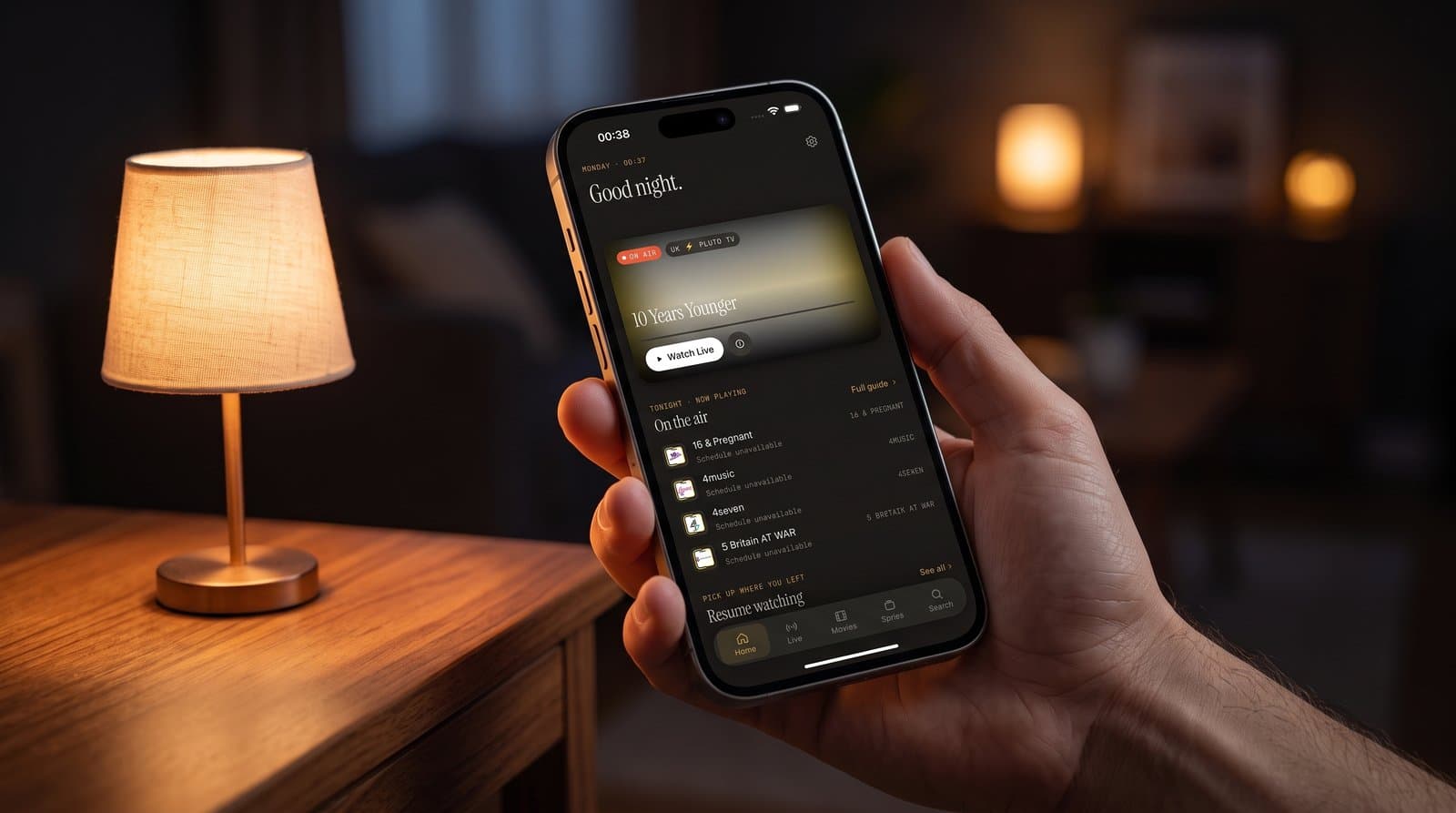
Your Home Screen, Decoded: How Maximus IPTV Player Surfaces What to Watch Next
Open Maximus IPTV Player at 7 a.m. and the app doesn't hand you a wall of five hundred channel logos and leave you to figure it out. It says "Good morning," puts whatever's live right now front and center, and lines up the shows you were mid-episode on last night. That's the home screen doing its job: turning a giant combined library — your live channels, your movies, your series, your saved playlists — into a single "here's what to watch" answer every time you open the app. If you've only ever tapped straight through to Live TV or Search, you're skipping the part of Maximus IPTV Player that's actually designed to save you the most time. Here's exactly what's on that first screen, why it's arranged the way it is, and how it behaves differently on an iPhone, an iPad, and an Android phone.
Key Takeaways
- The Maximus IPTV Player home screen leads with a time-aware greeting and an "On the air" hero card showing whatever is live right now, pulled straight from your connected sources' EPG (electronic program guide) data.
- Resume Watching tracks playback position automatically across movies, series episodes, and even paused live streams — there's no manual bookmarking step.
- Favorites you star anywhere in the app surface as a dedicated row on the home screen, so frequently watched channels never get buried in a combined library.
- iPad users get a persistent left sidebar and a wider "On the air" layout instead of the iPhone's scrolling single column — same data, more of it visible at once.
- The home screen is the fastest jumping-off point to AirPlay or Chromecast (Google Cast) a paused show straight to the TV without leaving the row you found it in.
What's Actually on the Maximus IPTV Player Home Screen?
Three things load before anything else: a greeting that changes with the time of day ("Good morning," "Good afternoon," "Good night"), an "On the air" hero card for whatever's currently live on your top channel, and a "Tonight · Now playing" strip listing four or five other channels broadcasting live at that moment. Below that sits "Resume watching," then "Your favorites." It's a deliberately short list — Maximus IPTV Player isn't trying to be a second Live TV grid, it's trying to answer one question fast: what's worth watching in the next ten seconds.
That hero card is doing more work than it looks like. Tap "Watch Live" and you're streaming instantly; tap the small info icon next to it and you get a synopsis and schedule without leaving the home screen. It's the same one-tap-to-play pattern used throughout the app, just surfaced earliest.
Why Does the "On the Air" Card Show Up First?
Because live TV is where IPTV apps live or die on convenience. Maximus IPTV Player pulls its "On the air" and "Tonight · Now playing" data from the EPG attached to your M3U or M3U8 playlist — M3U and M3U8 are the two playlist file formats IPTV players use to organize channel lists, and the EPG is the program-guide metadata (show titles, start and end times, descriptions) layered on top of them. If your source provides good EPG data, the home screen basically becomes a live, self-updating "what's on" board that refreshes as programs change, no manual refresh needed. Sources without EPG data still populate the channel list, they just show "schedule unavailable" instead of a program title — worth knowing if your hero card ever looks sparse, since that's a source-side gap, not an app bug.
How Does Resume Watching Actually Track Progress?
Every time you back out of a movie, a series episode, or even a paused live stream, Maximus IPTV Player quietly saves your position. Open the app again — same day, three days later, doesn't matter — and that title is sitting in the Resume Watching row exactly where you left it, poster art and all. There's no "mark as watched" toggle to remember and no separate bookmarks list to maintain; the tracking happens automatically in the background. For anyone splitting a two-hour film across three sittings, or working through a series a couple of episodes at a time, this is the row that turns Maximus IPTV Player from a channel list into something closer to how modern streaming apps behave — you never have to remember where you stopped.
Where Do Favorites Live on the Home Screen?
Star a channel from Live TV, the TV Guide, or a search result, and it doesn't just get filed away — it shows up as its own "Your favorites" row on the home screen, front and center every time you open the app. That matters more than it sounds like once your combined library — Live IPTV plus one or more M3U/M3U8 sources plus, for some setups, a Stalker Portal connection (a server-based IPTV delivery protocol some providers use instead of a plain playlist file) — grows past a couple hundred channels. Without a dedicated favorites row, your five go-to channels are buried alphabetically or by country group. With it, they're always one tap from the home screen, no digging through Live TV's country filters required.
Does the Home Screen Look Different on iPad Than iPhone?
Same data, noticeably different layout. On iPhone, the home screen is a single scrolling column — greeting, hero card, "On the air" strip, Resume Watching, Favorites, one after another, with a bottom tab bar for Home, Live, Movies, and Series. On iPad, Maximus IPTV Player switches to a persistent left sidebar (Home, Live TV, Movies, Series, TV Guide, Search, plus Continue, Favorites, and Downloads shortcuts under a "You" section) with the content area laid out wider — the "On the air" row shows four channel tiles side by side instead of a narrow scrolling list, and Favorites gets a bigger poster grid. It's the same information architecture, just given the extra screen real estate an iPad actually has, which matters if you're propping the tablet up on a stand across the room instead of holding it a foot from your face.

Can You Send What's on the Home Screen Straight to the TV?
Yes — and this is the part people often don't discover until weeks in. Tap the cast icon from Resume Watching or the "On the air" hero card, and Maximus IPTV Player opens a "Choose a device" sheet that scans your network for both AirPlay and Chromecast (Google Cast) targets. AirPlay is Apple's casting protocol and only works from an iPhone or iPad; Chromecast (Google Cast) is not Android-exclusive the way people sometimes assume — Maximus IPTV Player supports Chromecast casting from iOS too, not just Android, so an iPhone can throw a paused movie onto a Chromecast-connected TV just as easily as an Android phone can. The player keeps playing on your phone screen while the sheet searches, so you're never staring at a blank loading screen while it looks for devices "on your network."

Does Android's Home Screen Work the Same Way?
Structurally, yes. Maximus IPTV Player ships as one app on Google Play (package com.aegontech.maximus) covering Android phones and tablets, and that same home screen pattern — greeting, on-air hero, Resume Watching, Favorites — carries over. The bigger platform note: Android now spans three device types just like iOS does. iOS covers iPhone, iPad, and Apple TV; Android covers phones, tablets, and Android TV/Google TV, all from that same Google Play listing since it's one app package serving every Android form factor. Android TV, though, runs its own native remote-driven interface built for a ten-foot living-room experience rather than a touchscreen — it's a genuinely different layout optimized for D-pad navigation, not a stretched phone screen, so "does the home screen look the same" doesn't really apply once you're driving it with a remote instead of your thumb.
FAQ
Does the home screen use extra data or bandwidth compared to just opening Live TV? No — it loads the same channel and program metadata your sources already provide; nothing about the layout increases streaming bitrate or data use, since 4K playback quality is controlled separately per-stream, not by which screen you land on.
Can I turn off the "On the air" hero card if I don't watch much live TV? There's no dedicated toggle to hide the hero card specifically, but if you rarely use live channels, Resume Watching and Favorites will naturally become the rows you actually use — the hero card just won't have much to show if your sources skew VOD (video on demand, meaning movies and series rather than live broadcasts).
Why does my "On the air" row say "schedule unavailable" for some channels? That means the source feeding that channel isn't publishing EPG data — the channel still streams live fine, Maximus IPTV Player just has no program-guide metadata to display alongside it.
Does Resume Watching sync between my iPhone and my Android tablet? Maximus IPTV Player doesn't currently offer cross-device account sync — Resume Watching tracks progress locally per install, so a title resumed on your iPhone won't automatically show as in-progress on a separate Android device.
Get the App
Maximus IPTV Player is free to download with an optional premium subscription, and the home screen you just read about is the very first thing you'll see on either platform. iOS users on iPhone, iPad, or Apple TV can grab it from the Apple App Store; Android users on phones, tablets, or Android TV/Google TV can get the same app from Google Play. Connect your M3U, M3U8, or Stalker Portal source, and the next time you open the app, it'll already be telling you what's worth watching.
Written by
Maximus IPTV Team