One Heart Icon, Every Screen: How Favorites Work in Maximus IPTV Player
Every streaming app has some version of a heart icon, but most treat it as an afterthought bolted onto one screen. Maximus IPTV Player does something more useful: the same Favorites behavior works identically across Live TV, Movies, and Series, so tapping the same heart icon builds one consistent shortlist no matter what kind of content you're watching. This guide walks through exactly how favoriting works in Maximus IPTV Player, where the Favorites tab shows up, how it differs from Continue Watching, and how to put it to work for sports, kids' shows, and international channels.
Key Takeaways
- Maximus IPTV Player uses the same Favorites mechanism across three content types — Live TV channels, Movies, and Series — instead of limiting it to just one screen.
- A dedicated Favorites tab sits alongside Continue, New, and Top Rated on the Series and Movies screens, and alongside country filters and channel groups on the Live TV screen.
- Favorites are separate from Continue Watching / Resume Playback: one is a shortlist you choose, the other tracks where you left off automatically.
- The Favorites list works the same on iPhone, iPad, Apple TV, Android phones, Android tablets, and Android TV — six device types across two ecosystems, one consistent behavior.
- Maximus IPTV Player is free to download on the Apple App Store and Google Play, with no ads and no tracking either way.
What Does "Favorites" Actually Mean in Maximus IPTV Player?
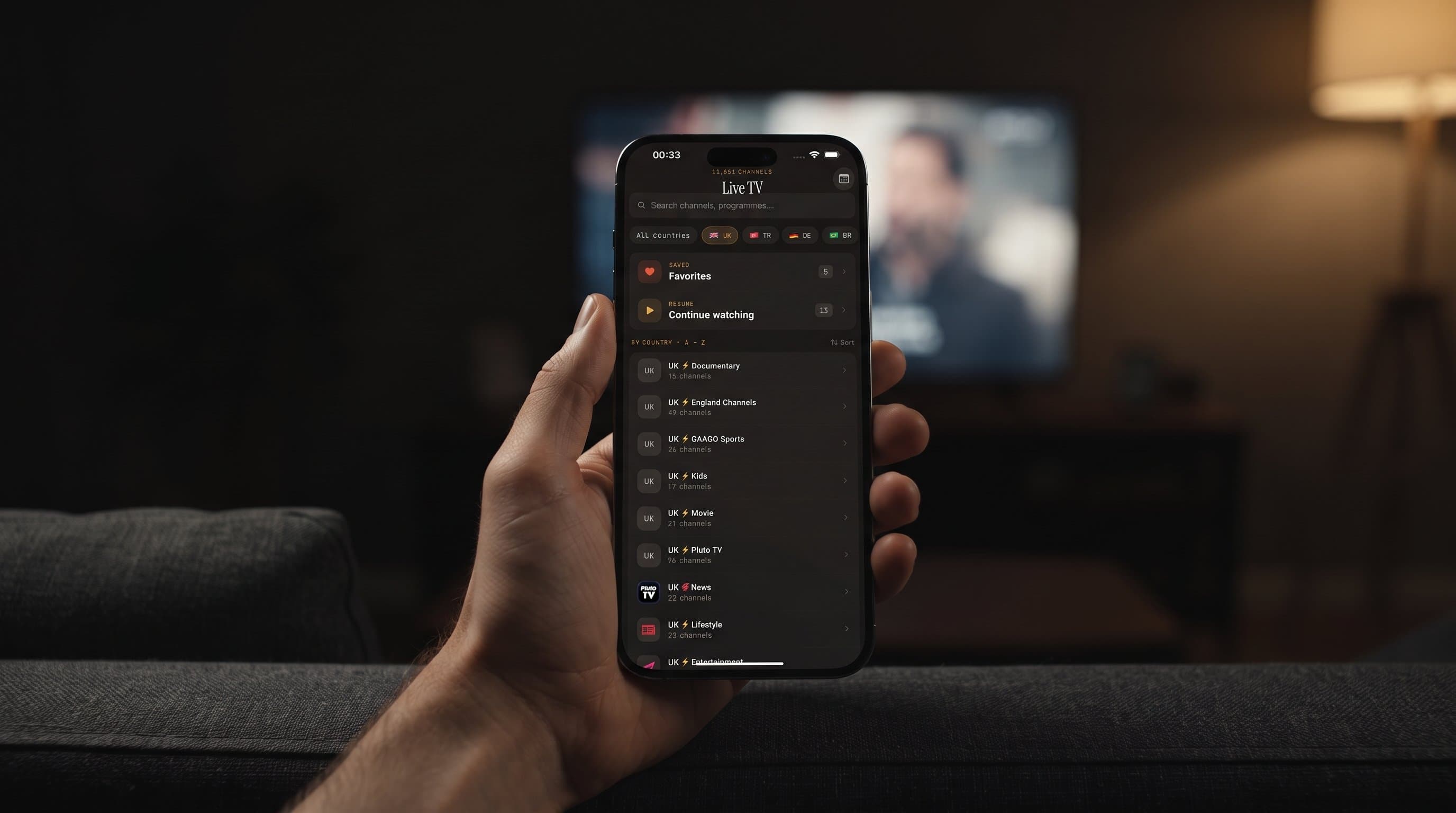
In most apps, "favoriting" something is a single, isolated feature tied to one part of the interface. In Maximus IPTV Player, it's closer to a system-wide behavior: the same heart-shaped icon and the same underlying Favorites tab appear on Live TV, Movies, and Series, and they all work the same way. Tap the icon on a live channel, a movie poster, or a series detail page, and that item gets added to a Favorites list you can filter down to instantly — instead of scrolling back through a full channel list, genre grid, or search results every time you want to get back to it.
That consistency matters more than it sounds like it should. Once you've learned how Favorites works on one screen, you already know how it works everywhere else in Maximus IPTV Player — there's no separate "bookmarks" feature for movies and a different "starred channels" feature for Live TV.
How Do You Favorite a Live Channel?
On the Live TV screen, channels are already organized by country filters and channel groups, since most Maximus IPTV Player users are pulling in an M3U or M3U8 playlist — a plain-text file listing stream URLs, the most common format IPTV subscriptions are delivered in — or connecting through a Stalker Portal, a server-based alternative some providers use instead of a static playlist. Either way, once your source is connected, every channel it includes shows up in the Live TV list, and a Favorites tab sits right alongside the country and group filters.
Favoriting a channel here is what turns a long list — sometimes hundreds of channels once you've combined a few sources — into a short list of the five or six channels you actually watch regularly: your regional news channel, two or three sports networks, and whatever's become background noise in your house. Combined with the EPG (Electronic Program Guide, the TV Guide's timeline view of what's on and coming up next), a favorited channel becomes something you can check at a glance without digging through groups you never watch.
Do Movies and Series Have Their Own Favorites Too?
Yes — and they use the exact same tab structure as Live TV, just applied to on-demand content instead of channels. Open the Series or Movies tab in Maximus IPTV Player and you'll find Favorites sitting next to Continue, New, and Top Rated. Favorite a series from its detail page — the same screen that shows the synopsis and full episode list — and it shows up in that filtered view the next time you open the app, without needing to search for it again or scroll past everything else in your library.
This is particularly useful once a library grows past a couple hundred titles across combined sources. Search still works fine for something you know the name of, but Favorites solves a different problem: it's for the handful of shows you're actively following and want one tap away, every single time, regardless of how much new content gets added around them.

How Is Favoriting Different from Continue Watching or Resume Playback?
It's easy to conflate the two, but they solve different problems. Continue Watching (sometimes shown as Resume Watching on the Home screen) is automatic — it tracks the episode or movie you were partway through and lets you jump back in from the exact point you stopped, no action required on your part. Favorites is manual and deliberate — you choose what goes on the list, and it stays there whether you've watched zero minutes of it or the whole thing.
In practice, the two work well together rather than replacing each other. A series you're actively watching might show up in both places: Continue Watching because you're partway through season one, and Favorites because you've deliberately marked it as one you don't want buried once you move on to season two of something else. Live TV channels only really benefit from Favorites, since a live broadcast doesn't have a "partway through" state to resume the way an episode does.
Does Favoriting Work the Same on iPhone, iPad, and Android?
Yes, at least in terms of what the feature does. Maximus IPTV Player runs on iPhone, iPad, and Apple TV through the Apple App Store, and on Android phones, Android tablets, and Android TV through the same Google Play listing (package com.aegontech.maximus) — six device types across two ecosystems, all reading from the same connected sources and the same Favorites list logic. What changes between them is the layout the Favorites tab sits in, not the behavior: iPhone and Android phones use a compact single-column layout, iPad and Android tablets show a persistent sidebar with a wider grid, and Apple TV and Android TV use a native remote-driven interface built for a living-room screen rather than a touchscreen.

Can Favorites Help With a Shared Family Screen?
If more than one person uses the same Maximus IPTV Player setup — a household sharing one Apple TV or one Android TV in the living room — Favorites becomes less about personal taste and more about household shortcuts. A family might favorite the two or three kids' channels that live inside the Kids tab, the regional news channel someone checks every morning, and the two sports channels that actually get watched on Sunday. Paired with Parental Lock — the PIN-protected setting that restricts access to adult content — a shared screen ends up with a Favorites list that reflects what the household actually watches, rather than the full combined channel and library list every source connection adds in.
What Happens When You Cast a Favorited Channel or Show?
Casting doesn't change how Favorites behaves — it changes where playback shows up. Maximus IPTV Player supports both AirPlay and Chromecast (Google Cast) for casting, and on iOS you get both options, while Android supports Chromecast. AirPlay is Apple's own casting protocol, so it's only available when casting from an iPhone or iPad, never from Android. Chromecast, on the other hand, isn't Android-exclusive — the iOS app has full Chromecast support as well. Favorite a channel or series on your phone, then cast it to the living room TV, and it's still sitting in the same Favorites list the next time you open the app on either device — the favorite itself lives with your connected source, not with whichever screen happened to start playback.
Frequently Asked Questions
Is there a limit to how many channels or shows I can favorite in Maximus IPTV Player? Maximus IPTV Player doesn't publish a hard cap on Favorites list size in its documented features — the practical limit in day-to-day use is how large your combined library already is, since Favorites is a filtered view of it.
Do Favorites sync between my iPhone and my Android tablet? Favorites are tied to the sources connected on each device rather than a single cross-device account, so there's no automatic sync between separate installs on different devices.
Is Favorites the same thing as Downloads? No. Favorites is a shortlist for quick access; downloading is a separate action that saves an episode or movie locally for offline playback. A title can be favorited, downloaded, both, or neither, independently.
Can I remove something from Favorites once I've added it? Yes — tapping the same heart or Favorites control on an already-favorited item removes it from the list, the same way it was added.
Does the Favorites tab work the same for Live TV as it does for Movies and Series? The tab and the underlying behavior are the same across all three; the only difference is what you're favoriting — a live channel versus an on-demand title.
If your Live TV list or your library has grown past the point where scrolling makes sense, building out a proper Favorites list is one of the fastest ways to fix that in Maximus IPTV Player. It's free to download for iPhone, iPad, and Apple TV on the Apple App Store, and for Android phones, tablets, and Android TV on Google Play.
Written by
Maximus IPTV Team