How the TV Guide Works in Maximus IPTV Player: A Complete EPG Walkthrough
Scrolling through channel after channel, hoping something good is on right now, is one of the fastest ways IPTV starts to feel worse than the cable box it replaced. Maximus IPTV Player solves that with a dedicated TV Guide — most people know the underlying feature by its technical name, EPG, or Electronic Program Guide — that lays out what's airing across every channel at a glance instead of forcing you to flip through them one at a time. If you've never opened the Guide tab in Maximus IPTV Player, or you've opened it and weren't quite sure what half of it did, this walkthrough covers the whole thing: the timeline grid, the "now" line, the five filter tabs, and how the experience differs across iPhone, iPad, and Android.

Key Takeaways
- Maximus IPTV Player's TV Guide (EPG) shows a scrolling timeline grid of what's airing on every channel, not just what's playing at this exact second.
- A live orange "now" line moves across the grid in real time, so you can see instantly how far into a show you are — and what's coming up next.
- Five tabs — Favorites, All, Sports, Movies, and Kids — filter the grid down to the channels that actually matter to you instead of making you scroll past everything.
- The same EPG data drives Maximus IPTV Player on iPhone, iPad, and Android phones and tablets; the iPad layout adds a persistent sidebar so more of the grid stays visible without scrolling.
- The Guide is only as good as the source feeding it — your M3U or M3U8 playlist, or your Stalker Portal connection, is what supplies the schedule data behind every row.
What Is an EPG, and Why Does IPTV Need One?
EPG stands for Electronic Program Guide — the grid of "what's on, and when" that used to live inside your cable box's remote-control menu. Traditional broadcast TV gets this data pushed to it automatically by the cable or satellite provider. IPTV (Internet Protocol Television, meaning your channels arrive over an internet connection instead of a coaxial cable or satellite dish) doesn't have that built-in relationship, so the schedule data has to come from somewhere else: your playlist source.
Most IPTV sources are delivered as an M3U or M3U8 file — a plain-text playlist format that lists channel names alongside their streaming URLs. M3U8 specifically is the version used for HLS (HTTP Live Streaming), the streaming protocol behind most modern IPTV and on-demand video, including much of what Maximus IPTV Player plays. Some providers instead use a Stalker Portal connection, a different source protocol that Maximus IPTV Player also supports for pulling in a full channel and program lineup. Either way, when your source includes EPG data, Maximus IPTV Player turns it into the visual guide covered below. When it doesn't, the Guide can look sparse or show placeholder time slots — more on that in the troubleshooting section.
How Do You Open and Read the TV Guide in Maximus IPTV Player?
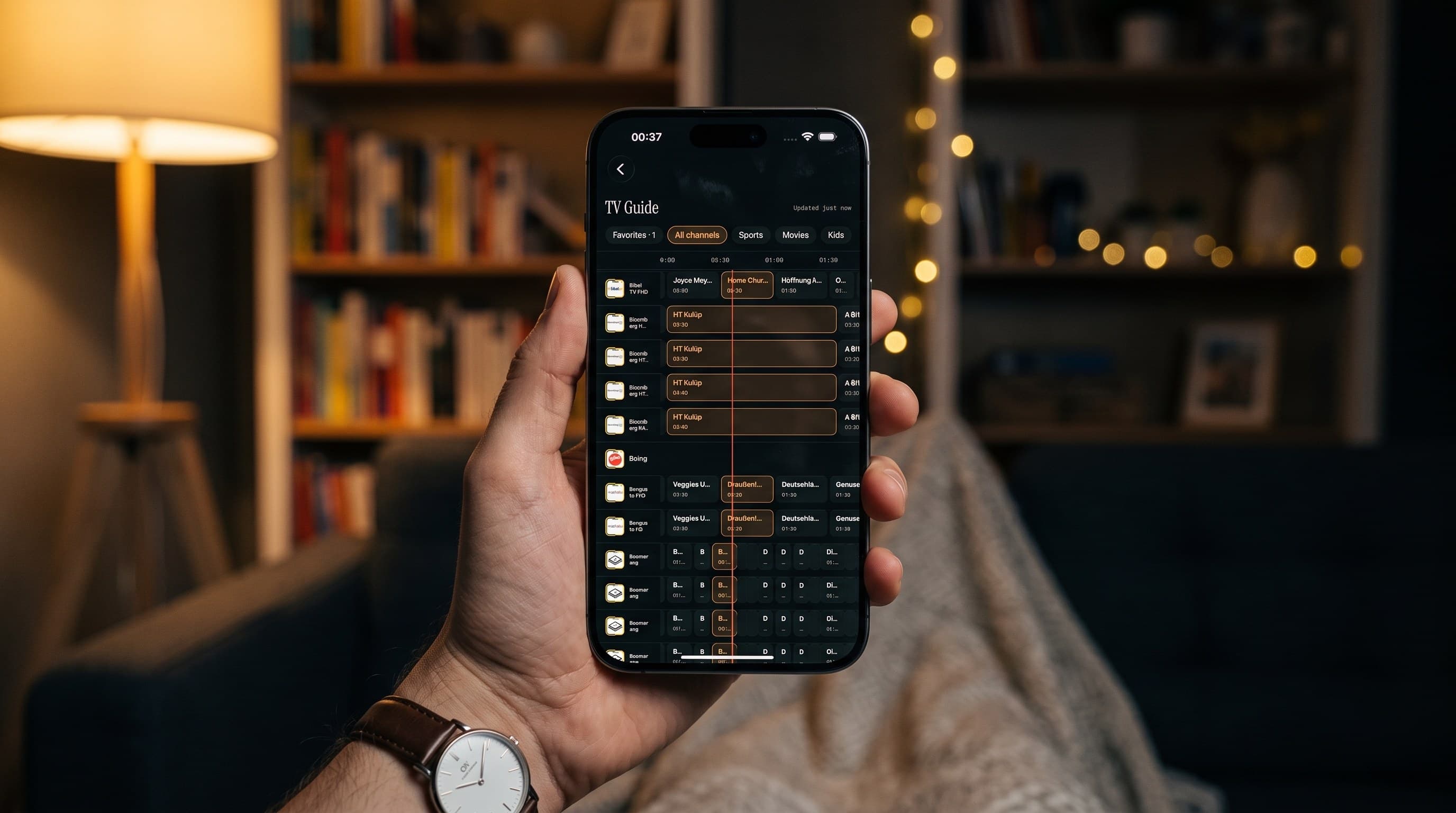
The Guide lives in its own tab, separate from the Live TV channel list. Open it and you'll see a timeline grid: channels run down the left side, and time runs left to right across the top, with each program shown as a horizontal block sized to its runtime. It's the same basic layout as a traditional cable guide, just touch-friendly — tap any block to see more detail about that program, or tap straight into a channel to start watching.
The standout detail is the orange "now" line: a vertical marker that sits at the current time and slides across the grid as the day goes on. Instead of doing math about what time it is versus what time a show started, you can see at a glance which programs are already playing (to the left of the line) and which are coming up (to the right). It's a small piece of design, but it's the difference between glancing at the Guide for two seconds and actually orienting yourself, versus staring at a wall of text trying to figure out where "now" is.
What Do the Five Guide Tabs Actually Filter?
Above the grid, Maximus IPTV Player gives you five tabs: Favorites, All, Sports, Movies, and Kids. Each one filters the same underlying grid down to a different slice of your channel lineup:
- Favorites — only the channels you've starred elsewhere in the app, so you can check what's on your regular rotation without scrolling past channels you never watch.
- All — the full lineup from every source you've added, unfiltered.
- Sports — channels categorized as sports programming, useful for checking kickoff times across multiple leagues without hunting channel by channel.
- Movies — channels leaning toward film programming, handy on a night when you want something to put on rather than a specific title.
- Kids — channels categorized as kids' programming, which makes it faster to hand a device to a child and know the Guide itself is already scoped to appropriate channels.
Worth noting: the Kids tab is a content filter for the Guide view, not a replacement for Maximus IPTV Player's separate Parental Lock feature, which uses a PIN to restrict access to adult content across the whole app. Think of Kids as a convenience filter and Parental Lock as the actual access control — they solve different problems and work well together.
Does the Guide Work the Same on iPhone, iPad, and Android?
The core EPG experience — the timeline grid, the five tabs, the orange now line — is consistent everywhere Maximus IPTV Player runs: iPhone, iPad, and Android phones and tablets on Google Play. What changes is how much of it you see at once. On iPhone, the Guide is a full-screen grid you scroll through. On iPad, a persistent sidebar stays on screen alongside a wider version of the timeline, so you can jump between Live TV, the Guide, and your library without losing your place — the bigger canvas simply shows more channel rows and more of the timeline without extra taps.
Android phones and tablets get the same Guide logic and the same five-tab filtering, built from the same underlying app. If you're switching from an iPhone to an Android phone, or from a phone to a tablet, the Guide will feel immediately familiar rather than like a different app.
How Does EPG Fit Into Casting and 4K Playback?
The Guide's job is to help you find what to watch — once you tap into a channel, everything else Maximus IPTV Player does kicks in normally. That includes 4K playback where your source supports it, and casting to a bigger screen through either AirPlay (Apple's casting protocol, available on iPhone and iPad) or Chromecast, also called Google Cast (available on both iOS and Android — it's not an Android-only feature, despite what its name might suggest). Buffer-free streaming and subtitle or multi-audio track support work the same way whether you got to the channel by browsing the Guide or by starting from the Live TV list. The Guide doesn't gate any of that; it's simply the fastest way to land on the right channel in the first place.
What If the Guide Looks Empty or Shows the Wrong Times?
A guide with no program titles, generic placeholder blocks, or times that don't line up with reality almost always traces back to the source, not to Maximus IPTV Player itself. A few things worth checking:
- Confirm your source actually includes EPG data. Not every M3U or M3U8 playlist bundles a program guide — some providers only supply channel streams. If your provider offers a separate EPG URL (sometimes called an "XMLTV" link), make sure it's been added alongside your playlist in your Sources.
- Check your device's time zone. Because the "now" line is calculated from your device's clock, a wrong time zone setting will throw off exactly where that line lands relative to real program start times.
- Give it a moment after adding a new source. Program data for a freshly added M3U8 or Stalker Portal source can take a little time to populate fully, especially for sources with large channel counts.
- Try the All tab if a filtered tab looks sparse. If Sports, Movies, or Kids looks emptier than expected, it's worth checking All first — a thin filtered tab often just means fewer channels in your lineup are categorized that way, not that something is broken.
If the Guide still looks wrong after checking the source and the time zone, the underlying playlist or Stalker Portal feed is the next place to look — Maximus IPTV Player can only display the schedule data it's given.
FAQ
What does EPG stand for? Electronic Program Guide — the grid showing what's airing on each channel and when, similar to the guide on a traditional cable box.
Do I need to sign up for something extra to get the TV Guide working? No separate signup inside Maximus IPTV Player itself. The schedule data comes from whichever M3U, M3U8, or Stalker Portal source you've already added under Sources — if that source includes EPG data, the Guide populates automatically.
Is the Kids tab the same thing as parental controls? No. The Kids tab filters the Guide to kids' programming for convenience. Parental Lock is a separate, PIN-protected feature that actually restricts access to adult content across Maximus IPTV Player.
Does the Guide work on Android the same way it does on iPhone? Yes. The timeline grid, the orange now line, and all five tabs (Favorites, All, Sports, Movies, Kids) work the same way on Android phones and tablets as they do on iPhone and iPad.
Can I cast a show I found in the Guide? Yes — tap into the channel from the Guide the same way you would from Live TV, and casting via AirPlay or Chromecast works exactly as it does anywhere else in the app.
If you haven't tried the TV Guide yet, it's worth a look next time you're not sure what to watch — five tabs and one glance at the orange now line usually beats scrolling through a full channel list. Maximus IPTV Player is free to download, with an optional premium subscription, on the Apple App Store for iPhone, iPad, and Apple TV, and on Google Play for Android phones, tablets, and Android TV / Google TV.
Written by
Maximus IPTV Team