The Maximus IPTV Player EPG, Explained: How to Actually Find What's On
If you've ever opened an IPTV app, stared at a wall of channel logos, and had no idea what's actually playing right now, you already know the problem an EPG solves. Maximus IPTV Player — the free-to-download, cross-platform IPTV player available on the Apple App Store (iPhone, iPad, Apple TV) and Google Play (Android phones, tablets, and Android TV / Google TV) — builds its TV Guide around exactly this problem: turning a flat list of channels into a real, browsable schedule. This guide walks through how the EPG actually works inside Maximus IPTV Player, what each of its five filter tabs does, and how to use it to stop scrolling and start watching.
Key Takeaways
- EPG stands for Electronic Program Guide — a scrolling, time-based grid that shows what's airing now and what's coming up next across every channel in your playlist.
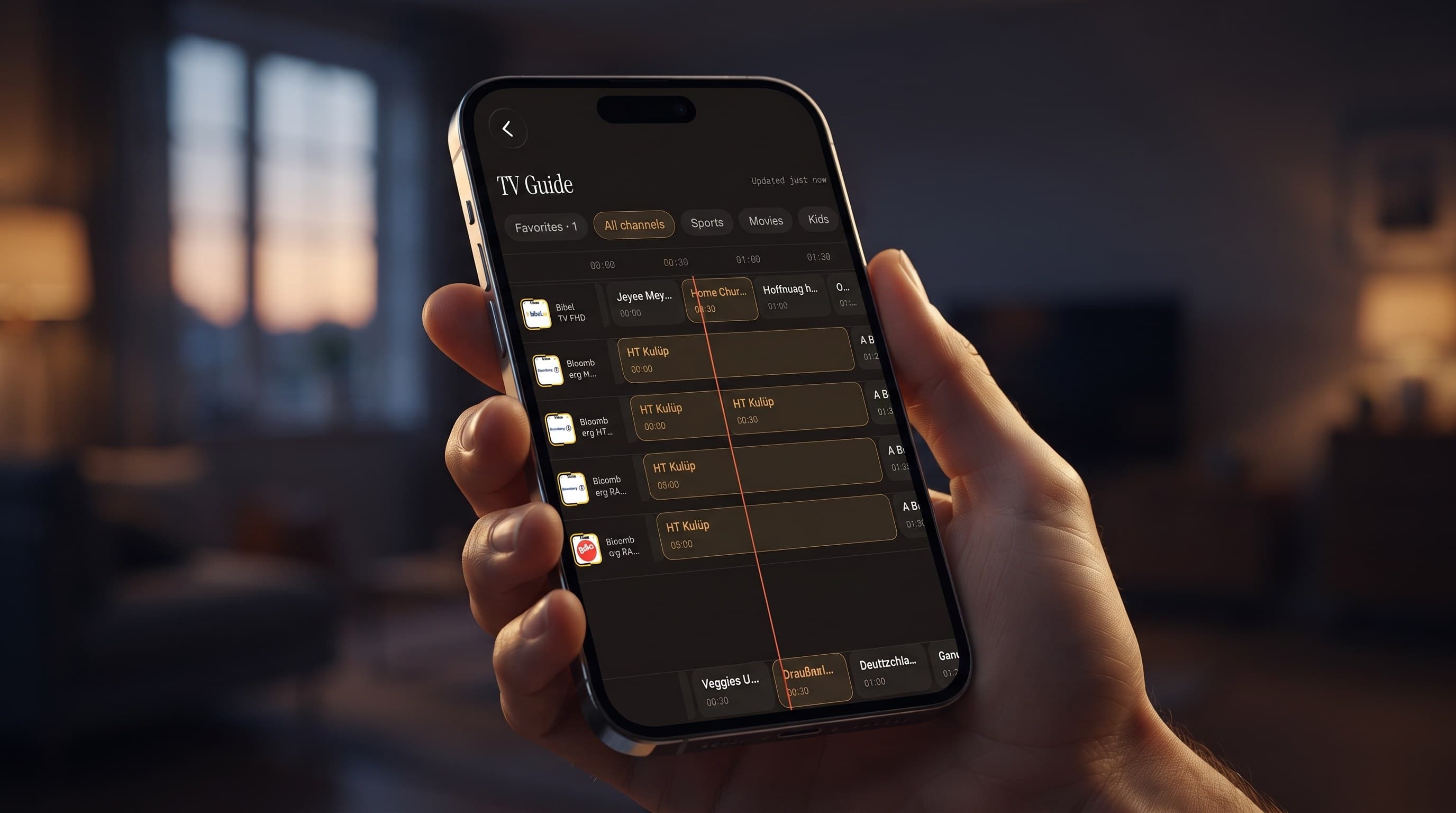
- Maximus IPTV Player's TV Guide uses a live orange "now" line that moves across the timeline in real time, so you always know exactly where "now" is.
- Five tabs — Favorites, All channels, Sports, Movies, and Kids — filter the guide instantly, without leaving the screen.
- The guide populates from your own M3U or M3U8 playlist (or a Stalker Portal source) — Maximus doesn't supply channels itself, it organizes the ones you already have.
- On iPad, the same guide expands into a wider timeline with more channel rows visible at once, thanks to the persistent sidebar layout.
- The EPG is available on both iOS and Android, running the same guide logic regardless of which phone, tablet, or TV you're using.

What Is an EPG, and Why Does It Matter for IPTV?
EPG stands for Electronic Program Guide — the same concept cable and satellite boxes have used for decades, adapted for streaming. Instead of guessing what's playing on a channel, an EPG shows a scrolling timeline: what's on now, what's coming up next, and often a short description of the program. For traditional TV, EPG data comes bundled with your cable subscription. For IPTV, EPG data typically comes from your provider as part of your M3U or M3U8 playlist — M3U is a plain-text playlist format that lists stream URLs and channel names, while M3U8 is the same format encoded for HLS (HTTP Live Streaming), the segmented, adaptive-bitrate delivery method most modern IPTV and live-streaming services use. Some providers instead use a Stalker Portal, a different backend protocol for authenticating and delivering channel lists and EPG data. Maximus IPTV Player supports all three source types, and once you add a source, the EPG data flows automatically into the TV Guide screen — no separate setup step required.
Without an EPG, an IPTV app is just a channel list. With one, it becomes something you can actually plan an evening around.
How Does the TV Guide Work in Maximus IPTV Player?
Open the TV Guide tab in Maximus IPTV Player and you'll see a grid: channels listed down the left side, time blocks running left to right, and a thin orange line marking the current moment. That orange "now" line is the detail that makes the biggest practical difference — instead of squinting at clock times, you can see at a glance which programs are currently airing (anything the line is crossing through) and which are coming up in the next 30, 60, or 90 minutes just by scrolling right.
Tap any program block and you'll get more detail without leaving the guide — useful when a title alone doesn't tell you enough to decide whether to switch over. Scroll left to check what already aired if you're trying to figure out whether you missed the start of something.
How Do the Favorites, Sports, Movies, and Kids Tabs Help You Find Something to Watch?
A raw EPG with hundreds of channels is still overwhelming, so Maximus IPTV Player layers five filter tabs on top of the guide: Favorites, All channels, Sports, Movies, and Kids. Favorites shows only the channels you've starred, which is the fastest way to check what's on without wading through channels you never watch. All channels is the full unfiltered grid. Sports, Movies, and Kids narrow the guide to channels tagged in those categories — handy on a Saturday afternoon when you specifically want to know which game is live right now, or when you're handing the remote to a kid and want to skip past anything that isn't age-appropriate.
Switching between tabs doesn't reload the whole guide — it just filters what's already loaded, so it stays fast even with a large channel list.
Does the EPG Work the Same Way on iPad?
Mostly, yes — with one meaningful difference. On iPhone, the TV Guide is a focused view suited to a smaller screen. On iPad, Maximus IPTV Player uses a persistent sidebar layout, and the guide grid itself widens to show more channel rows and a longer stretch of the timeline at once, without needing to scroll as aggressively. If you're regularly checking the guide to plan out an evening of sports or catch up across multiple channels, the iPad's wider view genuinely makes that easier — it's less "hunt and scroll," more "see it all at once."
Is the EPG Available on Android Too?
Yes. Maximus IPTV Player shipped on Google Play for Android phones and tablets in July 2026, with Android TV / Google TV support following shortly after — meaning the same TV Guide concept now runs across both major mobile platforms, plus the living room, all from one app and one Play listing. The underlying guide logic — the now-line, the five filter tabs, the M3U/M3U8/Stalker Portal-sourced data — is the same regardless of platform; what changes is the surrounding app chrome and, on Android TV, a native interface built for remote-control navigation instead of touch. If you're switching from iPhone to Android, or you're a household running both, the EPG behaves consistently enough that there's no real relearning curve.
What If the EPG Isn't Populating?
The most common cause is a source issue rather than an app issue: if your M3U/M3U8 playlist or Stalker Portal source doesn't include EPG data (some budget or free playlists only include the channel list, not the schedule), the guide will show channels with no program information. Check your source's documentation to confirm it publishes EPG data, and make sure the source is fully synced inside Maximus IPTV Player's source manager. A second, less common cause is a time zone mismatch — if program times look shifted by a few hours, it's almost always the source's EPG data using a different time zone than your device.
Tips for Getting More Out of the EPG
Star your regular channels first so the Favorites tab is actually useful — an empty Favorites list defeats the point. If you watch sports on a fairly predictable schedule, the Sports tab plus the now-line is a faster way to check "is it on yet" than opening a separate scores app. And if you're managing more than one source (say, a general entertainment playlist and a sports-specific one), remember the guide reflects whichever sources are active — a channel missing from the guide is worth checking against your source list before assuming it's a bug.
FAQ
Does the EPG cost extra? No — the TV Guide is part of the free Maximus IPTV Player app; the guide data itself depends on your own playlist source, not on a Maximus subscription.
Can I see more than a few hours ahead? Yes, scroll the timeline to the right; how far ahead data is available depends on how much EPG data your source publishes, typically anywhere from 24 hours to several days.
Does 4K playback affect the guide? No — 4K is a playback-quality setting for the stream itself once you tap into a program; it doesn't change how the guide displays.
Do the Sports, Movies, and Kids tabs work automatically? Yes, as long as your source's channel metadata includes those category tags; Maximus IPTV Player reads and filters on them without any manual tagging on your part.
Is there a separate EPG for Android TV? No — Android TV uses the same underlying guide data, presented through a native remote-driven interface rather than a touch UI.
Try the TV Guide for Yourself
The EPG is one of those features you don't think about until you're missing it — and once you're used to seeing the now-line and filtering straight to Sports or Kids, going back to a flat channel list feels like a step backward. Maximus IPTV Player is free to download, with an optional premium subscription, on the Apple App Store for iPhone, iPad, and Apple TV, and on Google Play for Android phones, tablets, and Android TV / Google TV.
- Apple App Store — iPhone, iPad, Apple TV
- Google Play — Android phones, tablets, Android TV / Google TV
Written by
Maximus IPTV Team