International Content on Android: How Subtitles and Multi-Audio Work in Maximus IPTV Player
If you've ever fired up a foreign league match or a telenovela on your phone only to get stuck with the wrong language track — or no subtitles at all — you already know why this matters. Maximus IPTV Player is a free-to-download, cross-platform IPTV player now available on both the Apple App Store (iPhone, iPad, Apple TV) and Google Play for Android (phones, tablets, and Android TV / Google TV, all from the same app). One of its most underrated features for Android viewers is proper subtitle and multi-audio track support — the thing that turns a pile of international channels into content you can actually follow. This guide walks through exactly how it works on Android, why it matters more than people expect, and how to fix it when a stream doesn't cooperate.

Key Takeaways
- Maximus IPTV Player supports subtitle tracks and multiple audio tracks on Android phones and tablets, the same way it does on iOS.
- Subtitles and audio tracks are pulled from the stream itself (M3U/M3U8 playlists or a Stalker Portal source) — Maximus surfaces whatever tracks the source provides, it doesn't invent or translate them.
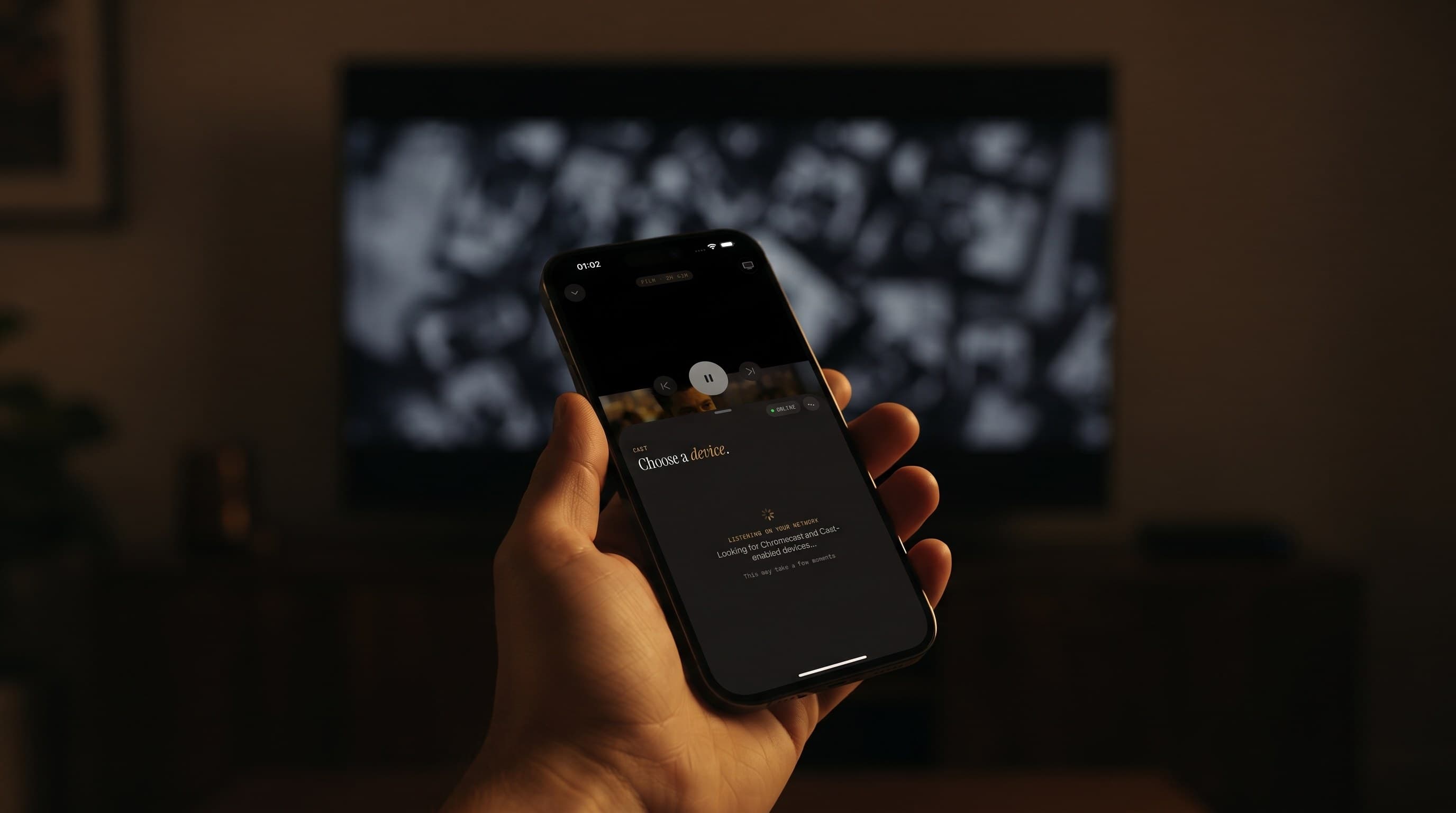
- The app supports 4K playback, EPG (electronic program guide), parental controls, and casting via Chromecast on Android — all with no ads and no tracking.
- Country filters in Live TV (the app currently shows groupings like UK, Turkey, Germany, and Brazil) make it easier to find the international content you actually want subtitles for.
- Maximus IPTV Player is free to download, with an optional premium subscription, on Google Play at the package
com.aegontech.maximus.
What Are Subtitles and Multi-Audio Tracks, and Why Do They Matter for IPTV?
A little vocabulary first, since IPTV apps throw around terms that aren't always explained. M3U and M3U8 are playlist file formats — essentially a list of channel or video stream URLs that an IPTV player like Maximus reads to know what's available and where to find it. A Stalker Portal is a different kind of IPTV source, more common with certain providers, that Maximus also supports alongside standard M3U/M3U8 playlists. EPG stands for electronic program guide — the "what's on now and next" grid you'd normally get from a cable box. None of these formats guarantee subtitles or alternate audio on their own; that depends on what the underlying stream provides and whether the player app knows how to expose it.
That's the real distinction. A stream either embeds multiple audio tracks and subtitle tracks (say, original-language audio plus a dubbed track, or closed captions in two or three languages) or it doesn't. Maximus IPTV Player's job is to detect what's embedded and hand you a clean way to pick between them — it doesn't fabricate translations or captions that aren't in the source. If a channel or VOD title only ships with one audio track, that's all you'll see, on Android or any platform.
How Do Subtitles and Multi-Audio Work in Maximus IPTV Player on Android?
On an Android phone or tablet, once you're playing a live channel or a title from your Movies & Series library, Maximus reads the stream's available tracks and makes them selectable from the player controls. If the source stream has multiple audio languages baked in — common with international sports broadcasts and dubbed movie catalogs — you can switch between them without restarting playback. Subtitle tracks work the same way: if they're present in the stream, they show up as an option you can toggle on or off.
This matters most for the exact audiences Maximus is built for: cord-cutters watching international content, sports fans following a match with commentary in a language they don't speak, and viewers piecing together channels from multiple countries. The Live TV screen's country filters — groupings that currently include the UK, Turkey, Germany, and Brazil — exist precisely because so much of the appeal of IPTV is being able to watch content from outside your home country. Subtitle and multi-audio support is what makes that content usable rather than just technically available.
Why Android Phone and Tablet Viewers Care More About This Than You'd Think
It's tempting to think of subtitles as a nice-to-have, but for the international-content crowd they're closer to a requirement. Someone watching a German news broadcast, a Turkish drama, or a Brazilian football match needs either the original audio with subtitles or a dubbed track — and needs to be able to switch between them per title, not dig through a settings menu every time. On a phone screen especially, legible, reliably-toggled subtitles are the difference between actually following a show and giving up on it.
Tablets add a second wrinkle: bigger screens make subtitle legibility less of a problem, but they also tend to get used for longer viewing sessions — a family watching together, or someone catching up on a full season — where getting stuck on a track that doesn't match what everyone in the room actually speaks becomes a bigger annoyance than a five-second toggle would suggest.
How Do You Turn On Subtitles or Switch Audio Tracks While Watching?
The exact tap targets are the standard mobile video-player pattern: while a stream is playing, tapping the screen brings up playback controls, and the track/subtitle option lets you pick from whatever the stream exposes. If nothing shows up as available, that's a signal about the source stream, not a bug in the app — some channels and playlists simply aren't multi-track. Maximus can't add options a source didn't include. If a favorite source of yours is consistently missing subtitles you expect, it's worth checking whether the provider offers an alternate playlist entry with more tracks embedded.

What About EPG, M3U8, and Finding International Channels in the First Place?
Subtitles only help once you've actually found the content. This is where Maximus IPTV Player's other features tie together. The EPG gives you a timeline grid of what's airing now and next across your channels, with Favorites, All, Sports, Movies, and Kids tabs to narrow things down. Universal search lets you look across your entire combined library — Live TV, Movies, and Series — in one query instead of hunting channel by channel. And because Maximus supports Multi-Source Management, you can combine more than one M3U/M3U8 playlist or Stalker Portal source into a single Combined Library, so an international-heavy playlist and a general one don't have to live in separate apps.
Put together, the workflow looks like this: use country filters or search to find the international channel or title you want, check the EPG if it's live TV, start playback, and then use the in-player controls to pick the audio and subtitle track that works for you.
Does This Work the Same Way on iPhone and iPad?
Yes — subtitle and multi-audio track handling isn't an Android-only feature bolted on separately. Maximus IPTV Player runs the same core playback engine across iOS and Android, so a stream with three audio tracks and two subtitle languages behaves consistently whether you're on an iPhone, an iPad, or an Android phone or tablet. The one platform difference worth knowing: casting. On iOS, Maximus supports both AirPlay and Chromecast (Chromecast, also called Google Cast, is not an Android-exclusive feature — it works from the iOS app too). AirPlay itself is Apple-only and isn't available on Android. If you're switching between an iPhone and an Android tablet, or watching solo on Android and casting to a shared TV in the living room, your subtitle and audio track picks carry over exactly the same way — only the casting protocol changes.
Common Subtitle and Audio Problems (And How to Fix Them)
- No subtitle option appears at all. The source stream likely doesn't embed subtitle tracks for that channel or title. Try an alternate source for the same content if one is available in your Combined Library.
- Audio track switches but sound doesn't change. This is usually a brief buffering hiccup as the new track loads — give it a few seconds before assuming it failed.
- Subtitles appear but are out of sync. This points to the source stream's own encoding rather than the app; if it's consistent across multiple attempts, it's worth flagging to whoever provides that particular playlist.
- You can't find the language you expected. Not every stream carries every language — Maximus surfaces exactly what's embedded, so if a track isn't listed, it isn't in the source.
FAQ
Does Maximus IPTV Player translate subtitles automatically? No. Maximus displays subtitle and audio tracks that are already embedded in the stream — it doesn't generate translations.
Is subtitle support different on Android tablets versus Android phones? No, the underlying playback and track-selection behavior is the same across Android phones and tablets; the bigger tablet screen just makes subtitles easier to read.
Can I use Maximus IPTV Player on Android TV for the same content? Yes — Android shipped for phones and tablets first, with Android TV and Google TV support following from the same app on Google Play, so the same combined library and playback engine apply there too.
Do I need a premium subscription to get subtitles and multi-audio? Maximus IPTV Player is free to download with an optional premium subscription; track availability itself depends on what your source stream provides, not on subscription tier.
What's the difference between M3U and M3U8 for this purpose? M3U8 is the UTF-8 encoded version of the M3U playlist format, commonly used for streaming; Maximus supports both, and multi-audio/subtitle availability depends on the individual stream, not which of the two formats it's delivered in.
Ready to Try It on Android?
If international content, sports commentary in the right language, or just properly synced subtitles have been a pain point on other IPTV apps, it's worth seeing how Maximus IPTV Player handles it. The app is free to download on Google Play for Android phones, tablets, and Android TV — search for Maximus IPTV Player or go straight to the listing, set up your M3U/M3U8 or Stalker Portal source, and the subtitle and audio track options will be right there in the player the next time you hit play.
Written by
Maximus IPTV Team