Setting Up Maximus IPTV Player on Android: A Step-by-Step Guide From Download to First Channel
Downloading a new streaming app is easy. Getting it actually set up — sources added, guide populated, first channel playing — is where most people get stuck, and Android users searching for help often find guides written for iPhone instead. This walkthrough fixes that: it's a step-by-step setup guide for Maximus IPTV Player on Android, covering the Google Play install, adding your first playlist, and getting from a blank app to your first live channel in one sitting. Maximus IPTV Player is a free-to-download, cross-platform IPTV player — "IPTV" meaning television delivered over an internet connection rather than cable or satellite — with an optional premium subscription, and since shipping on Google Play it now covers Android phones, tablets, and Android TV / Google TV from the same app.
Key Takeaways
- Maximus IPTV Player is free to download on Google Play (package
com.aegontech.maximus), with an optional premium subscription unlocking extra capacity. - Setup takes three real steps: install, add a source, browse — most first-time users are watching a channel inside 5 minutes.
- Maximus supports three source formats: M3U and M3U8 playlist files (plain-text lists of stream links, M3U8 being the newer UTF-8 variant) and Stalker Portal connections (a server-based protocol some IPTV providers use instead of a playlist file).
- The EPG (Electronic Program Guide — the onscreen TV schedule showing what's airing now and next) populates automatically once a source is added, no separate download needed.
- Casting to a TV works over Chromecast / Google Cast directly from the Android app — no extra hardware setup beyond a shared Wi-Fi network.
Why Do Android Users Need a Different Setup Path Than iPhone?
The core Maximus IPTV Player experience — home screen, live channels, EPG, search — looks and works the same across iOS and Android, because it's built from the same app foundation. But the path to get there differs: where you tap to install, how Android handles permissions, and how sideloaded playlist files (if you're bringing an M3U file instead of typing a URL) get picked up by the file picker, are all Android-specific enough to trip up someone following an iPhone tutorial. This guide sticks to what's actually different for Android, phone or tablet, so you're not hunting for an "Add to Home Screen" button that doesn't exist on this platform.
What Do You Need Before You Start?
Three things, and that's it:
- An Android phone or tablet running a reasonably current OS version, connected to Wi-Fi or mobile data.
- A source — this is the part people get stuck on before they even open the app. You need either an M3U/M3U8 playlist URL or file from your IPTV provider, or Stalker Portal credentials (a portal URL plus a MAC address or login). Maximus is a player: it doesn't supply channels itself, it organizes and plays whatever legal source you already subscribe to.
- A few minutes of patience for the first EPG sync, which can take a moment depending on how many channels your source includes.
How Do You Download and Install Maximus IPTV Player on Android?
Open the Google Play Store, search "Maximus IPTV Player," and confirm the listing shows the package com.aegontech.maximus — that's the official one. Tap install. The app is free to download; a premium subscription is optional and adds extra source capacity and features, but you can fully explore the interface and add a source without paying anything upfront. On first launch, Maximus asks for standard permissions (storage, for offline downloads later; notifications, if you want them) — you can decline non-essential ones and grant them later from Android settings if you change your mind.

How Do You Add Your First Source?
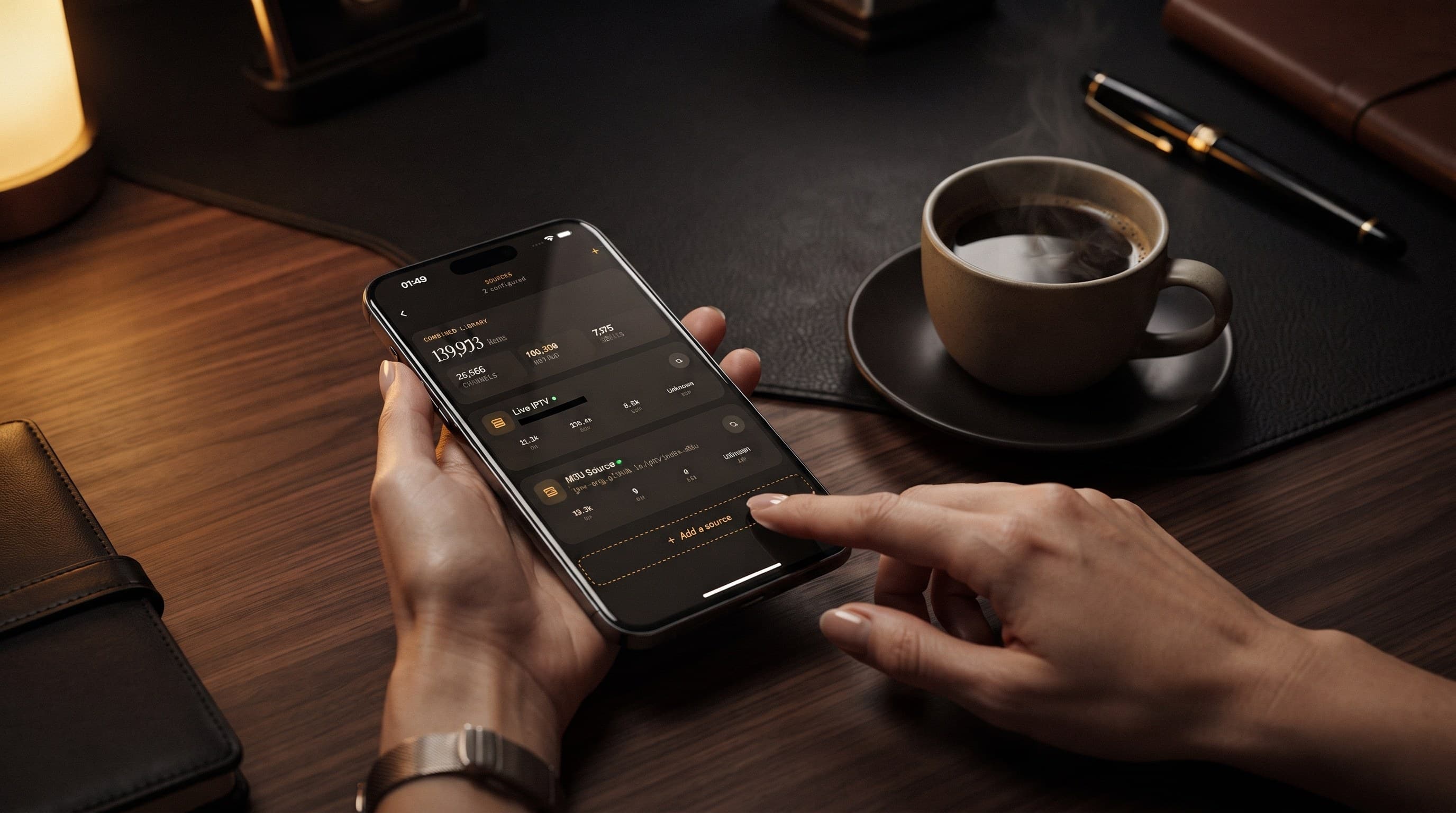
From the Sources screen, tap "Add a source." You'll choose between an M3U/M3U8 playlist (paste the URL your provider gave you, or pick a local file if you downloaded one to your device) or a Stalker Portal connection (enter the portal address and your MAC/login). Maximus supports combining multiple sources into what it calls a Combined Library — useful if you subscribe to more than one provider and want everything searchable in one place rather than switching apps. After you submit a source, give it a minute: the app is pulling the full channel list and building your EPG in the background.
One thing worth knowing going in: Maximus IPTV Player is a playback and organization tool, not a content provider. It doesn't sell or bundle channel access, and this guide won't point you toward unauthorized streams — bring a legal subscription or playlist you already have rights to, the same way you'd bring your own account credentials to any streaming app.
What Does the Home Screen Show Once Setup Is Done?
Once your source finishes syncing, the home screen becomes the real starting point for daily use: a greeting, an on-air hero card highlighting something currently live, an "On the air" row of what's playing right now across your channels, and a Resume Watching row that picks up exactly where you left off on anything you were part-way through. This is the screen you'll actually open every day — Live TV, Movies & Series, and Search all sit one tap away from it.

How Do You Browse Live Channels and Use the EPG?
Tap into Live TV and you'll see channels grouped and filterable — by country, by category, and by Favorites once you've starred a few. Long-press or tap into the EPG view to see the timeline grid: a scrolling schedule with an orange marker showing "now," and tabs to filter the guide itself down to Sports, Movies, Kids, or your Favorites. This matters more than it sounds like — a raw channel list with no schedule context is genuinely hard to use once you're past 50-100 channels, which is common with a mid-size IPTV subscription. The EPG turns "scroll and hope" into "check what's on and tap."
How Do You Cast From Android to a Bigger Screen?
If you'd rather watch on a TV, Maximus supports Chromecast / Google Cast directly — tap the cast icon during playback, pick your device from the list, and playback hands off to the TV while your phone becomes a remote. No separate app or dongle setup is required beyond having both devices on the same Wi-Fi network. This is the fastest path to a living-room experience on Android hardware that doesn't have a dedicated Android TV build installed.
Common First-Setup Issues and How to Fix Them
A few things trip up new installs almost every time:
- Source added but no channels appear. Double-check the M3U/M3U8 URL was pasted in full with no line breaks, or that Stalker Portal credentials (especially the MAC address) were entered exactly as provided — a single wrong character is the most common cause.
- EPG shows channels but no schedule data. Some providers supply channel lists without full guide data; this is a source-side limitation, not an app bug, and it's worth confirming with your provider whether they publish EPG data at all.
- Playback stutters on first watch. Give the initial buffer a few seconds longer than you'd expect — Maximus is built for buffer-free streaming once a connection stabilizes, but the very first stream on a new source can take a moment to establish.
FAQ
Is Maximus IPTV Player free on Android? Yes — it's free to download from Google Play, with an optional premium subscription for extra capacity.
Does Maximus IPTV Player work on Android tablets, not just phones? Yes, the same app and Google Play listing cover Android phones and tablets, with the layout adapting to larger screens.
Can I add more than one playlist or portal? Yes — Maximus supports combining multiple M3U/M3U8 sources and Stalker Portal connections into one searchable library.
Do I need a VPN to use Maximus IPTV Player? Maximus doesn't require one to function — it's a player for your own legal source, and any decision about a VPN depends on your provider's own recommendations, not something Maximus mandates.
What if my source doesn't show a program guide? That's typically the source itself not publishing EPG data rather than an app issue — check with your provider.
Getting Started Today
Setting up an IPTV player shouldn't take longer than setting up the account behind it, and on Android, Maximus IPTV Player gets you from install to first channel in three real steps: download, add a source, browse. The EPG, Favorites, casting, and Combined Library are all sitting there waiting once that first source syncs — no extra configuration required. If you've been putting off switching because setup sounded complicated, it isn't: grab it from Google Play and you'll likely be watching before you finish your coffee.
Written by
Maximus IPTV Team