AirPlay vs. Chromecast: How Casting Actually Works in Maximus IPTV Player
You just found the perfect match on Live TV — score tied, second half kicking off — and now you want it on the big screen instead of squinting at your phone. That's exactly the moment Maximus IPTV Player is built for. Maximus is a free-to-download, cross-platform IPTV player (with an optional premium subscription) available on both the Apple App Store (iPhone, iPad, and Apple TV) and Google Play (Android phones, tablets, and Android TV / Google TV — all from the same app). One of its most-used but least-explained features is casting: getting whatever you're watching in Maximus onto a television without buying a separate streaming box. This guide breaks down exactly how casting works in Maximus IPTV Player, the real difference between AirPlay and Chromecast (Google Cast), and how to troubleshoot the handful of things that can interrupt a cast session.
Key Takeaways
- Maximus IPTV Player supports two native casting protocols: AirPlay (Apple-only) and Chromecast / Google Cast (works on both iOS and Android).
- AirPlay is exclusive to Apple's ecosystem — it cannot be used to cast from an Android phone.
- Chromecast is NOT Android-only. The iOS version of Maximus IPTV Player has built-in Chromecast support too, alongside AirPlay.
- Casting requires your phone/tablet and your TV device (Apple TV, Chromecast-enabled TV, or a TV with Google Cast built in) to be on the same Wi-Fi network.
- No extra dongle is required if your TV already has AirPlay or Chromecast/Google Cast built in — most smart TVs sold in the last several years support at least one of the two.

What Is Casting, and Why Does It Matter for IPTV?
"Casting" means sending video and audio from your phone or tablet to a nearby television over your local Wi-Fi network, so playback continues on the TV instead of the small screen. For IPTV specifically — where "IPTV" stands for Internet Protocol Television, meaning your channels and video-on-demand content are delivered as data streams over the internet rather than through a traditional cable box — casting is often the difference between an app that feels like a phone toy and one that feels like a real TV replacement. Maximus IPTV Player was designed with this in mind: the same Live TV channels, EPG (Electronic Program Guide — the on-screen schedule showing what's airing now and next), and on-demand library you browse on your phone can be pushed straight to your television with a couple of taps.
How Does AirPlay Work With Maximus IPTV Player on iOS?
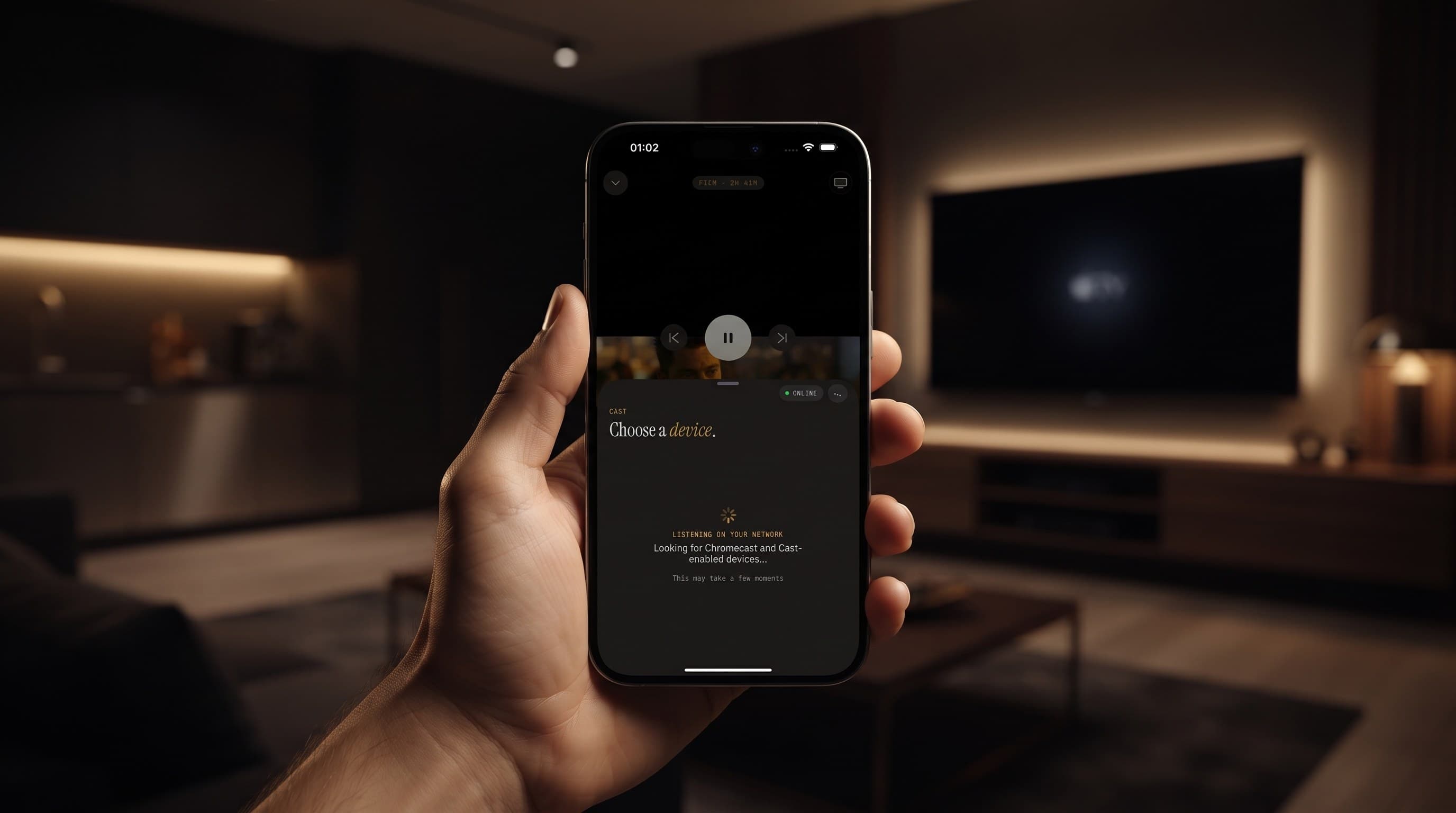
AirPlay is Apple's proprietary casting protocol, built into iOS, iPadOS, and Apple TV. When you're watching Live TV, a movie, or a series episode in Maximus IPTV Player on an iPhone or iPad, tapping the cast icon opens a "Choose a device" sheet listing every AirPlay-compatible device on your network — typically an Apple TV, or a smart TV with AirPlay 2 built in. Select it, and Maximus hands playback off to that device while your phone becomes a remote control. Because AirPlay is an Apple-only protocol, it only ever appears as an option inside the iOS version of the app — it will never show up for Android users, and Maximus does not attempt to fake or bridge it onto Android hardware.
How Does Chromecast (Google Cast) Work With Maximus IPTV Player?
Chromecast, also called Google Cast, is Google's casting protocol. It's built into Android TV and Google TV devices, Chromecast dongles, and a large number of third-party smart TVs regardless of platform. Casting from Maximus IPTV Player over Chromecast follows the same pattern as AirPlay: tap the cast icon, pick your TV from the device list, and playback continues there. The key difference from AirPlay is reach — because Chromecast is not tied to one manufacturer's ecosystem, it shows up across a much wider range of televisions.
Does Chromecast Work on the iPhone App Too?
Yes — and this is the detail people most often get wrong. Chromecast is not an Android-exclusive feature. Maximus IPTV Player's iOS app includes built-in Chromecast support in addition to AirPlay, confirmed directly on its Apple App Store listing. In practice this means an iPhone or iPad owner isn't limited to Apple hardware for casting: if a household has a Chromecast-equipped TV but no Apple TV, the iOS app will still cast to it. AirPlay is the one-way street here (Apple-only, never Android) — Chromecast runs both directions.
What Do You Need Before You Start Casting?
- The same Wi-Fi network. Your phone/tablet and your TV (or Apple TV / Chromecast device) need to be connected to the same wireless network. Casting across separate networks, or over cellular data with the TV on Wi-Fi, will not work.
- A compatible receiving device. For AirPlay: an Apple TV or an AirPlay 2-enabled smart TV. For Chromecast: an Android TV, Google TV, Chromecast dongle, or a smart TV with Google Cast built in.
- An active source in Maximus. You'll need at least one configured source — an M3U or M3U8 playlist (the standard playlist file formats IPTV apps use to list channels and streams) or a Stalker Portal connection (a common IPTV account/streaming protocol some providers use instead of a playlist file) — loaded into Maximus so there's something to cast in the first place.
- A stable connection. Casting adds a network hop between your phone and the TV, so a weak or congested Wi-Fi signal is the most common cause of stutter during a cast session, separate from the stream itself.
How Do You Start a Cast Session, Step by Step?
- Open Maximus IPTV Player and start playing a Live TV channel, movie, or series episode as you normally would.
- Look for the cast icon in the player controls (the same icon Apple and Google apps use industry-wide).
- Tap it to open the "Choose a device" list — Maximus scans your local network and shows every AirPlay and/or Chromecast target it can see.
- Select your TV, Apple TV, or Chromecast device from the list.
- Playback hands off to the television within a few seconds; your phone or tablet switches into a remote-control view with play/pause, seek, and volume.
- To stop casting and bring playback back to your device, tap the cast icon again and disconnect.
What Can Go Wrong, and How Do You Fix It?
- The TV doesn't show up in the device list. Double-check both devices are on the same Wi-Fi network (not a guest network on one and the main network on the other), and that the TV or streaming box is powered on and not in standby.
- Casting starts but the picture freezes or buffers. This is almost always Wi-Fi congestion rather than a Maximus IPTV Player problem — move the router closer, reduce the number of devices competing for bandwidth, or switch to 5GHz Wi-Fi if your router supports it.
- AirPlay isn't listed at all. You're either on Android (AirPlay is Apple-exclusive and won't appear there) or your TV genuinely doesn't support AirPlay 2 — in that case, use Chromecast instead if the TV supports it.
- Chromecast isn't listed on iPhone. Confirm you're running a current version of the Maximus IPTV Player app from the Apple App Store, and that the Chromecast device itself is set up and connected to the same network via the Google Home app.
AirPlay vs. Chromecast: Which Should You Use?
- AirPlay — Apple devices only (iPhone, iPad casting to Apple TV or AirPlay 2 TVs). Best if your living room already centers on Apple TV.
- Chromecast / Google Cast — Works from both iOS and Android. Best if your TV is Android TV, Google TV, or any Chromecast-enabled smart TV, regardless of what phone you carry.
- If your TV supports both — it comes down to personal preference. Some households use AirPlay from an iPhone for quick casts and Chromecast for smart-TV apps that only support Google Cast; Maximus IPTV Player doesn't force a choice, since both are built in on iOS.
Neither option requires cross-device subscription syncing — casting simply mirrors whatever you're currently watching in the app to the screen you pick; it doesn't merge accounts or libraries across devices.
FAQ
Does casting use my mobile data? No — casting relies on your local Wi-Fi network. The stream itself, however, still comes from your IPTV source over the internet, so your normal internet connection (not cellular data) is what needs to be stable.
Can I cast from Android TV directly, without a phone? Android TV and Google TV both run a native Maximus IPTV Player interface built for the remote, so on those devices you're watching directly on the TV app rather than casting to it from a phone.
Do I need a premium subscription to cast? Casting is a playback feature of the app itself, not a separate purchase — it works with whatever sources and content you already have loaded into Maximus IPTV Player.
Will AirPlay ever come to Android? No. AirPlay is Apple's proprietary protocol and is not available on Android hardware; Android users should rely on Chromecast/Google Cast, which Maximus supports natively.
What's the difference between M3U and M3U8? Both are playlist file formats IPTV apps use to organize channels and streams; M3U8 is the UTF-8-encoded version of the original M3U format and is the more common of the two with modern streaming (HLS — HTTP Live Streaming — playlists). Maximus IPTV Player supports both.
Casting is one of those features that quietly makes or breaks an IPTV app's day-to-day usefulness, and Maximus IPTV Player was built to get it right on both major platforms rather than favoring one. If you're on an iPhone or iPad, download Maximus IPTV Player from the Apple App Store and you'll have both AirPlay and Chromecast available out of the box. If you're on Android — phone, tablet, or Android TV — grab it from Google Play, where the native TV interface and Chromecast support are both built in from the same app.
Written by
Maximus IPTV Team