Managing Multiple IPTV Sources in One App: The Complete iOS Guide
Anyone who has spent real time watching IPTV on an iPhone or iPad eventually runs into the same wall: one playlist isn't enough. Maybe you have a personal M3U link from your provider, a second Xtream Codes login for a backup service, and a family member's playlist you occasionally want to browse without switching apps. Juggling three or four separate players just to watch television is exhausting, and it's exactly the kind of friction that Maximus IPTV Player was built to remove. Maximus IPTV Player lets you add multiple sources — M3U playlists, M3U8 links, and Xtream Codes logins — into a single combined library on iOS, so your live channels, movies, and series all live in one searchable place instead of scattered across a folder of separate apps.
This guide walks through how multi-source management actually works inside Maximus IPTV Player, why it matters more than people expect, and how to set it up correctly on iPhone, iPad, or Apple TV without creating a mess of duplicate channels.
Key Takeaways
- Maximus IPTV Player can combine multiple M3U, M3U8, and Xtream Codes sources into one unified library, so you don't need separate apps for separate playlists.
- Sources are added individually and can be renamed, refreshed, or removed without affecting your other playlists.
- Combined libraries make universal search far more useful, since one query checks live TV, movies, and series across every source at once.
- Organizing sources thoughtfully — by provider, by household member, or by content type — keeps a multi-source setup from turning into channel-list chaos.
- Multi-source management works the same across iPhone, iPad, and Apple TV, with the iPad interface offering a wider, split-view layout for managing sources side by side with your content.
Why Would You Need More Than One IPTV Source?
There are a handful of very ordinary reasons people end up with more than one playlist. Some subscribe to more than one legal streaming provider because no single service carries everything they watch — sports in one, international channels in another. Some maintain a personal M3U file they've built themselves from public, freely distributed streams. Others share a household subscription where each family member has been issued a separate Xtream Codes login for their own device limit.
Whatever the reason, the naive solution — installing a different player app for each source — creates real problems. You lose track of which app has which channel. Search only ever covers one source at a time. And your home screen fills up with near-identical apps that all do the same basic thing. Maximus IPTV Player's multi-source management exists specifically to solve this by keeping every source under one roof.

How Do I Add a New Source to Maximus IPTV Player?
Adding a source is meant to be quick enough that you won't dread doing it a second or third time. From the Sources screen in Maximus IPTV Player, tap "Add a source" and choose the type that matches what your provider gave you:
- M3U or M3U8 URL — paste the playlist link directly. Maximus IPTV Player will fetch and parse it automatically.
- Xtream Codes login — enter the server address, username, and password your provider issued.
- Local file — if you have an M3U file saved on your device, you can import it directly instead of hosting it somewhere online.
Once added, give the source a clear, memorable name — "Sports Package," "Backup Provider," or "Kids' Login" work better than the generic default your provider might assign. That label is what you'll see later when deciding whether a channel or show came from this source or another one.
What Does a Combined Library Actually Look Like?
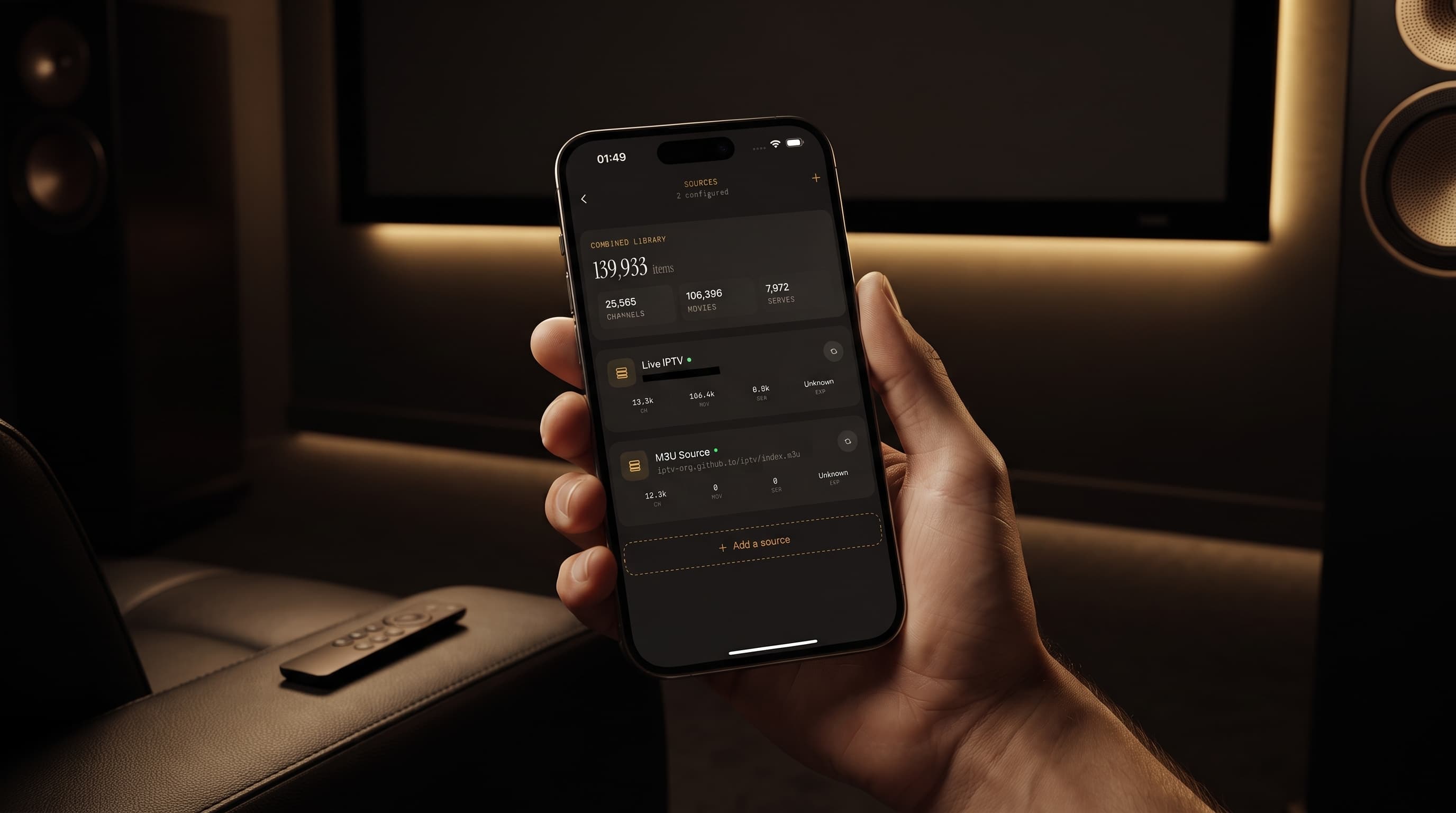
This is where multi-source management earns its keep. Rather than keeping each source siloed, Maximus IPTV Player merges everything into a single combined library view. Your Live TV tab shows channels from every active source together, your Movies and Series tabs pool content the same way, and the app tracks combined statistics — total channel count, total movies, total series — right on the Sources screen so you can see at a glance how much content you're managing.
Under the hood, nothing about your individual sources changes. Each one still refreshes on its own schedule, still authenticates with its own credentials, and can still be edited or deleted independently. The combined library is simply a smarter presentation layer sitting on top of your separate accounts.

How Do I Keep a Multi-Source Library Organized?
The most common complaint about multi-source setups isn't technical — it's clutter. Combine three unorganized sources and you can end up with duplicate channel names, inconsistent numbering, and a Live TV list that takes forever to scroll through. A few habits keep that from happening:
- Name sources by purpose, not by provider jargon. "Family Package" is more useful six months from now than a server hostname you'll have forgotten.
- Use Favorites aggressively. Once channels from all your sources are combined, star the ones you actually watch regularly so they surface at the top regardless of which source they came from.
- Lean on Continue Watching and Resume. Because Maximus IPTV Player tracks playback across the combined library, you don't need to remember which source a show came from to pick it back up.
- Remove stale sources promptly. If a trial subscription expires or a provider changes credentials, delete or update that source rather than leaving a dead entry cluttering your list.
- Check per-source counts periodically. The Sources screen shows how many channels, movies, and series each source is contributing, which makes it easy to spot when one source is suddenly returning far less content than usual — often an early sign that a playlist link needs refreshing.
Does Universal Search Cover All My Sources at Once?
Yes, and this is arguably the single biggest practical benefit of combining sources in the first place. Maximus IPTV Player's universal search runs against the entire combined library in one pass. Type a show or channel name once, and results come back tagged by category — Live TV, Movies, Series — without you needing to know or remember which specific source the content lives on.
For a single-source setup, search is a convenience. For a multi-source setup, it's the feature that makes the whole arrangement usable. Without it, you'd be manually checking three or four separate lists every time you wanted to find something; with it, the combined library behaves like one coherent catalog even though it's actually stitched together from several independent providers behind the scenes.
Does Multi-Source Management Work the Same on iPad and Apple TV?
The underlying behavior is identical across iPhone, iPad, and Apple TV — sources, combined libraries, and universal search all work the same way regardless of device. What changes is the layout. On iPad, Maximus IPTV Player uses a persistent sidebar and split-view design, so you can browse your Sources list alongside your Live TV or library content rather than navigating back and forth between full-screen views. That makes iPad noticeably more comfortable for anyone actively managing four or more sources, since you can review source health and content in the same glance. On Apple TV, the combined library experience carries over so you get the same merged Live TV, Movies, and Series without re-adding every source separately.
Frequently Asked Questions
Is there a limit to how many sources I can add in Maximus IPTV Player? Maximus IPTV Player is designed to handle multiple sources comfortably, whether that's two personal playlists or several provider logins. Performance depends more on the size and responsiveness of the individual playlists than on the app itself, so very large combined libraries may take a moment longer to refresh.
Will adding a second source affect my first one? No. Each source in Maximus IPTV Player is independent — it authenticates, refreshes, and can be edited or removed on its own. Adding, editing, or deleting one source does not touch the others.
Can I temporarily disable a source without deleting it? You can remove a source and re-add it later using the same credentials or URL, since your login details and playlist link don't expire just because you've deleted the entry from Maximus IPTV Player.
Does combining sources cause duplicate channels? If two of your sources happen to carry the same channel, it will appear twice in the combined library, once per source. Naming sources clearly and using Favorites helps you quickly identify and prefer the version you actually want to watch.
Is multi-source support legal to use? Maximus IPTV Player is a player application — it doesn't provide or sell IPTV content itself. Multi-source management simply lets you organize playlists and logins you already have from your own legitimate providers into one interface. As always, make sure any IPTV source you add is one you're legally entitled to use.
If your channels and shows are currently scattered across two or three different apps, it's worth trying a combined setup for a week and seeing how much friction disappears. Maximus IPTV Player is a free download on the App Store for iPhone, iPad, and Apple TV, and adding your first two sources takes only a couple of minutes.
Written by
Maximus IPTV Team