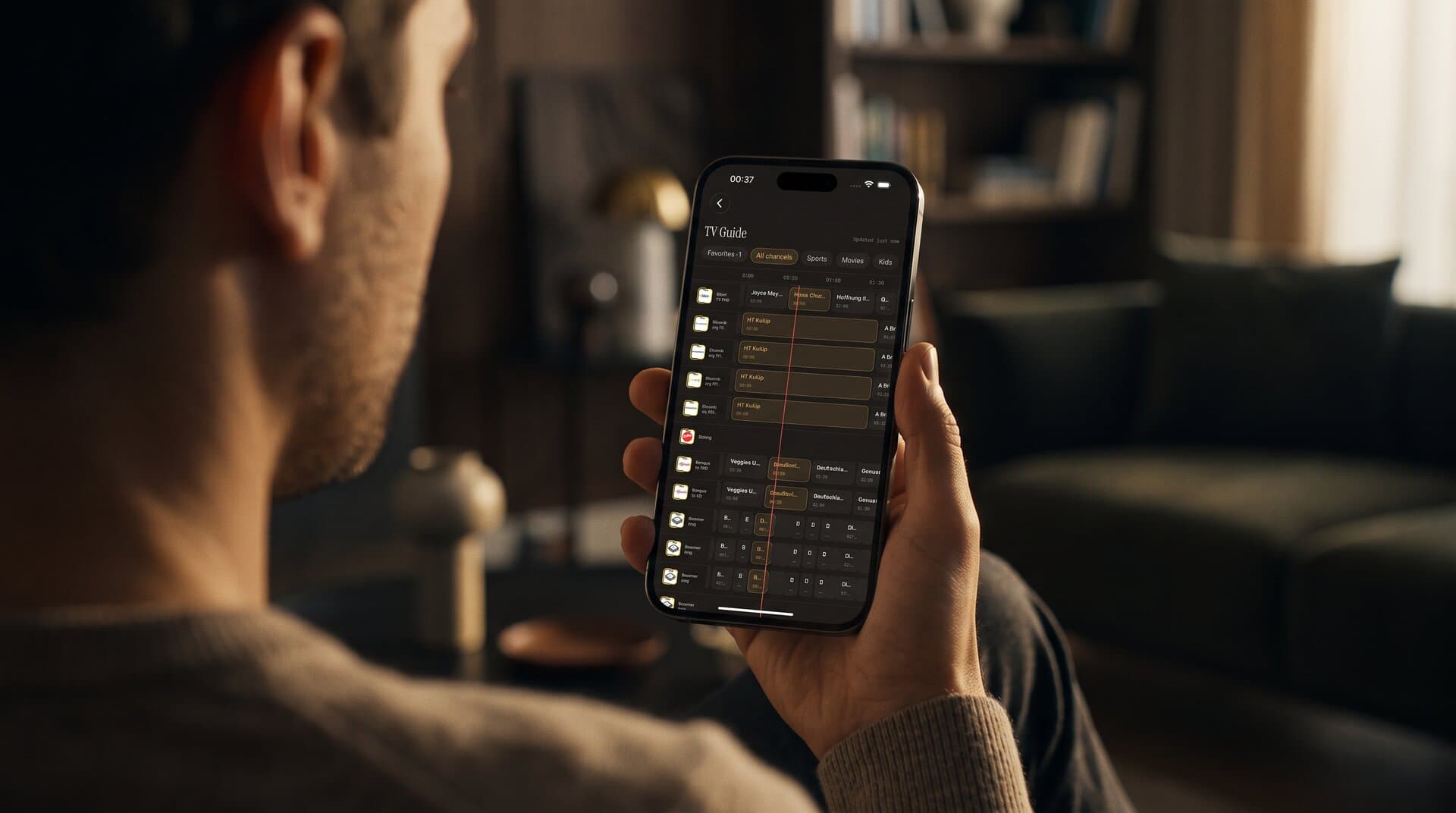
IPTV EPG Wrong Time? Fix Time Zone Mismatches
You open the TV guide at 8:00 PM to catch the evening news, and the guide swears the news already ended an hour ago. The match you wanted starts "tomorrow" even though it is kicking off right now. Nothing is broken in the picture itself, because the live channels play fine, yet every program title sits in the wrong slot. If that sounds familiar, you are dealing with an EPG time zone mismatch, and in Maximus IPTV Player the fix is usually a few minutes of checking in the right order.
This guide explains why a TV guide drifts away from real time, how to tell which side is at fault (your device, your provider's data, or the channel itself), and what you can actually change on iPhone, iPad, Android and Android TV.
Key Takeaways
- EPG stands for Electronic Program Guide: the timeline of what is on now and next. It is separate data from the video stream, so it can be wrong while playback is perfect.
- Most "wrong time" guides come down to one of three things: your device's time zone, the provider's guide data being published in a different zone, or a single badly mapped channel.
- A guide that is off by a whole number of hours (1, 2, 3, 5, 8) is almost always a time zone problem. A guide that is off by a few minutes is usually a refresh or clock issue.
- If only a few channels are wrong and the rest are right, the cause is almost always the channel's guide data, not your phone.
- Maximus IPTV Player shows the guide data your source supplies. Fixing the underlying data usually means checking your device settings and asking your provider.
What is an EPG, and why can it be wrong when the video is right?
An EPG is a table of programs with start and end times. Your IPTV app does not invent it. It arrives from your provider in one of two ways: through the same Xtream Codes login that supplies your channels, or as a separate file in a format called XMLTV, a standard text format that lists channels and their programs with timestamps.
Those timestamps are the whole story. A guide entry might say a program starts at 20:00 in one zone, or 19:00 in UTC (Coordinated Universal Time, the world's reference clock that never changes for daylight saving). Your app has to convert that timestamp into your local time. If the provider labels the zone incorrectly, or your device believes it is somewhere else, every program shifts by the difference.
The video stream is a completely separate path. It is a live feed delivered over protocols such as HLS (HTTP Live Streaming, which sends video in short chunks), so it plays in real time regardless of what the guide thinks the time is. That is why a wrong guide feels so strange: the content is live and correct, and only the labels are off.
How do you tell which side is wrong?
Run these four checks before changing anything. They take about five minutes and tell you where the fault lives.
- Compare to a trusted clock. Look at the clock on your phone or TV and compare it to a reliable source. If your device clock is wrong, nothing else matters yet.
- Check the offset. Note how far off the guide is. Exactly 1 hour hints at daylight saving. Exactly 2, 3 or 5 hours hints at a zone mix-up. Something like 7 minutes is not a zone problem at all.
- Check more than one channel. Open three channels from different countries. If all three are off by the same amount, suspect your device or the whole guide feed. If only one is off, suspect that channel's mapping.
- Check what is really airing. Open a live channel and see what is playing now, then compare it to the guide's "now" line. This tells you whether the guide is early, late, or simply attached to the wrong channel.
Write the result down in one line, for example: "All channels, +2 hours" or "Only one channel, +1 hour". That line decides the fix.
Is your device set to the right time zone?
This is the most common culprit and the easiest to fix, so start here.
On iPhone and iPad, open Settings, then General, then Date & Time. Turn on "Set Automatically". If it was already on, toggle it off and on again so the device re-detects your location. If you travel often, a manually set zone left over from a previous trip is a classic cause of a guide that is suddenly 5 or 6 hours out.
On Android phones and tablets, open Settings and search for "Date & time". Enable automatic date and time and automatic time zone. As on iOS, a manually fixed zone from an earlier trip is the usual surprise.
On Android TV and Google TV, the same settings live under the system settings menu, in the Date & time section. TVs are easy to forget because nobody opens that menu for years. A TV that was set up in a different region, or that has network time turned off, can hold the wrong zone indefinitely.
After changing the setting, close Maximus IPTV Player completely and reopen it so the guide is drawn again with the corrected clock.
What if the guide is exactly one hour off?
A one-hour offset has its own cause: daylight saving time. Many regions shift their clocks by an hour twice a year, but not on the same dates. In 2026, North America and Europe change on different weekends, so for roughly two to three weeks a year the same guide data can be an hour out for viewers on one side and fine for viewers on the other.
If your guide is one hour off right after a clock change, you have two reasonable options. First, wait a day. Providers often refresh their guide data soon after the change, and the next update fixes it with no action from you. Second, check that your device actually applied the clock change. A device with automatic time turned off will keep the old hour until you correct it.
Do not chase a one-hour offset by changing settings in five places. Change one thing, restart the app, and look again. Stacking fixes makes it impossible to know what worked.
Why are only a few channels wrong?
When most of the guide is right and a handful of channels are off, your phone is not the problem. The cause is how the provider matched guide data to channels.
Every channel in a guide carries an identifier that links it to its program listings. If a provider links a channel to the wrong listing, you may see another channel's schedule, a schedule from a different country, or a timeline from a different zone. A channel that rebroadcasts a feed from another region often inherits that region's times.
You can recognise this pattern easily. The program titles look plausible but belong to a different channel, or the times are shifted by the exact gap between two countries. In that case there is nothing to configure on your side. The correction has to happen at the source, so send your provider the channel name, the offset you see, and a screenshot of the guide next to the live picture. A specific report like "Channel X shows programs 2 hours early" gets fixed far faster than "the guide is broken".
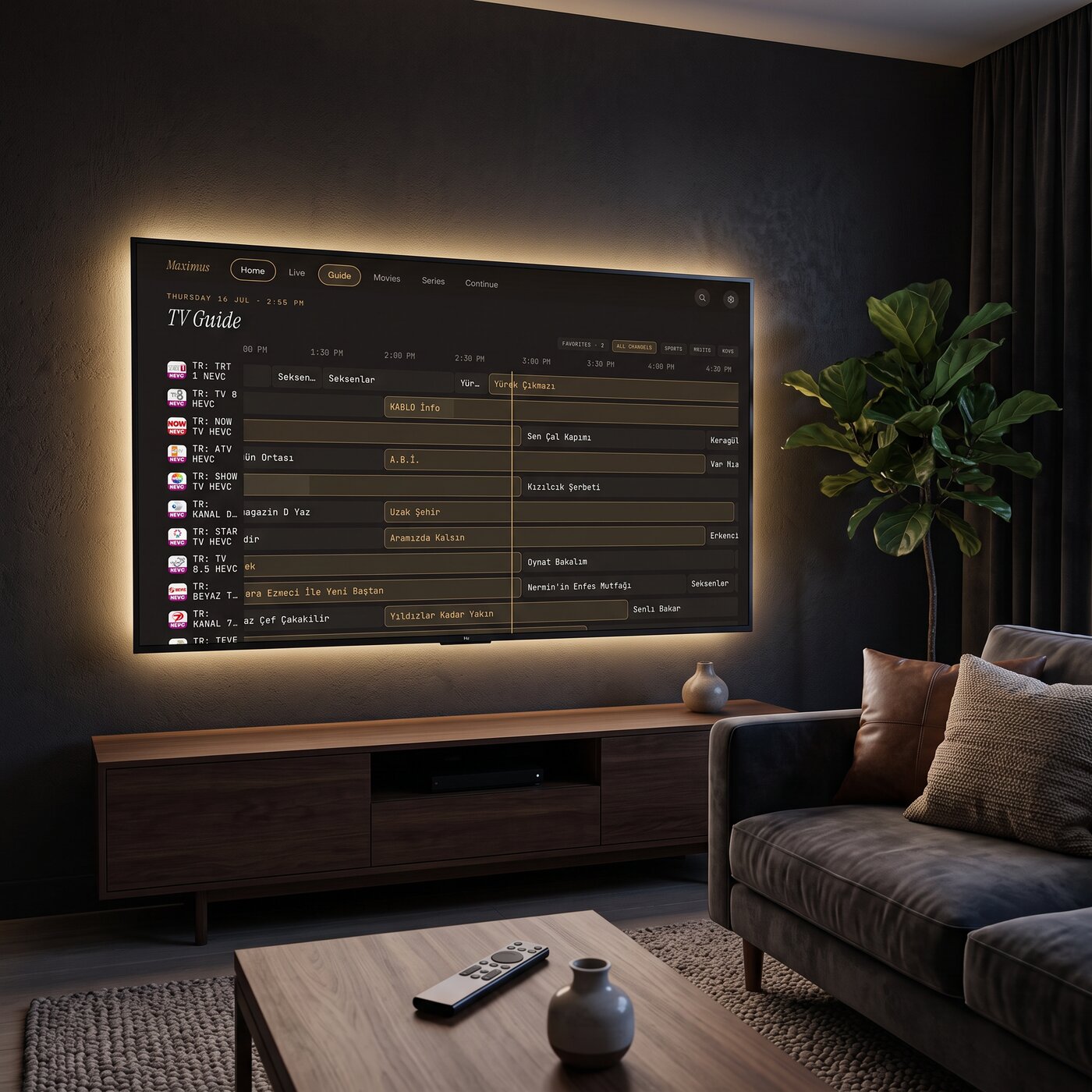
A useful habit while troubleshooting: use the Maximus guide filters (Favorites, Sports, Movies and Kids) to narrow the list to the channels you actually care about. Checking 15 favorites is far quicker than scrolling through thousands of rows, and it shows you immediately whether the problem is widespread or limited to a few entries.
What if the guide is only a few minutes off, or empty?
Small offsets and blank rows are a different family of problems.
- A few minutes off. Live broadcasts overrun. A football match that runs 8 minutes long will push the next program back, and the guide cannot know in advance. This is normal and not a fault.
- Guide looks stale. The guide data was last refreshed some time ago. Refreshing your source and reopening the guide often pulls a newer copy.
- Empty rows. The provider may simply have no guide data for that channel. Many regional and niche channels have none, so a blank row does not mean the app failed.
Remember that Maximus IPTV Player displays what your source provides. It cannot create guide data that your provider never published.
A quick checklist you can run in five minutes
- Confirm your device clock and automatic time zone are correct.
- Note the offset and whether it is a whole number of hours.
- Check three channels from different regions.
- Restart the app fully and reopen the guide.
- Refresh your source and check again.
- If only certain channels are wrong, send your provider a precise report with a screenshot.
That sequence resolves the large majority of wrong-time complaints without any deeper digging.
Frequently Asked Questions
Why does my IPTV guide show the wrong time?
The guide is separate data from the video. Its timestamps are converted into your local time, so a wrong device time zone, a provider publishing in a different zone, or a bad channel mapping all shift program times while the live picture stays correct.
Can I fix a wrong EPG by changing a setting in the player?
Start with your device's automatic date, time and time zone, because that is the setting that most often causes the problem. If the data from your provider is wrong, no player setting can correct it, and the fix must come from the provider.
Why is the guide exactly one hour off?
That is usually daylight saving time. Regions change their clocks on different dates, so the same guide can be an hour out for part of the year. It often corrects itself after the provider refreshes its data.
Does the same problem happen on Android TV?
Yes. Android TV and Google TV use their own system clock, so check the Date & time settings on the TV itself, not just on your phone.
Is a wrong guide a sign that my playlist is broken?
No. If channels play, your source works. A wrong guide only means the schedule labels are mismatched. If channels do not play at all, that is a different issue with your source.
Wrapping up
A guide showing the wrong time looks alarming, but it is nearly always a labelling problem rather than a playback problem. Check your device clock first, read the size of the offset, test a few channels from different regions, and hand your provider a specific report when only certain channels are affected. Most people are back to an accurate guide within minutes.
If you want a player with a real EPG timeline, filters for Sports, Movies, Kids and Favorites, and a clean layout on both phone and TV, get Maximus IPTV Player on the Apple App Store for iPhone and iPad, or on Google Play for Android phones, tablets and Android TV. It is free to download, with an optional Premium subscription, and you bring your own legal playlist or Xtream Codes login.
Written by
Maximus IPTV Team