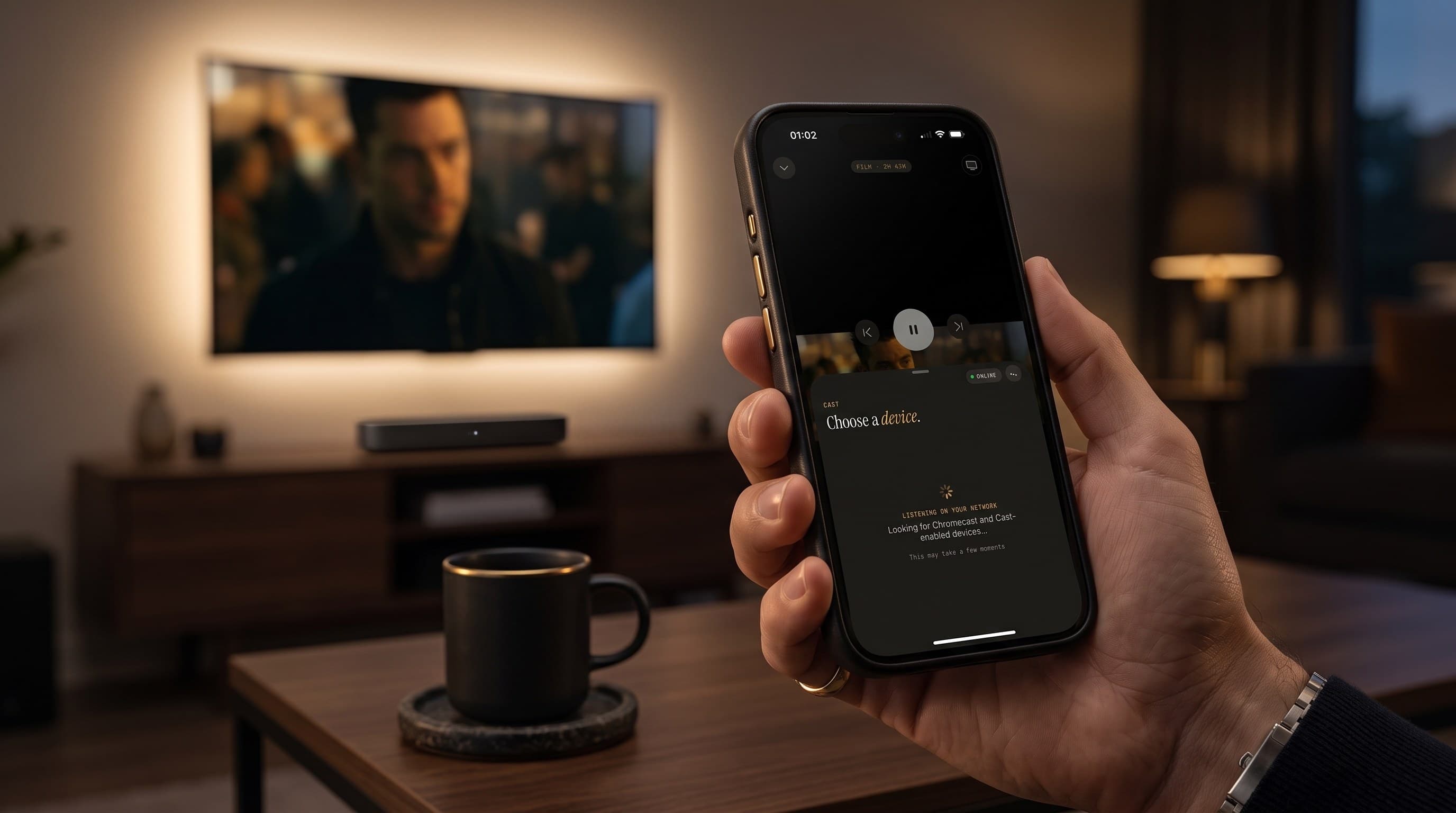
IPTV Audio Out of Sync? How to Fix the Delay
You finally get every channel, movie, and international feed loaded into one clean library — and then the commentator's mouth moves half a second before his voice reaches your ears. Audio-video sync problems, often called "lip sync" delay, are one of the most common complaints IPTV viewers run into, and they're rarely caused by the channel itself. Maximus IPTV Player is a cross-platform IPTV player for iPhone, iPad, Mac, and Android — including Android phones, tablets, and Android TV / Google TV — and because it plays your own Xtream Codes login or M3U/M3U8 playlist instead of re-encoding video on a company server somewhere, most sync problems actually start on your device, your speaker, or your home network, not the stream. This guide walks through exactly where the delay comes from and how to fix it, one layer at a time.
Key Takeaways
- A drift of less than about half a second is almost always your speaker or soundbar, not your stream — Bluetooth audio alone can add roughly 100-300 milliseconds of delay depending on the codec it negotiates.
- AirPlay adds its own network hop on top of that: casting from an iPhone or iPad typically adds another 1-2 seconds of end-to-end latency, which is why a stream that looked perfectly synced on the phone can drift once it hits the TV.
- HLS (HTTP Live Streaming) — the delivery format behind almost every IPTV source — buffers video in short segments, commonly around 6 seconds each. A sync offset that only shows up a few minutes into playback usually points to segment buffering, not your device.
- The Android build of Maximus IPTV Player has no casting (no Chromecast / Google Cast support at all), so on Android the entire problem lives on the phone, tablet, or Android TV box — there's no extra network hop to blame.
- Switching the audio track or fully restarting playback resets the decoder's buffer and clears the majority of drift without touching your network or your provider at all.
What "Audio Out of Sync" Actually Means
Cable and satellite deliver a single continuous signal, so video and audio arrive locked together by design. IPTV works differently. Your provider encodes the channel or on-demand title into HLS: short video and audio segments listed in a playlist file, downloaded and stitched together in real time by whatever app you're watching in. An M3U or M3U8 playlist is just the pointer to that stream — it doesn't carry the video itself, only the address the app fetches segments from. Because video and audio are technically two separate tracks being decoded and rendered in parallel, anything that slows one down relative to the other — a busy CPU core, a Bluetooth radio, a Wi-Fi hiccup — shows up as your ears and eyes disagreeing about when a moment happened.
That's also why lip sync is a universal IPTV-player characteristic rather than a bug specific to any one app: any player decoding HLS on a phone, tablet, or TV box is doing the same juggling act.
Why Sync Problems Show Up More on IPTV Than on Streaming Apps
Netflix and similar services run on managed content-delivery networks tuned specifically for their own apps, with encoding profiles picked to minimize decode overhead on common devices. IPTV sources vary wildly — a provider might encode last night's match on modest hardware under time pressure, with an audio bitrate and video keyframe interval that weren't optimized for your exact phone or TV chipset. Add adaptive bitrate switching (the player silently drops to a lower-quality segment when your connection dips) and you get brief moments where the decoder has to catch up — often audio first, since audio decoding is lighter than video and can outrun a video track that just had to re-buffer.
None of this means your setup is broken. It means the fix is almost always local: your device, your audio path, or — occasionally — the specific source you picked in your library.
Step 1: Is It the Stream, the App, or Your Speaker?
Before changing any settings, isolate the layer that's actually causing the delay:
- Play the same title through the device's own built-in speaker (phone speaker, TV speaker), no Bluetooth, no AirPlay, no soundbar. If it's in sync there, the delay is being introduced downstream — by Bluetooth or by the casting hop — not by the stream or the app.
- Switch to a completely different channel or a downloaded episode. If the new source syncs fine, the original stream's encoding was the problem, not your device.
- Time how long it takes to appear. Drift that's there from the first second usually means an audio-path delay (Bluetooth, AirPlay). Drift that creeps in gradually after a few minutes usually means an HLS segment or buffering issue.
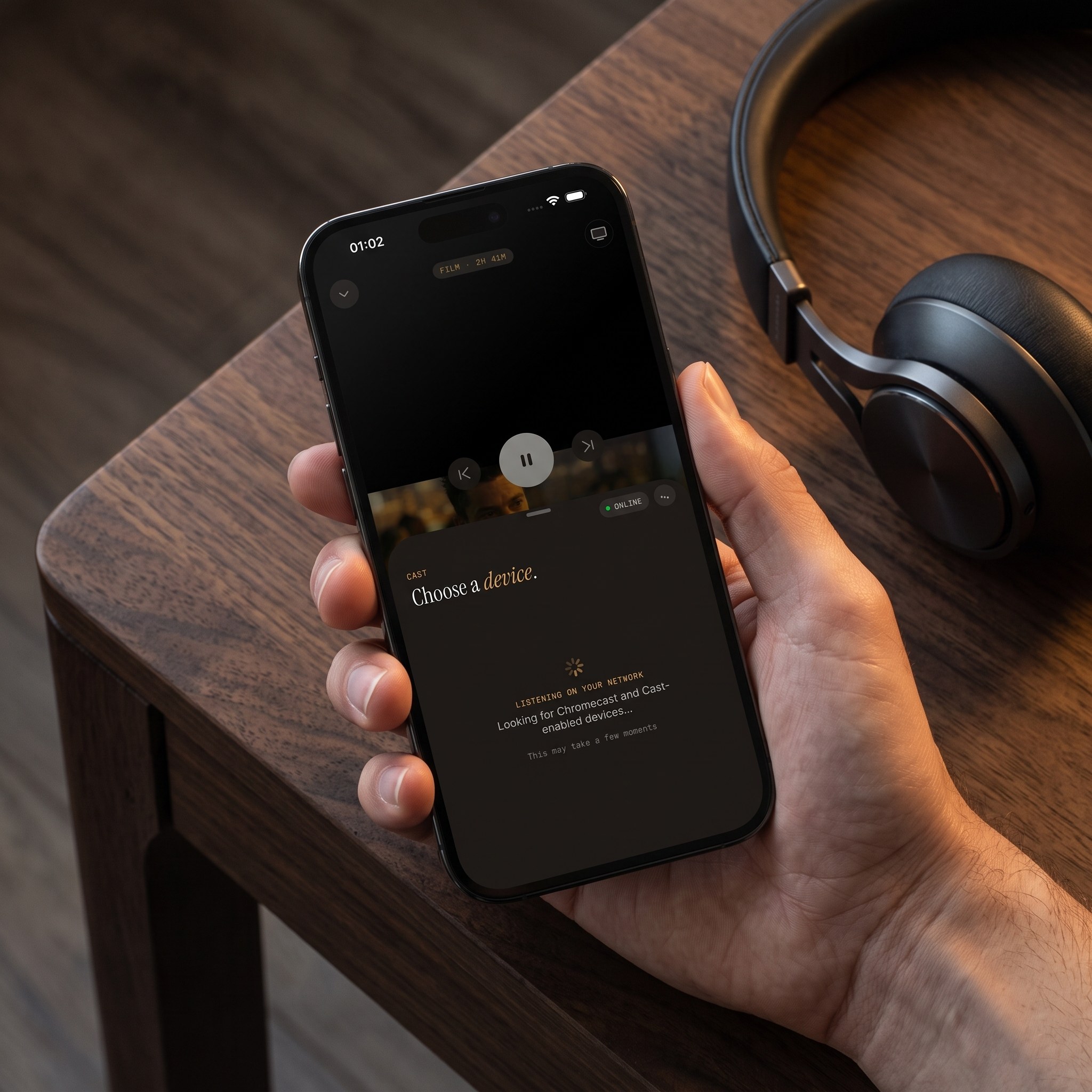
Fixing Lip Sync When Casting with AirPlay (iPhone, iPad, Mac)
AirPlay is how iOS and Mac users reach a TV with Maximus IPTV Player — there's no separate Apple TV app, so every big-screen viewing session on Apple hardware goes over AirPlay. AirPlay's own protocol overhead is the most common source of delay reported here, and it compounds if your TV or soundbar re-processes the audio again on arrival:
- Cut out the middleman. If you're AirPlaying to a TV that then sends audio over Bluetooth to a soundbar, you're stacking two delays. Plug the soundbar in over HDMI or optical instead, or just use the TV's built-in speakers for a quick sync test.
- Move to 5GHz Wi-Fi if you're still on 2.4GHz. AirPlay is far more sensitive to network congestion than a simple video stream; a crowded 2.4GHz band is a common cause of the "audio arrives late" pattern specifically (rather than video freezing outright).
- Restart the AirPlay session, not just the video. Ending the mirroring session and reconnecting resets both decoder buffers on the receiving end, which fixes drift that accumulated mid-session.
- Try a different audio track if the title offers one (Maximus supports subtitle and audio track selection on both platforms) — this forces the player to re-initialize the audio decoder independently of the video track.
Fixing Sync Drift on Android Phones, Tablets, and Android TV
Android's Maximus app can't cast to a TV at all, so an Android TV or Google TV box running the app natively is playing the stream itself, with no AirPlay-style network hop to introduce delay. That actually makes diagnosis simpler — but Bluetooth is still the number one cause when a phone or tablet feeds a wireless speaker:
- Check your Bluetooth codec. Standard SBC Bluetooth audio commonly runs 150-300ms behind the video by the time it reaches your ears; aptX Low Latency or LDAC, where your headphones or speaker support them, cut that closer to 40ms. If your device's Bluetooth settings let you force a codec, that's worth trying before anything else.
- On Android TV, plug your soundbar into the box directly (HDMI ARC/eARC) rather than pairing it over Bluetooth — a wired audio path removes the wireless leg of the delay entirely.
- Background playback can mask the real cause. Since Android's build supports background playback, audio can keep running while the video surface is paused or backgrounded; if you switched apps recently, force-stop and reopen Maximus IPTV Player before assuming the stream itself is broken.
- Restart the specific title, not just the app. On Android phones and tablets, Picture-in-Picture mode is available for background viewing — exit PiP and restart playback at full screen if drift appeared while a video was in the small floating window.
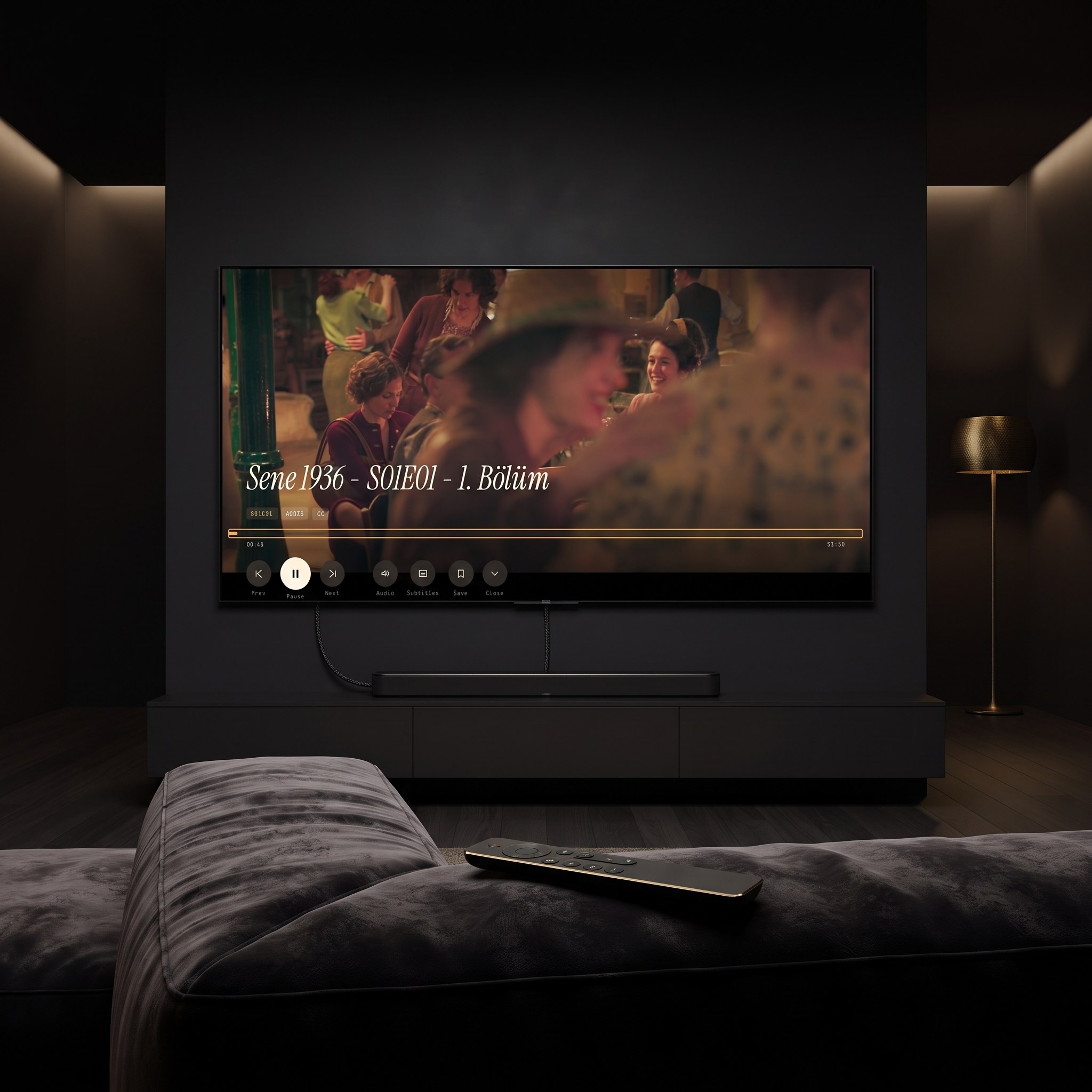
When Should You Just Restart the Stream or Switch Sources?
If you've ruled out your speaker path and the delay is present on multiple channels or titles from the same source, the encoding itself is the likely culprit — and that lives on your provider's end, not in the app. Maximus lets you keep multiple sources in one combined library, so if you have more than one Xtream Codes login or M3U playlist configured, try the same channel or title from a second source before assuming anything is wrong with your setup. If you only have one source, a full app restart (not just backgrounding it) clears every decoder buffer and is worth doing before contacting your provider — it resolves the majority of drift that "just showed up" mid-session with no other symptoms.
FAQ
Does using a VPN cause or fix audio sync issues? Neither, usually. A VPN adds a network hop before your stream even starts buffering, which can affect overall connection stability, but it doesn't touch the audio-decoding delay that causes lip sync. If you already run a VPN for privacy or access reasons, it's not the first thing to test when audio drifts — check your speaker path first.
Will switching the audio track actually fix sync drift? Often, yes. Changing tracks forces the player to reinitialize audio decoding independently of the video pipeline, which resets any accumulated drift without requiring a full app restart.
Does 4K streaming cause more lip sync than HD? Decoding 4K HEVC video does take marginally longer per frame than HD, but the phones, tablets, and TV boxes Maximus IPTV Player runs on all decode 4K in real time in normal use, so resolution on its own is rarely the dominant cause — a Bluetooth or AirPlay audio path almost always contributes more delay than the extra decode work.
Is out-of-sync audio a bug in Maximus IPTV Player specifically? No. Any app playing HLS-based IPTV streams is decoding video and audio as separate tracks and is subject to the same Bluetooth, AirPlay, and network-timing factors described above — this is a characteristic of how IPTV is delivered, not a defect unique to one player.
Can I fix this from inside the app's settings? There's no dedicated "sync offset" slider — the fixes above (switching audio tracks, restarting playback, changing your audio output path) work by resetting how the device decodes and outputs the two tracks, which covers the vast majority of real-world drift.
Bringing It Back Into Sync
Lip sync problems feel like a streaming failure, but nine times out of ten the fix has nothing to do with your channel list. Test with the device's own speaker first, remove any Bluetooth or double-hop audio chain second, and only suspect the stream itself once you've confirmed the same drift shows up across more than one source. Maximus IPTV Player keeps every source you already pay for — Xtream Codes logins and M3U/M3U8 playlists alike — organized in one library across every device you own, which makes exactly this kind of isolation test quick: switch a source, switch a device, and you'll know within a minute which layer needs the fix.
Maximus IPTV Player is free to download on the Apple App Store for iPhone, iPad, and Apple silicon Macs, and on Google Play for Android phones, tablets, and Android TV / Google TV.
Written by
Maximus IPTV Team