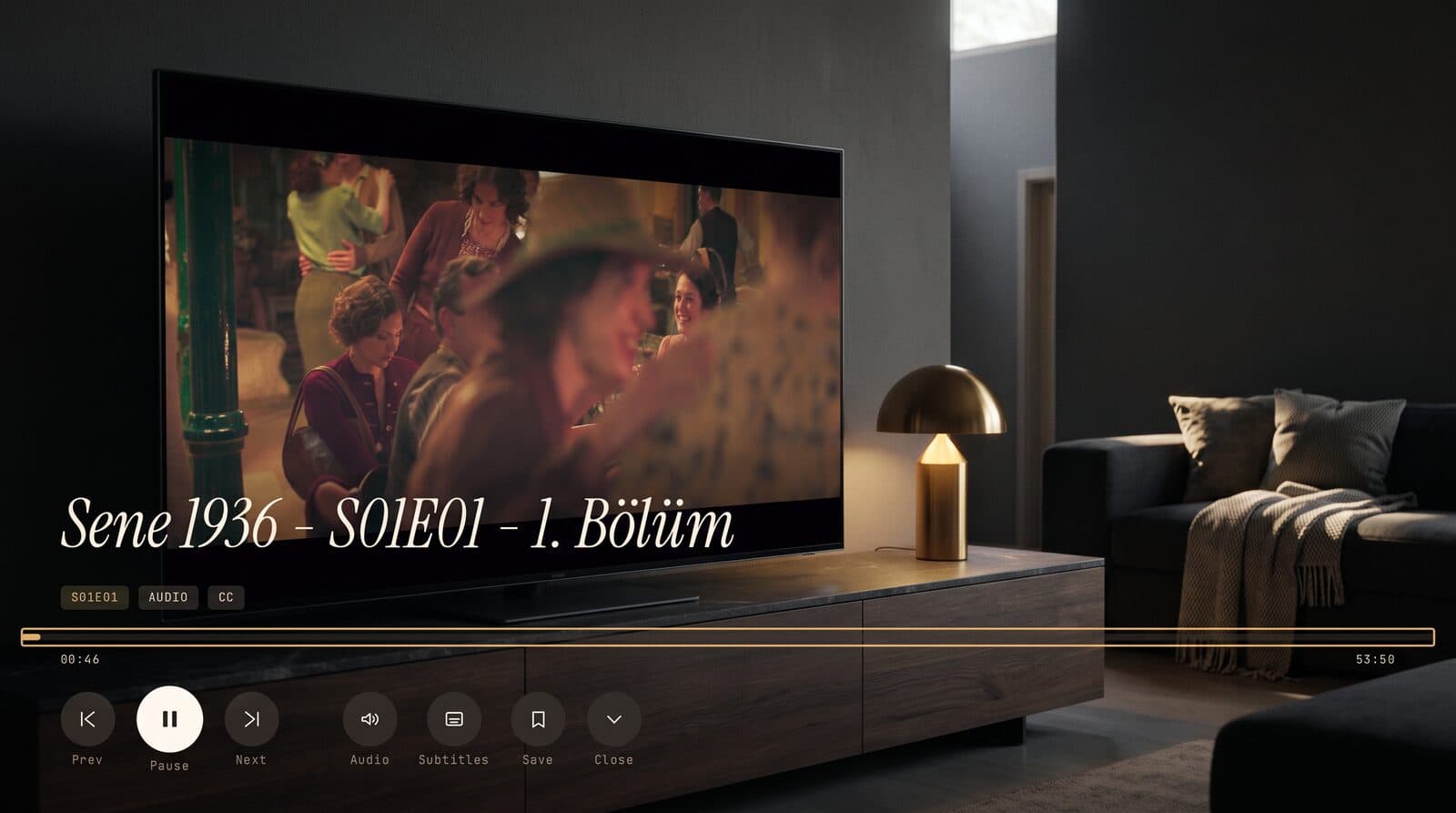
IPTV Aspect Ratio Wrong? Fix Stretched or Cropped Video
You open a channel and something is off. The presenter looks tall and thin, a football pitch is squashed into an oval, or black bars frame the picture on all four sides. If you are searching for an IPTV aspect ratio fix, the good news is that the cause is almost always one of three things: the stream itself, your TV's display settings, or the player's scaling mode. Maximus IPTV Player is a player, not a content provider, so it shows each stream the way the source describes it. This guide explains how to tell which of the three is responsible and how to fix each one.
Key Takeaways
- Aspect ratio is the width of the picture divided by its height. Modern TVs use 16:9 (about 1.78:1); older channels use 4:3 (1.33:1); cinema films are often 2.39:1.
- Black bars are normal when the shape of the video does not match the shape of the screen. They are not a bug.
- A stretched picture usually means a TV zoom or "wide" mode is on, or the stream is flagged with the wrong shape.
- A cropped picture usually means overscan, which cuts roughly 2-5% off every edge on some TVs.
- Test the same channel on a second device before changing anything. It tells you in under a minute whether the problem is the stream or your screen.
What is aspect ratio, and why does IPTV get it wrong?
Aspect ratio is simply the shape of the picture: width divided by height. A 16:9 video on a 16:9 screen fills it exactly. Put a 4:3 video on the same screen and one of two things must happen. The player can show black bars on the left and right (called pillarboxing), or it can stretch or zoom the picture to fill the space, which distorts or crops it.
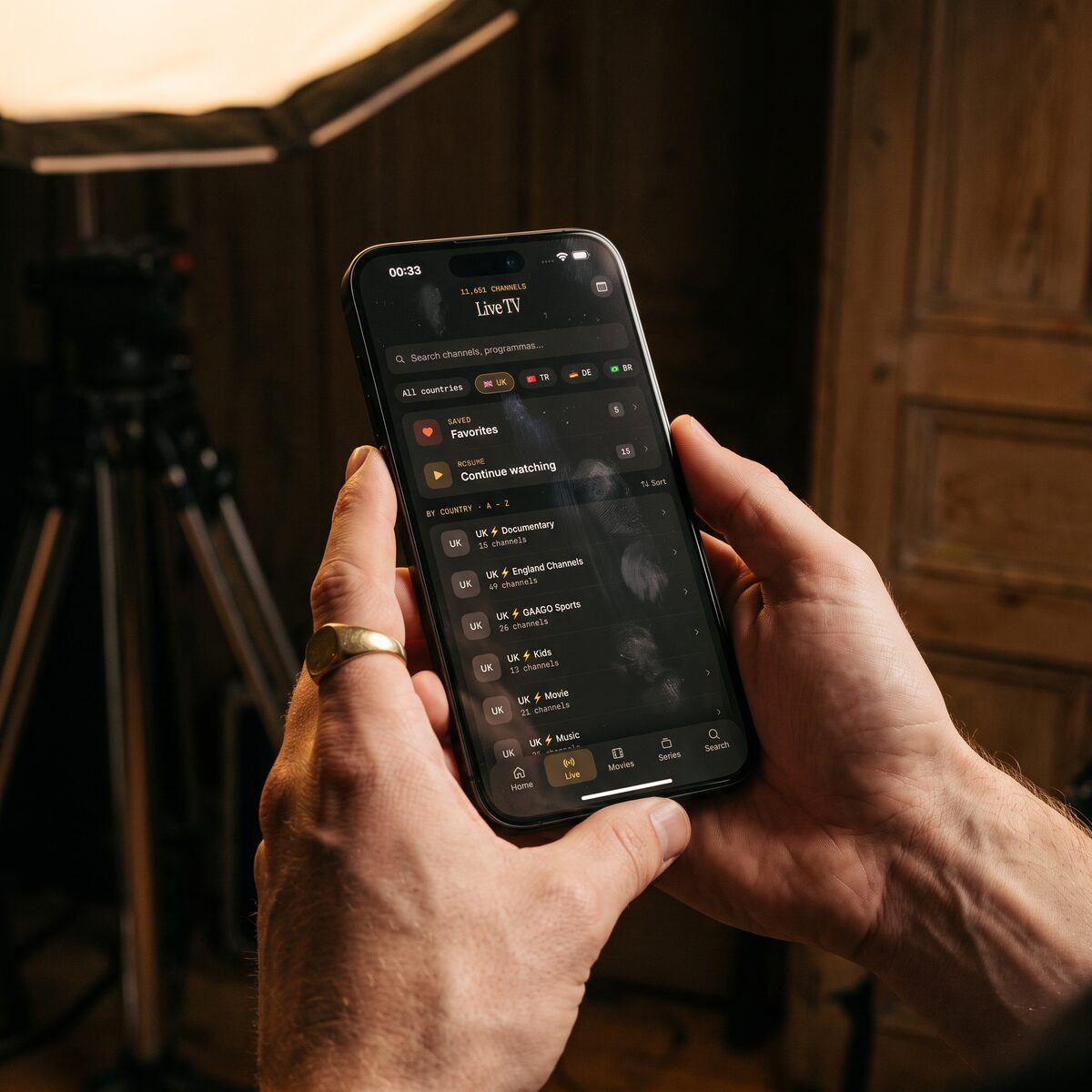
IPTV (internet protocol television, meaning TV delivered over your internet connection instead of a cable or satellite box) makes this more likely than normal TV for a simple reason: a playlist can contain thousands of channels from many different sources, and each one is encoded separately. Maximus IPTV Player's Live TV screen, for example, can list more than 11,000 channels from a single source. Some of those channels are broadcast in 16:9 widescreen, some in 4:3, and some are 4:3 content that has been stretched into a 16:9 frame by the original broadcaster. Nobody standardizes this for you.
Two technical details matter here. The first is the display aspect ratio (DAR), the shape the video is meant to be shown in. The second is the pixel aspect ratio, which says whether pixels are square. A stream can be 720 by 576 pixels, which is 1.25:1 if you count pixels, but be flagged to display as 16:9. If a player ignores the flag, you get a squeezed picture. If a device applies it twice, you get a stretched one.
Is it the stream, the TV, or the player?
This is the question worth answering first, because the fixes are completely different. Run this short test:
- Switch to a second channel from a different group. If only one channel looks wrong, the stream is the cause. Nothing on your device is broken.
- Open the same channel on another screen, for example your phone and then your TV. If it looks right on one and wrong on the other, the problem is that screen's settings.
- Open a different app or input on the same TV, such as a streaming service. If it also looks stretched or cropped, the TV is the cause, not IPTV.
Most people find the answer in the first two steps. Out of those three outcomes, a single odd channel is by far the most common, because a playlist mixes so many sources.
Why does only one channel look stretched?
When a single channel is wrong and everything else is fine, the stream is almost certainly flagged incorrectly or encoded in a non-standard way. Common causes:
- 4:3 content inside a 16:9 frame. The broadcaster put an old 4:3 programme into a widescreen channel with black bars baked into the picture. You see bars on every side, sometimes called windowboxing. No player setting can remove bars that are part of the video itself.
- A wrong flag. The stream says 16:9 but the picture is really 4:3, or the reverse. The player follows the flag and the result looks squashed or stretched.
- A repurposed lower-quality feed. Small regional channels often carry old encodes, and their shape may differ from the rest of your lineup.
You cannot fix a wrongly encoded channel from your side. What you can do is confirm it by checking the same channel in another player, then move on. If it looks identical elsewhere, the source is the cause.
Why is my whole picture cropped or zoomed?
If every channel and every app looks too big, with the edges of the screen missing, you are almost certainly seeing overscan. Overscan is an old television setting that deliberately enlarges the picture by a few percent so the edges of the broadcast signal are hidden. On many modern TVs it is still switched on by default for some inputs. Lost edges are most obvious on a live sports scoreboard or a news ticker at the bottom of the picture.
Look in your TV's picture settings for an option named something like Picture size, Aspect ratio, Screen fit, Just Scan, or Full Pixel. The setting you want shows the whole image with no cropping. Names differ between brands, so check the manual if you cannot find it. This is a TV setting and applies to everything you watch, not just IPTV.
On Android TV and Google TV, the system also has its own display options. Maximus IPTV Player runs natively on Android TV with a layout built for the remote, but the device's output resolution and any overscan or screen-size adjustments still come from the system settings. If a menu looks cut off at the edges, check the Display section of the device settings first.
Why do I see black bars on my phone or tablet?
Phones are not 16:9. Many current phones have a taller screen, closer to 19.5:9, and tablets are often closer to 4:3. That means a normal 16:9 channel will show black bars when the picture is shown at its true shape: bars on the top and bottom on a tablet, or on the left and right of a phone held sideways, because the screen is narrower or taller than the video.
This is correct behaviour, and it protects the picture from distortion. A player that fills the whole screen without any bars has to either crop the sides or stretch the video. Cropping can cut off faces, a scoreboard, or subtitles, so showing bars is usually the better default.
On iPhone and iPad, rotating the device to landscape gives the biggest picture. A tablet in landscape has bars on the sides for 16:9 content, and these are smaller than the phone's. The recommendation is the same everywhere: if you want the largest image without distortion, use landscape and accept thin bars.
How do I fix a stretched picture on my TV?
If both the live channels and other apps look too wide or too tall, work through these steps in order:
- Open the TV's picture settings and find the aspect ratio or picture size option.
- Switch it from a mode like Zoom, Wide, Stretch or Cinema to 16:9, Original, or Auto.
- If you use a streaming box or a smart-TV stick, also check its own display settings; some have a separate screen-size or overscan adjustment.
- Restart the stream and compare the same channel again.
A useful trick is to pick a channel with a news presenter or a sports pitch. Faces and circles reveal distortion immediately: a stretched picture makes faces wide and the centre circle of a football pitch look like an oval. A correctly set picture makes them look natural.
If a movie shows bars at the top and bottom on a 16:9 TV, that is normal. Many films are shot at 2.39:1, which is wider than 16:9, so a standard TV adds bars to keep the shape intact. Forcing it to fill the screen cuts off the sides.
What about AirPlay and Chromecast on iPhone and iPad?
If you send playback from an iPhone or iPad to a bigger screen with AirPlay (Apple's wireless streaming) or Chromecast (Google's casting protocol, also called Google Cast), the receiving device decides how to display the picture. Maximus IPTV Player supports AirPlay and Chromecast from iPhone and iPad. On Android, the app does not cast, so an Android phone does not play a part in this section.
If the cast picture looks wrong while the same channel looks fine on your phone, the receiving TV or box is applying its own scaling. Fix it with the TV's picture settings described above, not in the player. If it still looks wrong, try the other casting method or play the stream directly on the TV using an Android TV or Google TV, where the app runs natively.
Can resolution cause a "wrong shape" picture too?
Sometimes. A channel at 720 by 576 (standard definition) is shown on a 1920 by 1080 TV screen, a scale-up of roughly 2 to 3 times in each direction. The TV or player has to guess how to fill the frame, and a few older sources do not describe their shape accurately. Higher resolutions, such as 1280 by 720 or 1920 by 1080, are always 16:9 and are far less likely to have this problem. When a channel is offered in both standard and HD versions, the HD one usually has the correct shape.
Maximus IPTV Player plays 4K, HD and SD streams as your device and the stream allow, so choosing the HD variant of a channel is a quick check when one version looks off.
Quick reference: symptoms and fixes
- Only one channel looks wrong — the stream is flagged wrongly or has bars baked in. Compare in another player, then move on.
- Every app looks cropped — overscan on the TV. Change the picture size to Just Scan, Full Pixel or Original.
- Everything looks stretched — the TV is in Zoom, Wide or Stretch mode. Set it to 16:9 or Auto.
- Bars on phone or tablet — normal. Rotate to landscape for the biggest picture.
- Wrong only when casting — the receiving device scales the picture. Adjust the TV or box.
- Standard-definition channel looks soft and odd — try the HD version of the same channel if your source provides one.
Frequently asked questions
Why are there black bars on every side of the picture?
That is windowboxing. The broadcaster placed a 4:3 programme inside a widescreen frame, so the bars are part of the video itself. No setting can remove them without cropping the picture.
Is there one aspect ratio setting that fixes everything?
No. The correct setting depends on what you watch. For most TVs, 16:9 or Auto with overscan switched off is the right default, and you should leave it there.
Can a VPN change the aspect ratio?
No. A VPN (virtual private network) only changes how your traffic travels. It does not change the shape of the video.
Does a better internet connection fix a stretched picture?
No. Speed affects smoothness and sharpness, not shape. If the picture is stretched, look at the channel and the screen settings instead.
Which devices does Maximus IPTV Player run on?
It runs on iPhone and iPad, on Macs with Apple silicon and on Apple Vision from the App Store, and on Android phones, tablets and Android TV or Google TV from Google Play. There is no Apple TV app; Apple TV is reachable by AirPlay from an iPhone or iPad.
The short version
Start by finding out whether the problem follows the channel, the screen, or the app. One odd channel means the source; every app on one TV means the TV; bars on a phone are normal. Once you know which it is, the fix takes a minute.
If you want a player that handles Xtream Codes logins and M3U/M3U8 playlists, shows a real EPG timeline, and runs on both iPhone and Android, you can get Maximus IPTV Player on the Apple App Store for iPhone and iPad, or on Google Play for Android phones, tablets and Android TV. It is free to download, with an optional premium subscription.
Written by
Maximus IPTV Team