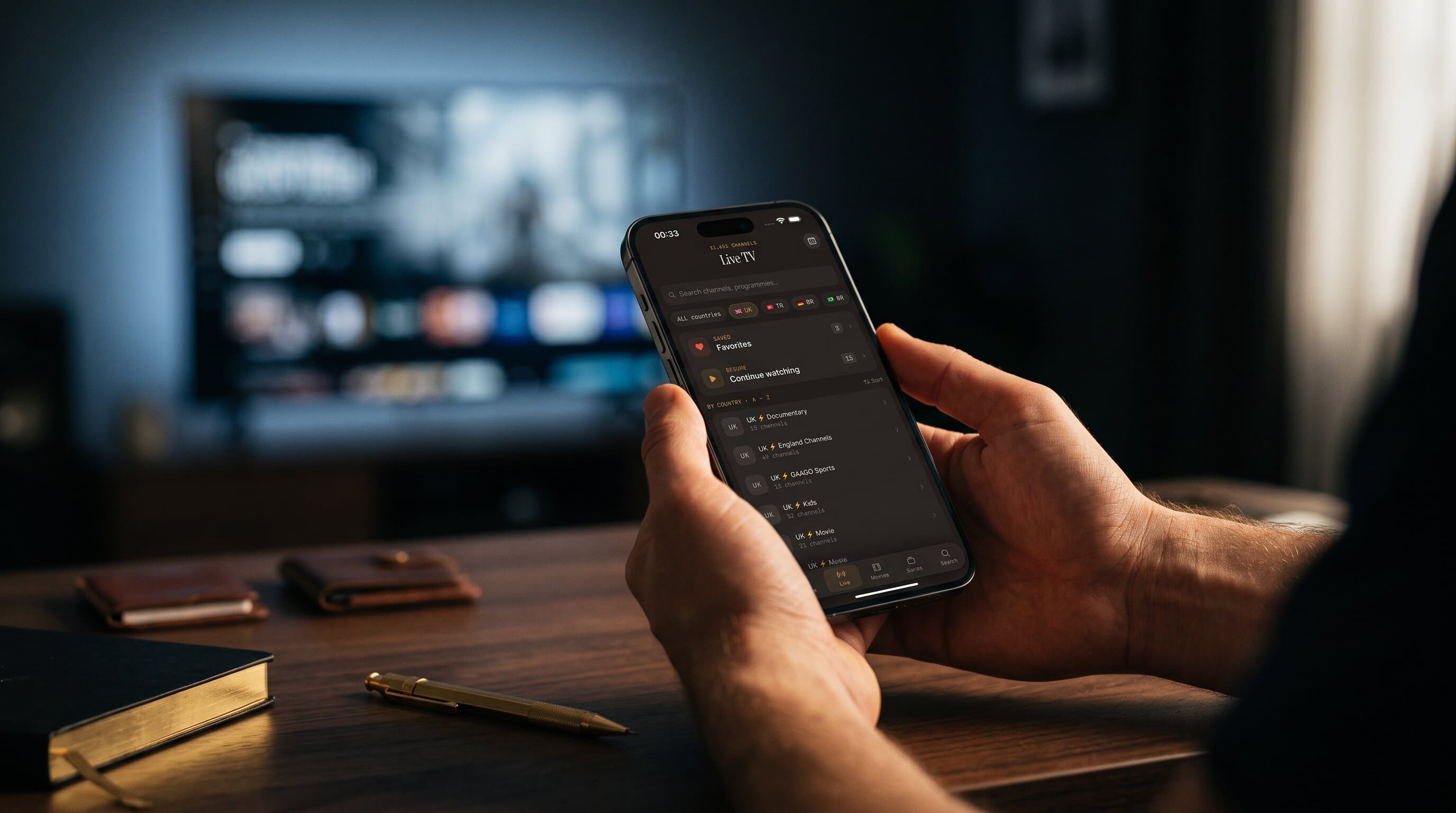
H.264 vs HEVC in IPTV: What the Codec Means for You
Your IPTV stream looks fine on one device and stutters on another, or your provider mentions "HEVC" and you have no idea whether that is good news. The culprit is usually the codec. This guide explains H.264 vs HEVC in plain language, and how a player like Maximus IPTV Player fits into the picture.
Key Takeaways
- A codec is the method used to shrink video so it can travel over the internet and then be unpacked on your device.
- H.264 (also called AVC) is the old workhorse: nearly every phone, tablet and TV from the last decade can decode it.
- HEVC (also called H.265) can deliver a similar picture at roughly half the bitrate, which matters most for 4K.
- Whether a stream plays smoothly depends on your device's hardware decoder, not just your internet speed.
- Your player does not choose the codec. Your playlist's stream decides it. A good player simply plays what the stream and your device allow.
What is a video codec, and why does IPTV care?
Raw video is enormous. One minute of uncompressed 1080p footage at 30 frames per second runs to well over 10 gigabytes. No home connection could carry that, so every IPTV stream is compressed with a codec (short for coder-decoder): the sender squeezes the video, and your device unpacks it.
That squeezing is measured by bitrate, the amount of data used per second of video, usually in megabits per second (Mbps). Lower bitrate means less data and less buffering risk, but also less detail if the codec is not clever enough. A better codec gets a nicer picture out of the same bitrate.
IPTV streams usually arrive over HLS (HTTP Live Streaming, a method that cuts video into small chunks delivered over ordinary web connections) or as a raw transport stream. Either way, the video inside is encoded with a codec, and the two you will meet most are H.264 and HEVC.

H.264 vs HEVC: what is the actual difference?
H.264 arrived in 2003 and became the default for streaming, Blu-ray and video calls. A typical 1080p H.264 stream sits around 4 to 8 Mbps. A 4K H.264 stream needs far more, often 25 Mbps or higher, which is why 4K over H.264 is rare.
HEVC, standardized in 2013, uses smarter prediction and larger processing blocks. In practice it can match H.264 quality at about 40 to 50 percent less bitrate. A 4K HEVC stream commonly runs at 15 to 25 Mbps, which is far more realistic for a home connection.
The trade-off is effort. HEVC is much harder to decode. A device without a dedicated hardware decoder has to do the work in software, and that is where problems begin.
- H.264 / AVC — Best for: maximum compatibility, 1080p and below. Cost: more data at high resolutions.
- HEVC / H.265 — Best for: 4K and efficient HD. Cost: needs a capable decoder.
- Older MPEG-2 — Still found on some legacy channels. Efficient decoding but very heavy on bandwidth.
Why does one stream stutter on one device but not another?
The same channel can behave very differently across your gadgets. Three things decide it.
1. Hardware decoding. Modern iPhones and iPads, recent Android phones and current Android TV or Google TV boxes include chips that decode HEVC in hardware, using very little battery. Older or budget devices may lack it. When hardware decoding is missing, the processor struggles, frames drop and you see stutter even on a fast connection.
2. Heat and battery. Software decoding of a 4K stream can warm a device within minutes and drain a phone battery noticeably faster. If a phone gets hot during a match, the codec is a likely suspect.
3. Bitrate versus your connection. A 4K HEVC stream at 20 Mbps needs a connection with comfortable headroom above that. If your real-world throughput on Wi-Fi is 25 Mbps, you are on the edge, and any dip causes buffering. Moving closer to the router or switching to a wired connection helps far more than any app setting.
How can you tell which codec a stream uses?
Your player will not always show it, but there are practical clues.
- Ask your provider. The simplest route is to check the provider's documentation, which often lists codec and resolution per channel group.
- Look at the channel name. Many playlists label groups with tags such as "4K", "UHD", "HD", "SD" or "HEVC". Treat these as hints, not guarantees.
- Compare behavior. If the same channel group exists in HD and 4K versions and only the 4K one stutters on a particular device, the heavier codec or bitrate is the likely cause.
- Check the file or stream URL. An M3U playlist (a plain text list of stream links) rarely states the codec, so do not expect to find it there.
Where does Maximus IPTV Player fit in?
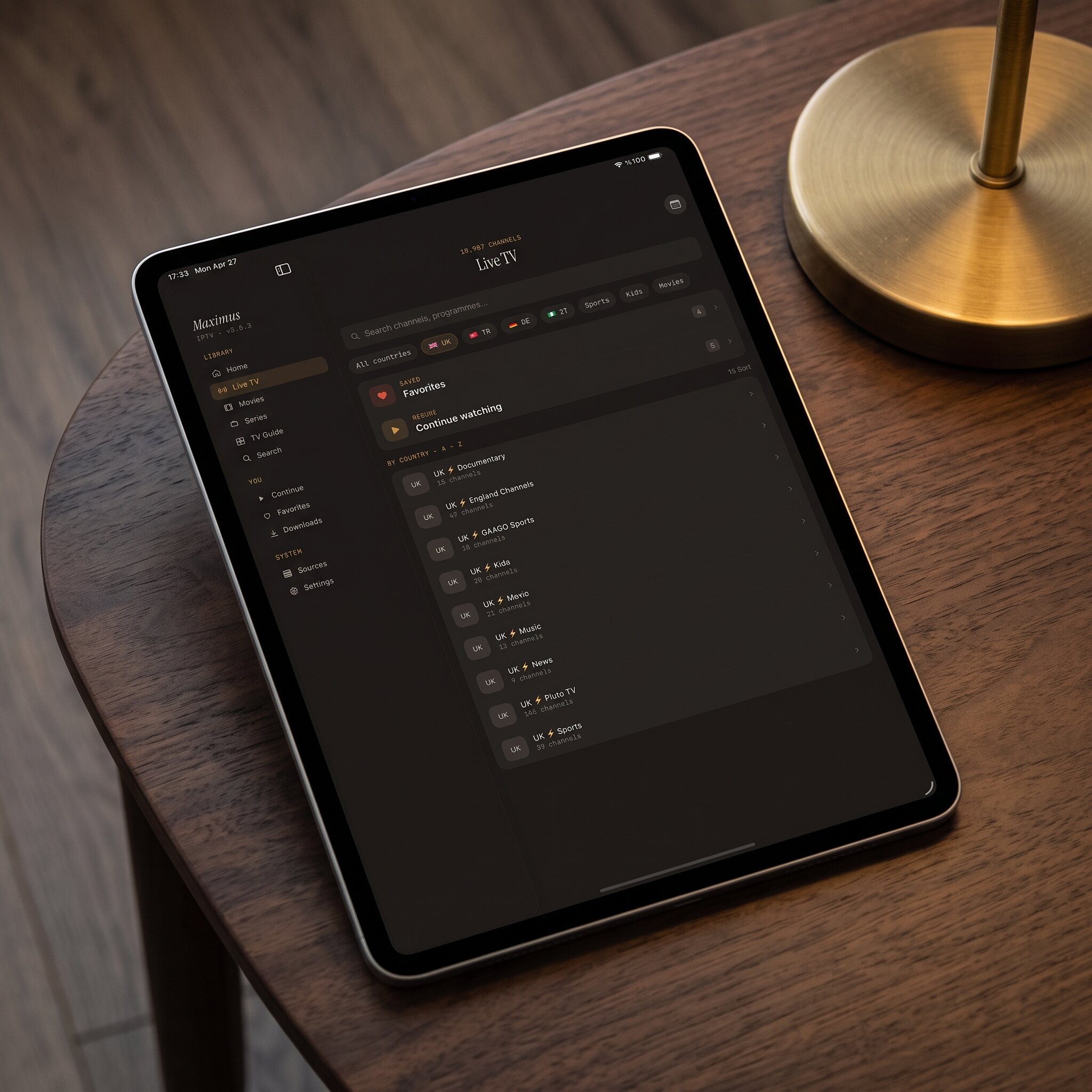
Maximus IPTV Player is a player, not a content provider. You add your own legal source, either an Xtream Codes login (a username-and-password style account format many providers use) or an M3U or M3U8 playlist, and the app organizes and plays it. The codec is baked into the stream your provider sends.
What the app does give you is a consistent way to test and compare. Because Maximus IPTV Player runs on iPhone and iPad as well as Android phones, tablets and Android TV / Google TV, you can try the same channel on more than one device and see whether the problem follows the stream or the hardware. Playback goes up to 4K, HD or SD as the stream and your device allow, and the app has no ads and no tracking, so nothing extra competes for resources while you watch.
If you add more than one source, you can also keep an HD version and a 4K version of a channel side by side and pick whichever your current device and connection handle best.
Which codec should you pick when you have a choice?
Some providers offer the same channel in more than one format. Here is a simple decision guide.
- Older phone, tablet or TV box? Choose the H.264 version. Compatibility beats efficiency.
- New iPhone, iPad or current Android TV device, strong Wi-Fi? HEVC at 4K is worth trying. The hardware handles it and the lower bitrate is kind to your connection.
- Mobile data? HEVC at HD is the efficient choice, since it uses less data for similar quality. For a rough idea of the numbers, one hour of 1080p H.264 at 6 Mbps uses about 2.7 GB, while HEVC at 3 Mbps for similar quality uses roughly 1.35 GB.
- Live sports with fast motion? Prefer a higher bitrate over a smaller file. Fast action is where heavy compression shows blockiness first.
Quick fixes when playback is choppy
Before blaming the app or the provider, run through this short list.
- Close other apps that use the network or heavy processing.
- Let the device cool down if it feels hot, then try again.
- Move closer to the router, or use a wired connection where the device allows it.
- Try the HD or H.264 version of the same channel if one exists.
- Test the same channel on a second device to see whether the stream or the hardware is responsible.
- Restart the app, then the device, before changing anything in your playlist.
FAQ
Is HEVC always better than H.264? No. HEVC is more efficient, but only when your device can decode it comfortably. On a weak device, a lighter H.264 stream will play more smoothly.
Does a faster internet plan fix codec problems? Not if the cause is the decoder. Bandwidth fixes buffering, but it cannot make a device without HEVC hardware decode faster.
What is the difference between HEVC and H.265? Nothing. They are two names for the same standard.
Does Maximus IPTV Player change the codec of my stream? No. It plays the stream your source sends, within what your device can decode.
Is 4K worth it? On a 4K TV with a strong connection, yes. On a phone screen, HD often looks almost identical and uses far less data.
Conclusion
Codecs sound technical, but the rule is simple: H.264 is the safe, compatible choice and HEVC is the efficient one for modern hardware. If a stream struggles, test it on a second device before changing anything else. You can download Maximus IPTV Player free from the Apple App Store for iPhone and iPad, or from Google Play for Android phones, tablets and Android TV, and compare your own legal sources on whichever screens you own.
Written by
Maximus IPTV Team