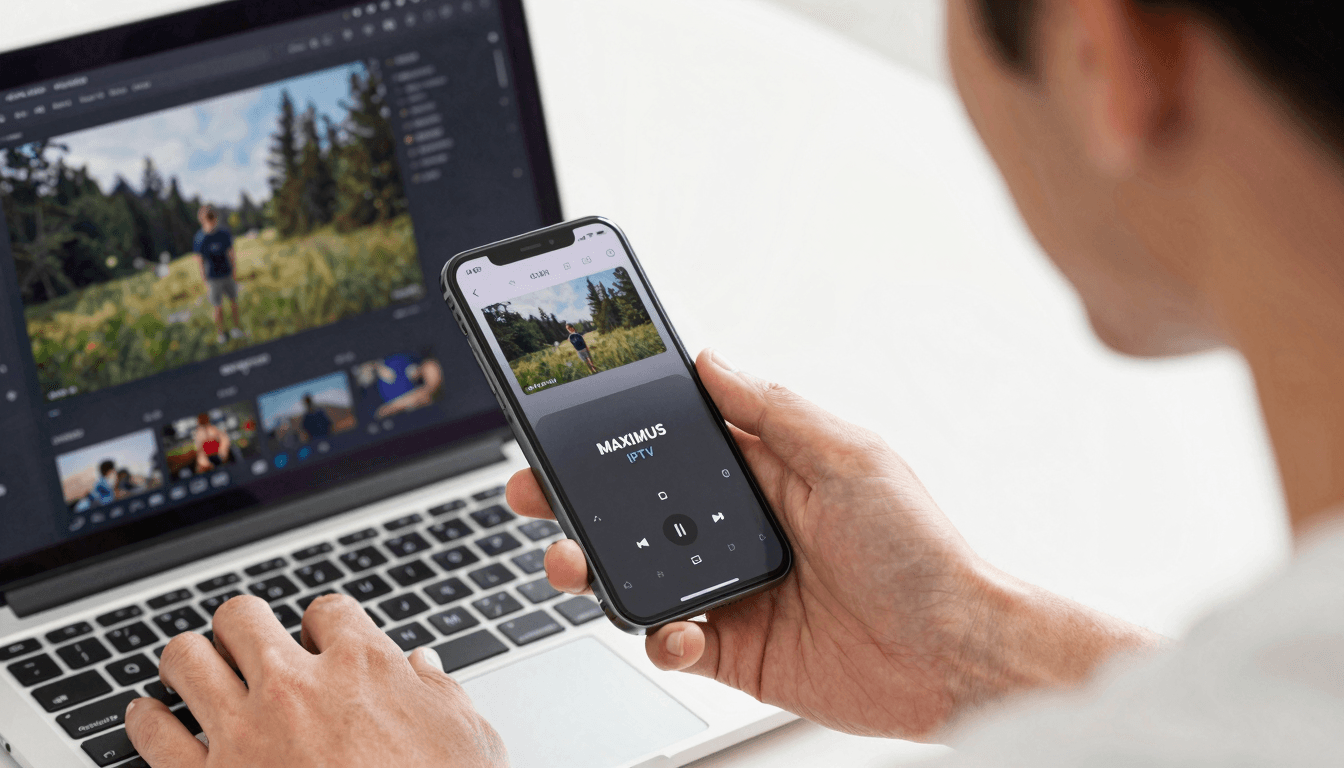
Enhance Your Mobile Experience with Picture-in-Picture IPTV
Ever found yourself torn between catching up on your favorite live TV show and replying to an urgent email on your iPhone? With Maximus IPTV Player, you don’t have to choose. Thanks to the innovative Picture-in-Picture (PiP) mode on iOS, you can do both simultaneously, without missing a beat.
Key Takeaways
- Stream and Multitask: Watch live IPTV while using any app on your iPhone.
- Seamless Integration: Easy activation of PiP for a smooth viewing experience.
- Full Control: Adjust the viewing window size to fit your multitasking needs.
How Does Picture-in-Picture Enhance IPTV Streaming on iOS?
Picture-in-Picture (PiP) mode is not just a convenient feature; it’s a multitasking marvel. When you activate PiP on Maximus IPTV Player, your show shrinks to a small, movable video window while you use other apps. This innovation means you can watch football games, fresh episodes, or live news without pausing, all while you text, browse, or work.
What Makes Maximus IPTV Player Ideal for PiP Usage on iPhones?
Maximus IPTV Player optimizes the PiP experience by ensuring that not only is activation just a tap away, but also that you encounter minimal disruption during your multitasking. It supports full M3U/M3U8 playlist formats, making it easy to start almost any stream rapidly, especially crucial when you’re juggling tasks.

How Can You Set Up IPTV Streaming with PiP on Your iPhone?
Setting up PiP streaming with Maximus IPTV Player involves a few simple steps:
- Open the app and start your preferred channel.
- Swipe up from the bottom of the screen (or use the Home button on older models) to minimize the app.
- Your video will automatically continue in a small window, which you can move or resize.
What Are Some Pro Tips for Maximizing the PiP Experience?
- Resize Effectively: Adjust your PiP window to a small corner of your screen to maximize workspace.
- Interact With Ease: Use normal touch gestures to control the PiP window’s position and size.
- Quick Return: Double-tap the PiP window to jump back to full-screen mode in Maximus IPTV Player.

Frequently Asked Questions
How do I activate PiP on my iPhone?
To activate PiP, start playing a video in Maximus IPTV Player, then press the Home button or use the Home gesture. The video will scale down to a corner of your screen.
Can I use other apps while watching IPTV in PiP mode?
Absolutely! PiP mode is designed for watching video while fully interacting with any other app on your iPhone.
Is there a way to customize the PiP window size?
Yes, simply use your fingers to resize the PiP window or drag it to different parts of your screen for optimal viewing.
As you can see, integrating Maximus IPTV Player with PiP on iOS enhances not just your viewing but your entire iPhone experience. Why choose between productivity and entertainment when you can have both? Download Maximus IPTV Player today from the App Store and transform how you consume TV and multitask on your mobile device.
Written by
Maximus IPTV Team